



Family library: find, download and approve Revit families
17 views · by Kevin J Bruno · updated 1 day ago
The Family library is the firm's approved collection of Revit families (.rfa) and BIMeta Datum components (.aecxc): doors, windows, furniture, casework, fixtures, equipment, title blocks, annotation and more. Staff search it and download the current approved version of a family, so everyone models with the same, checked content instead of files copied from old projects. BIM Managers add families, upload new versions and approve each other's uploads. Every version has to be approved by someone other than the person who uploaded it before staff can see it.
Where to find it
- Sidebar → Firm → Family library (under the BIM heading of the Firm group).
- Jump to… (Ctrl K): type
family. - From the Script library, the Family library link next to the page title.
- The page has two links next to its title: Detail library (the firm's drafting details, filed by discipline, which works the same way) and Standards library.
Who can use it
- Everyone on staff can search the library and download the current approved version of each family. Families that have no approved version yet are hidden from them.
- Adding families, uploading new versions and setting a family's specification section: people who manage BIM content. By default Business Owners, Admins and BIM Managers. They see the Add a family button, every version (including those waiting for approval) and the New version upload.
- Approving versions: people who approve BIM deployments. By default Business Owners, Admins, BIM Managers and IT Staff. Nobody can approve a version they uploaded themselves.
- The Standards library link opens the standards page of the BIM Manager panel (Sidebar → Admin → BIM Manager), which is only for people with access to that panel; others will be refused if they click it.
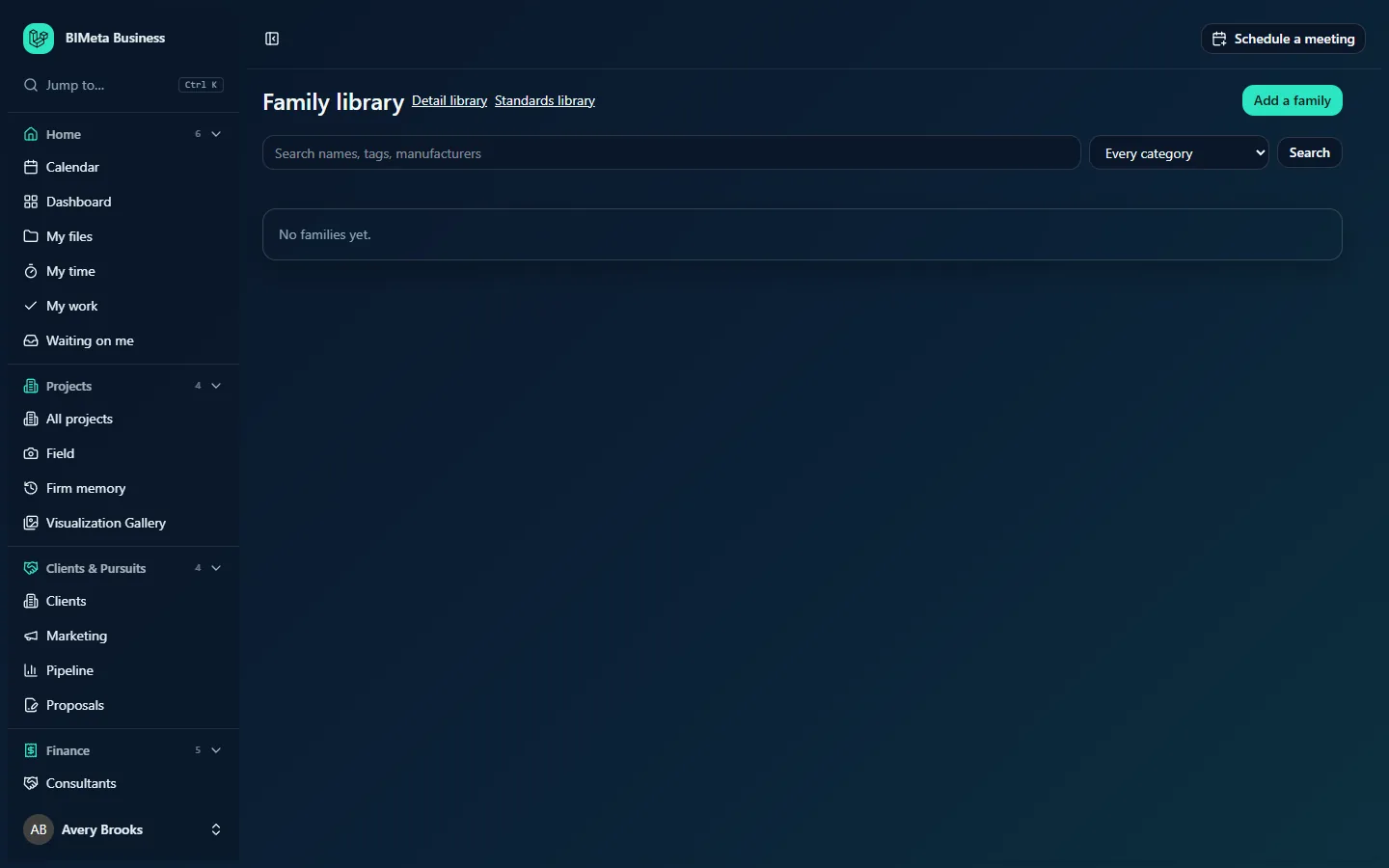
The screenshot shows a Business Owner's view of an empty library, with Add a family at the top right. A User sees the same page without that button.
A tour of the page
Search bar
- Search names, tags, manufacturers: finds families whose name, tags, manufacturer or description contain what you type.
- Every category: narrows to one category: Doors, Windows, Furniture, Casework, Plumbing fixtures, Lighting fixtures, Mechanical equipment, Electrical equipment, Structural framing, Structural columns, Generic models, Specialty equipment, Site, Title blocks, Annotation, Detail items, Profiles or Other.
- Search: runs the search.
Family cards
Families are listed by category, then by name (up to 500). Each card shows:
- The name (for example BIM_Door_Single-Flush), with the category and manufacturer underneath.
- The specification section: Spec 08 71 00 for staff, or for content managers a small Spec box with a Save button to set or change it.
- Download v3 (for example): downloads the current version, which is the newest approved one. If no version has been approved yet, content managers and approvers see Waiting for approval instead.
- The description, and the tags as buttons; clicking a tag searches for it.
- Used in and a list of projects whose synced models contain a family with this name, or Not seen in a synced model yet. This comes from the family names the BIMeta Revit add-in reports when models are synced.
- For content managers and approvers, the version list: each version's number (v1, v2…), the Revit year it was saved in, file size and who uploaded it, then Approved, an Approve button (for approvers who didn't upload it) or Waiting for approval.
- For content managers, New version: upload a newer file of the same family.
If the library is empty you'll see No families yet.; if a search finds nothing, Nothing matches.
How to…
Find and download a family
- Type a word in the search box (for example
fire rated), optionally pick a category, and click Search. - On the family's card, click Download v…. The file downloads with the family's name.
- Load it into your Revit project as usual.
Add a family (content managers)
- Click Add a family.
- Fill in the form:
- Name (required): up to 160 characters, for example BIM_Door_Single-Flush. It must not match a family already in the library. Use the exact family name as it appears in Revit so Used in can match it to models.
- Category (required): one of the categories listed above.
- Manufacturer (optional): up to 120 characters.
- Tags, separated by commas: up to 300 characters, for example interior, fire rated.
- Saved in Revit: the Revit year the file was saved in (2022 to 2027), or Not a Revit file for a Datum component.
- Spec section (optional): the MasterFormat number the product belongs to, written like
08 71 00. - Description (optional): up to 1,000 characters on what it is and how to use it.
- Family file (.rfa or Datum .aecxc) (required): up to 200 MB.
- Click Add family. You'll see Family added. Someone else approves it before staff see it. The family is created with version 1, waiting for approval.
Upload a new version (content managers)
- On the family's card, use New version: choose the file and set Saved in Revit (or Not a Revit file).
- Click Upload. The new version waits for approval; staff keep downloading the previous approved version until it's approved.
Approve a version (approvers)
- Find the family and look at its version list.
- Download the waiting version, check it in Revit, then click Approve.
- You'll see Approved. Staff see this version now. It becomes the current version and the download button updates.
Set a family's specification section (content managers)
Type the number in the card's Spec box (for example 08 71 00) and click Save. Clear the box and save to remove it.
Tips and good to know
- Two-person rule: the uploader can never approve their own version. A firm with one BIM Manager needs another approver, such as an IT Staff member, Admin or Business Owner.
- Files are checked when uploaded: a
.rfamust really be a Revit file and a.aecxca Datum component package. Renamed files of the wrong type are refused. - Specification sections link the library to Firm → Specifications and to each project's Specs tab, which checks the products placed in the project's models against its specification. Keep the numbers consistent.
- BIMeta's Revit add-in can browse the approved library directly, so approved families are what modellers see there too.
- Adding families, uploading and approving versions, changing spec sections and every download are recorded in the audit log.
Troubleshooting
I uploaded a family but staff can't see it.
Staff see a family only once a version is approved. Ask another approver to approve it.
I get "A family with that name is already in the library."
Upload the file as a New version of the existing family instead.
Why is there no Approve button on my upload?
You uploaded it, so someone else has to approve it.
I get "That file isn't a Revit family."
The file is damaged or isn't a real .rfa. Save it again from Revit's family editor and re-upload.
Was this article helpful?
Share