



Expenses: claim, approve and bill expenses
17 views · by Kevin J Bruno · updated 1 day ago
The Expenses page is where you claim money you spent for the firm, such as mileage, plotting, courier fees or a permit fee, and follow each claim until it's approved. Approvers use the same page to approve claims or send them back. Approved claims tell your firm what to reimburse, and the ones marked billable are passed on to the client on the project's next invoice, with a markup.
Where to find it
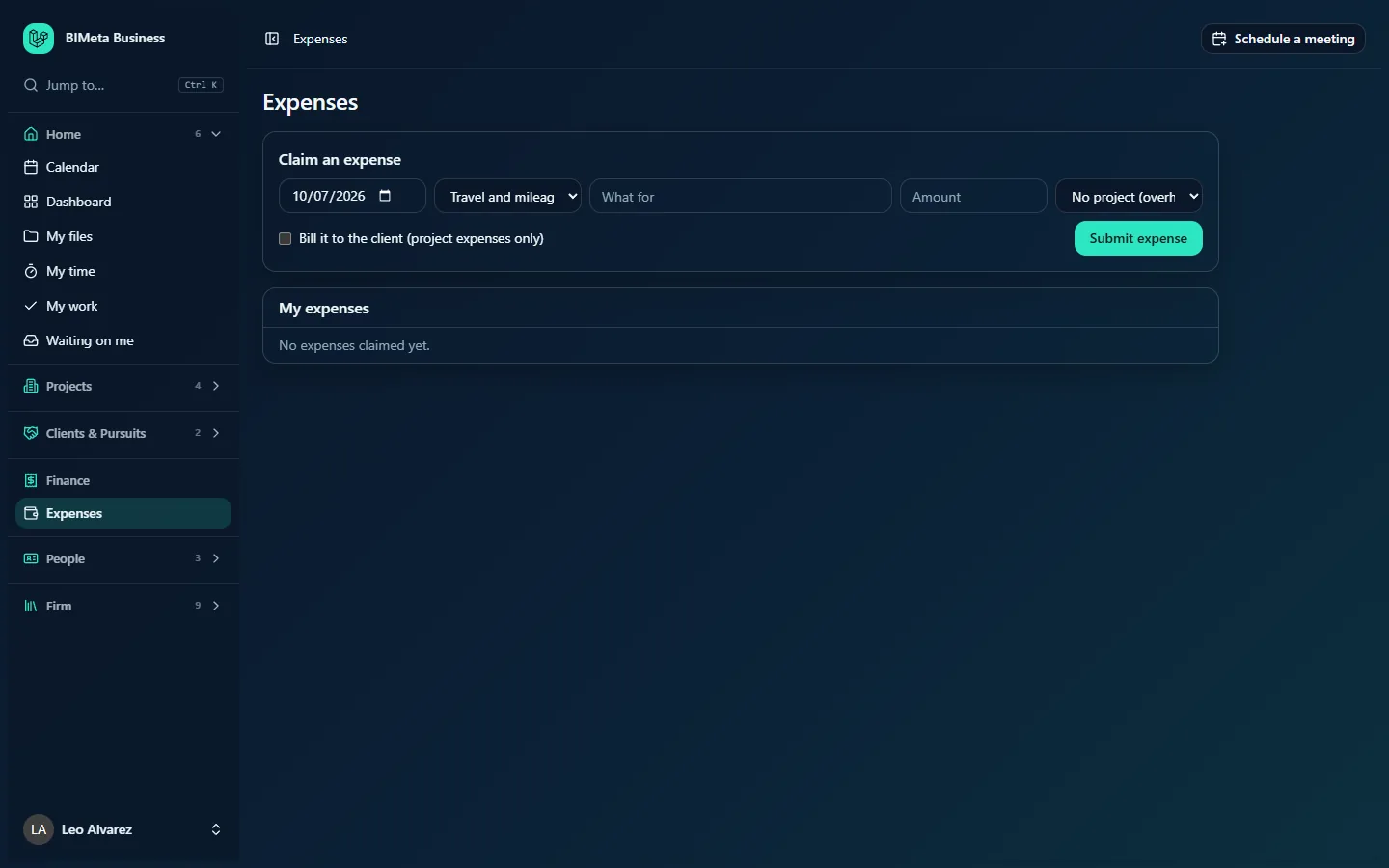
- Sidebar → Finance → Expenses. For most staff it's the only item in their Finance group.
- Jump to… (Ctrl K): type expenses, receipts or reimbursement.
Who can use it
- Everyone with the "claim your own expenses" permission: by default every staff role (Business Owner, Admin, IT Staff, BIM Manager, Project Manager, Human Resources and User). You see Claim an expense and My expenses, and only your own claims.
- Approvers: Business Owner, Admin, Project Manager, IT Staff and BIM Manager also see Waiting for your approval when anyone else has a claim waiting. Approvers see waiting claims from the whole firm, not just their projects.
- Nobody approves their own expenses. Your own claims never appear in your approval list.
- Client / Consultant accounts can't claim expenses.
A User, such as Leo Alvarez, sees the same page; Expenses is the only Finance item in his sidebar:
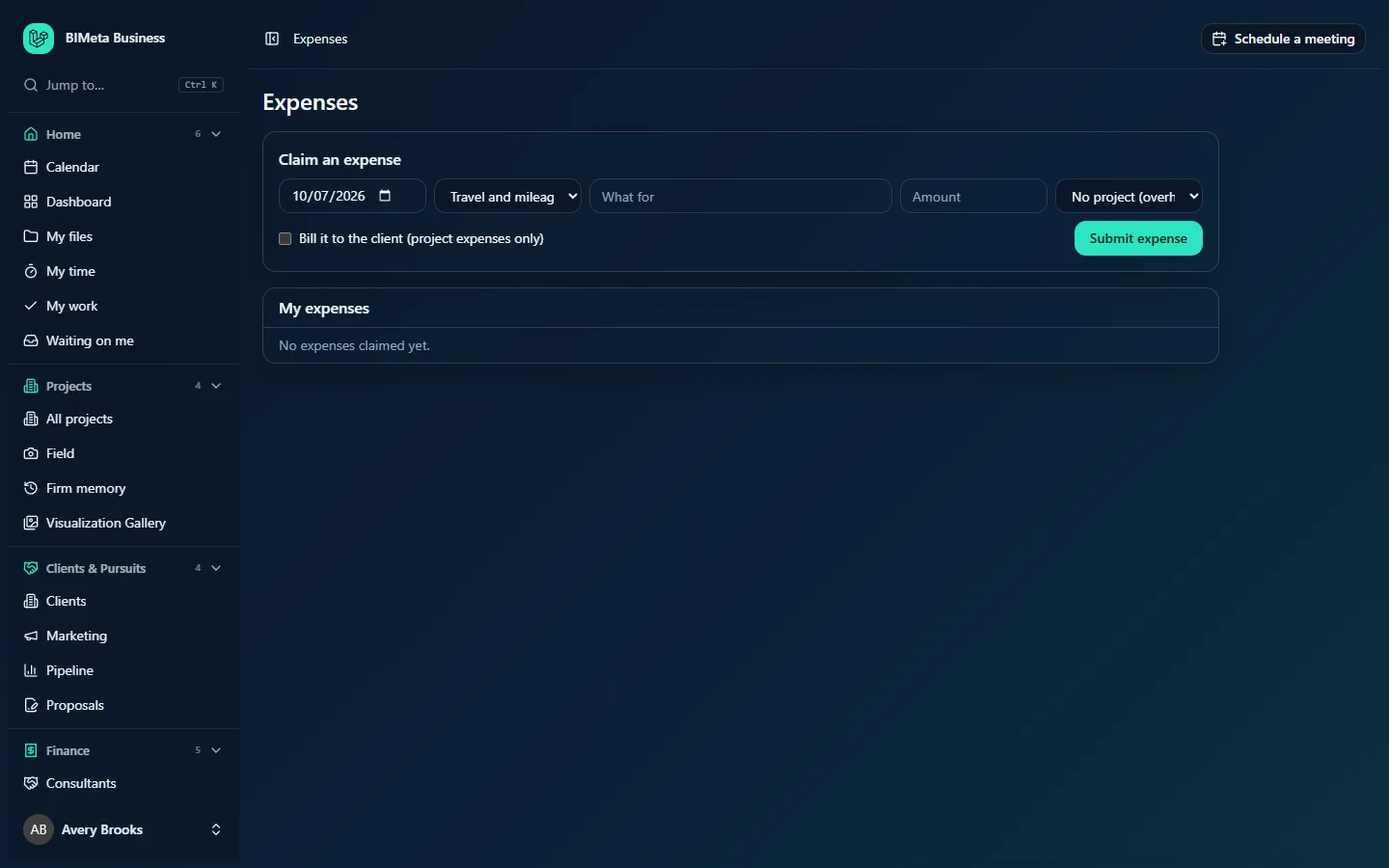
A tour of the page
Claim an expense
| Field | What it means |
|---|---|
| Date | Required. The day you spent the money. Today by default; it can't be in the future. |
| Category | Required. Travel and mileage (default), Printing and plotting, Courier and shipping, Permit and filing fees, Meals, Software or Other. |
| What for | Required, up to 300 characters, e.g. Site visit to Riverbend Clinic, 84 miles round trip. If billable, this text appears on the client's invoice, so write it for the client. |
| Amount | Required. Above zero and up to 100,000.00; commas are fine (1,250.00). Enter the amount you're claiming, e.g. for mileage the miles × your firm's mileage rate. |
| Project | Optional. No project (overhead) by default, or one of the active projects you can see. Charging it to a project puts it against that project's costs. |
| Bill it to the client (project expenses only) | Tick to have the expense passed on to the project's client. Ignored if no project is chosen. |
| Submit expense | Sends the claim for approval. |
Waiting for your approval (approvers only)
Shown only when someone else has a claim waiting. Oldest spending date first, each line reads person · date · category · what for · amount · project number, with a Billable badge if the claimant asked for it to be billed. Under each line:
- Markup (%) box (billable claims only): the markup added when it's billed to the client, 10 by default, 0 to 100.
- Approve.
- Why box (required to send back, up to 300 characters) and Send back.
My expenses
Your own claims, most recent spending date first (up to 200). Each line shows date · category · what for · project number, the amount, and a status badge:
- Waiting for approval: submitted, not yet decided.
- Approved: accepted; it can be reimbursed and, if billable, billed to the client.
- Sent back (red): not accepted. The approver's reason appears in red under the description.
With no claims yet, it says No expenses claimed yet.
How to …
Claim an expense
- Set the Date you spent the money and pick a Category.
- Describe it in What for and enter the Amount.
- If it was for a project, choose the Project. Tick Bill it to the client if your contract lets you recharge it (for example reimbursable printing or travel).
- Click Submit expense. You see Expense submitted and the claim appears under My expenses as Waiting for approval.
- Keep your receipt and hand it in the way your firm asks; there's no receipt upload on this page.
Approve a claim
- Under Waiting for your approval, check the person, date, description, amount and project.
- For a Billable claim, set the Markup (%) to charge the client (10 by default; enter 0 to bill it at cost).
- Click Approve. You see Expense approved.
The claim shows as Approved for the claimant. If it's billable, it's now a project reimbursable and goes onto the project's next invoice that includes reimbursables, at amount × (1 + markup), e.g. a $120.00 plotting bill with 10% markup bills $132.00, as a line like Expense 2026-09-14: Plotting for client review.
Send a claim back
- Type the reason in Why, e.g. Please split the meal and the parking into two claims. It's required.
- Click Send back. You see Expense sent back.
- The claimant sees Sent back and your reason in red. A sent-back claim can't be edited or resubmitted; they submit a new, corrected claim.
The expense flow end to end
- Claim: the person submits it here.
- Approve or send back: an approver decides it here. Each claim is decided once.
- Reimburse: paying the person back happens outside BIMeta, for example through payroll or your accounting system. BIMeta doesn't record reimbursement payments; the approved claims are your list of what to pay.
- Bill the client (billable project claims only): the expense passes through to the client on the project's next invoice made with Invoice phase progress, Invoice approved hours or Invoice reimbursables only, or by a recurring schedule or phase billing rule set to add reimbursables. It's billed once; if that invoice is voided, it becomes billable again.
- Report: approved expenses count as project costs in the firm's reports (for example the income report, by the month they were spent).
Tips and good to know
- Claims can't be edited or deleted after you submit them. Check the amount and project before clicking Submit expense; if something's wrong, ask an approver to send it back and submit a new one.
- You can only charge expenses to projects you can see. Only active projects are listed.
- Ticking Bill it to the client is a request: the approver decides the markup, and an approved non-billable claim is never billed.
- Every claim, approval and send-back is recorded in the Audit log.
Troubleshooting / FAQ
Why don't I see "Waiting for your approval"?
Either nobody else has a claim waiting, or your role doesn't approve expenses (Users and Human Resources don't by default).
Why isn't my own claim in my approval list?
Nobody approves their own expenses. Another approver will see it and decide it.
"Enter the date you spent it (not in the future)."
The date is in the future or isn't a valid date. Pick the day you actually spent the money.
"You can't charge expenses to that project."
You don't have access to that project, or it no longer exists. Choose another project or No project (overhead).
Was this article helpful?
Share