



Drive & Blueprint: tokens, project switches and desktop licences
15 views · by Kevin J Bruno · updated 20 hours ago
Drive & Blueprint controls how BIMeta's desktop file tools reach your projects: BIMeta Drive (which syncs project folders to a computer), Blueprint and the Revit tools. Here you create access tokens for computers and tools, decide per project whether those tools may upload, download and create share links, and give people licences for the desktop apps. People who use BIMeta Drive can also link it to their own account themselves with their chat.bimeta.net sign-in, so tokens are mostly for shared machines and tools, such as a site tablet or the PC that drives the plotter.
Where to find it
- Sidebar → Admin → Settings, then Drive & Blueprint in the Apps and connections section. You can also type in Search settings at the top of the Settings page. A ‹ Settings link above the page title takes you back.
- Ctrl K and type
drive,sync,vaultorstorage.
Since the menu was shortened, the firm's settings pages are no longer listed one by one in the sidebar: they are gathered on the Settings page under Admin, grouped into sections. Each person sees only the pages they may open there. Jump to… (Ctrl K) still finds every page, and you can pin a page to the top of your sidebar if you use it often.
Who can use it
Business Owners, Admins and IT Staff, who can issue and revoke Drive & Blueprint tokens and set the project switches. The Desktop app licences section needs a separate ability (giving people desktop app licences), which the same three roles have by default; if your firm customized roles, someone may see the page without that section. BIM Managers and Users can't open the page, though they can still link BIMeta Drive to their own account.
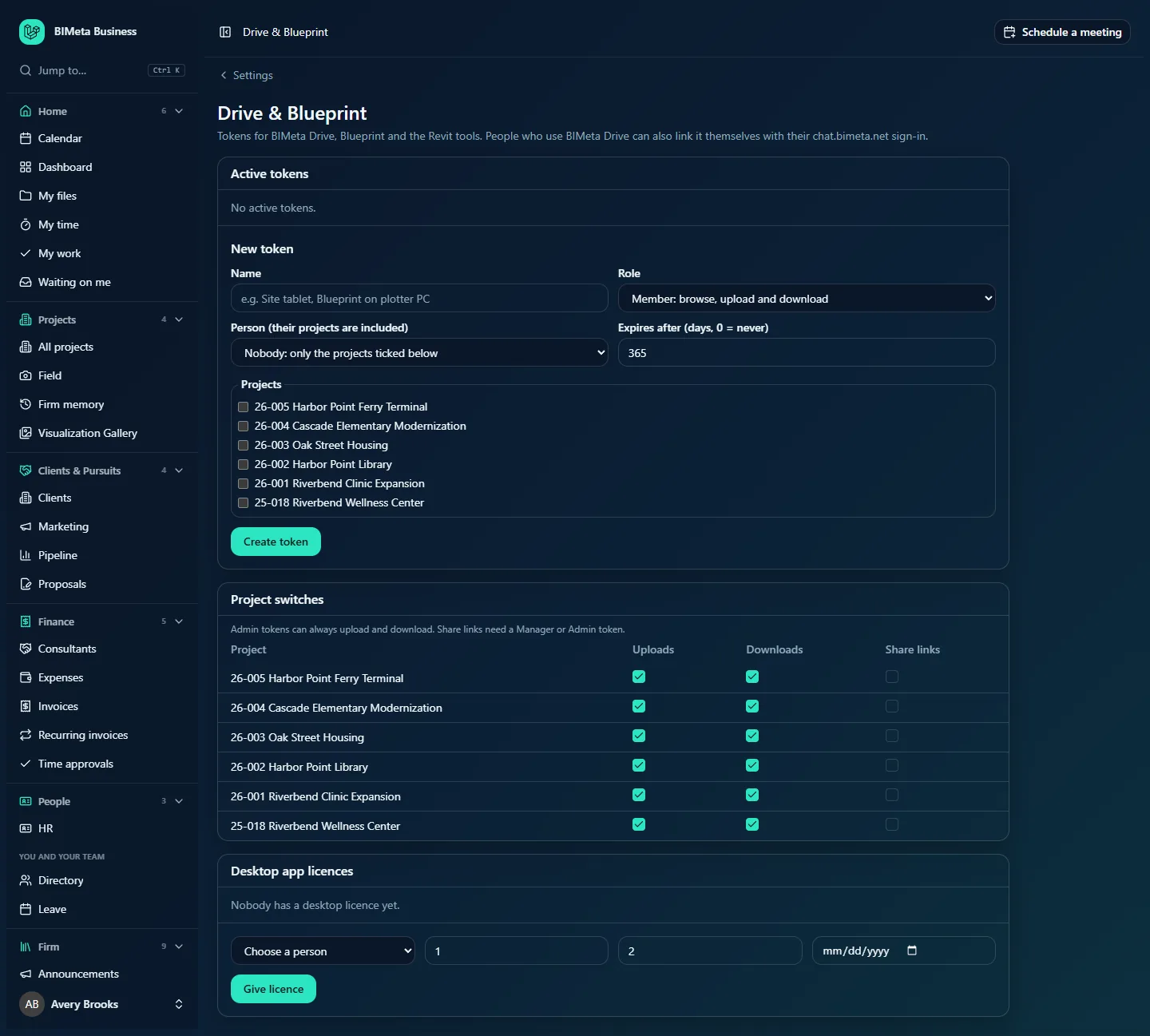
A tour of the page
New token box
Right after you create or replace a token, a highlighted box says Copy this token into the desktop app now. It is not shown again. with the token underneath (click it once to select it all). The token works like a password for that machine, so keep it private.
Active tokens
Every token that is currently switched on, newest first. Each row shows:
- The token's name and its role badge (member, viewer, manager or admin).
- A Linked from BIMeta Drive badge if a person created it by linking BIMeta Drive to their own account.
- The person it's tied to, or Not tied to a person; Last used (or never); and Expires with a date, if it expires.
- Replace and Turn off buttons.
With none, the list says No active tokens.
New token
The form under the list creates a token. Its fields are explained in How to create a token below.
Project switches
A table of your active projects with three tick boxes each, which apply to member and viewer tokens:
- Uploads: tools may add and update files in the project. On by default.
- Downloads: tools may download the project's files. On by default.
- Share links: tools may create share links to the project's files. Off by default.
The note above the table explains the exceptions: Admin tokens can always upload and download. Share links need a Manager or Admin token. Clicking a box saves immediately; you'll see Saved.
Desktop app licences
Who may run the BIMeta desktop apps, and on how many computers. Each row shows the person's name, then Edition, X of Y computers (how many computers currently use the licence out of the limit) and Expires with a date when it expires, plus a Remove button. With none, the list says Nobody has a desktop licence yet. Below the list is the form to give a licence: Choose a person, edition (starts at 1), computers (starts at 2), an optional expiry date, and Give licence.
How to create a token
- Under New token, type a Name (required, up to 190 characters) that says where it's used, for example Site tablet or Blueprint on plotter PC.
- Choose a Role:
- Member: browse, upload and download (the default).
- Viewer: browse and download only.
- Manager: also creates and renames folders.
- Admin: every project and folder.
- Choose a Person (their projects are included), or leave Nobody: only the projects ticked below. Tying a token to a person gives it the projects that person is on, and it stops working if they leave.
- Set Expires after (days, 0 = never): from 0 to 3650 days; 365 is filled in. Use 0 only for machines you control closely.
- Tick the Projects the token may reach (in addition to the person's projects, if you chose one).
- Click Create token. You'll see Token created. Copy it now: it is shown only once.
- Copy the token from the highlighted box into BIMeta Drive, Blueprint or the Revit tool's settings.
How to replace or turn off a token
- Replace creates a new token with the same name, role, person, projects and expiry date, and turns the old one off at once. You'll see New token created and the old one turned off. Copy it now: it is shown only once. Use it when a token may have been seen by someone else, or as routine rotation.
- Turn off stops the token immediately. You'll see Token turned off and it disappears from the list. Use it when a machine is retired or lost. This can't be undone; create a new token if needed.
How to change what tools may do on a project
- Find the project in Project switches.
- Tick or untick Uploads, Downloads or Share links. Each click saves straight away and is recorded in the Audit log.
For example, untick Uploads on a project that has been issued for construction so synced folders can't change it, or tick Share links on a project where the team regularly sends files to consultants (they'll still need a Manager or Admin token).
How to give or remove a desktop app licence
- In Desktop app licences, choose the person.
- Set the Edition (1 to 99) your BIMeta agreement covers.
- Set Computers (1 to 50): how many computers the person may use the apps on at once.
- Optionally set Expires on; the licence then ends at the end of that day.
- Click Give licence. You'll see Licence saved. Giving a licence to someone who already has one updates it.
To take a licence away, click Remove on the person's row; you'll see Licence removed. Licence changes are recorded in the Audit log.
Tips and good to know
- Prefer person-tied tokens: they follow the person's projects and stop when the person leaves. Use "Nobody" tokens for shared machines and keep their project list short.
- Viewer tokens are ideal for a site tablet that only needs to read drawings.
- Tokens and licences are separate: a token decides what a machine can reach; a licence decides who may run the desktop app and on how many computers.
- Desktop apps that sign in with a person's own account are managed under Admin → Settings → Desktop apps.
Troubleshooting / FAQ
A synced folder won't upload to one project.
Check the project's Uploads switch, and that the token's role isn't Viewer. Also check the token includes the project (directly or through its person).
Share links fail from a tool.
Share links need the project's Share links switch on and a Manager or Admin token.
A token stopped working.
It may have expired (check the date in its row), been turned off or replaced, or the person it was tied to may have left. Create or replace the token.
Why don't I see Desktop app licences?
Your role can manage tokens but not licences. Ask a Business Owner.
Was this article helpful?
Share