



Developers: API keys, webhooks and the delivery log
16 views · by Kevin J Bruno · updated 14 hours ago
The Developers page is for connecting your own systems to BIMeta Business. Here you create API keys that let a program read (and, where allowed, change) your firm's data, add webhooks so BIMeta tells another system the moment something happens (a project is opened, a proposal accepted, an RFI answered), and check the delivery log to see whether those messages arrived. It's typically used by IT Staff or a developer working with your firm, for example to connect an automation tool such as AppConnect.
Where to find it
- Sidebar → Admin → Settings, then Developers in the Apps and connections section. You can also type in Search settings at the top of the Settings page. A ‹ Settings link above the page title takes you back.
- Ctrl K and type
api keys,tokensorwebhooks. - The Keys and webhooks button on Admin → Settings → API & connected apps.
Since the menu was shortened, the firm's settings pages are no longer listed one by one in the sidebar: they are gathered on the Settings page under Admin, grouped into sections. Each person sees only the pages they may open there. Jump to… (Ctrl K) still finds every page, and you can pin a page to the top of your sidebar if you use it often.
Who can use it
Business Owners, Admins and IT Staff, who can manage API keys and webhooks. BIM Managers and Users can't open it. A key always acts as the person who created it: it can never do more than that person's role allows, and it stops working if they lose the permission or leave the firm. So it's best that keys for firm-wide integrations are created by someone with broad, stable access.
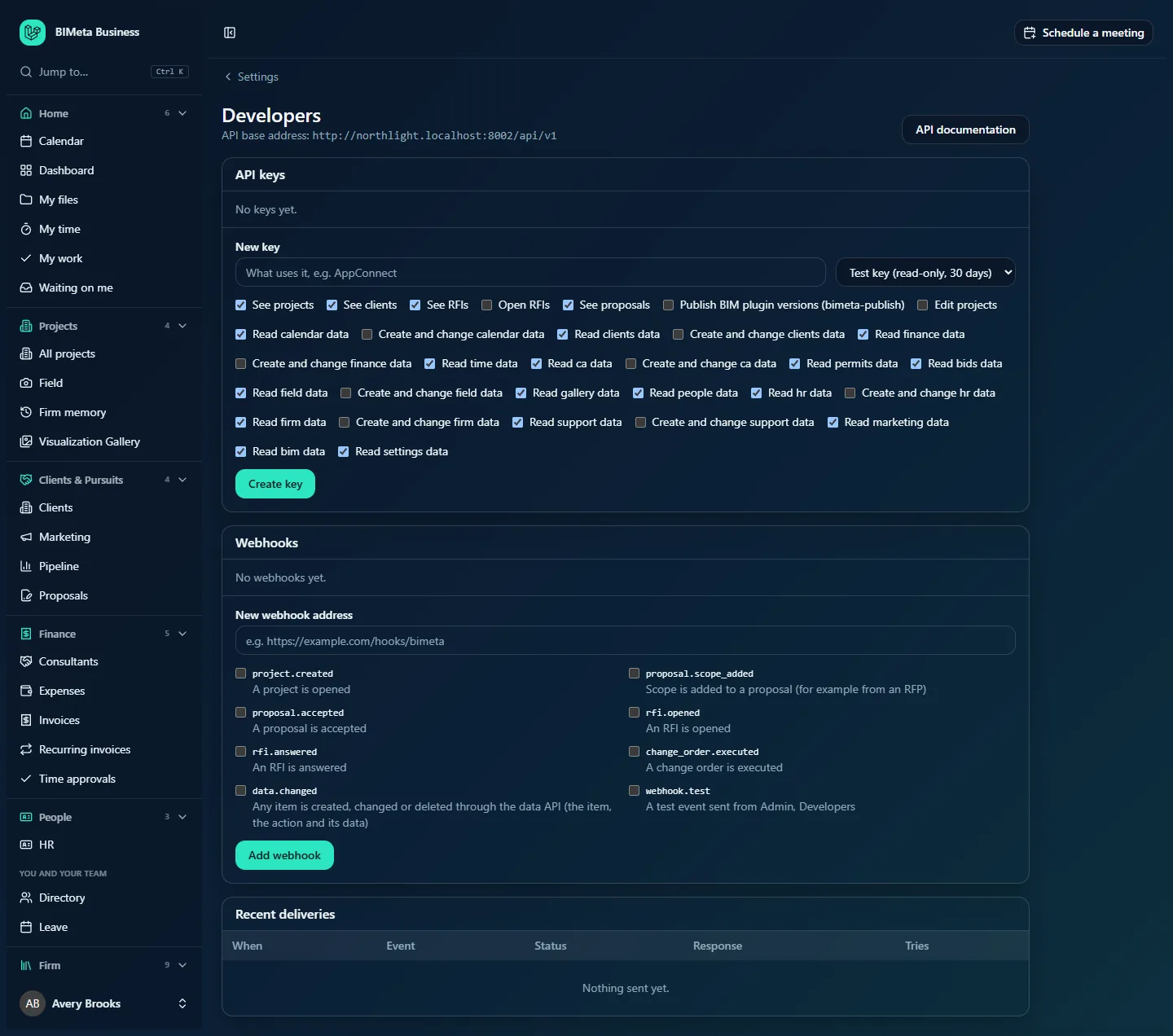
A tour of the page
Header
API base address shows the address every API call starts with: your portal's own web address followed by /api/v1. If your firm uses its own web address (set under Admin → Settings → Web address), that's the one shown. The API documentation button opens the full reference (see API documentation).
New key and secret boxes
Right after you create a key, a highlighted box shows Your new key. Copy it now: it won't be shown again. with the key and a Copy button (it changes to Copied). After you add a webhook, a similar box shows Your webhook signing secret. Only scrambled forms are stored, so these can't be shown again.
API keys
Each key shows its name; a Live or Test, read-only badge; a Revoked badge if revoked; then the first characters of the key followed by "…" (enough to recognize it, never the whole key), what it may do, made by whom, expires (test keys) and last used. Active keys have a Revoke button. With none, it says No keys yet.
Under the list, the New key form has a name box (What uses it, e.g. AppConnect), a kind choice and a row of tick boxes for what the key may do.
Webhooks
Each webhook shows its address, the events it receives, and N failed in a row if deliveries are failing, an Off badge when switched off, and the buttons Send test, Switch off / Switch on and Remove. With none, it says No webhooks yet. Under the list is the New webhook address form.
Recent deliveries
The last 50 webhook messages: When, Event, Status (Delivered, Retrying, Failed or Pending), Response (the status code your system answered with) and Tries. With none, it says Nothing sent yet.
How to create an API key
- Under New key, type a name (required, up to 80 characters) after what uses it, for example AppConnect.
- Choose the kind:
- Test key (read-only, 30 days) (the default): can only read, and expires after 30 days. Use it to try the API safely; it never changes live data.
- Live key: can read and, where ticked, write. It doesn't expire; revoke it when it's no longer needed.
- Tick what the key may do. Every "read" and "see" option is ticked for you. The options are the fixed ones (See projects, See clients, See RFIs, Open RFIs, See proposals, Publish BIM plugin versions (bimeta-publish), Edit projects) plus a Read … data and, where available, Create and change … data option for each area of the data API: calendar, clients, finance, time, CA, permits, bids, field, gallery, people, HR, firm, support, marketing, BIM and settings. Untick anything the integration doesn't need. At least one must be ticked.
- Click Create key. You'll see Key created. Copy it now: it won't be shown again.
- Click Copy and paste the key into the other system. Test keys start with
bmk_test_, live keys withbmk_live_.
Creating and revoking keys is recorded in the Audit log.
How to revoke a key
Click Revoke on the key's row. You'll see Key revoked; anything using it is refused from then on. Revoked keys stay listed with a Revoked badge for your records. If you suspect a key leaked, revoke it immediately and create a new one.
How to add a webhook
- Type the New webhook address (required, up to 500 characters), for example
https://example.com/hooks/bimeta. It must start withhttps://and be reachable on the public internet. - Tick the events to send (at least one):
project.created: a project is opened.proposal.scope_added: scope is added to a proposal (for example from an RFP).proposal.accepted: a proposal is accepted.rfi.opened: an RFI is opened.rfi.answered: an RFI is answered.change_order.executed: a change order is executed.data.changed: any item is created, changed or deleted through the data API (the item, the action and its data).webhook.test: a test event sent from this page.
- Click Add webhook. You'll see Webhook added. Copy its signing secret now: it won't be shown again.
- Copy the signing secret (it starts with
whsec_) into the receiving system, which uses it to check that messages really come from BIMeta.
How to test, switch off or remove a webhook
- Send test sends a
webhook.testevent saying "Hello from BIMeta". You'll see Test event sent. Its result appears in the delivery log. Check Recent deliveries. - Switch off pauses deliveries (Webhook switched off); Switch on resumes them and resets the failure count.
- Remove deletes the webhook (Webhook removed). There's no confirmation.
How deliveries and retries work
- Each event is sent as JSON. Your system must answer with a success (2xx) status within 10 seconds.
- If not, BIMeta tries again after 2, 4, 8, 16 and 32 minutes: six tries in all. The delivery shows Retrying in between and Failed after the last try.
- A webhook that fails 20 times in a row is switched off automatically and shows Off. Fix the receiving end, then click Switch on.
Tips and good to know
- Start with a test key while building an integration, then create a live key with only the options it needs.
- API calls are limited to 120 a minute per key.
- Your firm can switch the whole data API, or individual items, off on Admin → Settings → API & connected apps. Keys then get refused for those items.
- Apps that sign people in (rather than using a key) are registered on Admin → Settings → Desktop apps.
Troubleshooting / FAQ
"Webhook addresses must start with https://." or "Webhooks can only be sent to public addresses."
Webhooks can't go to plain http:// addresses or to addresses inside a private network. Use a public https:// address.
My key suddenly stopped working.
Test keys expire after 30 days. Live keys stop if they're revoked, if the person who made them left or lost the permission, or if the data API or that item was switched off.
I lost the key or signing secret.
They're shown only once. Revoke the key (or remove the webhook) and create a new one.
Was this article helpful?
Share