



Desktop apps: registered apps and signed-in devices
17 views · by Kevin J Bruno · updated 20 hours ago
Desktop apps controls which programs may sign in to your portal on people's behalf, such as BIMeta for Revit and BIMeta Datum, and shows every computer that is signed in to one of them right now. You use it to register a new app (a desktop tool or a connected web app), to decide exactly what that app is allowed to do, to switch an app off for everyone, or to sign one person out of a lost or shared computer.
Where to find it
- Sidebar → Admin → Settings, then Desktop apps in the Apps and connections section. You can also type in Search settings at the top of the Settings page. A ‹ Settings link above the page title takes you back.
- Ctrl K and type
desktop,pluginsorblueprint. - From Admin → Settings → API & connected apps, the Register an app button brings you here.
Since the menu was shortened, the firm's settings pages are no longer listed one by one in the sidebar: they are gathered on the Settings page under Admin, grouped into sections. Each person sees only the pages they may open there. Jump to… (Ctrl K) still finds every page, and you can pin a page to the top of your sidebar if you use it often.
Who can use it
Business Owners, Admins and IT Staff can open the page, register and turn off apps, and sign people out of devices. The page is built from three separate abilities (seeing signed-in desktop apps, registering and turning off apps, and signing other people out), so if your firm has customized roles under Admin → Settings → Roles & permissions, someone might see the lists without the Register an app form or the Turn off and Sign out buttons. BIM Managers and Users can't open it.
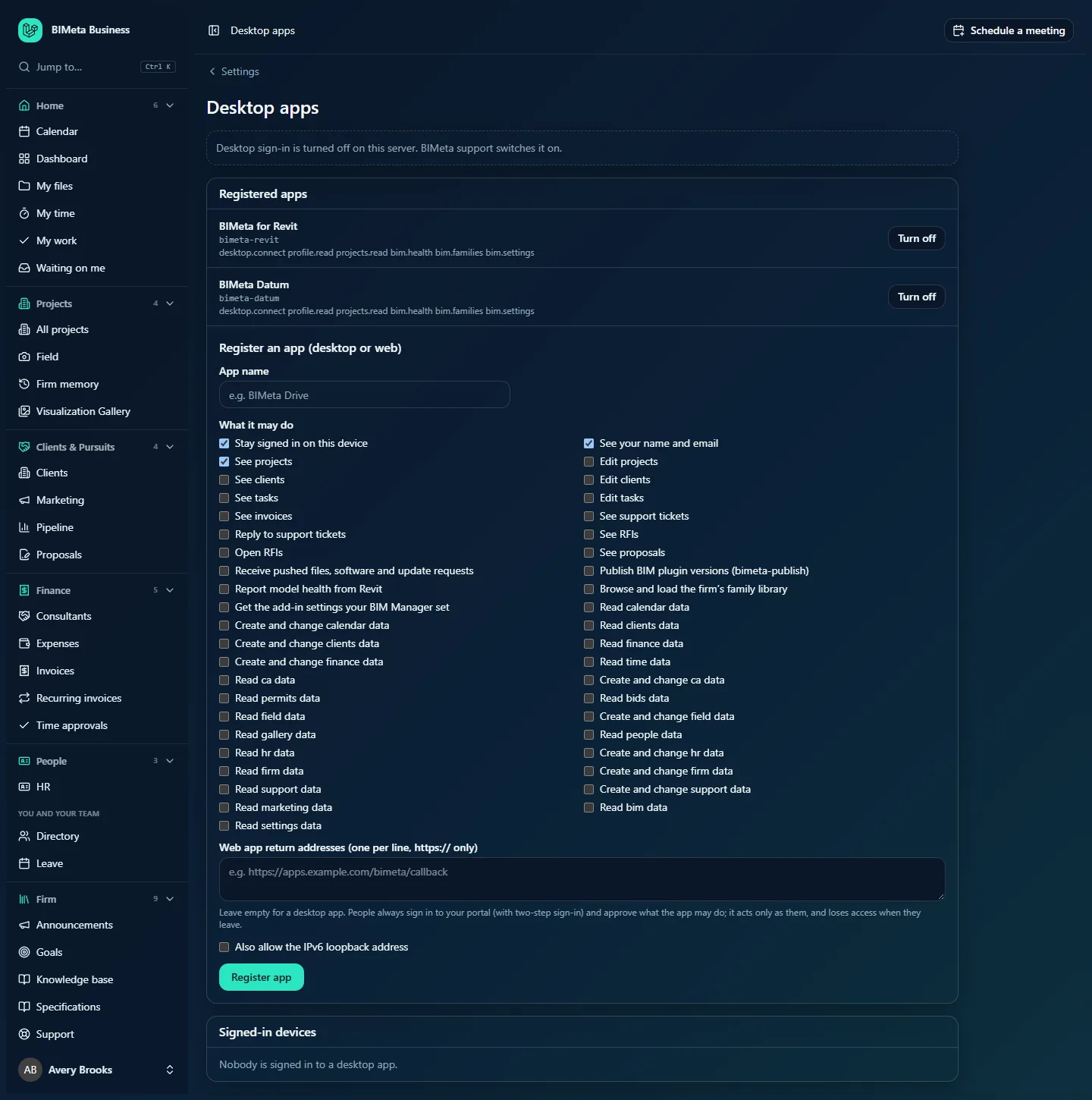
A tour of the page
Desktop sign-in notice
If desktop sign-in isn't switched on for the server your portal runs on, a dashed box says Desktop sign-in is turned off on this server. BIMeta support switches it on. You can still register apps, but nobody can sign in to them until BIMeta enables it. Ask BIMeta support if you see this.
New client ID box
Right after you register an app, a highlighted box at the top says Put this client ID in the desktop app's settings: followed by the app's client ID. The client ID isn't a password; it just tells the app which registration it belongs to. It also stays visible in the app's row.
Registered apps
Every app that can sign in to your portal, newest first. Each row shows:
- The app's name, for example BIMeta for Revit, with a Turned off badge if it has been switched off.
- Its client ID in small grey type (for example
bimeta-revit). - The list of what it may do, as short permission names, for example desktop.connect profile.read projects.read bim.health bim.families bim.settings.
- A Turn off button for active apps.
Apps installed from the Software Hub appear here automatically. If nothing is registered yet, the list says No desktop apps registered yet.
Register an app (desktop or web)
The form at the bottom of the box registers a new app. Its fields are described in How to register an app below.
Signed-in devices
Everyone currently signed in to a desktop or connected app, most recently active first (up to 200). Each row shows the person · app (for example Maya Chen · BIMeta for Revit), then the device name (or Unknown device), its network address and when it was last used, plus a Sign out button. Expired and ended sign-ins aren't listed. If nobody is signed in you'll see Nobody is signed in to a desktop app.
How to register an app
- In Register an app (desktop or web), type the App name (required, up to 120 characters), for example BIMeta Drive or the name of your in-house tool. People see this name when they approve the app.
- Under What it may do, tick each thing the app needs. Stay signed in on this device, See your name and email and See projects are ticked for you. The full list:
- Projects, clients and tasks: See projects, Edit projects, See clients, Edit clients, See tasks, Edit tasks.
- Finance and pursuits: See invoices, See proposals.
- Support: See support tickets, Reply to support tickets.
- Construction administration: See RFIs, Open RFIs.
- BIM tools: Receive pushed files, software and update requests, Publish BIM plugin versions (bimeta-publish), Report model health from Revit, Browse and load the firm's family library, Get the add-in settings your BIM Manager set.
- Data API access, one read and (where offered) one write option per area: Read … data and Create and change … data for calendar, clients, finance, time, CA (construction administration), permits, bids, field, gallery, people, HR, firm, support, marketing, BIM and settings. These match the items on Admin → Settings → API & connected apps.
- Web app return addresses (one per line, https:// only): leave this empty for a desktop app. For a web app, enter each address the app sends people back to after they sign in, one per line, for example
https://apps.example.com/bimeta/callback. Each must be a plainhttps://address (no user name and no#part, up to 500 characters); up to 10 are kept. - Tick Also allow the IPv6 loopback address only if the desktop app's developer asks for it. (Desktop apps finish signing in through the computer's own local address.)
- Click Register app. You'll see <name> registered and the new client ID at the top of the page. Copy it into the app's settings.
As the note under the form says, people always sign in to your portal (with two-step sign-in) and approve what the app may do; the app acts only as them, can never do more than their own role allows, and loses access when they leave. Registering an app is recorded in the Audit log.
How to turn an app off
- Find the app under Registered apps.
- Click Turn off. There is no extra confirmation.
- You'll see App turned off. Everyone using it is signed out. The row gets the Turned off badge.
A turned-off app can't sign anyone in again, and there's no button to turn it back on. To use it again, register it as a new app (it gets a new client ID) or, for a BIMeta app, install it again from the Software Hub.
How to sign someone out of a device
- Find the person and app under Signed-in devices, for example a laptop that was lost or a shared plotter PC.
- Click Sign out. You'll see Signed out of that device.
The app on that computer stops working until the person signs in again. Other computers and other people are not affected. To stop someone using every app at once, switch their account off under Admin → Settings → People & access: their app sign-ins stop immediately.
Tips and good to know
- Give each app only what it needs. An app can never do more than the person signed in to it, but limiting it also limits the damage if a computer is compromised.
- For tools built against the data API, the same app registration works for desktop and web: a web app just lists its return addresses. The technical sign-in steps are in Admin → Settings → Developers → API documentation.
- Server-to-server integrations that don't sign people in use API keys from Admin → Settings → Developers instead.
- Office servers that keep a local copy of projects have their own tokens under Admin → Settings → Office servers, and BIMeta Drive and Blueprint tokens are under Admin → Settings → Drive & Blueprint.
- If your firm restricts sign-in by network or country under Admin → IT → Security, those rules apply to desktop app sign-ins too.
Troubleshooting / FAQ
The app says it "isn't registered with your firm, or its access was turned off".
The client ID in the app's settings doesn't match an active app on this page. Check the ID, or register the app again if it was turned off.
People can't sign in to any desktop app.
Look for the notice Desktop sign-in is turned off on this server. at the top of the page. If it's there, contact BIMeta support. Otherwise check the app isn't Turned off.
Why don't I see the Register an app form?
Your role can see the page but not register apps. Ask a Business Owner to check your role under Admin → Settings → Roles & permissions.
I get "… isn't a plain https:// address."
One of the web app return addresses isn't an https:// address, or it contains a # part or a user name. Fix the line it names and register again.
Was this article helpful?
Share