



Dashboard: every card explained, and who sees which
18 views · by Kevin J Bruno · updated 11 hours ago
The Dashboard is the first page you see after you sign in to BIMeta Business. It's a grid of cards ("tiles"), each one a live number, list or chart pulled from another part of the portal: how many projects are running, what's waiting for your approval, who's out today, which announcements you haven't read, and so on. Most cards are also shortcuts: click the number and you land on the page where you can act on it. Use the dashboard as your morning check-in, and come back to it whenever you want a quick read of what needs you.
The dashboard is personal. Nobody sees every card: each card only appears for people whose role allows them to see what's behind it, and many of the numbers are counted for you (your tickets, your onboarding tasks, your surveys). A Business Owner and a User at the same firm see quite different dashboards; this article explains every card and exactly who gets it.
Where to find it
- Sidebar → Home → Dashboard.
- Click the BIMeta Business logo at the top of the sidebar from any page.
- It's also where you land straight after signing in.
- Press Ctrl K (⌘K on a Mac), type
dashboardand press Enter.
Who can use it
Everyone who works at the firm can open the dashboard: Business Owner, Admin, IT Staff, BIM Manager, Project Manager, Human Resources and User all have the See the company dashboard permission by default. Outside people who sign in with a Client / Consultant account don't have a dashboard; when they sign in they're taken straight to Waiting on me (or to their projects if your firm doesn't use construction administration).
What differs between roles is which cards appear. A card is shown only when your role includes the permission the card depends on (for example, only people who can approve timesheets see Timesheets to approve). Cards that belong to a part of the portal your firm's plan doesn't include never appear. The full card-by-role table is further down.
The dashboard at a glance
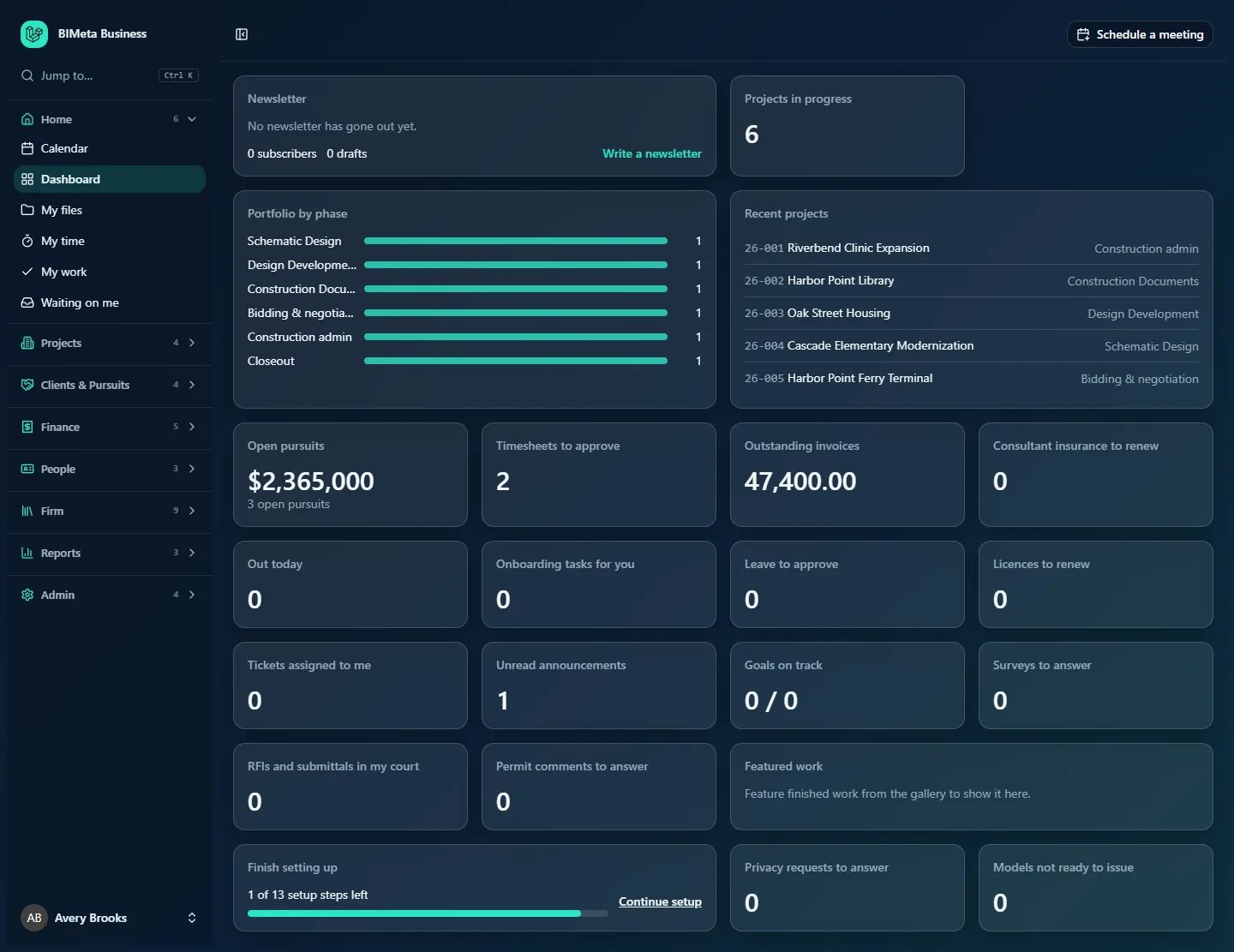
Here is the Business Owner's dashboard at the example firm Northlight Architects. Owners have every permission, so this is the fullest version of the page.
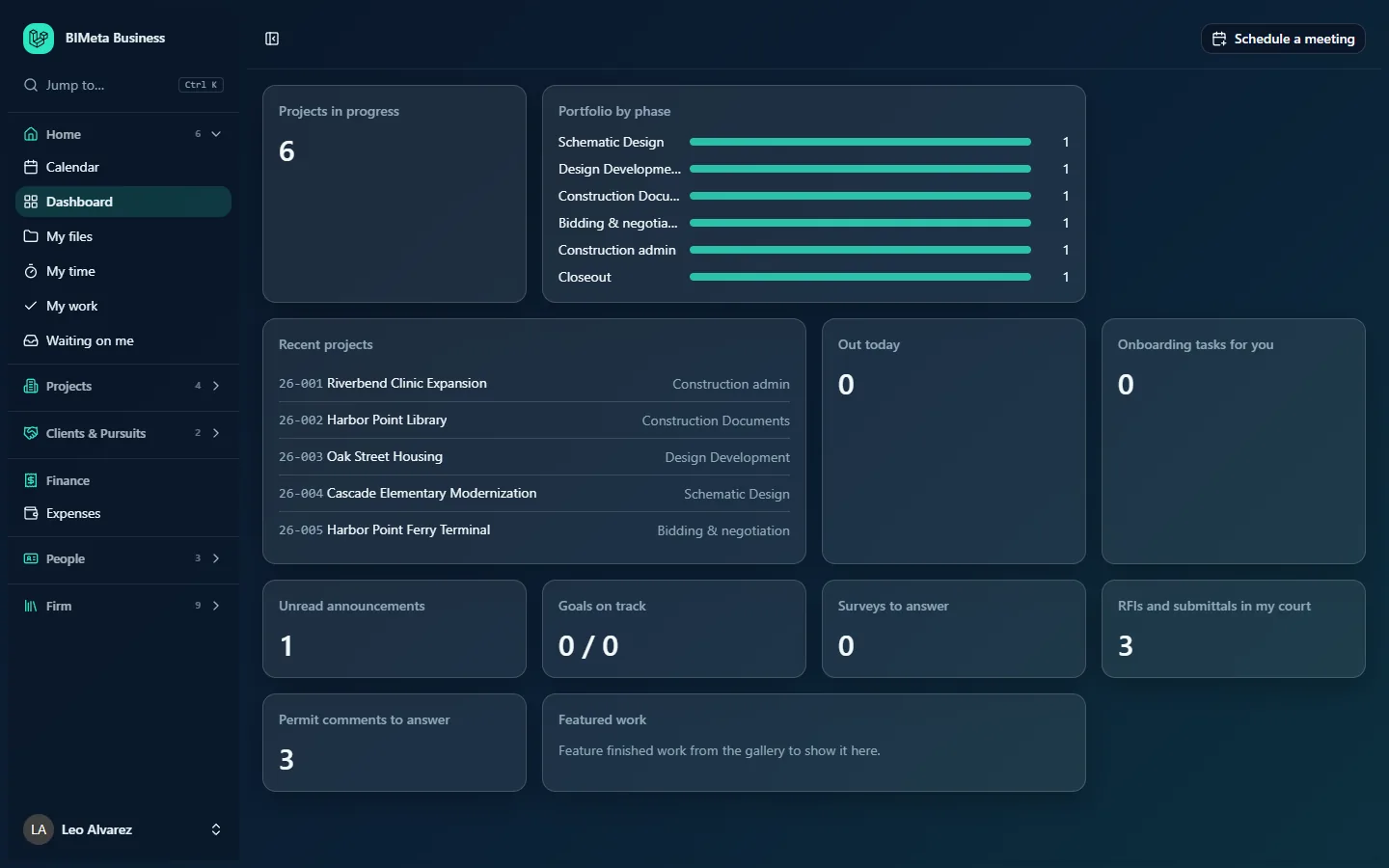
And here is the dashboard of a regular staff member (User) at the same firm. It has the project cards, the people and firm cards, and the cards about things assigned to them, but none of the approval, finance or admin cards.
How the page is laid out
- Cards sit in a grid: four columns on a wide screen, two on a laptop or tablet, one on a phone. Some cards are wide and take two columns (Newsletter, Portfolio by phase, Recent projects, Featured work, Finish setting up); the rest take one.
- Each card has a grey title in its top-left corner, and below it either a big number, a short list or a small chart.
- The order is fixed and the same for everyone: the Newsletter card (when shown) always comes first, then the project cards, then pursuits, time, finance, people, support, firm, construction admin, permits, gallery, setup, privacy and BIM cards. Because cards you can't see are simply left out, the remaining ones close up, so the same card can sit in a different spot for different people.
- Numbers are worked out fresh every time the page loads. Reload the page (or click Dashboard again) to refresh them.
- For the cards that show a big number, the number itself is the link. Click it to open the page behind the card. The card title is not a link.
- If a card can't be worked out for some reason, it's quietly left off rather than breaking the whole page, and the problem is logged for your IT team. If you have no cards at all, you see Nothing to show yet.
- You can't drag, hide or add cards yourself. What you see is decided by your role (see Roles and permissions: who can see and do what).
Top bar: Schedule a meeting
The Schedule a meeting button in the top-right corner isn't part of the dashboard itself; it's in the top bar of every page. It opens a dialog where you pick a time, invite colleagues and outside people, optionally link a project and add a video-call link; invitations go out by email (or through your Outlook if you've connected it). The dialog is explained step by step in Calendar: month, week and week-ahead views, events and meetings.
Which roles see which cards
The table shows the four main roles. "Yes" means the card appears for everyone in that role (whatever its number). The last column lists the other built-in roles that also get the card. If your firm has edited its roles or made new ones, what you see follows your actual permissions.
| Card | Business Owner | IT Staff | BIM Manager | User | Also shown to |
|---|---|---|---|---|---|
| Newsletter | Yes (with writer details) | Once a newsletter has been sent | Once a newsletter has been sent | Once a newsletter has been sent | Admin sees writer details; everyone else once one is sent |
| Projects in progress | Yes | Yes | Yes | Yes | Admin, Project Manager, Human Resources |
| Portfolio by phase | Yes | Yes | Yes | Yes | Admin, Project Manager, Human Resources |
| Recent projects | Yes | Yes | Yes | Yes | Admin, Project Manager, Human Resources |
| Open pursuits | Yes | No | No | No | Admin |
| Timesheets to approve | Yes | Yes | Yes | No | Admin, Project Manager |
| Outstanding invoices | Yes | Yes | Yes | No | Admin, Project Manager |
| Consultant insurance to renew | Yes | No | No | No | Admin |
| Policies to sign | Only when you have some | Only when you have some | Only when you have some | Only when you have some | Everyone, only when they have some |
| Out today | Yes | Yes | Yes | Yes | Admin, Project Manager, Human Resources |
| Onboarding tasks for you | Yes | Yes | Yes | Yes | Admin, Project Manager, Human Resources |
| Leave to approve | Yes | Yes | Yes | No | Admin, Project Manager, Human Resources |
| Licences to renew | Yes | No | No | No | Admin, Human Resources |
| Tickets assigned to me | Yes | Yes | No | No | Admin |
| Unread announcements | Yes | Yes | Yes | Yes | Admin, Project Manager, Human Resources |
| Goals on track | Yes | Yes | Yes | Yes | Admin, Project Manager, Human Resources |
| Surveys to answer | Yes | Yes | Yes | Yes | Admin, Project Manager, Human Resources |
| RFIs and submittals in my court | Yes | Yes | Yes | Yes | Admin, Project Manager, Human Resources |
| Permit comments to answer | Yes | Yes | Yes | Yes | Admin, Project Manager, Human Resources |
| Featured work | Yes | Yes | Yes | Yes | Everyone at the firm |
| Finish setting up | Yes | No | No | No | Admin |
| Privacy requests to answer | Yes | Yes | No | No | None (Owner and IT Staff only) |
| Models not ready to issue | Yes | Yes | Yes | No | Admin |
Put together, the four example dashboards at Northlight Architects look like this:
- Business Owner (Avery Brooks): 22 of the 23 cards, everything except Policies to sign (Avery has nothing to sign).
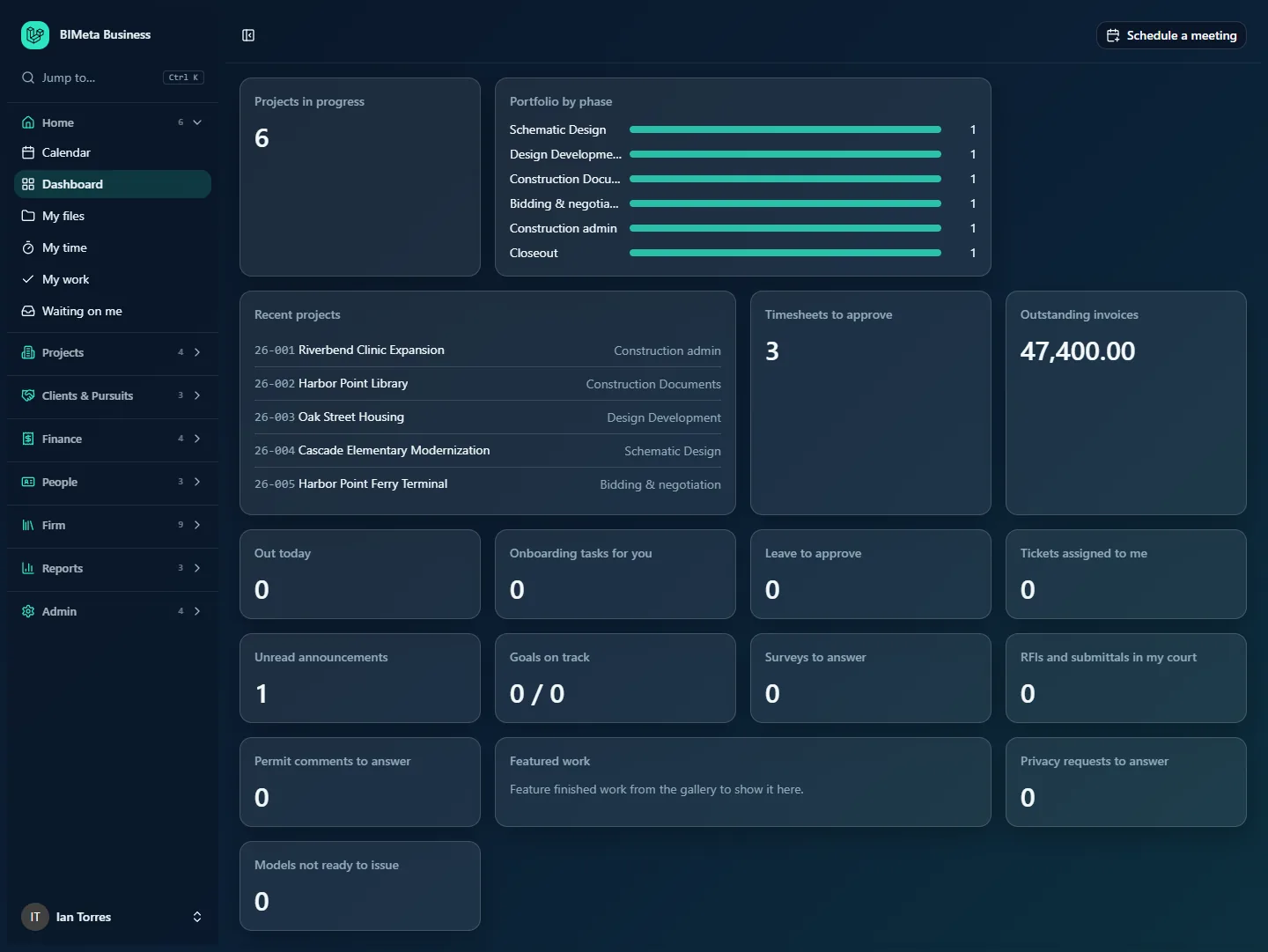
- IT Staff (Ian Torres): the project cards, Timesheets to approve, Outstanding invoices, the people cards except Licences to renew, Tickets assigned to me, the firm cards, the construction-admin and permit cards, Featured work, Privacy requests to answer and Models not ready to issue.
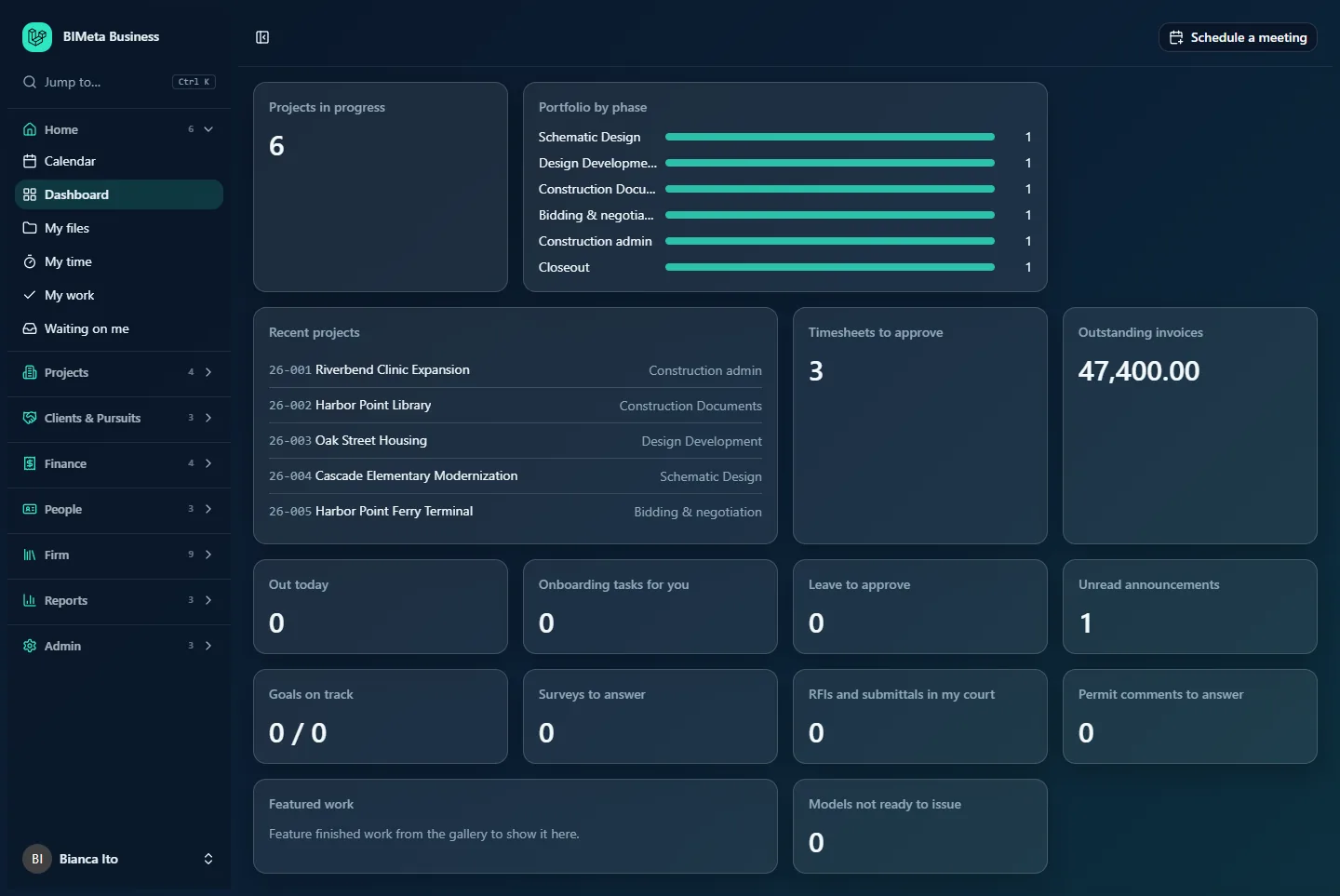
- BIM Manager (Bianca Ito): the same as IT Staff, minus Tickets assigned to me and Privacy requests to answer.
- User (Leo Alvarez): Projects in progress, Portfolio by phase, Recent projects, Out today, Onboarding tasks for you, Unread announcements, Goals on track, Surveys to answer, RFIs and submittals in my court, Permit comments to answer and Featured work.
A tour of every card
Cards are described in the order they appear on the page.
Newsletter
What it shows: the most recent newsletter your firm has sent. You see Sent and the date, the newsletter's subject as a link, and the first few lines of its text (about 280 characters). Clicking the subject opens the web version of the newsletter in a new browser tab. Until the first newsletter goes out, the card says No newsletter has gone out yet.
Extra for newsletter writers: people who can write newsletters (Business Owners and Admins by default) also see a line with the number of subscribers (people currently subscribed), the number of drafts waiting, and a Write a newsletter link that opens a new newsletter in Clients & Pursuits → Marketing → Newsletters. In the example, the Owner sees 0 subscribers, 0 drafts.
Who sees it: newsletter writers always see it (so they're reminded to write one). Everyone else sees it only after at least one newsletter has been sent. The whole card can be switched off by the firm: in Newsletters settings, untick Show the latest newsletter first on everyone’s dashboard. It always sits first and spans two columns.
Projects in progress
What it shows: the number of active projects in the firm (archived projects aren't counted). In the example: 6.
Click the number to open Projects → All projects.
Who sees it: anyone who can see every project in the firm, which is all the standard staff roles.
Portfolio by phase
What it shows: a small bar chart of your active projects by their current phase, using your firm's own phase names (for example Schematic Design, Design Development, Construction Documents, Bidding & negotiation, Construction admin, Closeout). Each row shows the phase name (long names are cut short with "…"), a bar, and the number of projects in that phase. The longest bar is the busiest phase; the others are drawn in proportion. Phases with no active projects are left out. In the example, Northlight has one project in each of six phases, so all bars are the same length.
If there are no active projects, the card says No active projects yet. The bars aren't clickable; use Reports → Portfolio for a fuller view.
Who sees it: same as Projects in progress. It spans two columns.
Recent projects
What it shows: the five projects that were changed most recently, newest first. Each row has the project number in grey, the project name, and on the right the project's current phase. For example 26-001 Riverbend Clinic Expansion · Construction admin. "Changed" means any update to the project record, so a project you just edited jumps to the top. This list can include projects that aren't active.
Click a project to open its project page. With no projects at all, the card says No projects yet.
Who sees it: same as Projects in progress. It spans two columns.
Open pursuits
What it shows: the total estimated value of every pursuit (lead) in your pipeline that hasn't been marked won or lost, in your firm's currency and rounded to whole units, with the number of open pursuits underneath. In the example: $2,365,000, 3 open pursuits.
Click anywhere on the value to open Clients & Pursuits → Pipeline.
Who sees it: people who can manage the pursuit pipeline: Business Owners and Admins.
Timesheets to approve
What it shows: how many submitted timesheet weeks are waiting for your approval. One person's week counts once, however many projects it covers. Your own submitted weeks are never included, because nobody approves their own time. That's why, in the example, the Owner sees 2 while IT Staff and the BIM Manager see 3: each sees everyone's submitted weeks except their own.
People who approve time for the whole firm count every submitted week; someone who approves time only on certain projects (for example as a project's Project Manager) counts only weeks with hours on those projects.
Click the number to open Finance → Time approvals, where you approve or send back each week.
Who sees it: people who can approve timesheets: Business Owner, Admin, Project Manager, IT Staff and BIM Manager.
Outstanding invoices
What it shows: the total amount still owed on invoices that have been sent or partly paid: each invoice's total minus what's been paid so far, added up. It's shown as a plain amount with two decimals and no currency symbol, for example 47,400.00. Draft, paid and void invoices aren't counted.
Click the number to open Finance → Invoices filtered to open invoices.
Who sees it: people who can view invoices: Business Owner, Admin, Project Manager, IT Staff and BIM Manager.
Consultant insurance to renew
What it shows: the number of insurance certificates held by your active consultants that expire within the next 30 days or have already expired. Each certificate counts separately, so one consultant with two expiring certificates counts as 2.
Click the number to open Finance → Consultants, where expiring and expired certificates are flagged.
Who sees it: people who can manage consultants: Business Owners and Admins.
Policies to sign
What it shows: how many handbook policies are waiting for you to read and acknowledge.
Click the number to open People → HR → Handbook, where you open each policy and confirm you've read it.
Who sees it: every staff member, but only while you have at least one policy to sign. Once you've acknowledged them all, the card disappears. That's why none of the example dashboards show it.
Out today
What it shows: how many people in the firm are on approved leave today (any leave type, full or part day). Requests that are still pending aren't counted.
Click the number to open People → Leave, where you can see who is out and when.
Who sees it: every staff member.
Onboarding tasks for you
What it shows: the number of unfinished onboarding (and offboarding) checklist tasks that are yours to do, on checklists that are still open. A task counts if it's assigned to you by name. If you look after the HR side of onboarding, or new starters' software licences on the IT side, tasks left unassigned in that team's queue count too.
Click the number to open People → HR → Onboarding.
Who sees it: every staff member. A new starter typically sees their own first-week tasks here.
Leave to approve
What it shows: the number of leave requests across the firm that are still pending a decision.
Click the number to open People → Leave, where approvers approve or decline requests.
Who sees it: people who can approve leave: Business Owner, Admin, Human Resources, Project Manager, IT Staff and BIM Manager.
Licences to renew
What it shows: the number of professional licences held by active staff (for example architectural registrations) that expire within the next 60 days or have already expired. Licences without an expiry date aren't counted.
Click the number to open People → HR → Licences & CE.
Who sees it: people who run HR: Business Owner, Admin and Human Resources.
Tickets assigned to me
What it shows: the number of support-desk tickets assigned to you that are still open or pending.
Click the number to open Firm → Support showing only tickets assigned to you.
Who sees it: support agents: Business Owner, Admin and IT Staff.
Unread announcements
What it shows: how many current announcements you haven't opened yet. In the example everyone has 1.
Click the number to open Firm → Announcements. Opening an announcement marks it read and the number goes down.
Who sees it: every staff member.
Goals on track
What it shows: two numbers, "on track / current". The second is the number of firm goals whose period includes today; the first is how many of those are on track. A goal is on track when its progress has at least kept pace with the calendar. For example, a goal of 100 that is halfway through its period is on track at 50 or more. Upcoming and past goals aren't counted. 0 / 0 means there are no current goals.
Click the numbers to open Firm → Goals.
Who sees it: every staff member.
Surveys to answer
What it shows: the number of open staff surveys you haven't taken part in yet.
Click the number to open Firm → Surveys.
Who sees it: every staff member.
RFIs and submittals in my court
What it shows: the number of open RFIs plus open submittals where the "ball is in your court", meaning the next response is yours. In the example, the User Leo Alvarez has 3 (three submittals to review on 26-001 Riverbend Clinic Expansion).
Click the number to open Home → Waiting on me, which lists each item with its due date.
Who sees it: every staff member.
Permit comments to answer
What it shows: the number of open permit review comments assigned to you to answer. Each comment counts, so a permit with three open comments counts as 3.
Click the number to open Home → Waiting on me, where the comments are grouped by permit.
Who sees it: every staff member.
Featured work
What it shows: up to six thumbnails of finished renderings, images or videos that have been featured in the Visualization Gallery, most recently updated first. Each thumbnail shows its title and, if one is recorded, the artist's name ("title · artist"). Only work from projects you can see is shown, and only once it has finished processing.
Click a thumbnail to open that item in Projects → Visualization Gallery.
Until something is featured, the card says Feature finished work from the gallery to show it here. To feature an item, someone who can approve gallery work on that project (for example its Project Manager) opens it in the gallery and features it.
Who sees it: everyone at the firm. It spans two columns.
Finish setting up
What it shows: how far your firm is through Setup, which has 13 steps in four sections: Get started (Language, Plan & storage, Background check), Your firm (Firm profile & region, Appearance, Modules & integrations), Project standards (Project numbering, Phases & fee split, Sheet, file & model naming, Document numbering, Project folders & app bindings) and Your team (Roles & permissions, Invite your team). While steps remain, it shows "N of 13 setup steps left" (at Northlight Architects, 1 of 13 setup steps left, because the Background check is still open), a progress bar, and a Continue setup link that opens the Setup page (Admin → Settings → Setup, in the Firm setup section of the Settings page). A step counts as done whether it was completed or skipped. When every step is done, the card says Setup is complete. Change any step under Admin, Setup.
Who sees it: people who manage firm settings: Business Owners and Admins. It spans two columns.
Privacy requests to answer
What it shows: the number of personal-data requests (for example someone asking for a copy of their data, or for it to be deleted) that are still pending.
Click the number to open Admin → Settings → Privacy requests.
Who sees it: people who handle privacy requests: Business Owners and IT Staff. Admins don't get this card.
Models not ready to issue
What it shows: the number of Revit models whose latest model-health check says they aren't ready to issue (a verdict of "fix first" or "not ready"). The check runs whenever a model syncs with BIMeta, so the number stays current as the team fixes issues.
Click the number to open the BIM Manager's model list filtered to models that aren't ready.
Who sees it: people with access to the BIM Manager panel: Business Owner, Admin, IT Staff and BIM Manager.
How to …
Act on something a card shows
- Find the card, for example Leave to approve.
- Click the big number (for Open pursuits, click anywhere on the amount; for list cards, click the project or thumbnail).
- Do the work on the page that opens: approve the leave, answer the RFI, read the announcement.
- Come back to the Dashboard. The number has been recalculated.
Refresh the numbers
Cards don't update by themselves while the page is open. Reload the browser tab, or click Dashboard in the sidebar.
Turn the newsletter card off (or on) for everyone
- Go to Clients & Pursuits → Marketing → Newsletters (you need to be able to write newsletters).
- In the newsletter settings, untick (or tick) Show the latest newsletter first on everyone’s dashboard and save.
Get a card you don't have
Cards follow permissions. If you need one (for example you've started approving leave), ask your Business Owner or Admin to give your role the matching permission in Admin → Settings → Roles & permissions, or to add you to a role that has it. See Roles and permissions: who can see and do what.
Tips and good to know
- Some numbers are firm-wide, some are yours. Firm-wide: Projects in progress, Portfolio by phase, Recent projects, Open pursuits, Outstanding invoices, Consultant insurance to renew, Out today, Leave to approve, Licences to renew, Goals on track, Privacy requests to answer, Models not ready to issue. Personal: Timesheets to approve (excluding your own), Policies to sign, Onboarding tasks for you, Tickets assigned to me, Unread announcements, Surveys to answer, RFIs and submittals in my court, Permit comments to answer.
- A zero still shows. Apart from Policies to sign, cards stay on your dashboard at 0, so you can tell "nothing to do" from "no access".
- Waiting on me shows more than the card. The RFIs and submittals in my court card counts open items only. Waiting on me also lists submittals already reviewed and ready to return, change orders to sign and punch items.
- Outstanding invoices has no currency sign; it's in your firm's currency (set in Admin → Settings → Setup → Firm profile & region).
- Reading menu paths in this help. The sidebar lists the items in each group alphabetically, unless your firm has arranged the menu itself. Some entries are hubs: People → HR, Clients & Pursuits → Marketing and Admin → IT each open a page with a row of tabs, so People → HR → Handbook means "click HR, then the Handbook tab". The firm's settings pages are gathered on one page, Admin → Settings, grouped into sections with a Search settings box, so Admin → Settings → Privacy requests means "open Settings, then click Privacy requests". Jump to… (Ctrl K) still finds every one of these pages by name, and you can still pin them.
- The dashboard language follows your own language setting; card titles are translated along with the rest of the portal.
Troubleshooting / FAQ
Why is my dashboard missing cards a colleague has?
Cards depend on permissions. A Business Owner sees everything; a User sees around a dozen cards. Compare your role with theirs in Roles and permissions: who can see and do what. If your firm's plan doesn't include a part of the portal (for example Marketing or BIM), its cards don't appear for anyone.
Why doesn't my own timesheet count on "Timesheets to approve"?
Nobody approves their own time, so your submitted weeks are always excluded from your count. Someone else with approval rights approves them.
The Newsletter card disappeared. Why?
Either the firm turned off Show the latest newsletter first on everyone’s dashboard, or (if you don't write newsletters) no newsletter has been sent yet.
A number looks wrong. What should I check?
Reload the page first, because numbers are only worked out when the page loads. Then open the page behind the card: for example, Projects in progress counts active projects only, and Out today counts approved leave only, not pending requests.
I signed in and saw a welcome page (or a thank-you page) instead of the dashboard.
Your firm is new and is still going through its guided onboarding. Until every Setup step has been saved or skipped, the portal shows no menu and no dashboard: the Business Owner (and anyone else who manages firm settings) is taken to the welcome page and then through Setup one section at a time, while everyone else waits on the thank-you page. Once onboarding is finished, everyone lands on the dashboard as usual. Firms that existed before guided onboarding was introduced are never asked to go through it.
I see "Your firm’s portal is locked down for now" instead of the dashboard.
Your IT team has put the portal into an Owners-only lockdown from its firewall settings (Admin → IT, Firewall tab), usually while they deal with a security problem. Until IT lifts the lockdown, only Business Owners can use the portal. Nothing is lost; try again later or contact your IT team.
I signed in and went straight to "Waiting on me" instead of the dashboard.
Your account is a client or consultant account without the dashboard. That's expected; if you work at the firm and should have a dashboard, ask your Business Owner or Admin to check your role.
Was this article helpful?
Share