



The Custom Development page: your requests, summary and settings
19 views · by Kevin J Bruno · updated 20 hours ago
The Custom Development page is the home of all your firm's development requests. It lists every request anyone in the firm has started, shows which ones have a new reply from BIMeta, and gives Owners the two firm-wide settings: prepaid hours and how much IT Staff and BIM Managers may accept on the firm's behalf.
Where to find it
- Sidebar → Admin → Custom Development.
- Ctrl K (Jump to…) →
custom development. - On the development portal it's the first page you see after signing in.
- Every request page has a Custom Development link above the title that brings you back here.
Who can use it
- Business Owner, IT Staff and BIM Manager see the page and every request of the firm, whoever asked, and see the Ask for development button.
- Only Business Owners see the Buy … hours buttons and the acceptance-limit setting.
- Other roles can't open the page unless an Owner gives their role the Custom Development permissions. Someone with only the "see" permission sees the list but no Ask for development button.
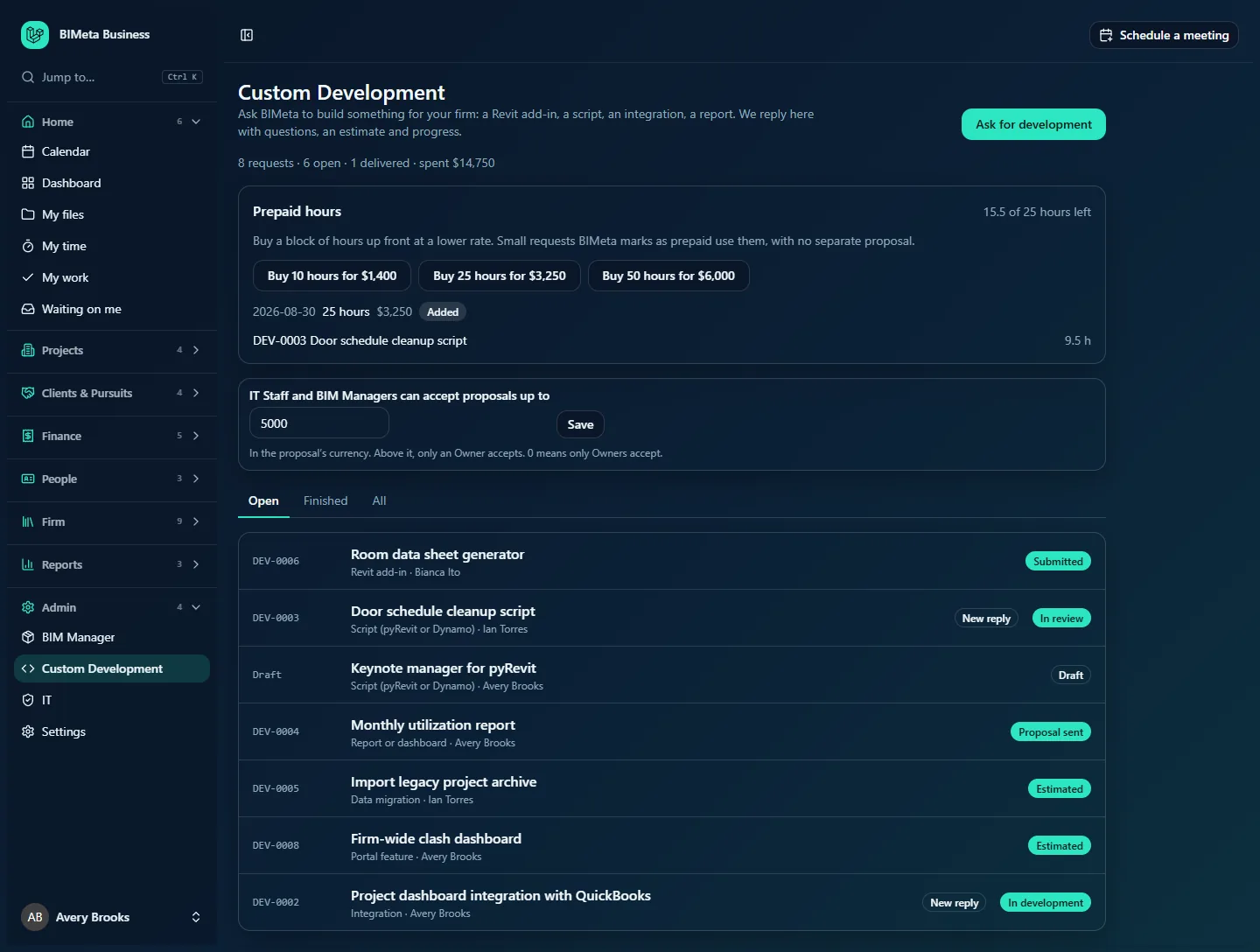
Here is the page as Avery Brooks, the Owner of the example firm Northlight Architects, sees it:
A tour of the page
Header
- Custom Development with a one-line description of what you can ask for.
- Ask for development: opens the form for a new request (see Asking for development: request types, the form and attachments).
- The summary line, once you have sent at least one request: how many requests your firm has sent (drafts not counted), how many are still open, how many are delivered, and what your firm has spent, that is the total of paid Custom Development invoices, per currency. In the example: 8 requests · 6 open · 1 delivered · spent $14,750.
Prepaid hours
The Prepaid hours card shows how many hours are left of what your firm bought (for example 15.5 of 25 hours left; the figure turns red when it goes below zero), the blocks you've bought with their date, price and state (Waiting for payment with a Pay link, Added, Payment failed or Cancelled), and which requests used hours (for example DEV-0003 Door schedule cleanup script · 9.5 h). Owners also see one Buy … hours for … button per block BIMeta offers. The card is hidden when nothing has been bought and there's nothing to buy. Full details: Prepaid hours: buy a block of development time.
Acceptance limit (Owners only)
IT Staff and BIM Managers can accept proposals up to sets the largest proposal, change request or monthly maintenance fee that IT Staff and BIM Managers may accept on the firm's behalf. The amount is read in the proposal's own currency. Above it, only an Owner can accept. 0 means only Owners accept anything. Unless you change it, the limit is 5,000.
Views
- Open (the default): drafts and every request still being worked on (Submitted, Scoping, Estimated, Proposal sent, Accepted, In development, In review, On hold).
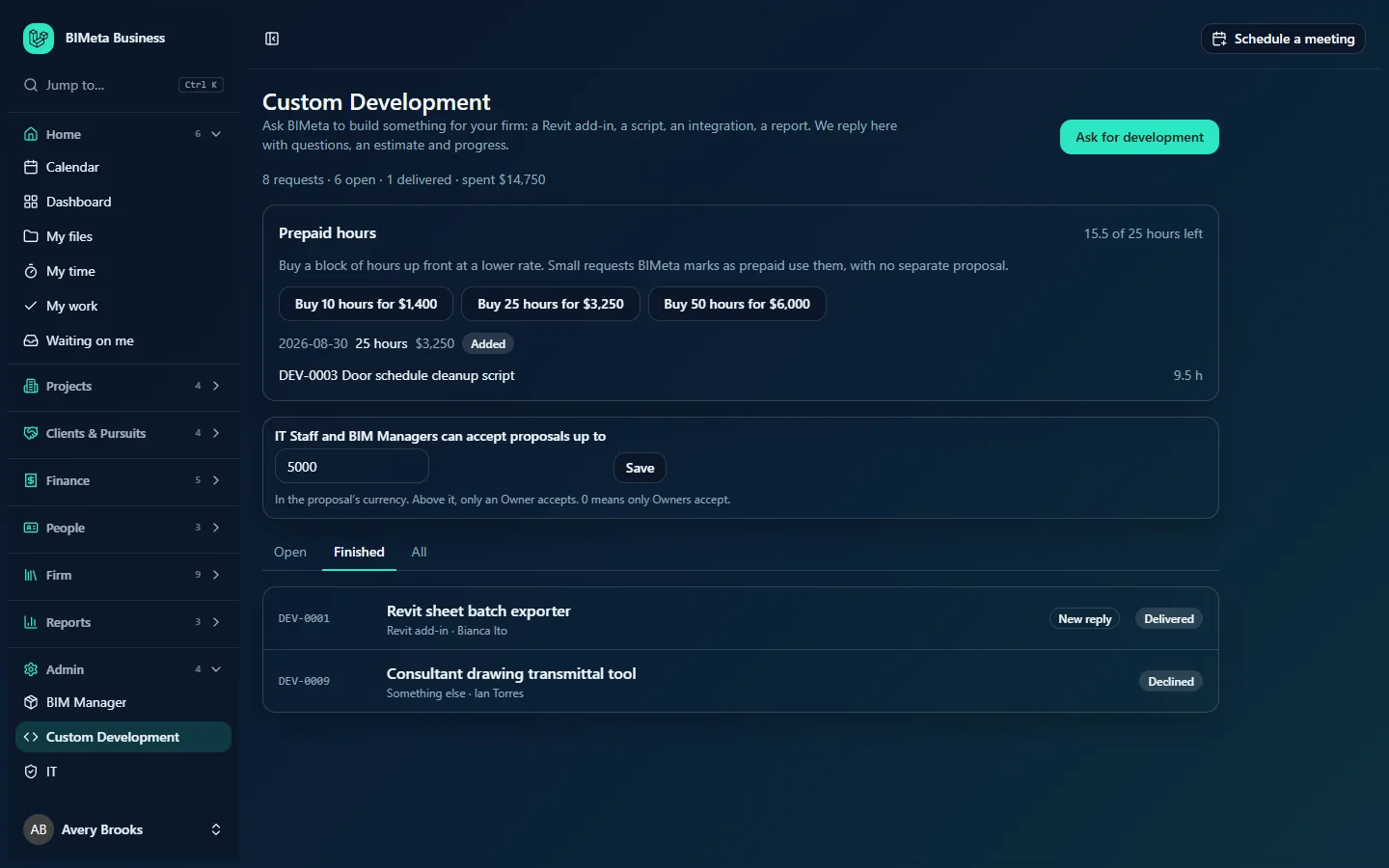
- Finished: Delivered, Declined and Closed requests.
- All: everything.
The list
Requests are listed with the most recently changed first. Each row shows:
- The number (for example DEV-0002), or Draft for one not sent yet.
- The title, and under it the kind of work and who asked (for example Integration · Avery Brooks).
- New reply when BIMeta wrote since your firm last wrote: something for you to read or answer.
- The status badge.
Click a row to open the request. When a view is empty you see No requests yet (or No finished requests yet), with a reminder that asking costs nothing.
How to…
Find requests that need your answer
- Stay on Open.
- Look for New reply, Proposal sent and In review badges: those are waiting for your firm.
Change the acceptance limit (Owners)
- In IT Staff and BIM Managers can accept proposals up to, type the amount (for example
5000; decimals allowed, up to 100,000,000). - Click Save. You see Saved. The new limit applies to every proposal, change and maintenance plan answered from now on.
Tips and good to know
- Every request of the firm is visible to everyone who can open this page, not just to the person who asked. Emails go only to the person who asked.
- Prepaid hours you bought aren't included in the "spent" figure; the "spent" figure counts paid Custom Development invoices.
- Invoices for Custom Development also appear on Admin → Billing (see Invoices and the payment schedule).
FAQ
Why don't I see the Buy hours buttons or the limit setting?
They are for Business Owners only.
A colleague's request isn't in the list.
Check Finished or All: delivered, declined and closed requests aren't in Open.
Was this article helpful?
Share