



A request's page: conversation, status and history
16 views · by Kevin J Bruno · updated 1 day ago
Every development request has one page that grows as the job moves on. At first it shows your answers and the conversation with BIMeta; later the estimate, the proposal, the plan and progress, invoices, change requests and finally the handover appear above them. This article explains the page as a whole and the conversation. Each of the other sections has its own article.
Where to find it
- Sidebar → Admin → Custom Development, then click a request.
- The link in any email BIMeta sends about the request.
- The same page on the development portal.
Who can use it
Business Owners, IT Staff and BIM Managers can open any request of the firm, reply, and answer what BIMeta sends (accepting is limited by the Owner's acceptance limit). Someone who can only see requests can read everything but has no reply box or answer buttons.
A tour of the page
Header
- Custom Development: back to the list.
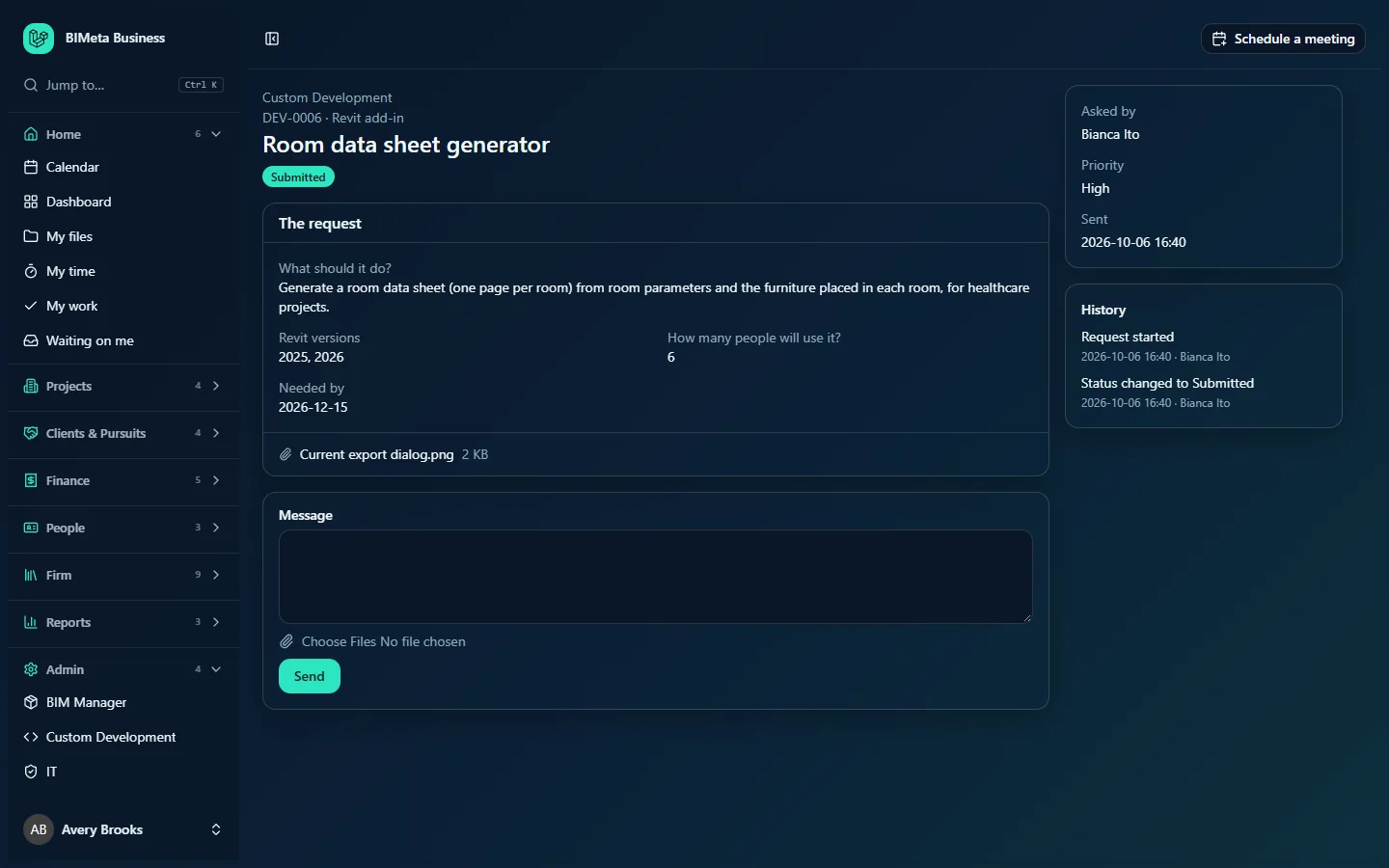
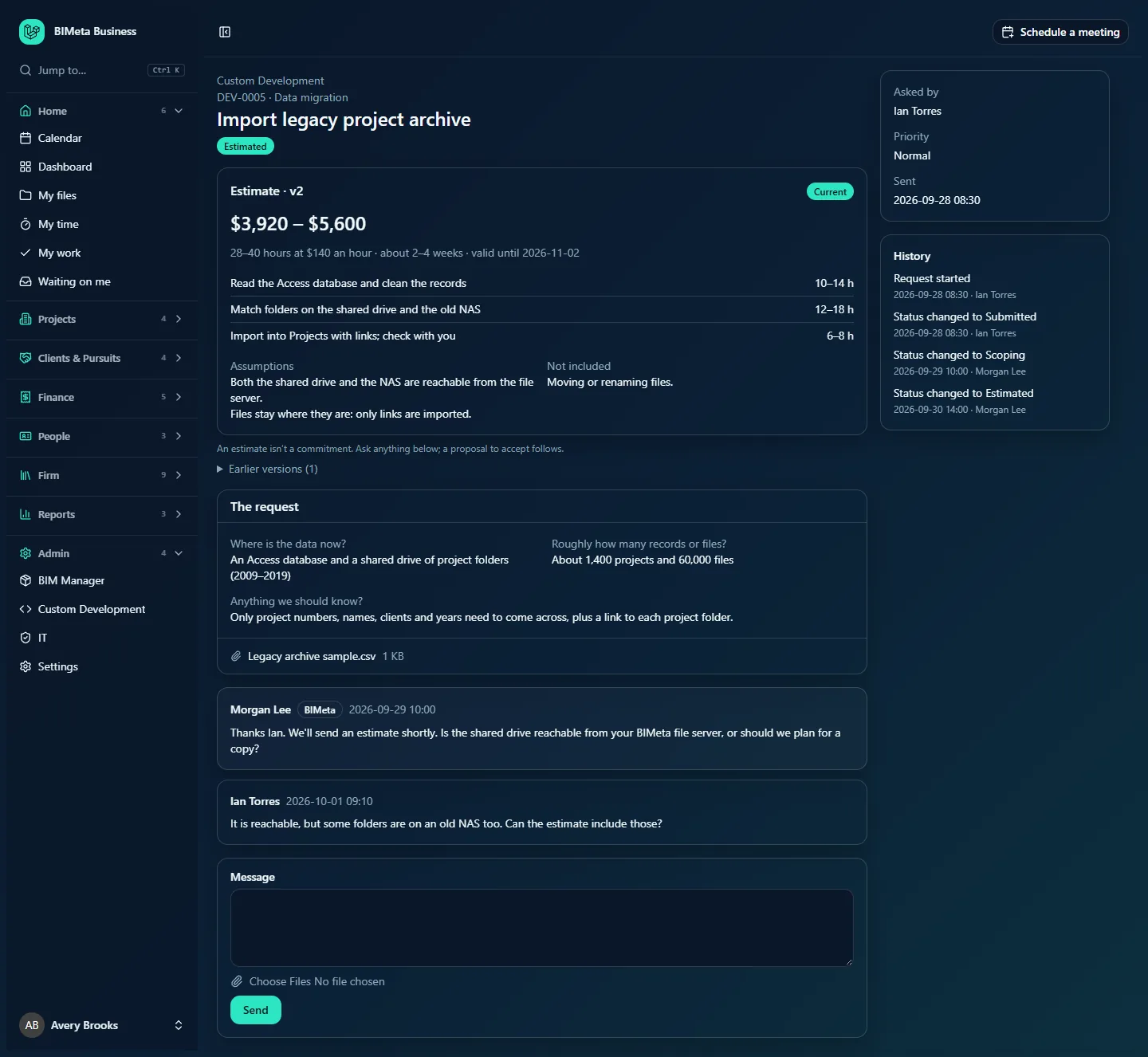
- The number and the kind of work (for example DEV-0006 · Revit add-in), the title, and the status badge.
Main column, top to bottom
Sections appear only when they have something in them, in this order:
- Delivered (handover): once the work is delivered. See Handover, the support period and your firm's libraries.
- Progress: once a plan exists. See Plan, progress and hours against the budget and Reviewing and signing off milestones.
- Hours bar: only if BIMeta shares the hours worked.
- Invoices: once anything has been invoiced. See Invoices and the payment schedule.
- Changes to the work: change requests. See Change requests: when the scope changes.
- Proposal: the current proposal and earlier versions. See Proposals: accept online, ask for changes or decline.
- Estimate: the current estimate and earlier versions. See Estimates: price range, timeline and what's included.
- The request: your answers on the form, with the files attached when you sent it.
- The conversation: every message, oldest first, then the Message box.
Side column
- Asked by, Priority and Sent (date and time it was sent).
- History: when the request was started and every status change, with the date, time and who made it (for example Status changed to Scoping · 2026-09-25 09:45 · Morgan Lee).
The conversation
Each message shows the author, the date and time, and the message. Messages from BIMeta's team carry a BIMeta badge and a shaded background. Files attached to a message are listed under it with their size; click a file name to download it. Some messages are written automatically when something happens, for example Milestone done: Connection and sign-in to QuickBooks, Ready for your review: …, Signed off: …, Changes asked for on the proposal: … or Source code and documentation handed over.
How to…
Reply to BIMeta or add information
- Scroll to the Message box at the bottom.
- Write your message (up to 20,000 characters) and, if you like, attach files with the paperclip (up to 10 files, 250 MB each). A message can also be just files.
- Click Send. You see Message sent.
BIMeta's team is emailed. If someone at BIMeta has been assigned the request, only that person is emailed; until then the whole development team is. Your message also puts the request on BIMeta's "waiting for us" list.
Download an attachment
Click its name, in The request, under a message, or in the Delivered files lists. Files download with their original names.
Tips and good to know
- You can still write on a request that's Delivered, Declined or Closed; it doesn't reopen it. To reopen delivered work for a fix, use Report a problem during the support period instead.
- BIMeta's team can leave internal notes on a request (for example an AI-drafted scope). Those never appear on your page.
- The History shows status changes only; replies, files and decisions are in the conversation and in each section.
FAQ
Can I change my answers after sending?
No, the form is fixed once sent. Write the change as a message; BIMeta reads the whole conversation.
Who gets emailed when BIMeta replies?
The person who asked for the work (the Asked by name). Others in the firm see the reply on the page and the New reply badge in the list.
Was this article helpful?
Share