



Proposals: accept online, ask for changes or decline
15 views · by Kevin J Bruno · updated 1 day ago
A proposal is BIMeta's binding offer: exactly what will be built, in which milestones, for what price, how it's paid, who owns the code and how long fixes are free afterwards. Your firm answers it online: Accept it by typing your full name, Ask for changes, or Decline. Accepting starts the work and invoices the deposit.
Where to find it
On the request's page, in the Proposal section. When a proposal is sent the request moves to Proposal sent, and the person who asked is emailed (A proposal to accept: …).
Who can use it
- Business Owners can accept any proposal.
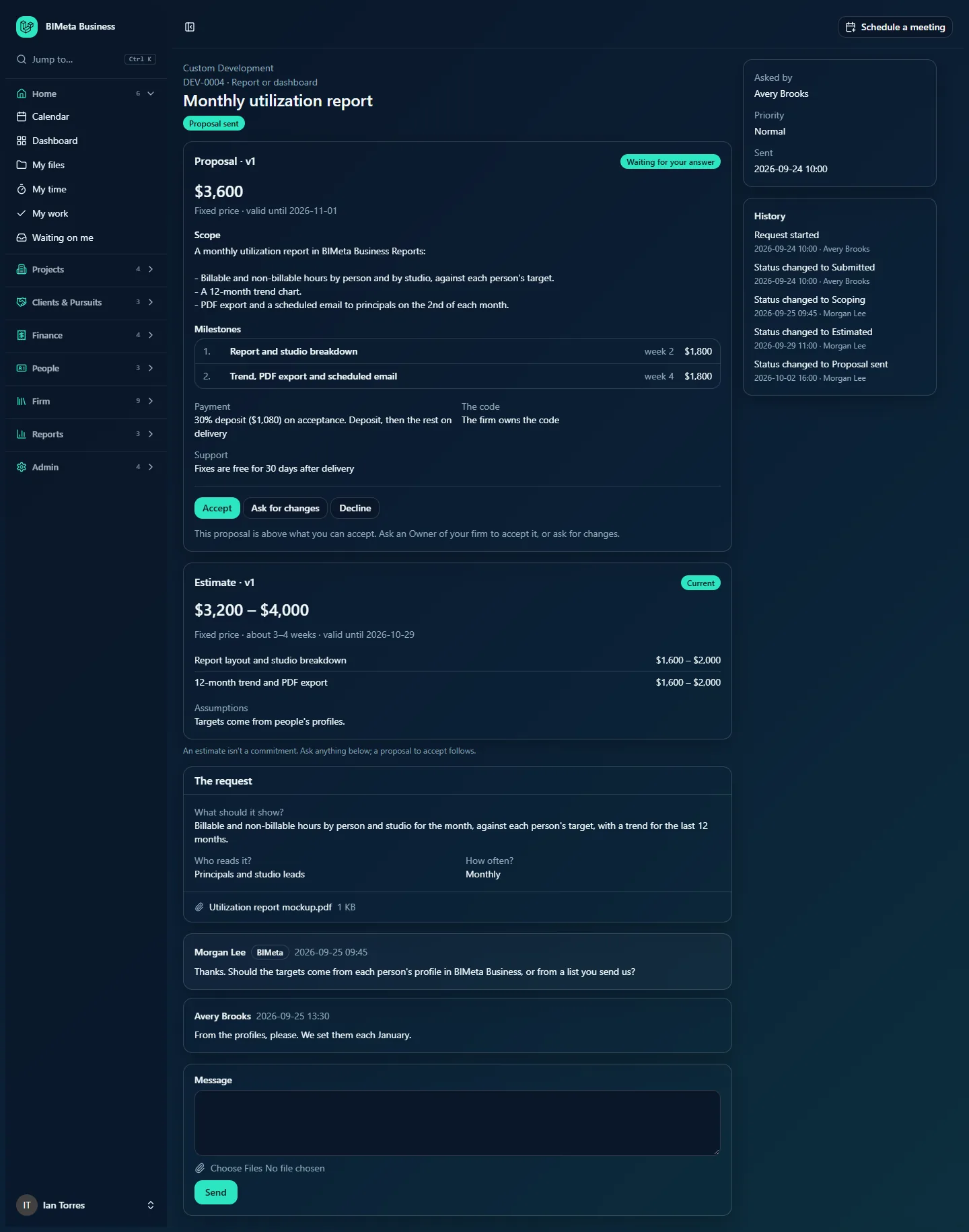
- IT Staff and BIM Managers can accept proposals up to the limit an Owner sets on the Custom Development page (5,000 in the proposal's currency unless changed). Above it they see This proposal is above what you can accept. Ask an Owner of your firm to accept it, or ask for changes. They can still ask for changes or decline.
- Anyone who can open the request can read the proposal.
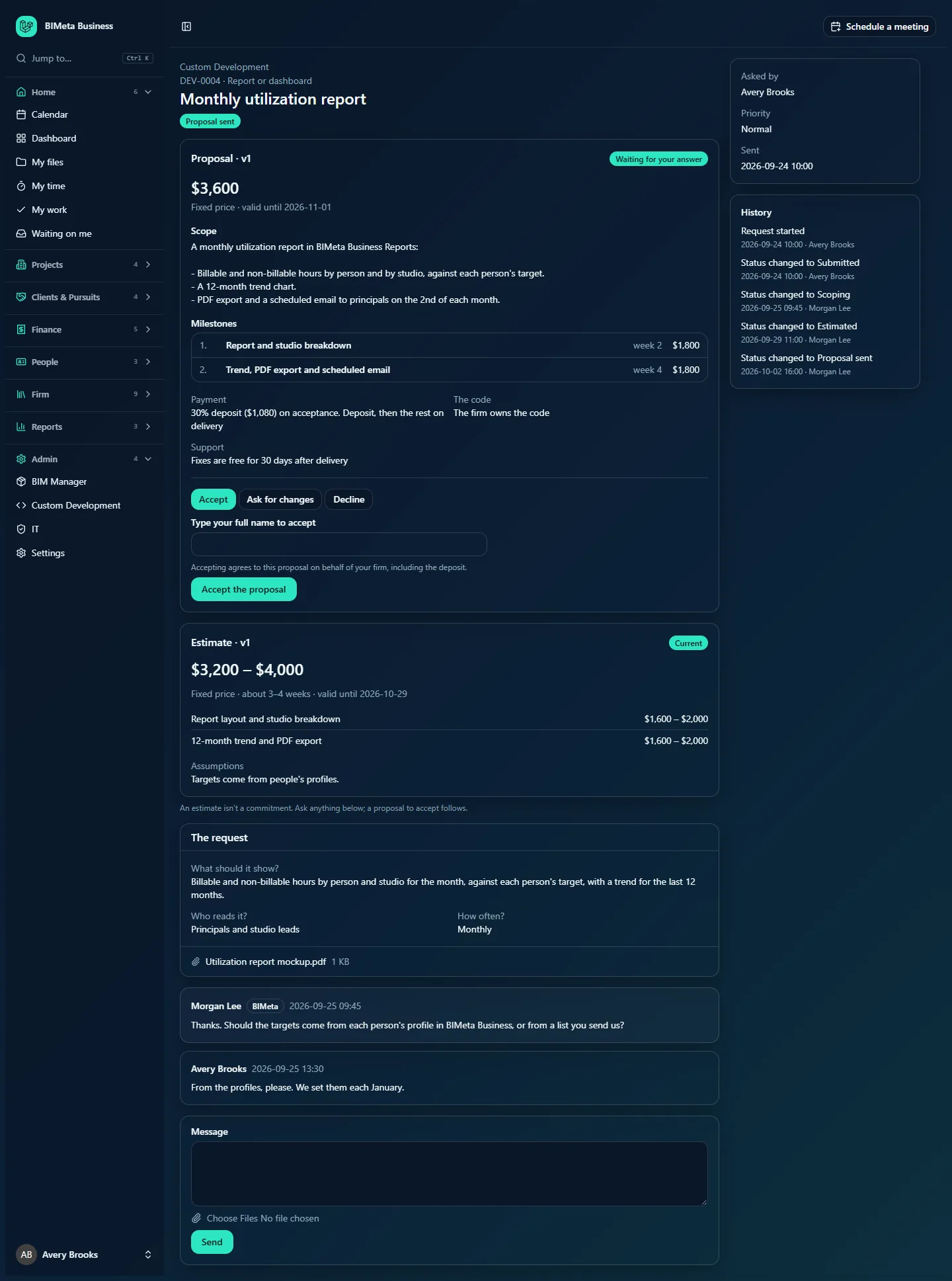
A tour of a proposal
- Proposal · v1 and its badge: Waiting for your answer, Accepted, Changes asked for, Declined, Replaced by a newer version or Expired.
- The price, and how it's priced: Fixed price, or Expected total, billed by the hour at $150, no more than 120 hours for hourly work (the cap appears when BIMeta sets one). Then valid until (30 days unless BIMeta sets another date).
- Scope: what will be built.
- Milestones: the parts of the work in order, each with the week it's due (counted from acceptance) and, for fixed prices, its amount.
- Payment: the deposit (30% unless BIMeta sets another percentage) and its amount, then the schedule:
- Deposit, then by milestone: each milestone is invoiced when it's done, less its share of the deposit.
- Deposit, then monthly for the hours worked: each month's hours are invoiced at the rate; the deposit is taken off until it's used up.
- Deposit, then the rest on delivery: the balance is invoiced when the work is delivered.
- The code: The firm owns the code, or BIMeta keeps the code and licenses it to the firm.
- Support: Fixes are free for 30 days after delivery (or the number of days in the proposal), or No free support period.
- Terms: any further terms BIMeta adds.
- After an answer: who accepted, with their typed signature and the date (for example Accepted by Avery Brooks (signed "Avery Brooks") on 2026-09-02 08:45), or who declined or asked for changes.
- Earlier versions (n): previous proposals.
How to…
Accept a proposal
- Read the scope, milestones, payment, code ownership and support. Ask anything in the conversation first.
- Under the proposal, keep Accept selected.
- In Type your full name to accept, type your name (2 to 160 characters). This is your electronic signature: Accepting agrees to this proposal on behalf of your firm, including the deposit.
- Click Accept the proposal. You see Proposal accepted. BIMeta will be in touch about getting started.
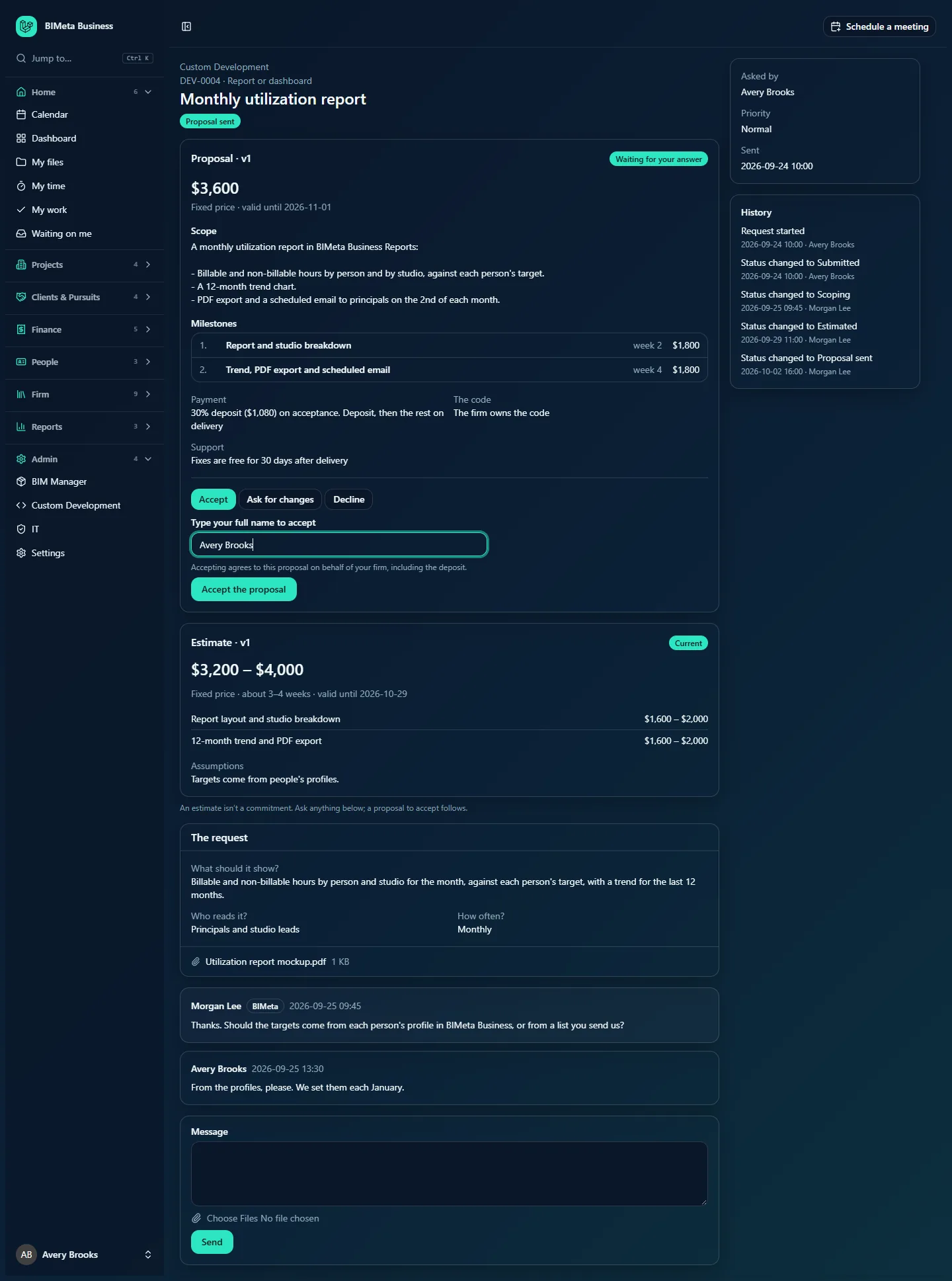
What happens next: the request becomes Accepted; the proposal's milestones become the plan, each due its number of weeks from today; the deposit invoice is created and sent through your firm's billing; any other open version of the proposal is marked as replaced; and BIMeta's team is emailed. Your name, the date and a protected fingerprint of your connection are recorded with the acceptance.
Ask for changes
- Click Ask for changes.
- In What would you like changed?, explain (required, up to 5,000 characters).
- Click Send. You see Sent. BIMeta will reply with an updated proposal.
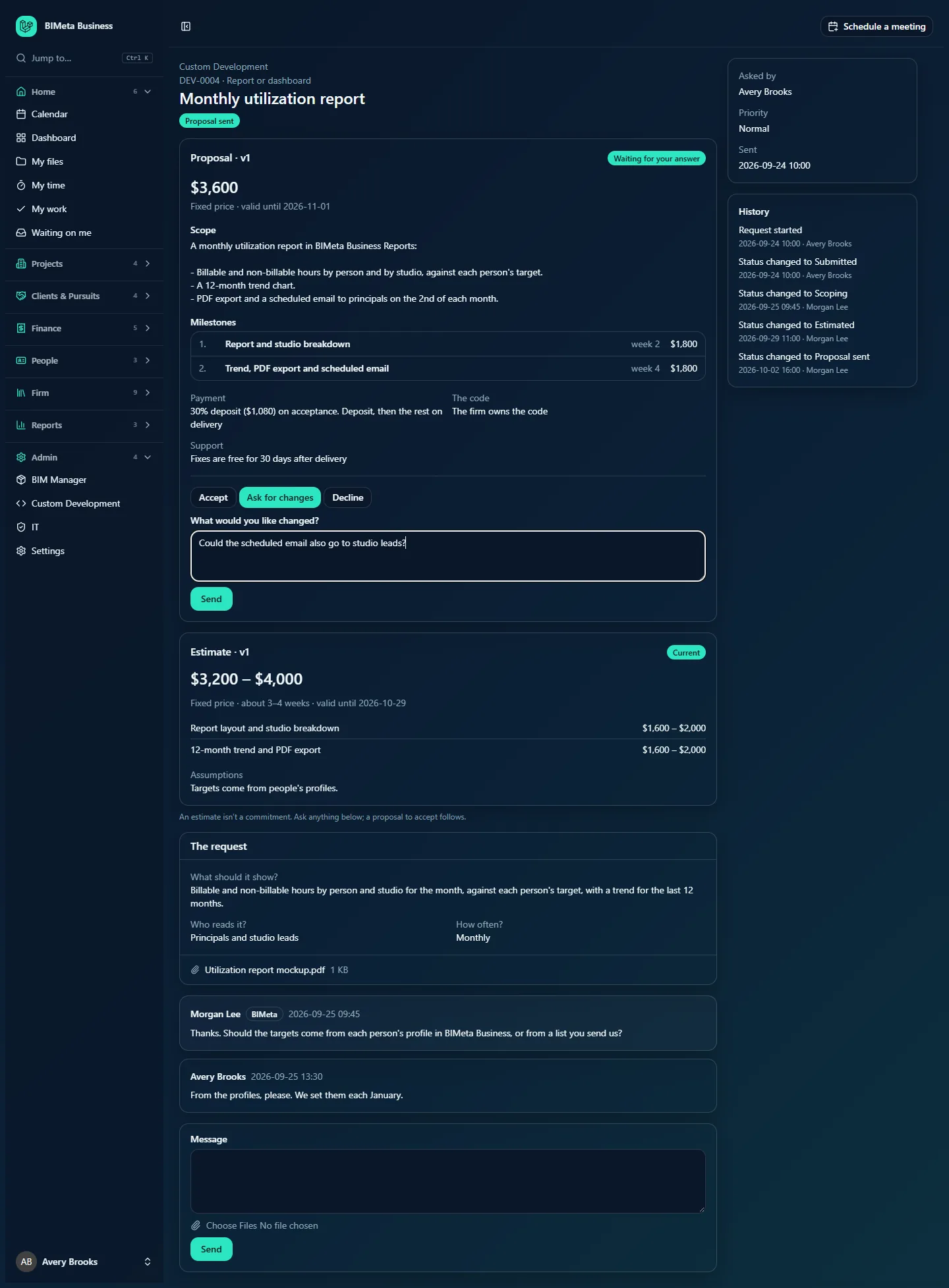
The proposal is marked Changes asked for, your note is posted in the conversation, and BIMeta is emailed. BIMeta then sends a new version for you to answer.
Decline
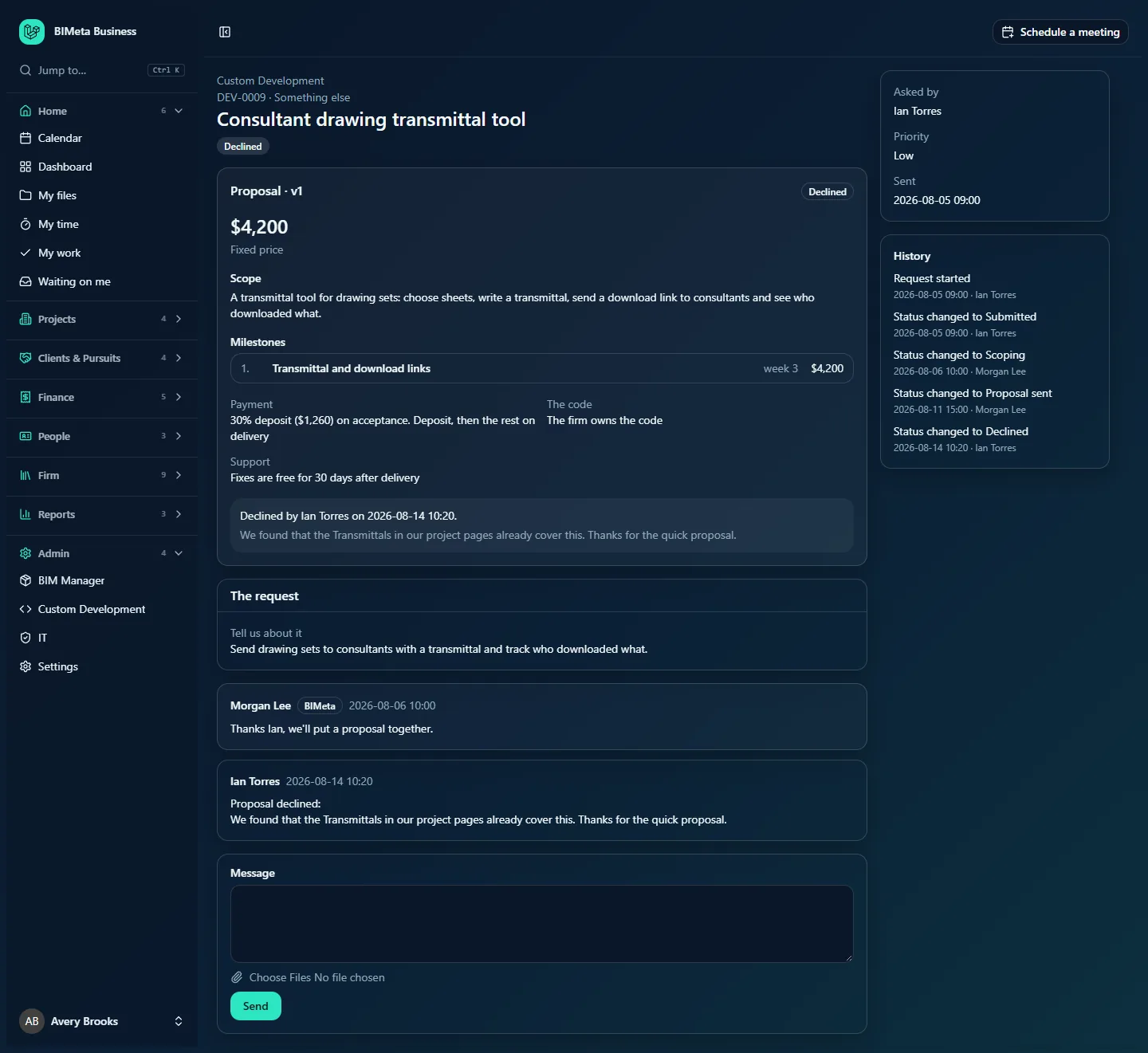
- Click Decline.
- Optionally say why in Why? (optional, helps us).
- Click Decline the proposal.
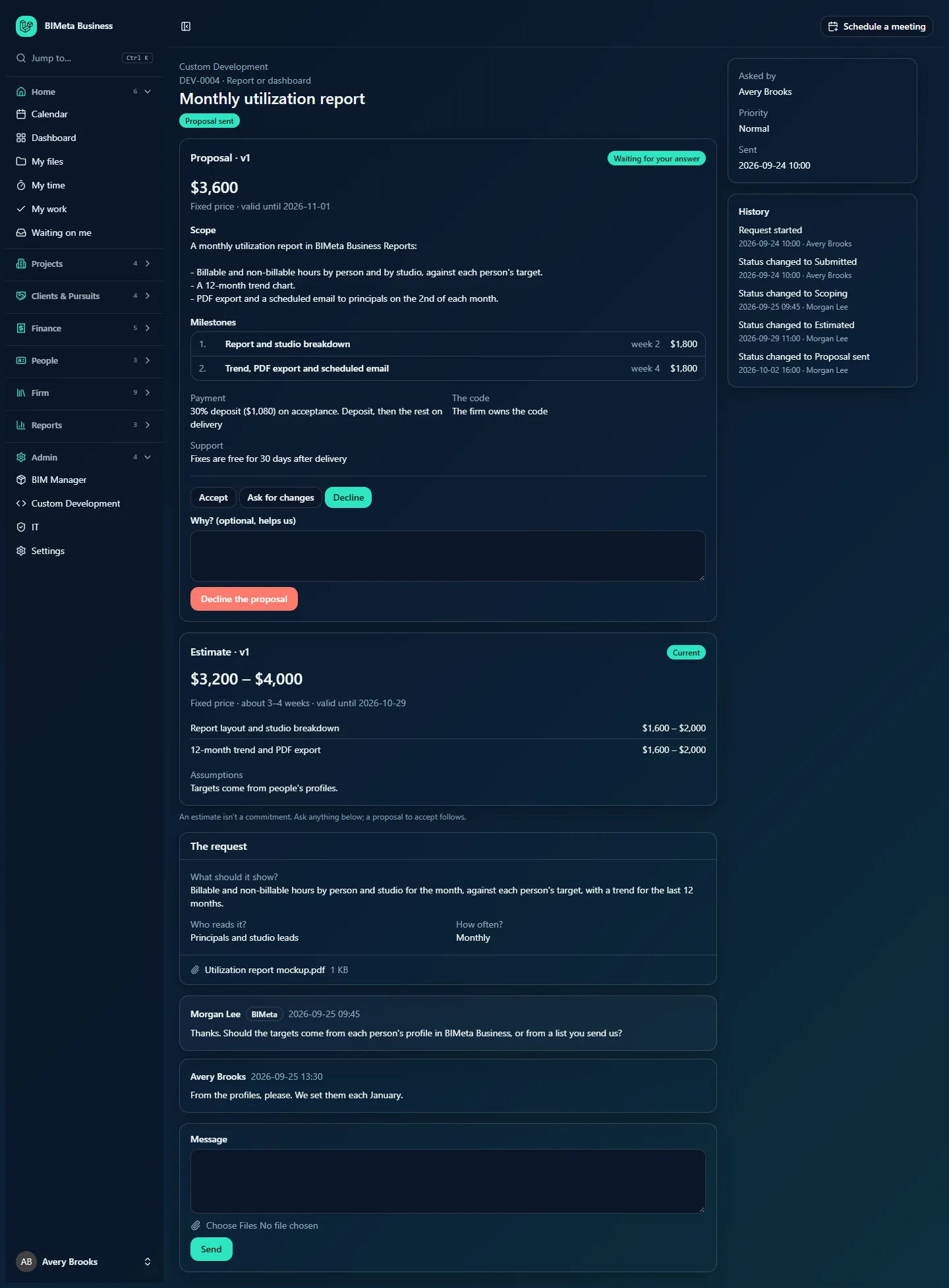
Declining a proposal declines the work: the request becomes Declined and moves to Finished. Your reason, if given, is posted in the conversation.
Tips and good to know
- Only the current proposal can be answered, and only until its valid until date. An expired proposal shows Expired and no answer buttons: ask BIMeta for an updated one.
- BIMeta may withdraw a proposal before you answer; it then disappears from your page.
- Very large proposals are checked by a second person at BIMeta before they're sent, so a large job can take a little longer to reach you.
- The acceptance limit compares the amount with the proposal's own currency: a limit of 5,000 means USD 5,000 on a USD proposal and EUR 5,000 on a EUR one.
FAQ
I'm a BIM Manager and there's no name box, only a message.
The proposal is above your firm's acceptance limit. Ask an Owner to accept it, or ask BIMeta for changes.
We accepted by mistake.
Write to BIMeta in the conversation straight away. The acceptance itself can't be undone from your side.
Was this article helpful?
Share