



Plan, progress and hours against the budget
16 views · by Kevin J Bruno · updated 19 hours ago
Once your firm accepts a proposal, its milestones become the plan of the work. The Progress card on the request's page shows how far along the job is, what BIMeta is working on now, when each milestone is due and when the whole job is expected to finish. If BIMeta shares them, you also see the hours worked against the hours your firm accepted.
Where to find it
On the request's page, near the top: the Progress card and, under it, the hours bar.
Who can use it
Everyone who can open the request sees the progress. Signing off milestones needs the permission to answer BIMeta (Owners, IT Staff, BIM Managers).
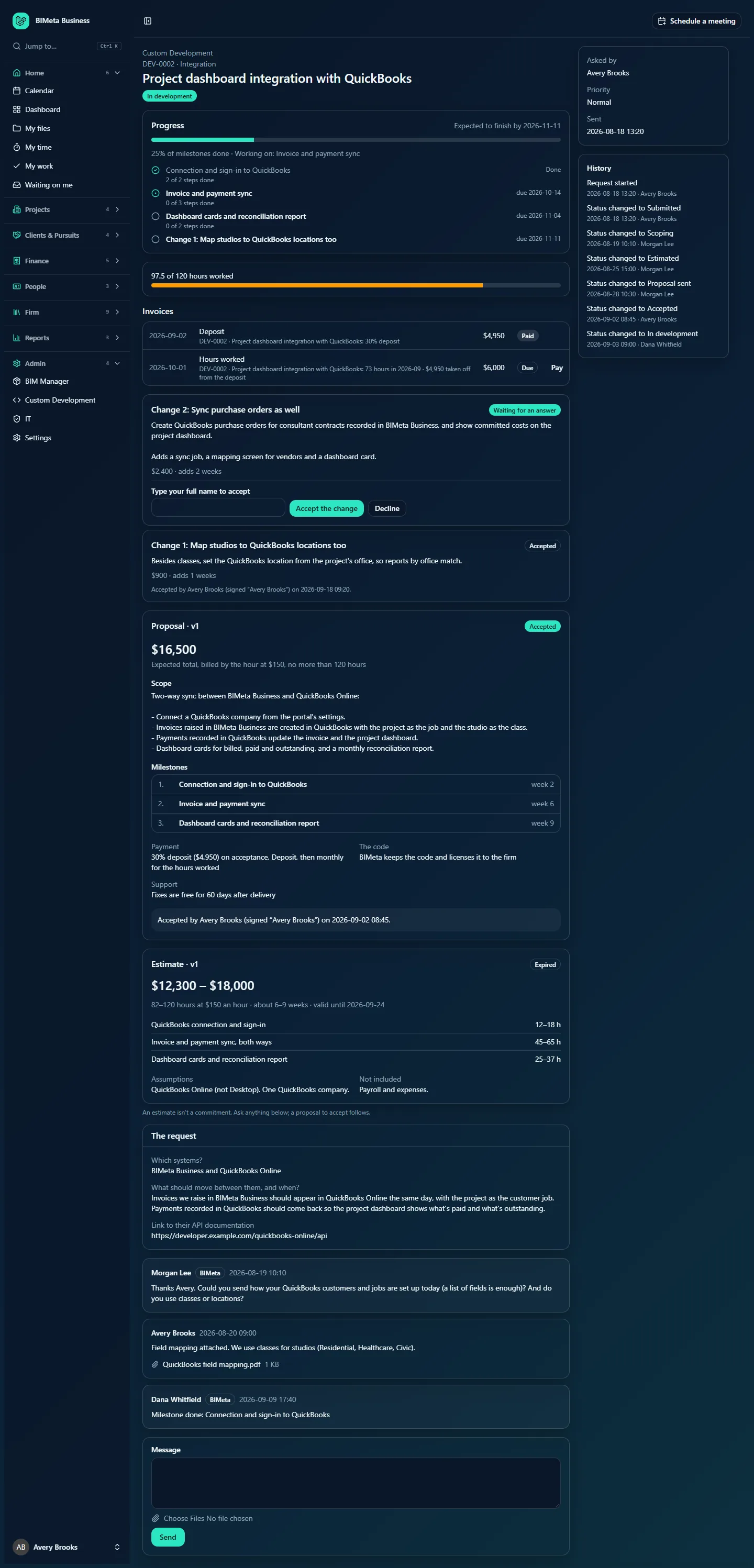
A tour of the Progress card
- Expected to finish by …: the latest due date of all milestones.
- The bar and … % of milestones done, then Working on: … with the milestone in progress.
- Each milestone in order, with an icon for its state (not started, in progress, waiting for sign-off, done), its title, … of … steps done (BIMeta's tasks under it), and on the right due …, Late when the due date has passed and it isn't done, or Done.
- Files delivered with a milestone, and Signed off by … on … once signed off.
- For a milestone Waiting for sign-off: the Sign off and Something needs fixing buttons (see Reviewing and signing off milestones).
- Milestones added from accepted change requests appear as Change 1: …, with their own due date.
The hours bar
When BIMeta shares the hours, a bar shows 97.5 of 120 hours worked (or just … hours worked when there's no budget). The budget is, in order:
- the hours cap of an accepted hourly proposal;
- otherwise its expected total divided by the rate;
- otherwise the highest hours of the last estimate.
BIMeta's team is alerted at 80% and again at 100% of the budget, so they can raise it with you before the hours run out. You see the totals only; individual time entries stay with BIMeta.
How the status moves
- Accepted → In development when BIMeta starts the first task or milestone.
- In development → In review when a milestone is sent for your review, and back when nothing is waiting for sign-off.
- → Delivered when every milestone is done.
When BIMeta finishes a milestone that doesn't need your review, a message Milestone done: … appears in the conversation.
Tips and good to know
- Due dates are counted in weeks from the day the proposal was accepted. BIMeta can adjust them; the "expected to finish" date follows.
- You see how many of a milestone's steps are done but not the steps themselves.
- For work billed monthly by the hour, the hours bar is the best way to follow costs between invoices.
FAQ
There's no hours bar on our request.
BIMeta hasn't shared the hours on this request. Ask in the conversation if you'd like to follow them.
A milestone shows Late.
Its due date has passed. Ask BIMeta in the conversation for a new date; changes in scope usually come with a change request that moves the dates.
Was this article helpful?
Share