



Custom Development: get custom tools built by BIMeta
16 views · by Kevin J Bruno · updated 1 day ago
Custom Development is where your firm asks BIMeta's own development team to build something just for you: a Revit add-in, a pyRevit or Dynamo script, an integration between BIMeta Business and another system, a report or dashboard, a new feature in your portal, or a data migration. Everything about the job happens in one place in your portal: you describe the work on a short form, talk it through with BIMeta in a conversation, receive an estimate and then a proposal you accept online, follow the plan and progress, review and sign off each part, pay the invoices, and finally receive the finished tool, its source code and a free support period.
Asking costs nothing. BIMeta always sends an estimate and a proposal before any paid work starts, and nothing is agreed until someone in your firm accepts a proposal by typing their name.
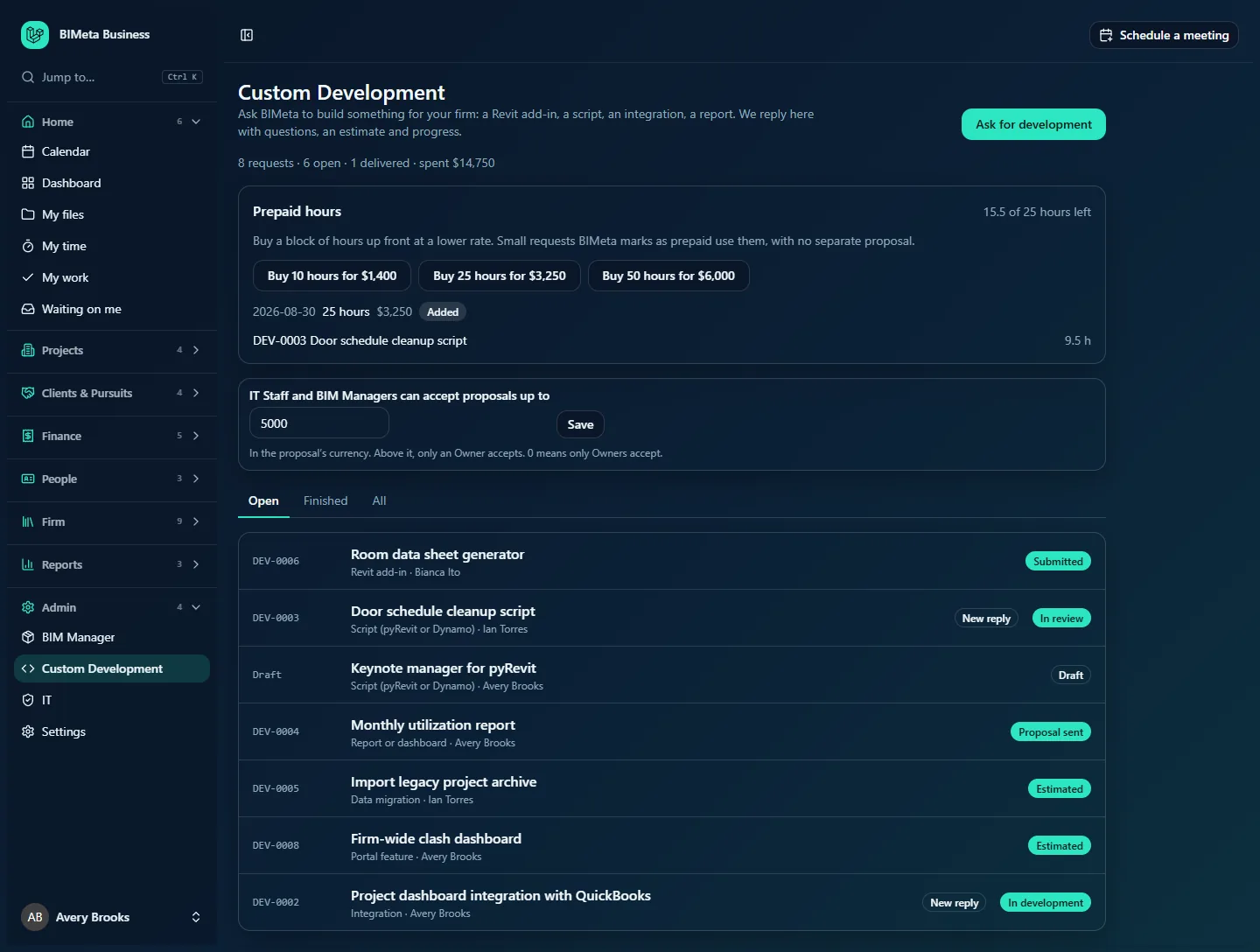
Where to find it
- Sidebar → Admin → Custom Development in your firm's portal.
- Press Ctrl K (Jump to…) and type
custom development. - The development portal, a separate web address (normally
dev.followed by BIMeta's domain) that shows Custom Development and nothing else. See The development portal: Custom Development on its own address. - The links in BIMeta's emails about a request open that request directly.
Who can use it
| Role | What they can do |
|---|---|
| Business Owner | Everything: ask for work, reply, accept proposals, changes and maintenance plans of any amount, sign off milestones, set the acceptance limit for IT Staff and BIM Managers, and buy prepaid hours. |
| IT Staff | See every request of the firm, ask for work, reply, sign off milestones, report problems, and accept proposals, changes and maintenance plans up to the limit the Owner sets. |
| BIM Manager | The same as IT Staff, and can also put delivered add-ins and scripts into the firm's plugin and script libraries. |
| Admin, Project Manager, Human Resources, User | No access by default: Custom Development isn't in their sidebar and the page answers 403 This action is unauthorized. An Owner can give a custom role the two Custom Development permissions in Settings → Roles & permissions. |
For the full list, see Who can do what in Custom Development.
How a job goes, step by step
- You ask. Pick the kind of work (for example Revit add-in or Integration), fill in its form, attach screenshots or sample files, and click Send to BIMeta. The request gets a number such as DEV-0006 and the status Submitted. See Asking for development: request types, the form and attachments.
- BIMeta asks questions. BIMeta's first reply moves the request to Scoping. You answer in the request's conversation. See A request's page: conversation, status and history.
- Estimate. BIMeta sends a price range and a timeline, by the hour or as a fixed price (status Estimated). An estimate is not a commitment. See Estimates: price range, timeline and what's included.
- Proposal. BIMeta sends the scope, milestones, price, deposit, payment schedule, who owns the code and the free support period (status Proposal sent). You Accept, Ask for changes or Decline. See Proposals: accept online, ask for changes or decline.
- Accepted. The proposal's milestones become the plan and the deposit is invoiced straight away. When BIMeta starts the first task the request is In development. See Plan, progress and hours against the budget.
- Changes. If the scope changes mid-job, BIMeta sends a change request with its cost and the extra time; you accept or decline it. See Change requests: when the scope changes.
- Review and sign-off. Each milestone is delivered for your review with its files (status In review). You Sign off or say Something needs fixing. See Reviewing and signing off milestones.
- Invoices. Invoices follow the payment schedule in the proposal: by milestone, monthly for the hours worked, or the rest on delivery. See Invoices and the payment schedule.
- Delivered. When the last milestone is signed off the request is Delivered and the free support period starts. BIMeta hands over the source code and documentation, and your BIM Manager can put the add-in straight into your plugin library. See Handover, the support period and your firm's libraries.
- Afterwards. BIMeta may offer a monthly maintenance plan that keeps the tool working with new Revit versions. See Maintenance plans.
Small jobs can skip the proposal: if your Owner has bought prepaid hours, BIMeta can run a small request against them. See Prepaid hours: buy a block of development time.
Request statuses
| Status | What it means |
|---|---|
| Draft | Saved but not sent. Only your firm sees it; it has no number yet. |
| Submitted | Sent to BIMeta, waiting for the first reply. |
| Scoping | BIMeta has replied and is working out exactly what's needed. |
| Estimated | An estimate has been sent. |
| Proposal sent | A proposal is waiting for your answer. |
| Accepted | Your firm accepted the proposal; work is about to start. |
| In development | BIMeta is building it. |
| In review | A milestone is waiting for your sign-off. |
| Delivered | Every milestone is done. The support period runs from here. |
| On hold | Paused, usually while someone waits for information. |
| Declined | The proposal was declined (by your firm), or BIMeta can't take the work on. |
| Closed | Finished and closed by BIMeta. |
What it costs
- Asking, scoping and estimates are free.
- Paid work starts only with an accepted proposal (or, for small jobs, prepaid hours you bought).
- Prices are in the proposal's currency (USD, CAD, EUR, GBP or AUD). Invoices are sent through your firm's usual BIMeta billing, the same way as your plan and storage, and also appear on Admin → Billing.
- Fixes for problems found during the free support period cost nothing.
Emails you'll get
The person who asked for the work is emailed when BIMeta replies, when the status is changed by BIMeta, when an estimate, a proposal, a change request, a milestone for review, the source code handover or a maintenance plan is ready. Each email links straight to the request. Other people in the firm see everything on the request's page but aren't emailed.
Tips and good to know
- Files you attach are virus-checked and encrypted, and they don't count against your firm's storage.
- BIMeta's team may use AI internally to help draft a scope and a price range from similar past jobs. That draft is an internal note for BIMeta's team only: you never see it, nothing is sent to you without a person checking it, and none of your firm's AI credits are used.
- The line under the page title (for example 8 requests · 6 open · 1 delivered · spent $14,750) is your firm's own Custom Development summary: what you've asked for and what you've paid.
FAQ
I don't see Custom Development in my sidebar.
Only Business Owners, IT Staff and BIM Managers have it by default. Ask an Owner to give your role the Custom Development permissions, or to ask on your behalf.
Do we pay for the time spent on estimates and proposals?
No. Paid work starts only once a proposal (or a change, or a maintenance plan) is accepted, or when BIMeta runs a small job against prepaid hours you bought.
Was this article helpful?
Share