



Handover, the support period and your firm's libraries
15 views · by Kevin J Bruno · updated 1 day ago
When the last milestone is signed off the request is Delivered. A Delivered card appears at the top of the request: who owns the code, until when fixes are free, every file BIMeta delivered, the source code and documentation, any maintenance plan, and, for BIM Managers, a way to put the delivered add-in or script straight into your firm's libraries.
Where to find it
The request's page, the Delivered card at the top. The person who asked is emailed when the work is delivered and when the source code is handed over.
Who can use it
- Everyone who can open the request sees the card and downloads the files.
- Owners, IT Staff and BIM Managers can Report a problem.
- People who can manage the BIM plugin library (BIM Managers, and Owners) see Add to the library.
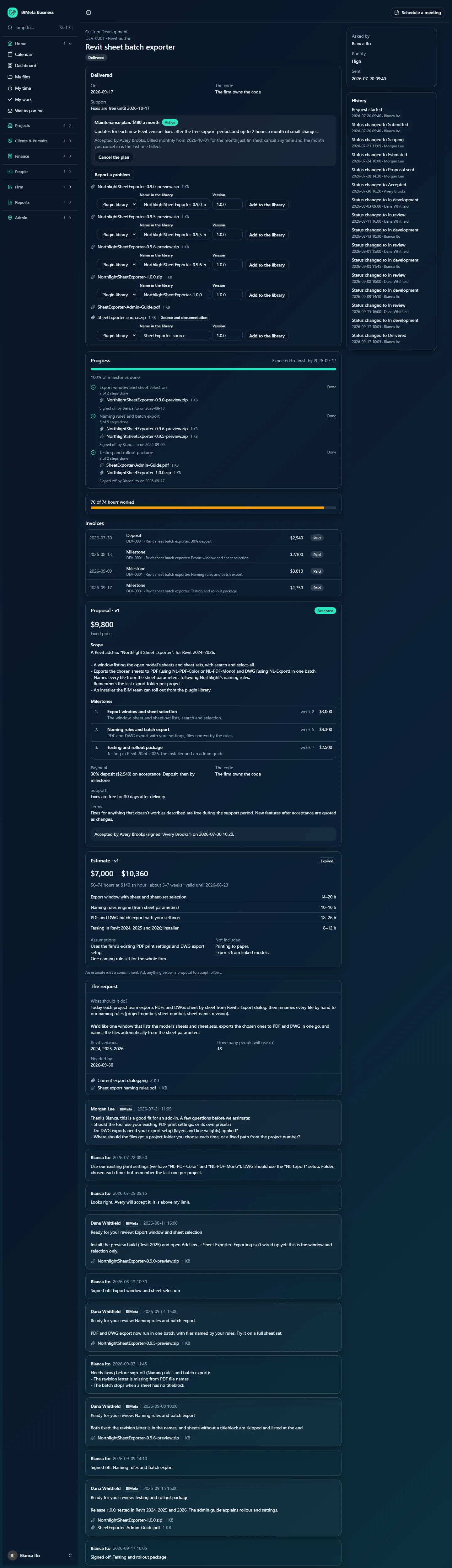
A tour of the Delivered card
- On: the delivery date.
- The code: who owns it, as the proposal said.
- Support: Fixes are free until 2026-10-17., or No free support period.
- Report a problem, while the support period is open (or a maintenance plan is active).
- The maintenance plan, if one was offered (see Maintenance plans).
- Delivered files: every file delivered with a milestone, plus the handover files marked Source and documentation. Click a name to download.
- Per file, when it can go into a library: Add to the library, or the badge In the plugin library / In the script library once it's there.
How to…
Report a problem during the support period
- Click Report a problem.
- In What's wrong, and how to see it?, describe the problem and the steps to see it.
- Click Report the problem (or Cancel). You see Reported. BIMeta will fix it as part of the support period.
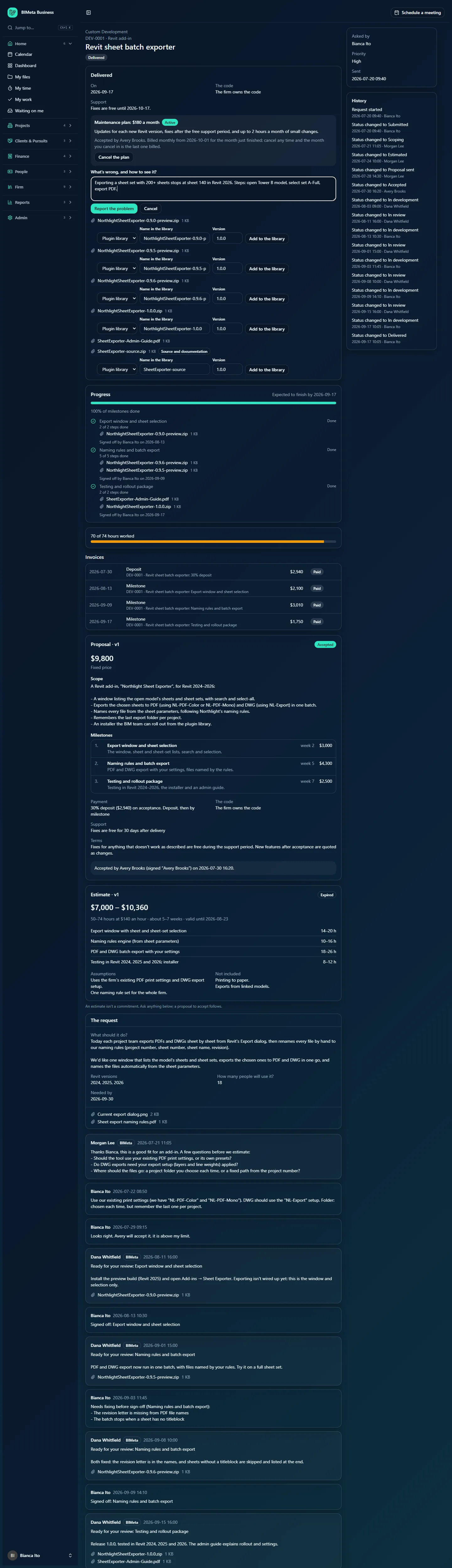
Your report is posted in the conversation, the request goes back to In development, and BIMeta's team is alerted. Fixes in the support period are free.
Add a delivered add-in or script to your libraries (BIM Managers)
- Find the file in Delivered files. Files that can go into a library have the form next to them:
.zipfiles can go to the plugin or the script library;.dynand.pyfiles to the script library. - Choose the Library (Plugin library or Script library) when there's a choice.
- Type the Name in the library (required, up to 160 characters), for example Northlight Sheet Exporter, and for plugins a Version (for example
1.0.0; 1.0.0 if left empty). - Click Add to the library.
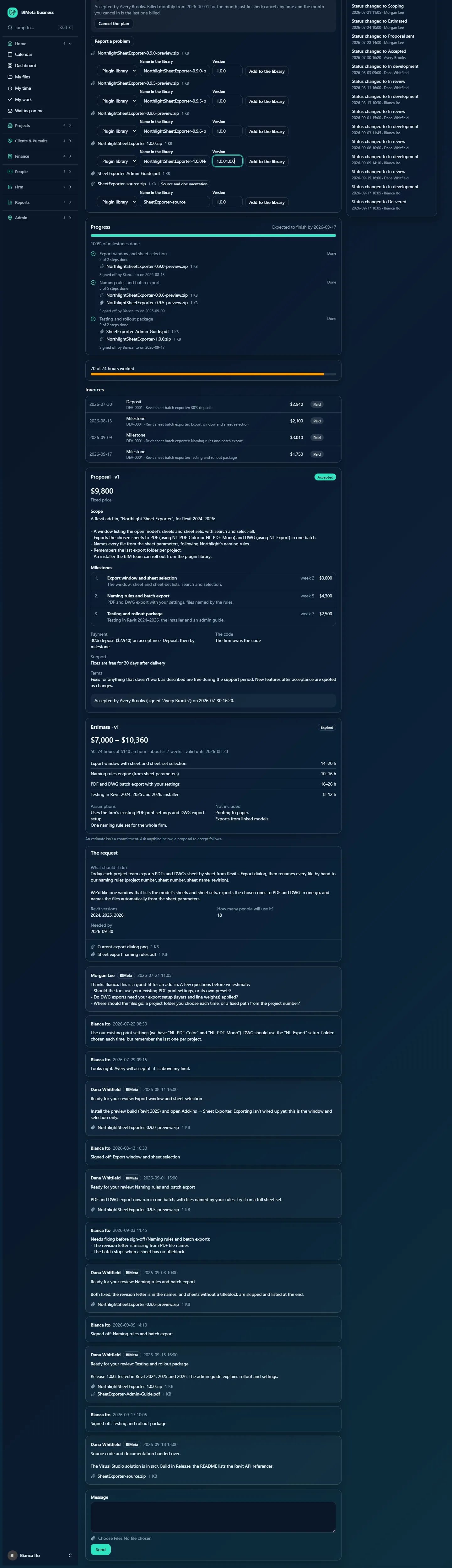
A plugin is added as a new version of the package with that name (the package is created if needed), described as delivered by BIMeta for the request, and is ready to roll out from the BIM Manager panel. A script is added to the script library as a new version and a BIM manager approves it before it's used. The file then shows In the plugin library or In the script library.
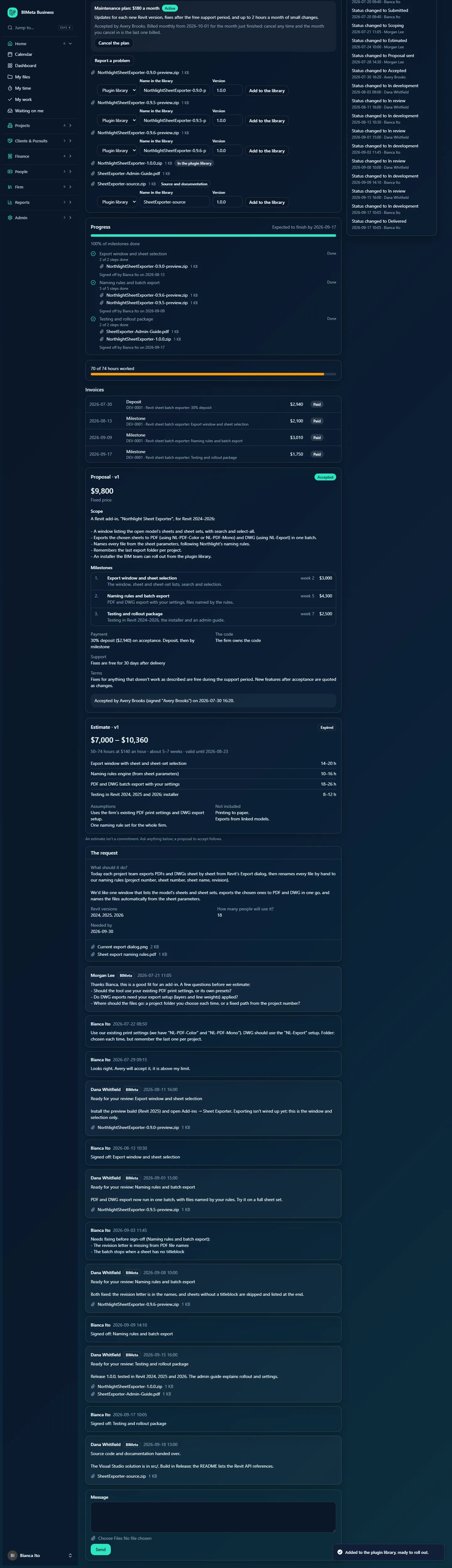
Source code and documentation
BIMeta hands over the source code and documentation as files posted in the conversation (Source code and documentation handed over.) with notes on where things are and how to build it. They're listed in the card with Source and documentation. If the proposal said The firm owns the code, keep these safe with your other firm records.
Tips and good to know
- The support period length comes from the proposal (30 days unless it said otherwise) and starts on the delivery date.
- After the support period, report problems as a new request or through a maintenance plan. Without either, Report a problem disappears.
- Choose the final release (for example NorthlightSheetExporter-1.0.0.zip), not preview builds, when adding to the library. A source-code zip shouldn't be added as a plugin.
- See the BIM Manager panel article for rolling the plugin out to computers.
FAQ
I'm IT Staff and I don't see Add to the library.
Only people who can manage the BIM plugin library see it. Ask a BIM Manager.
Report a problem has gone.
The free support period ended and there's no active maintenance plan. Ask for the fix as a new request, or ask BIMeta for a maintenance plan.
Was this article helpful?
Share