



Asking for development: request types, the form and attachments
17 views · by Kevin J Bruno · updated 9 hours ago
You start every Custom Development job by describing what you need. BIMeta keeps a short list of kinds of work, each with its own form, so the request already contains the facts BIMeta needs to estimate it. You can save a draft and finish it later, and nothing reaches BIMeta until you click Send to BIMeta.
Where to find it
- Sidebar → Admin → Custom Development → Ask for development.
- On the development portal, the same button on its first page.
- Drafts: open them from the Custom Development list (they show Draft instead of a number).
Who can use it
Business Owners, IT Staff and BIM Managers (anyone whose role can "ask BIMeta for custom development work"). Others don't see the button.
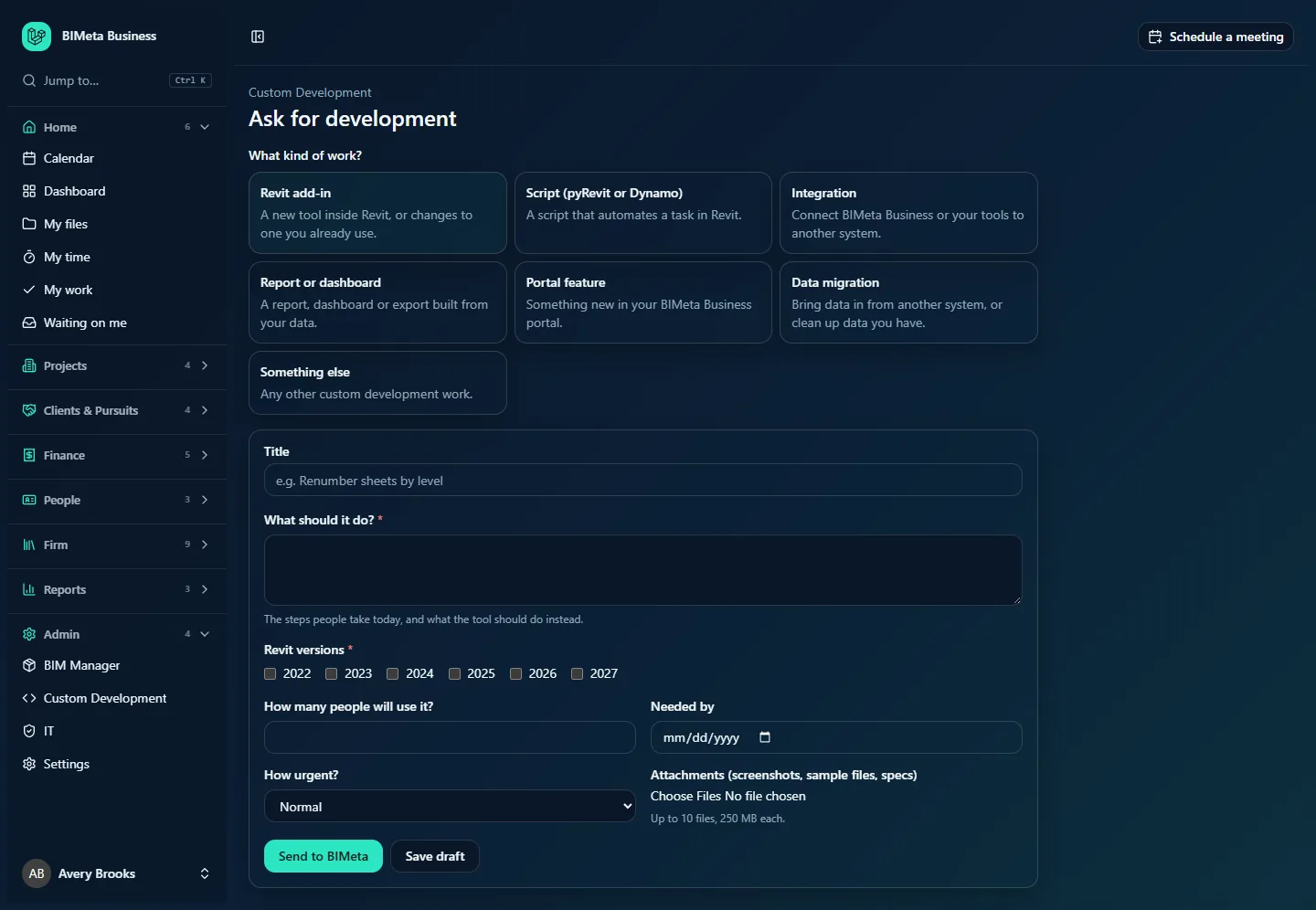
A tour of the page
What kind of work?
A card for each kind of work BIMeta takes on, with a short description. The selected card is highlighted, and the form below changes to match it. The kinds BIMeta currently offers are:
| Kind of work | What it's for | Its form asks |
|---|---|---|
| Revit add-in | A new tool inside Revit, or changes to one you already use. | What should it do? (required; the steps people take today and what the tool should do instead), Revit versions (required, several choices), How many people will use it?, Needed by. |
| Script (pyRevit or Dynamo) | A script that automates a task in Revit. | What should it automate? (required), Platform (pyRevit, Dynamo or No preference; required), Revit versions. |
| Integration | Connect BIMeta Business or your tools to another system. | Which systems? (required), What should move between them, and when? (required), Link to their API documentation. |
| Report or dashboard | A report, dashboard or export built from your data. | What should it show? (required), Who reads it?, How often? (Once, Weekly, Monthly, Live). |
| Portal feature | Something new in your BIMeta Business portal. | What should it do? (required), Who would use it? |
| Data migration | Bring data in from another system, or clean up data you have. | Where is the data now? (required), Roughly how many records or files?, Anything we should know? |
| Something else | Any other custom development work. | Tell us about it (required). |
BIMeta can change these forms, add kinds of work or stop offering one, so your list may differ. If no kind of work is offered you see BIMeta isn't taking new development requests right now.
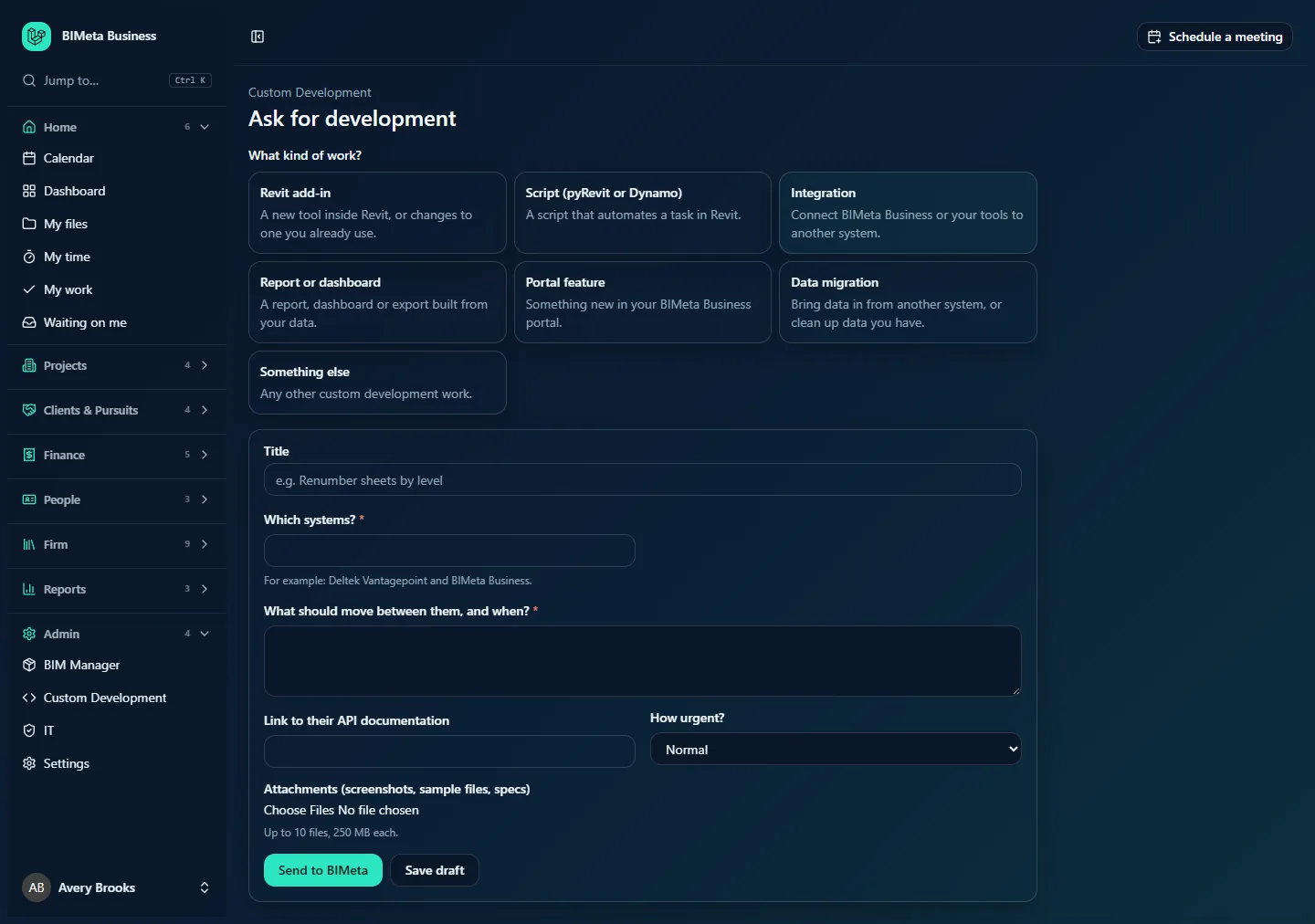
The form
- Title (required, up to 160 characters): a short name for the job, for example Revit sheet batch exporter. It's how everyone will refer to the request.
- The kind of work's own fields, as listed above. Required ones are marked with an asterisk. Help text under a field explains what BIMeta is looking for.
- How urgent?: Low, Normal (default), High or Urgent. BIMeta's team works the most urgent requests first.
- Attachments (screenshots, sample files, specs): up to 10 files at a time, 250 MB each. For anything larger, put a link in a message.
- Send to BIMeta and Save draft.
How to…
Ask for work
- Click Ask for development.
- Pick the kind of work that fits best. If nothing fits, use Something else.
- Give it a Title and fill in the fields. Describe today's steps and the result you want; screenshots of the current process help a lot.
- Choose How urgent? and attach any files.
- Click Send to BIMeta. You land on the request's page with Request sent. BIMeta will reply here. The request now has its number (for example DEV-0006) and the status Submitted.
When you send, BIMeta's development team is emailed and the request appears in their inbox. Expect the first reply in the request's conversation, usually with questions.
Save a draft and finish it later
- Fill in what you have (only the Title is needed for a draft) and click Save draft. You see Draft saved.
- Later, open the draft from the Custom Development list. The same form appears with your answers, so you can change the title, answers and urgency and add more files.
- Click Send to BIMeta when it's complete. Every required field must be filled in by then; otherwise you see, for example, What should it do? is required.
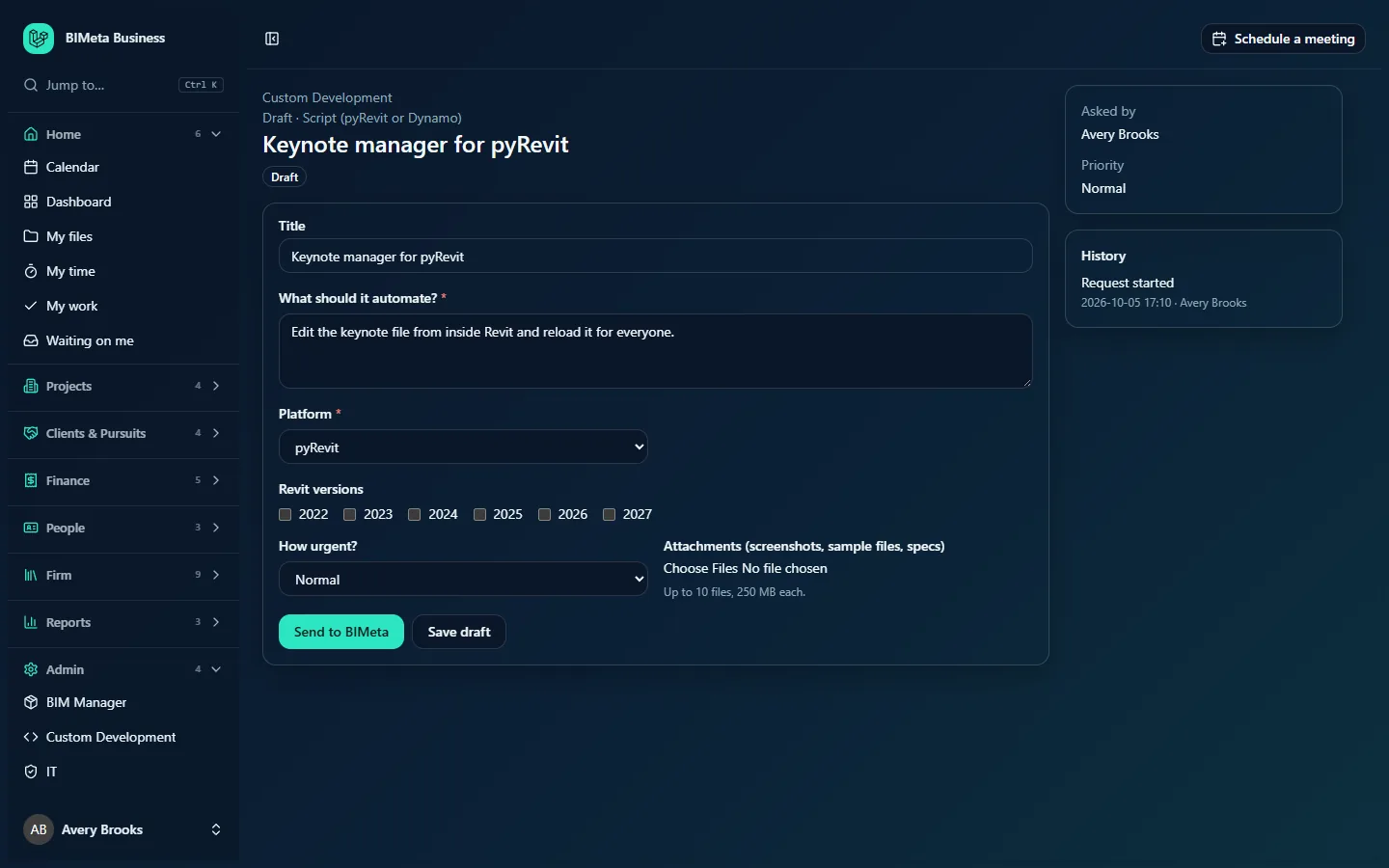
Tips and good to know
- A draft is visible to everyone in your firm who can open Custom Development, but BIMeta can't see it until it's sent.
- A draft keeps the kind of work you picked. To change the kind, start a new request.
- Once sent, the form's answers are fixed. Add anything new, or a correction, as a message in the conversation.
- Attachments are virus-checked before they're stored; a file the scanner blocks is refused with the threat's name. Files are encrypted and don't count against your firm's storage.
- Numbers follow the order requests were started, so a draft sent later can get a number that looks "out of order"; that's normal.
FAQ
I clicked Send and got "… is required".
A required field of the kind of work is empty. Fill it in and send again; your other answers are kept.
Can I delete a draft?
There's no delete button. Leave it unsent; BIMeta never sees drafts.
My file is larger than 250 MB.
Upload it to your firm's file storage or another file-sharing service and paste the link in a message.
Was this article helpful?
Share