



Consultants: insurance certificates and consultant invoices
23 views · by Kevin J Bruno · updated 1 day ago
Consultants is the firm's directory of the outside consultants it hires, such as structural, MEP, civil and landscape engineers. For each consultant it keeps their contact details, the markup the firm adds when passing their fees on to clients, their insurance certificates with expiry dates, and the invoices they send the firm. BIMeta warns you before a consultant's insurance lapses, and approved consultant invoices flow through to your client invoices automatically.
Where to find it
- Sidebar → Finance → Consultants.
- Dashboard → Consultant insurance to renew card: shows how many certificates are expiring within 30 days or already expired, and opens this page.
- The insurance alert email contains a link to this page.
- Jump to… (Ctrl K): type consultants, subconsultants, engineers or insurance.
- Consultants are put onto individual jobs from each project's Consultants tab, which draws on this directory (including each consultant's insurance status).
Who can use it
- Business Owner and Admin: the "manage consultants, their insurance certificates and their invoices" permission. They can see and do everything described here.
- IT Staff, BIM Manager, Project Manager, Human Resources and User: can't open this page by default. Project teams still see consultants on a project's Consultants tab.
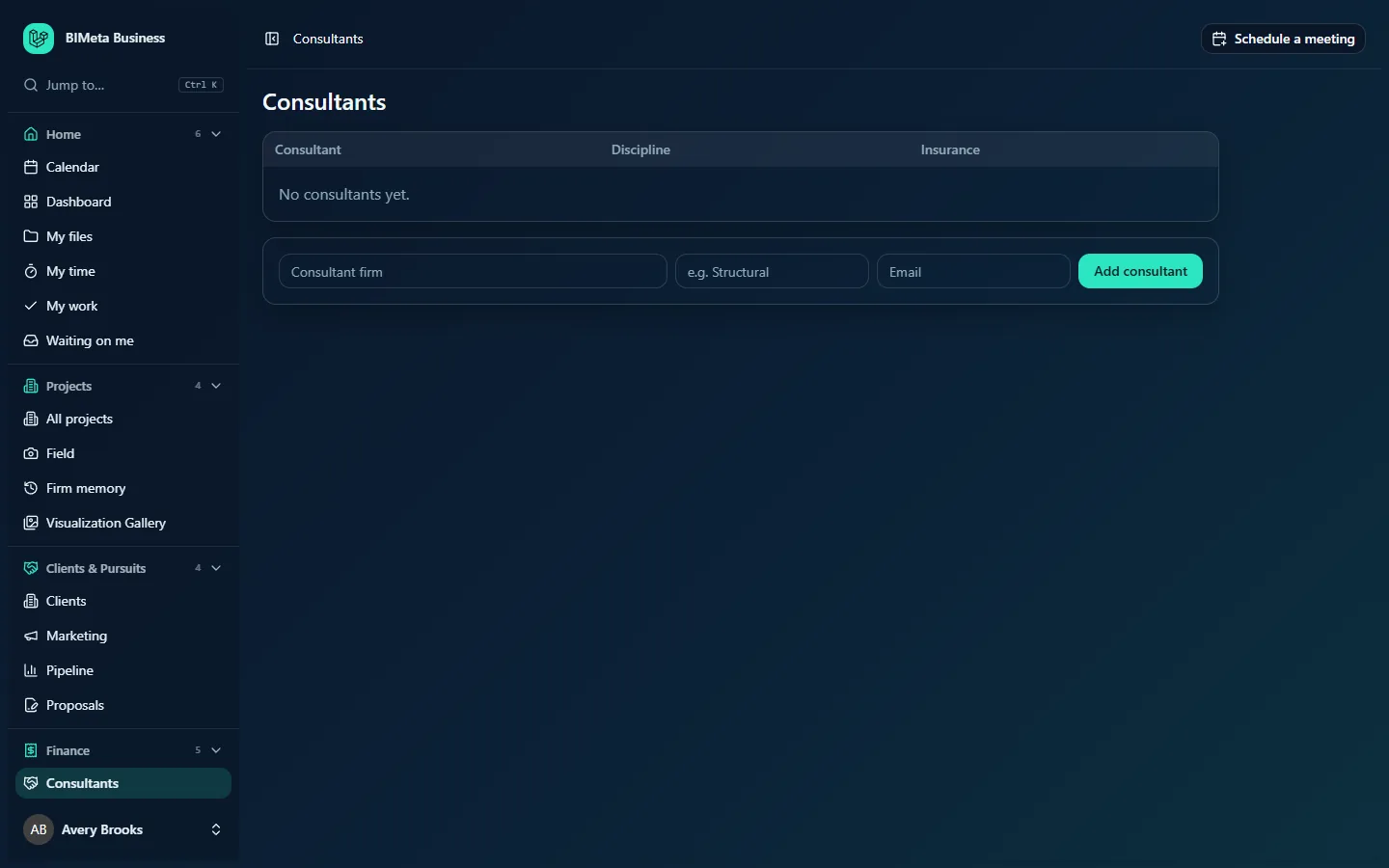
A tour of the Consultants list
Insurance to renew
An amber box at the top, shown only when an active consultant has a certificate expiring within the next 30 days or already expired. Soonest first, each line reads consultant · type of insurance · expires on date (or expired on date), and the consultant's name links to their page.
The consultant table
| Column | What it shows |
|---|---|
| Consultant | The consultant firm's name (a link to its page), with its email underneath if one is recorded. |
| Discipline | E.g. Structural, MEP. A dash if not set. |
| Insurance | Based on the certificate with the earliest expiry date: Insured (more than 30 days left), Expiring soon (30 days or fewer), Expired (past its expiry date) or No certificate (none recorded). |
Active consultants are listed first, then archived ones, which appear faded. With no consultants yet, the table says No consultants yet., as at the example firm Northlight Architects.
Add a consultant
The row under the table: Consultant firm (the name, required, up to 200 characters), discipline (placeholder e.g. Structural, up to 80 characters), Email (optional, must be a valid address) and Add consultant.
A tour of a consultant's page
Click a consultant's name to open their page. It has a title with their name and four parts.
Details
- Name: required, up to 200 characters.
- Discipline: up to 80 characters.
- Contact: the person you deal with, up to 160 characters.
- Email: a valid address, or empty.
- Phone: up to 40 characters.
- Markup on their invoices (%): 0 to 100; 10 for new consultants. The default markup added when this consultant's invoices are billed on to your clients.
- Archived: tick when you no longer work with them. Archived consultants stay in the list (faded) with their history, but their certificates no longer raise alerts.
- Save: saves the details (Consultant saved).
Insurance certificates
Each certificate is listed with its type in bold, then the insurer, policy number and coverage amount, Expires and the date underneath, its status badge (Insured, Expiring soon or Expired) and a bin icon (Remove certificate). Soonest expiry first. With none recorded: No certificates recorded.
The form below adds one:
- Type (required): General liability (default), Professional liability (E&O), Workers' compensation, Auto liability, Umbrella or Other.
- Insurer: up to 160 characters.
- Policy number: up to 80 characters.
- Coverage: the coverage limit as an amount, e.g.
2,000,000. - Expires on (required): the policy's expiry date.
- Add certificate.
Their invoices
Invoices this consultant sent your firm, newest received first. Each shows their invoice number in bold, the project and the date received, and underneath the amount with either billed on at +10% (it will be passed to the client with that markup) or not billed on. On the right:
- Approve button: the invoice has been received but not approved.
- Approved badge: approved and waiting to be billed to the client (or not billable).
- Billed to client badge: it's on one of your client invoices.
With none yet: No invoices from this consultant yet.
The form below records a new one:
- Project (required): the active project the work was for.
- Their invoice number (required): up to 80 characters; it must be unique for this consultant.
- Amount (required): above zero, commas allowed.
- Received on: today by default.
- Bill to client: ticked by default. Untick for fees you've agreed to absorb.
- Record invoice.
Custom fields
If your firm has added custom fields for consultants under Admin → Settings → Custom fields (for example a tax ID or prequalification date), they appear in a card at the bottom.
How to …
Add a consultant
- On Finance → Consultants, enter the firm name, discipline and email in the row under the table.
- Click Add consultant. Their page opens with Consultant added.
- Fill in Contact and Phone, check the Markup on their invoices (%) (10 by default) and click Save.
- Add their insurance certificates (next section).
Record and renew insurance certificates
- Open the consultant. Under Insurance certificates, choose the Type, enter the insurer, policy number and coverage from the certificate, and the Expires on date.
- Click Add certificate (Certificate added). Add one certificate per policy type.
- When the consultant sends a renewed certificate, add it as a new certificate and then remove the old, expired one with its bin icon (Certificate removed).
Removing the old certificate matters: the list's Insurance column and the Insurance to renew box look at every certificate on file, so an old expired certificate left in place keeps the consultant flagged as Expired even after the renewal is recorded.
Record a consultant's invoice
- Open the consultant. Under Their invoices, choose the Project, type Their invoice number and the Amount, and adjust Received on if needed.
- Leave Bill to client ticked if the fee is to be recharged to the client, or untick it.
- Click Record invoice (Invoice recorded). It's listed with an Approve button.
The markup is taken from the consultant's Markup on their invoices (%) at the moment you record it. Changing the consultant's markup later doesn't change invoices already recorded.
Approve a consultant's invoice
- Check the invoice against the work and the consultant's agreement (the project's Consultants tab shows their fee on the job against what they've invoiced).
- Click Approve. The message reads Invoice approved. If billable, it goes on the client's next invoice.
Approval is your signal that the consultant can be paid; the payment itself happens outside BIMeta, for example in your accounting system. Only a newly received invoice can be approved, and there's no way to un-approve one.
How consultant fees flow to the client
- Received: you record the consultant's invoice against a project.
- Approved: you approve it. If it's billable, it becomes a reimbursable on that project.
- Billed to client: the next client invoice for the project that includes reimbursables (Invoice phase progress, Invoice approved hours, Invoice reimbursables only, or a recurring schedule or phase billing rule set to add reimbursables) adds a line such as Consultant Northside Structural, invoice 2291 (plus 10% markup) for amount × (1 + markup). A $5,000.00 consultant invoice at 10% bills $5,500.00. It's billed once; the badge changes to Billed to client as soon as it's on an invoice, even a draft.
- Voided? If that client invoice is voided, the consultant invoice goes back to Approved and is billed again next time.
Consultant invoices also count as project costs in the firm's reports (for example the income report, by the month received).
Insurance alerts
- Every day BIMeta checks the certificates of active consultants.
- When a certificate is 30 days or fewer from expiry, all active Business Owners and Admins receive one email, Consultant insurance needs attention at your firm, listing the consultant, the type of insurance and the expiry date, with a link to this page.
- When it actually expires, they receive one more email.
- Each certificate triggers each email only once. The email's wording can be changed under Admin → Settings → Emails (Consultant insurance to renew).
- Archived consultants don't trigger alerts.
Tips and good to know
- Ask consultants for certificates before they start work; No certificate in the list is your cue.
- Set a consultant's markup before recording their invoices; it's copied onto each invoice when recorded.
- Their invoice numbers must be unique per consultant, which protects you from recording the same bill twice.
- Adding, editing, certificates, recorded invoices and approvals are all written to the Audit log.
Troubleshooting / FAQ
Why can't I see Consultants in the sidebar?
Only Business Owners and Admins manage consultants by default. Ask them, or look at a project's Consultants tab.
I recorded the renewed certificate, but the consultant still shows Expired.
The old certificate is still on file. Remove it with its bin icon.
"That invoice number is already recorded for this consultant."
You've already recorded an invoice with that number for this consultant. Check Their invoices; if it's genuinely a different bill, add a suffix such as -2.
Why isn't an approved consultant invoice on my client invoice?
It's only added when an invoice that includes reimbursables is made for the same project. A blank invoice doesn't add reimbursables, and it isn't added if it's marked not billed on or is already on another invoice (perhaps a draft).
Was this article helpful?
Share