



Clients: your firm's client directory
17 views · by Kevin J Bruno · updated 1 day ago
The Clients page is your firm's directory of client organizations: school districts, cities, developers, hospitals and everyone else you work for. Each client is kept once and then reused everywhere: projects are linked to it, pursuits on the pipeline belong to it, proposals are addressed to it and newsletters can be sent to its contacts. Use this page to find a client quickly, see at a glance how much work you have with them, and open their full profile.
Where to find it
- Sidebar → Clients & Pursuits → Clients.
- Press Ctrl K (or click Jump to… at the top of the sidebar) and type "Clients".
- From a pursuit card on the Pipeline, click the client's name to go straight to that client's page.
Who can use it
- Everyone in the firm can open the Clients page and see every client: Business Owners, Admins, IT Staff, BIM Managers, Project Managers, Human Resources and Users.
- Only people allowed to add and change clients and contacts see the New client button. By default that is Business Owners, Admins, Project Managers, IT Staff and BIM Managers. Users and Human Resources can look but not change anything.
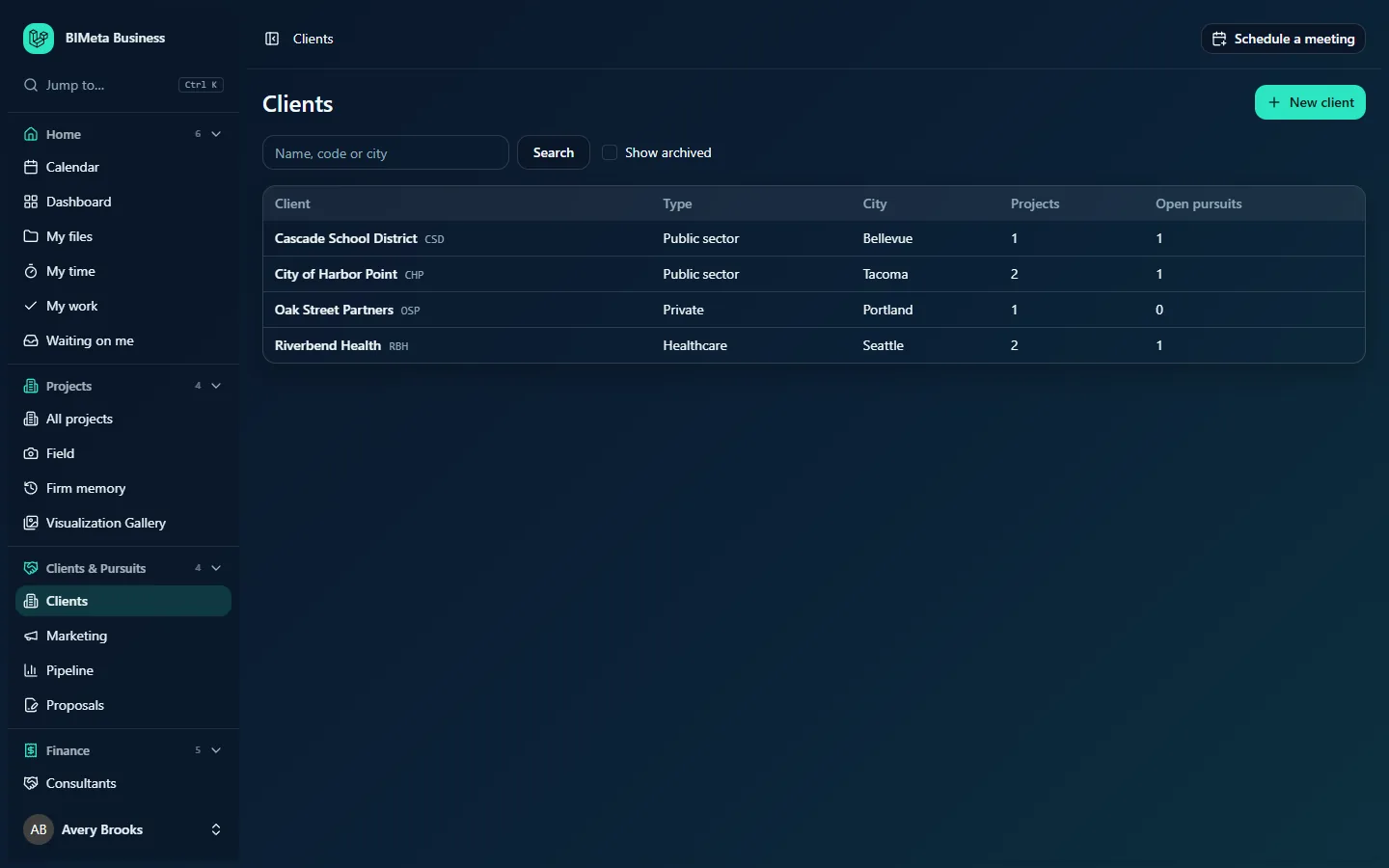
A tour of the page
Header
- Clients: the page title.
- New client (top right, only if you can edit clients): opens the New client form. See Add or edit a client.
Search and filter bar
- Name, code or city search box: type part of a client's name, their short client code (e.g. CSD) or the city they're in (e.g. Tacoma), then press Enter or click Search. The search matches anywhere in those three fields, so "harbor" finds City of Harbor Point. Clear the box and search again to see everyone.
- Show archived: archived clients are hidden by default. Tick this box to include them; they are marked with an Archived badge next to their name. Untick it to hide them again. The list refreshes as soon as you click the box.
The client table
Clients are listed alphabetically by name. The columns are:
| Column | What it shows |
|---|---|
| Client | The client's name as a link to their page, followed by their client code in small grey capitals (e.g. Cascade School District CSD). An Archived badge appears when the client is archived and you've ticked Show archived. |
| Type | The kind of organization: Private, Developer, Public sector, Education, Healthcare, Non-profit or Other. |
| City | The city on the client's address, or a dash if none was entered. |
| Projects | How many of the firm's projects are linked to this client, of any phase or status (e.g. City of Harbor Point has 2). |
| Open pursuits | How many pursuits for this client are still open on the pipeline, meaning not yet Won or Lost. |
| Custom field columns | If your firm added custom fields for clients and chose to show them in lists, each appears as an extra column with that field's value. |
Click a client's name to open their page with contacts, projects and pursuits (see A client's page).
When there are no clients yet you'll see No clients yet.; when a search finds nothing you'll see No clients match.
How to…
Find a client
- Type part of the name, code or city in the Name, code or city box.
- Press Enter or click Search.
- Click the client's name in the results.
See archived (former) clients
- Tick Show archived.
- Archived clients now appear in the list with an Archived badge. You can combine this with a search.
Add a new client
- Click New client (top right).
- Fill in the form and click Add client. The full list of fields and rules is in Add or edit a client.
Tips and good to know
- The list shows up to 500 clients at a time. If your firm has more, use the search box to narrow it down.
- A client code is a short tag of up to 10 letters or numbers (e.g. RBH for Riverbend Health). It's unique across the firm and is handy for searching and for project numbering patterns that include a client code.
- Archiving a client never deletes anything. Their projects, pursuits and proposals stay as they are; the client simply stops appearing in lists and pickers (for example the client drop-downs on the Pipeline, Proposals and newsletter contact forms).
- The Projects and Open pursuits counts are always live: a pursuit moved to Won or Lost on the Pipeline drops out of Open pursuits straight away.
- Extra columns come from Sidebar → Admin → Settings → Custom fields. Ask an Admin or Business Owner if you'd like another detail tracked for every client.
Troubleshooting / FAQ
Why don't I see the New client button?
Your role lets you see clients but not add or change them. Ask a Business Owner or Admin (or your Project Manager) to add the client, or to give you a role that can edit clients.
A client I know we have isn't in the list. Where is it?
It is probably archived. Tick Show archived and search again. If it appears with an Archived badge, someone who can edit clients can open it, click Edit and untick Archived.
The search doesn't find a client by its contact's name.
The search only looks at the client's name, code and city. To find a person, open the likely client and look at its Contacts section.
Was this article helpful?
Share