



Add or edit a client
20 views · by Kevin J Bruno · updated 1 day ago
The client form is where you add a new client organization or change an existing one: its name and short code, what kind of organization it is, how to reach it and where it is. The same form is used for both jobs; it's titled New client when you add one and Edit plus the client's name (e.g. Edit Cascade School District) when you change one. Editing is also how you archive a client you no longer work with.
Where to find it
- New client: Sidebar → Clients & Pursuits → Clients, then the New client button at the top right.
- Edit a client: open the client's page (click its name on the Clients list) and click Edit in the header.
Who can use it
Only people allowed to add and change clients and contacts. By default that is Business Owners, Admins, Project Managers, IT Staff and BIM Managers. Users and Human Resources don't see the New client or Edit buttons and can't open the form.
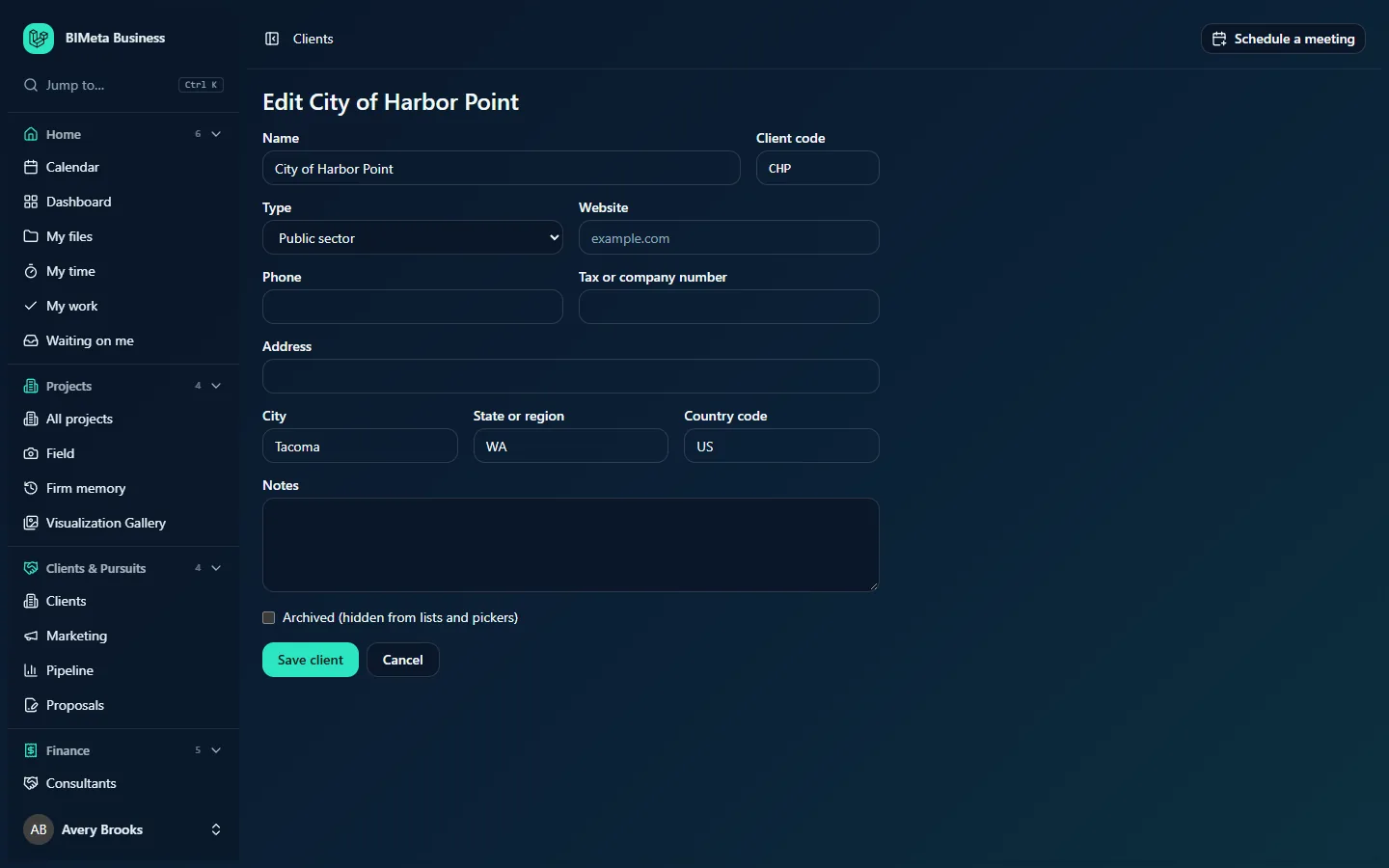
The screenshot shows the edit form for Cascade School District. The New client form looks the same, except the boxes start empty, there's no Archived box and the main button says Add client:
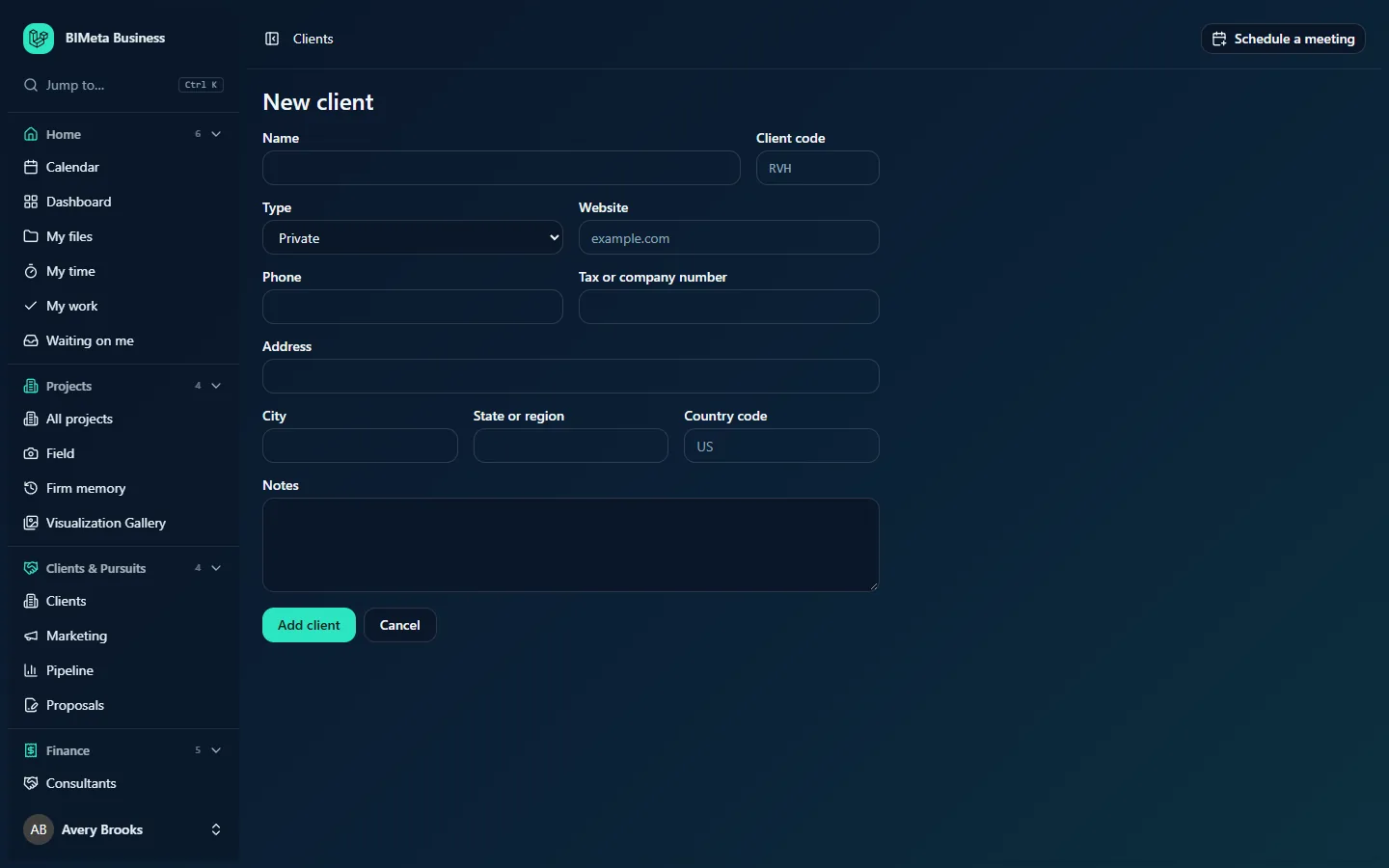
A tour of the form
| Field | Required? | What to enter |
|---|---|---|
| Name | Yes | The client organization's full name, up to 200 characters (e.g. Cascade School District). |
| Client code | No | A short tag of up to 10 letters and numbers, no spaces or symbols (e.g. CSD, RVH). It's turned into capitals for you and must be unique: two clients can't share a code. |
| Type | Yes (defaults to Private) | Choose Private, Developer, Public sector, Education, Healthcare, Non-profit or Other. The type is used in the win-rate breakdown on the Pipeline ("By client type"). |
| Website | No | The client's web address, like example.com. You can leave out https://; it's added for you. |
| Phone | No | The main phone number, up to 40 characters. |
| Tax or company number | No | A tax ID or company registration number, up to 60 characters. Kept on the record for reference. |
| Address | No | Street address, up to 255 characters. |
| City | No | Up to 100 characters. Shown in the City column of the Clients list and searchable. |
| State or region | No | Up to 100 characters (e.g. WA). |
| Country code | No | The two-letter country code (e.g. US, CA, GB). Anything that isn't exactly two letters is ignored. |
| Notes | No | Internal notes about the client, up to 5,000 characters. Shown on the client's page to everyone who can see clients. |
| Archived (hidden from lists and pickers) | Edit form only | Tick to archive the client; untick to bring it back. |
Buttons
- Add client (new form) or Save client (edit form): saves and takes you to the client's page, with the message Client added or Client saved.
- Cancel: leaves without saving, back to the Clients list (new form) or the client's page (edit form).
How to…
Add a new client
- Go to Clients and click New client.
- Type the Name.
- Optionally give it a Client code and choose its Type.
- Fill in whatever contact and address details you have.
- Click Add client.
- On the client's page that opens, add the people you deal with in the Contacts section. The first one you add becomes the main contact.
Change a client's details
- Open the client's page and click Edit.
- Change any fields.
- Click Save client.
Archive a client (or bring one back)
- Open the client's page and click Edit.
- Tick Archived (hidden from lists and pickers), or untick it to restore the client.
- Click Save client.
An archived client disappears from the Clients list (unless Show archived is ticked) and from client drop-downs, for example when adding a pursuit or starting a proposal. Its page, projects, pursuits and proposals are untouched.
Tips and good to know
- Pick a client code you'll recognize at a glance. If your firm's project numbering pattern includes the client code, new projects for this client can use it.
- Contacts aren't on this form: add and remove them on the client's page.
- Extra fields your firm added under Sidebar → Admin → Settings → Custom fields are edited on the client's page in the More details card, not on this form.
- Adding and saving a client are recorded in the firm's audit log.
- Clients can also be loaded in bulk from a spreadsheet with Sidebar → Admin → Settings → Import from CSV, if you have access to it.
Troubleshooting / FAQ
"Use up to 10 letters or numbers for the client code, like RVH."
The code has a space, a dash or another symbol, or is longer than 10 characters. Use letters and numbers only.
"Another client already uses that code."
Codes are unique across the firm. Choose a different code, or check whether the other client is a duplicate (tick Show archived on the Clients list; it may be archived).
"Enter the website address, like example.com."
The website isn't a valid web address. Type just the domain (e.g. cascadeschools.org) or a full address starting with https://.
I typed a country name but it disappeared.
The Country code box only keeps two-letter codes. Type US rather than "United States".
Was this article helpful?
Share