



A client's page: details, contacts, projects and pursuits
17 views · by Kevin J Bruno · updated 1 day ago
Every client has its own page: a one-screen profile with the client's details, the people you deal with there, every project you've done or are doing for them and every pursuit you're chasing with them. Open it before a meeting or call, when you need a contact's email, or when you want to add a new person at the client.
Where to find it
- Sidebar → Clients & Pursuits → Clients, then click the client's name.
- On the Pipeline, click the client name on any pursuit card.
- After you add or save a client, you land on its page automatically.
- The breadcrumb Clients at the top of the page takes you back to the list.
Who can use it
- Everyone can open a client's page and see its details, contacts, projects and pursuits.
- People allowed to add and change clients and contacts (by default Business Owners, Admins, Project Managers, IT Staff and BIM Managers) also see the Edit button, the Add contact row and the remove (bin) button on each contact. The same people can edit the client's custom fields.
- Users and Human Resources see the page read-only.
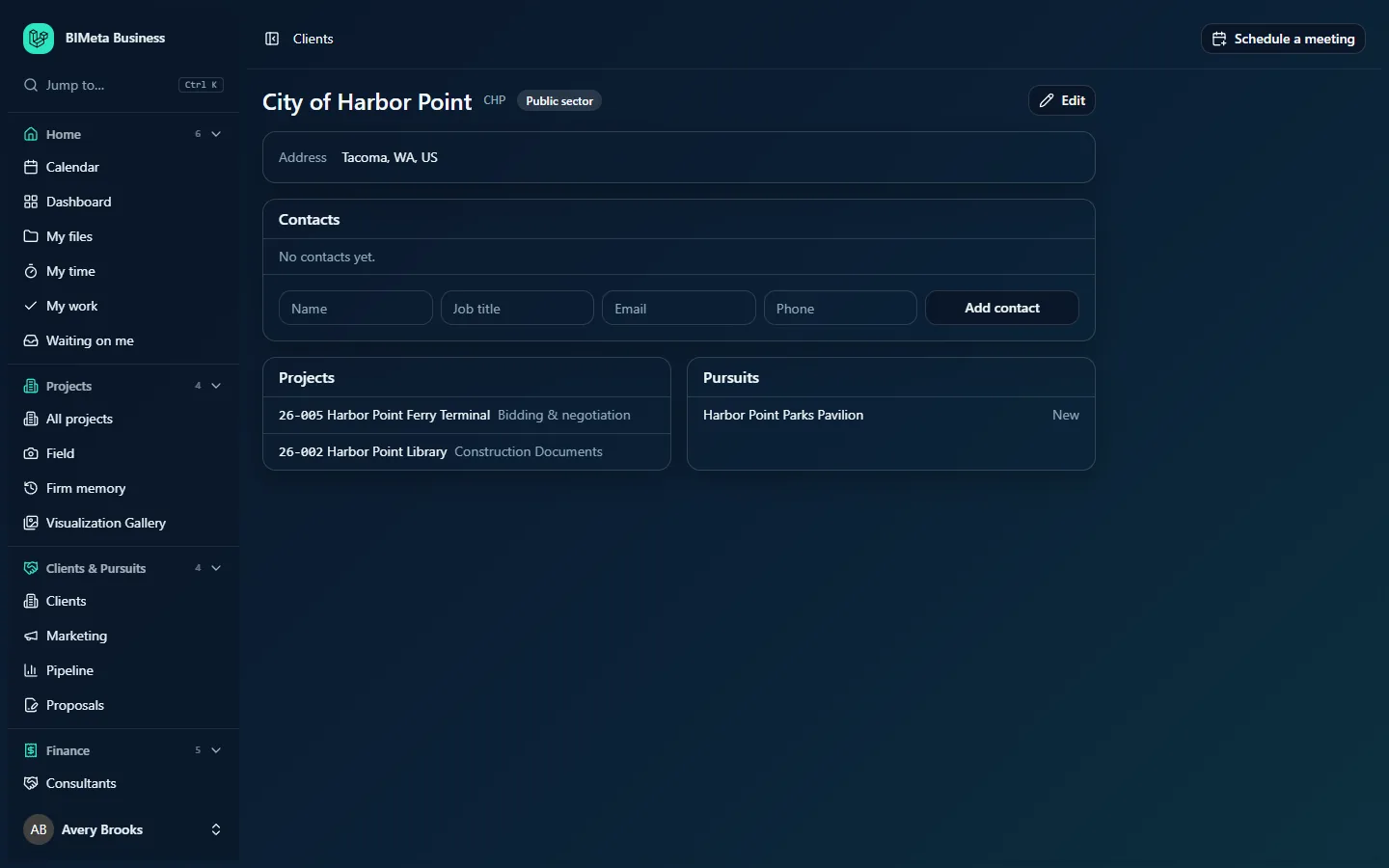
A tour of the page
The example shows Cascade School District at the example firm Northlight Architects.
Header
- The client's name (e.g. Cascade School District).
- The client code in small grey capitals (e.g. CSD), if one was set.
- A type badge (e.g. Public sector).
- An Archived badge if the client has been archived.
- Edit (right side, only if you can edit clients): opens the edit form for the client's details. See Add or edit a client.
Details box
Shows only the details that were filled in:
- Address: street address, city, state or region and country code joined together (e.g. Bellevue, WA, US).
- Phone: the client's main phone number.
- Website: a link that opens the client's website in a new browser tab.
- Notes: your firm's internal notes about the client, with line breaks kept.
The tax or company number is kept on the client's record but is only shown on the edit form.
Contacts
The people you work with at the client. Each row shows:
- A gold star for the main contact. The main contact is always listed first; the rest follow alphabetically.
- The contact's name and job title.
- Their email as a link (clicking it opens a new message in your email app) and their phone.
- A bin button (if you can edit clients) that removes the contact.
If nobody has been added yet you'll see No contacts yet. Below the list, people who can edit clients see an add row with Name, Job title, Email, Phone and the Add contact button.
Projects
Every project linked to this client, newest project number first. Each line shows the project number and name as a link to the project (e.g. 26-004 Cascade Elementary Modernization) and its current phase in grey (e.g. Schematic Design). If there are none you'll see No projects yet.
Pursuits
The most recent 50 pursuits for this client from the Pipeline, newest first, with their stage on the right (e.g. Cascade High School Gym, Proposal sent). Won and lost pursuits are included, so this doubles as a history of what you've bid for with the client. If there are none you'll see No pursuits yet.
More details (custom fields)
If your firm has set up custom fields for clients (under Sidebar → Admin → Settings → Custom fields), a More details card appears at the bottom with each field's value, or Not set. People who can edit clients see an Edit button on the card; change the values and click Save (or Cancel). When the firm has no client custom fields, the card isn't shown.
How to…
Add a contact
- In the Contacts section, type the person's Name (required, up to 160 characters).
- Optionally add their Job title (up to 120 characters), Email and Phone (up to 40 characters).
- Click Add contact. The message Contact added appears and the row clears, ready for the next person.
The first contact you add to a client automatically becomes the main contact (gold star). The email address must be a valid address, or left empty.
Remove a contact
- Click the bin button at the end of the contact's row.
- The contact is removed immediately (there is no confirmation step) and Contact removed appears.
If you remove someone by mistake, add them again with Add contact.
Change the client's details or archive the client
- Click Edit in the header.
- Change the details, or tick Archived (hidden from lists and pickers), and click Save client.
Email or call a contact
Click a contact's email address to start a new email in your mail app, or use the phone number shown next to it.
Tips and good to know
- Main contact matters. When you start a proposal for this client and leave Send to (email) empty, the proposal is addressed to the main contact's email (or, if the main contact has no email, the next contact who has one).
- Contacts with an email address can be added to client newsletters from Newsletters → Subscribers and lists → Add client contacts.
- To link a project to this client, choose the client when you create or edit the project. Pursuits won on the Pipeline and proposals accepted on Proposals open projects that are linked to the client automatically.
- Adding, editing and removing contacts, and saving the client, are recorded in the firm's audit log.
Troubleshooting / FAQ
How do I change which contact is the main contact?
The page has no separate "make main" button: only the first contact added to a client becomes the main contact. Removing the main contact doesn't promote anyone else, so the client then has no starred contact. To set a different main contact, remove all of the client's contacts and add the person you want as main contact first, then the others. If you only need a proposal to go to someone else, simply type their address in the proposal's Send to (email) box instead.
I get "Enter a valid email address, or leave it empty."
The email you typed isn't a complete address (for example it is missing the @ or the domain). Fix it or clear the box, then click Add contact again.
Why can't I see the Edit button or the Add contact row?
Your role can view clients but not change them. Ask a Business Owner, Admin or Project Manager to make the change.
Was this article helpful?
Share