



Campaigns and posting slots
16 views · by Kevin J Bruno · updated 4 days ago
Campaigns help you plan social posts around an event or theme, such as a building opening, an open house or a recruiting push. A campaign groups posts between a start and end date. The same page holds your firm's posting slots: the regular days and times you like to post on each network (for example Tuesdays and Thursdays at 9:00). With one click, a campaign's unscheduled posts are spread across those slots. AI can also plan a month of draft posts or turn a case study into a short series.
Where to find it
- Sidebar → Clients & Pursuits → Marketing, then the Campaigns tab at the top of the page.
- From Marketing Studio, click the Campaigns button at the top.
- Back to Marketing Studio (top right) returns you to the Studio.
Who can use it
- People allowed to write social posts and see the posting calendar (by default Business Owners and Admins) can create and edit campaigns, fill slots and use the AI planners.
- Only people allowed to approve social posts (by default Business Owners and Admins) can change the Posting slots. Others see each network's slots as read-only text (or no slots).
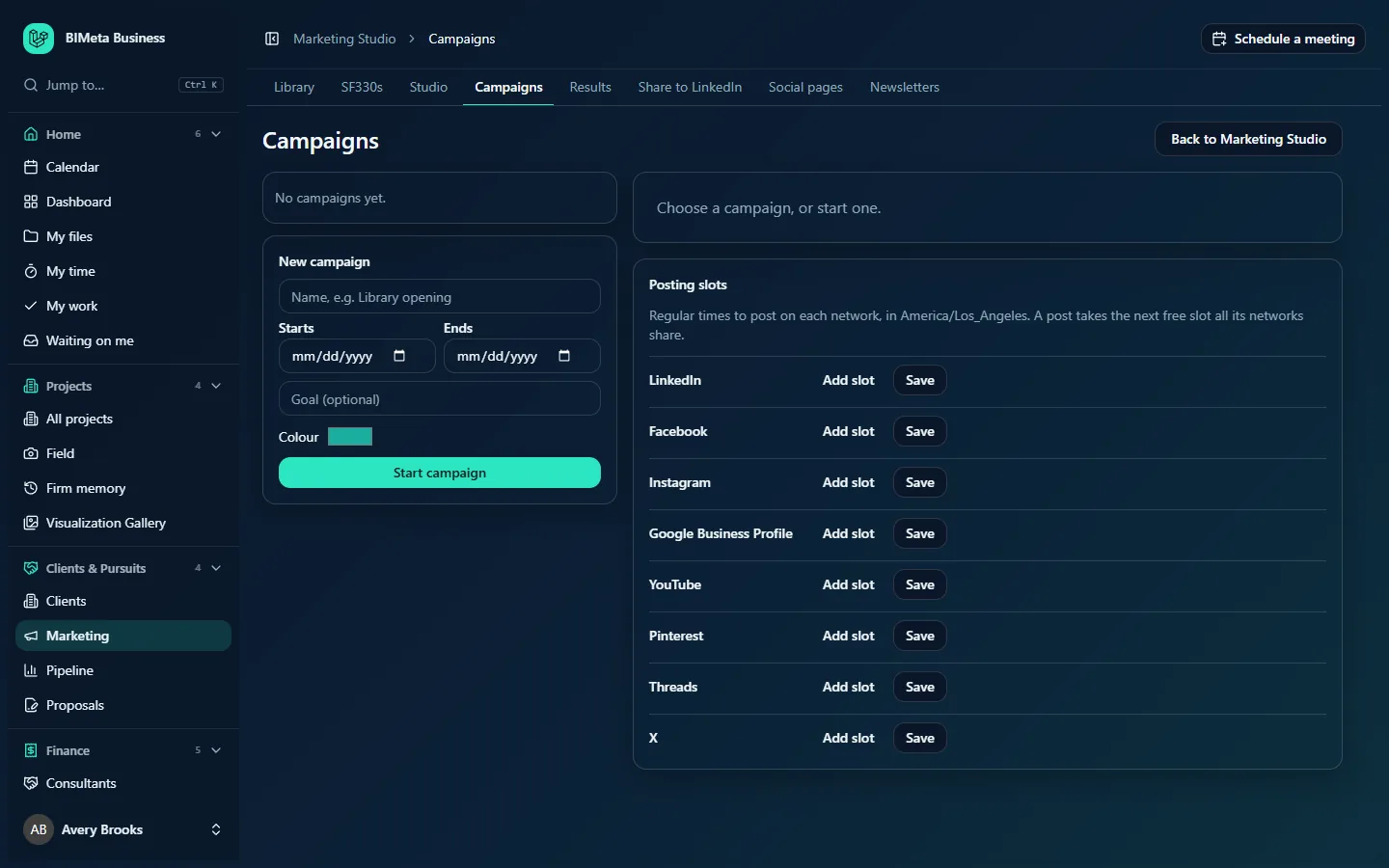
A tour of the page
Left column: the campaign list and New campaign
- Every campaign with its color dot, name, dates and [n] of [n] scheduled (how many of its posts already have a time). Click a campaign to open it on the right. When there are none: No campaigns yet.
- New campaign form:
- Name (required, up to 120 characters), e.g. Library opening.
- Starts and Ends (both required). The end can't be before the start, and a campaign can last at most a year.
- Goal (optional): what the campaign is for, up to 1,000 characters.
- Colour: a color to recognize it by (teal by default).
- Start campaign.
Right column: the open campaign
Until you pick a campaign it says Choose a campaign, or start one. Once one is open you see:
- The campaign's name, dates and goal, and Fill posting slots.
- Its posts (except cancelled ones), each with its title as a link to the composer, a badge for each network it goes to, its time or No time yet, and its status (Draft, Waiting for approval, Approved, scheduled, Published, Published on some pages or Failed). When empty: No posts yet. Plan a month with AI, repurpose a case study, or add posts from the composer.
- Plan a month: AI proposes drafts across the campaign dates from moments waiting, cleared projects and gaps in the queue. Button: Plan with AI (about n credits).
- Repurpose: choose a Project sheet from the Marketing library or Use the text below, optionally paste a case study or award entry (up to 20,000 characters), set how many Posts (2 to 8, default 4) and click Write a series (about n credits).
- Edit campaign: the same fields as New campaign, with Save.
Posting slots
Regular times to post on each network, in [your firm's time zone]. A post takes the next free slot all its networks share. The time zone is your firm's first office's (e.g. America/Los_Angeles). There's a row for each network: LinkedIn, Facebook, Instagram, Google Business Profile, YouTube, Pinterest, Threads and X. Approvers can:
- Add slot: adds a row with a day (Mon–Sun) and a time (starts as Tuesday 09:00).
- Change the Day and Time of a slot, or click × to remove it.
- Save: saves that network's slots (up to 50 per network). Each network is saved separately.
How to…
Set up posting slots
- In Posting slots, on the LinkedIn row, click Add slot.
- Choose the day and time, e.g. Tue 09:00. Add more slots as needed.
- Click Save on that row (Posting slots saved).
- Repeat for each network you use.
Tip: the Results page suggests best times per network and can add them here with Add to posting slots.
Run a campaign
- Fill in New campaign and click Start campaign. It opens on the right.
- Add posts: write them in the composer and choose this campaign in its Campaign box, or use Plan a month or Repurpose.
- Make sure each post has its pages chosen, then click Fill posting slots. Every post in the campaign that has no time yet (draft, waiting or approved) is given the next free slot its networks share within the campaign's dates, in the order the posts were written.
- Send the drafts for approval. Approved posts go out then; others still need approval.
Plan a month with AI
- Open the campaign.
- Click Plan with AI.
- Up to 12 drafts are created in the campaign, using only facts from the moments waiting and projects cleared for publicity. Check each one before sending it for approval.
Turn a case study into a series
- Open the campaign.
- Under Repurpose, choose a project sheet, or leave Use the text below and paste the case study or award entry.
- Set Posts to how many you want (2 to 8).
- Click Write a series. The drafts appear in the campaign.
Tips and good to know
- Slots shared between networks: a post going to LinkedIn and Facebook only takes a time that's a slot on both networks. Give networks you often post to together some matching slots.
- A slot already used by another live post isn't used twice.
- Filling slots never publishes anything by itself: approval is still required.
- The composer's Or take the next free posting slot for these pages uses the same slots, for posts outside campaigns too.
- Campaign changes and slot changes are recorded in the firm's audit log.
Troubleshooting / FAQ
"No free slots for these posts. Add pages to the posts, or more posting slots."
None of the campaign's unscheduled posts could be placed: they have no pages chosen, their networks share no slots, or all shared slots inside the campaign dates are taken. Add slots or pages, or widen the campaign dates.
"Name the campaign and give it a start and end, at most a year apart."
A name, start and end are required, the end must be on or after the start, and the span can't exceed a year.
I can't edit the posting slots.
Only people who can approve posts can change slots. You'll see the current slots as text.
Was this article helpful?
Share