



Calendar: month, week and week-ahead views, events and meetings
22 views · by Kevin J Bruno · updated 22 hours ago
The Calendar brings the firm's dates together in one place: meetings, milestones, bid dates, leave and other events, plus the due dates of open project tasks. Switch between a Month grid, a Week time grid, and a Week ahead planner with a two-week Gantt chart and charts of how busy you are. From here you can add events to a project or to the whole firm, schedule meetings that send invitations, and download the calendar into Outlook, Google or Apple Calendar.
Where to find it
- Sidebar → Home → Calendar.
- Press Ctrl K (⌘K on a Mac), type
calendarand press Enter. - The Schedule a meeting button in the top bar of every page opens the same meeting dialog as the button on this page. In Jump to… (Ctrl K), type
meetingand press Enter to open it too.
Who can use it
Everyone at the firm can open the calendar and schedule meetings. What you see and what you can add or remove depends on your access:
- Seeing items. Project events and task due dates appear for projects you can see; all standard staff roles can see every project. Firm-wide events appear for everyone at the firm. A meeting that's only for the people invited appears only to its organiser and the people on it.
- Adding events. The Add an event panel appears if you can edit at least one active project (you can add events to those projects) or if you manage firm settings (Business Owners and Admins), who can also add events for the Whole firm. Business Owners, Admins, Project Managers, IT Staff and BIM Managers can edit every project; a User sees the panel only for projects where their project role lets them edit (for example as a Designer or Project Architect on the team). That's why the User at the example firm Northlight Architects can add events to 26-005 Harbor Point Ferry Terminal.
- Removing. The remove (bin) icon appears on an event if you organised it, can edit its project, or (for firm-wide events) manage firm settings.
- Sharing a meeting with everyone. Only people who can edit the meeting's project (or, for a meeting without a project, manage firm settings) can put a meeting on everyone's calendar.
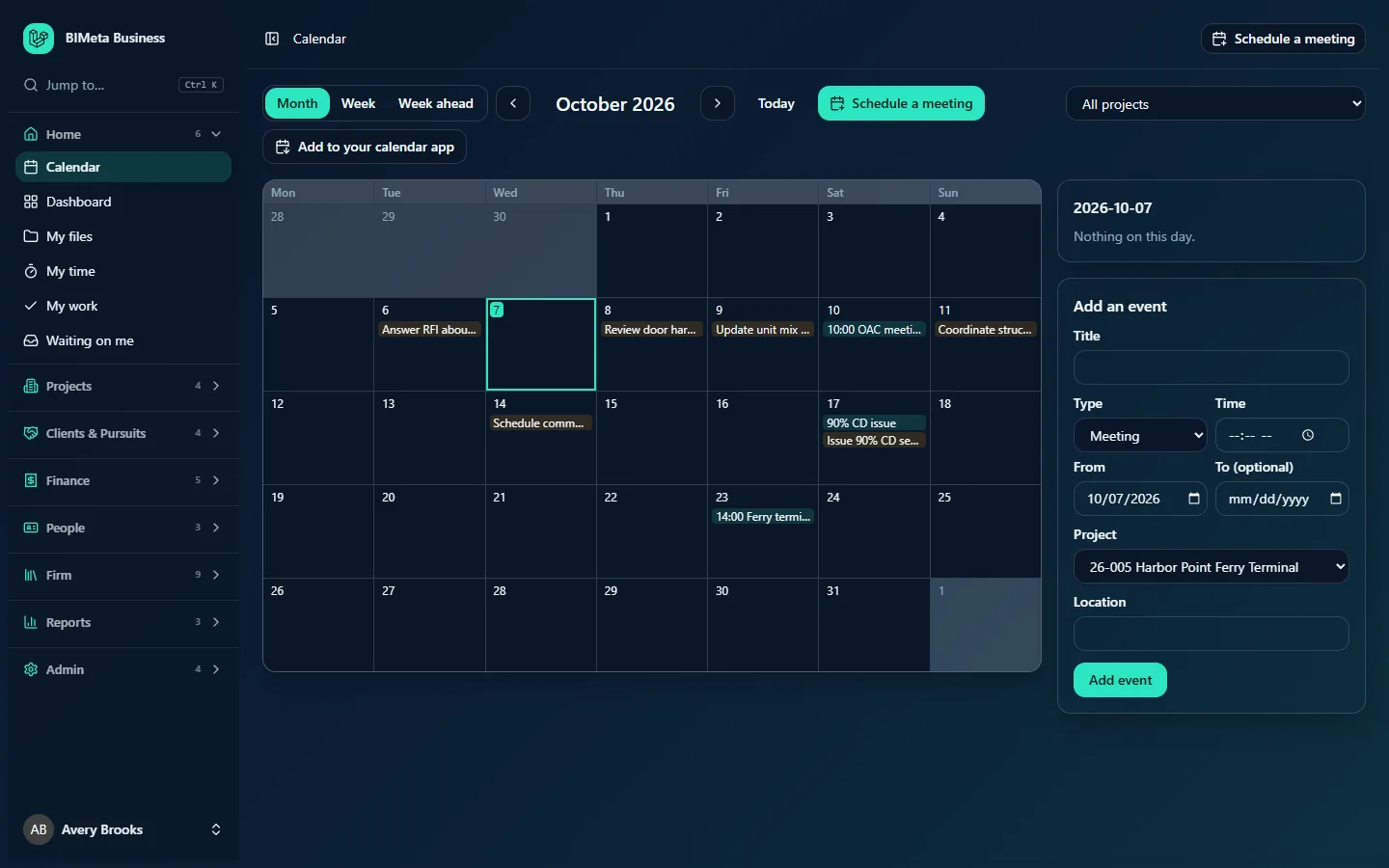
A tour of the page
Toolbar
- Month / Week / Week ahead: switch views. The highlighted button is the current view.
- Previous and Next arrows, with the period in the middle: the month name (for example October 2026) in Month view, or the date range (Monday to Sunday) in Week view.
- Today: jump back to the current month or week.
- In Week ahead the arrows and Today are replaced by the title Your week ahead, which always starts today.
- Schedule a meeting: opens the meeting dialog, with the selected day (or today, if the selected day is in the past) and the project filter pre-filled.
- All projects drop-down: filter the calendar to one active project. All projects shows everything you can see. Firm-wide events are hidden while a project is chosen.
- Add to your calendar app: downloads a calendar file (see below).
Month view
A grid of weeks from Monday to Sunday. Days from the previous and next month are shaded. Today's date is highlighted in a teal box, and the selected day has a teal outline. Each day shows up to three items, with the start time first for timed items (for example 10:00 OAC meeting). Events have a teal tint and task due dates an amber tint. If there are more, you'll see "+2 more". Multi-day events appear on every day they cover. Click a day to select it: its full list appears in the day panel on the right, and the day becomes the From date in Add an event.
Week view
A time grid for Monday to Sunday, from 07:00 to 20:00, with weekends shaded and today's column highlighted. An All day row at the top holds untimed events and task due dates (tasks are marked with ◆). Timed items are drawn as blocks at their start time and sized to their length (one hour if no end time is set). Each kind has its own colour, the same in every view: meetings teal, milestones amber, bid dates violet, leave grey, tasks blue, other events dark grey. Click an item to select its day in the day panel.
Week ahead
A planning view for today and the next 13 days.
- Mine / Everything I can see: Mine (the default) limits everything below to meetings and events you organised or are invited to and tasks assigned to you; Everything I can see includes the rest.
- Headline numbers for the next seven days: Meetings this week, Hours in meetings (time taken by timed meetings and events), Free working hours (an 8-hour working day on weekdays, minus that busy time; weekends count as none) and Tasks due.
- Next two weeks: a Gantt chart with one row per project (firm-wide items share a Firm / no project row) and a column per day. Hover over a bar for its kind and title; click it to select its day. If nothing is planned, it says Nothing scheduled in the next two weeks.
- Meetings and free time each day: a bar per day split into In meetings and Free (of an 8-hour day).
- Tasks due each day: the number of tasks due on each of the seven days.
- Where the week goes: projects ranked by the hours of meetings and events in the week (or the number of items, for projects that only have untimed items).
- What’s on: the week's items counted by kind (meetings, milestones, bid dates, leave, tasks due, other).
- A colour key at the bottom: Meeting, Milestone, Bid date, Leave, Other, Task due.
Day panel
On the right (below the calendar on narrow screens) is a panel headed with the selected date, for example 2026-10-05. It lists everything on that day:
- The title, which links to the project (for events) or the project's Tasks tab (for tasks).
- A grey line with the kind (Meeting, Milestone, Bid date, Leave, Other or Task due), the time and end time, the project, and the location.
- Join the call: a link to the meeting's video call, if it has one (opens in a new tab).
- The names of the people invited, for meetings.
- A bin icon to remove the event or cancel the meeting, if you're allowed to.
An empty day says Nothing on this day.
Add an event
Under the day panel, if you can add events (see Who can use it), with these fields: Title, Type, Time, From, To (optional), Project, Location and the Add event button.
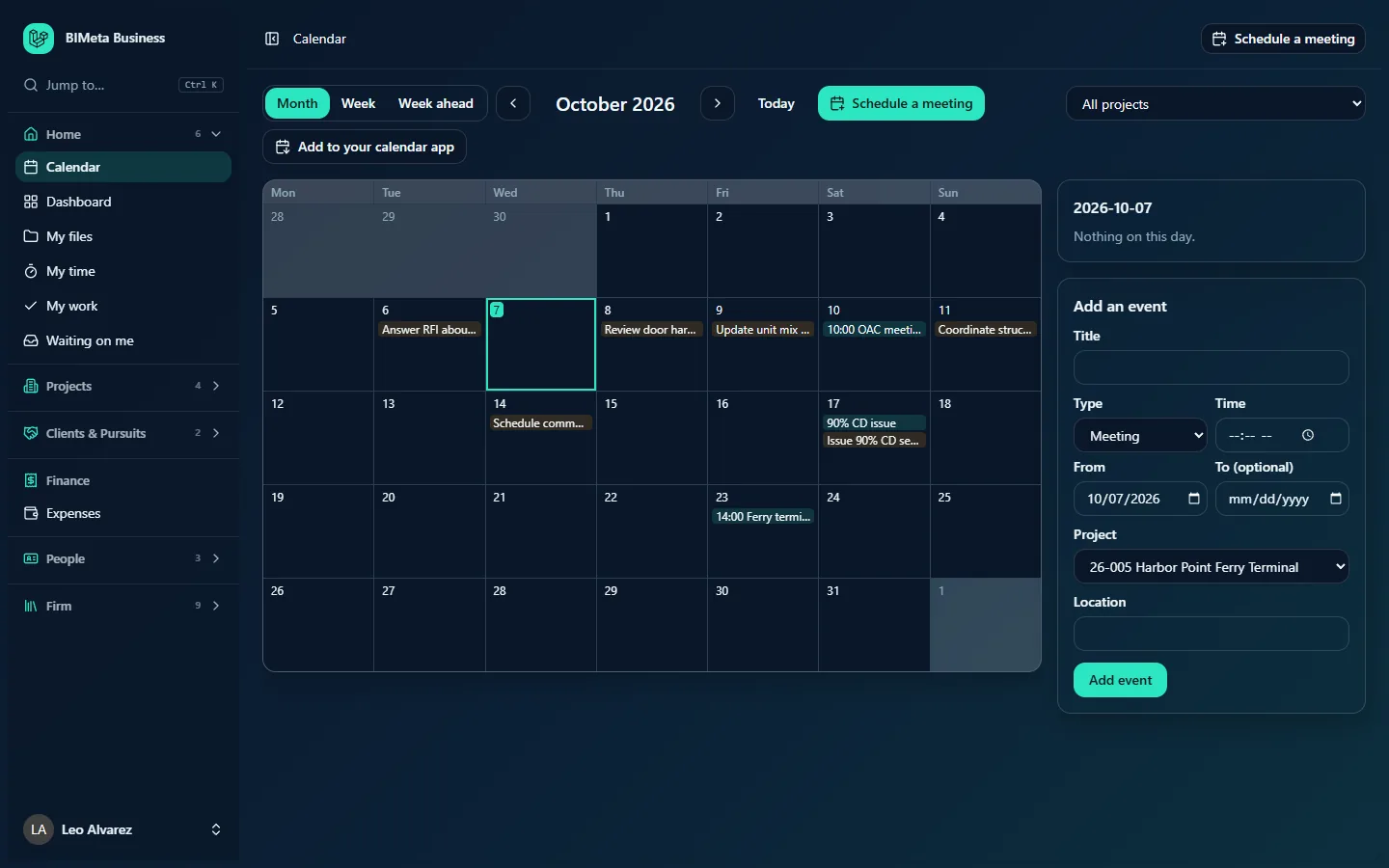
Here is the same page for a User, who can add events to the project they can edit:
How to …
Add an event (milestone, bid date, leave, meeting or other)
- Click the day in Month view (this fills in From), or set From by hand.
- Title (required): up to 200 characters, for example 90% CD issue.
- Type: Meeting, Milestone, Bid date, Leave or Other. This sets its colour and how it's counted in Week ahead.
- Time (optional): a start time such as
09:30. Leave it empty for an all-day event. - To (optional): an end date for a multi-day event. It can't be before From.
- Project: one of the active projects you can edit, or Whole firm (only for people who manage firm settings) to show it to everyone at the firm.
- Location (optional): up to 200 characters.
- Click Add event. You'll see Event added, the event appears for everyone who can see that project (or everyone at the firm), and the addition is recorded in the audit log.
Events added this way don't send any invitations. To invite people, use Schedule a meeting.
Schedule a meeting and send invitations
- Click Schedule a meeting (in the toolbar or the top bar).
- Title (required): up to 200 characters, for example Design review: Riverside Clinic.
- Date (required), Starts and Ends: they start filled in with the next half hour and an hour after it. The end must be after the start. If you give a start but no end, the meeting lasts one hour. Tick All day for an all-day meeting (the times are then ignored).
- Time zone: defaults to your firm's time zone (your first office's, or your country's). Change it if the meeting is set in another zone.
- Invite people: start typing a colleague's name or email in Find people at the firm, then click them in the suggestions. Each person you add appears as a chip; click the chip's × to remove them.
- Outside people (emails): type the email addresses of clients, consultants or anyone else, separated by commas, semicolons, spaces or new lines, for example
[email protected], [email protected]. - Project (optional): link the meeting to one of your active projects, or leave No project.
- Where (optional): for example Main office, room 2 (up to 200 characters).
- Video call link (optional): paste a Teams, Zoom or Meet link. It must start with
https://(up to 500 characters). - Agenda or notes (optional): up to 5,000 characters.
- Send invitations now is ticked by default. Untick it to put the meeting on the calendar without emailing anyone.
- If you're allowed to, tick Show on everyone’s calendar for this project (or Show on everyone’s calendar when there's no project). Otherwise the meeting only shows to you and the people invited.
- Click Schedule meeting. You'll see Meeting scheduled. Invitations are on their way.
What happens next: you're always added to the meeting yourself. If you've connected your Outlook calendar (in your account settings under Connected apps), the meeting is created in your Outlook and Outlook sends the invitations, so replies come back to you as usual. Otherwise everyone on the meeting, you included, gets an email with a standard calendar invitation that Outlook, Google Calendar and Apple Calendar add in one click. The meeting is recorded in the audit log. Up to 100 people (including you) can be on one meeting.
Cancel a meeting or remove an event
- Select the day so the item shows in the day panel.
- Click its bin icon. There's no confirmation step.
- For a meeting with people on it, everyone invited is sent a cancellation and the meeting is removed (Meeting cancelled. Everyone invited has been told.). Only the organiser, or someone who can edit the meeting's project (or manage firm settings, for a meeting without a project), can cancel it.
- For a plain event, it's removed straight away (Event removed).
Both are recorded in the audit log. Tasks can't be removed from the calendar; mark them done or change their due date on the project's Tasks tab.
Look at one project only
Choose the project in the All projects drop-down. The view, arrows and Week ahead charts then cover that project only. Choose All projects to go back.
Put the calendar into Outlook, Google or Apple Calendar
- Click Add to your calendar app. A file called bimeta-calendar.ics downloads.
- Open it, or import it in your calendar app. It contains everything you can see from the last 30 days to the next 90 days (all projects, whatever the filter says), with project names in the titles and links back to the portal.
This is a one-off copy and doesn't update itself; download it again for a fresh copy. For a calendar that stays in step, connect Outlook in your account settings under Connected apps, which puts the portal calendar into a separate calendar in your Outlook without touching your own events.
Tips and good to know
- Tasks show for everyone on the project. In Month and Week views, open task due dates appear for everyone who can see the project, not just the person assigned. Use Week ahead → Mine for your own.
- Leave on the calendar is an event someone added with the Leave type. Requesting time off is done on People → Leave.
- Private by default. A meeting scheduled with Schedule a meeting is visible only to the organiser and the people invited, unless someone allowed to tick Show on everyone’s calendar does so. Events added with Add an event are visible to everyone who can see the project (or the whole firm).
- Organisers can always cancel their own meetings, even on projects they can't edit.
- Bid dates and milestones also help the team: they appear in Week ahead's Gantt chart and "What’s on".
Troubleshooting / FAQ
I don't see the "Add an event" panel.
You can't edit any active project and don't manage firm settings. You can still use Schedule a meeting, or ask the project's Project Manager to add the event.
I can't tick "Show on everyone’s calendar".
The option only appears for people who can edit the chosen project (or, with no project, manage firm settings). Pick a project you can edit, or ask its Project Manager to schedule the meeting.
A colleague's meeting isn't on my calendar.
Meetings are private to the people invited unless they were shared with everyone. Ask the organiser to invite you.
The meeting dialog says "The people list couldn’t load".
Close the dialog and open it again. If it keeps happening, reload the page.
Why does the dialog reject my video link?
Paste the full link starting with https://. Plain text such as a meeting ID isn't accepted; put that in Agenda or notes instead.
Was this article helpful?
Share