



Build your plan: choose your system, storage and automatic growth
19 views · by Kevin J Bruno · updated 1 day ago
Build your plan is where the Business Owner puts together the firm's subscription piece by piece: the system (the servers your portal runs on), the storage for your company's files, and optional automatic growth. A running total on the right shows exactly what you'll pay each month or year before you commit. Use it when you first set up the firm, when your team or project archive grows, or to switch to yearly billing and save.
Where to find it
- Sidebar → Admin → Settings → Billing & storage (in the Billing section), then the Build your plan button at the top right.
- BIMeta's emails about automatic growth link here.
- The same builder is the Plan & storage step in the Get started section of Admin → Settings → Setup, which new firms go through during onboarding.
- The Billing & storage link next to the title takes you back to Billing & storage; the ‹ Settings link above it returns to the Settings page.
Who can use it
Only the Business Owner. Other roles can't open it.
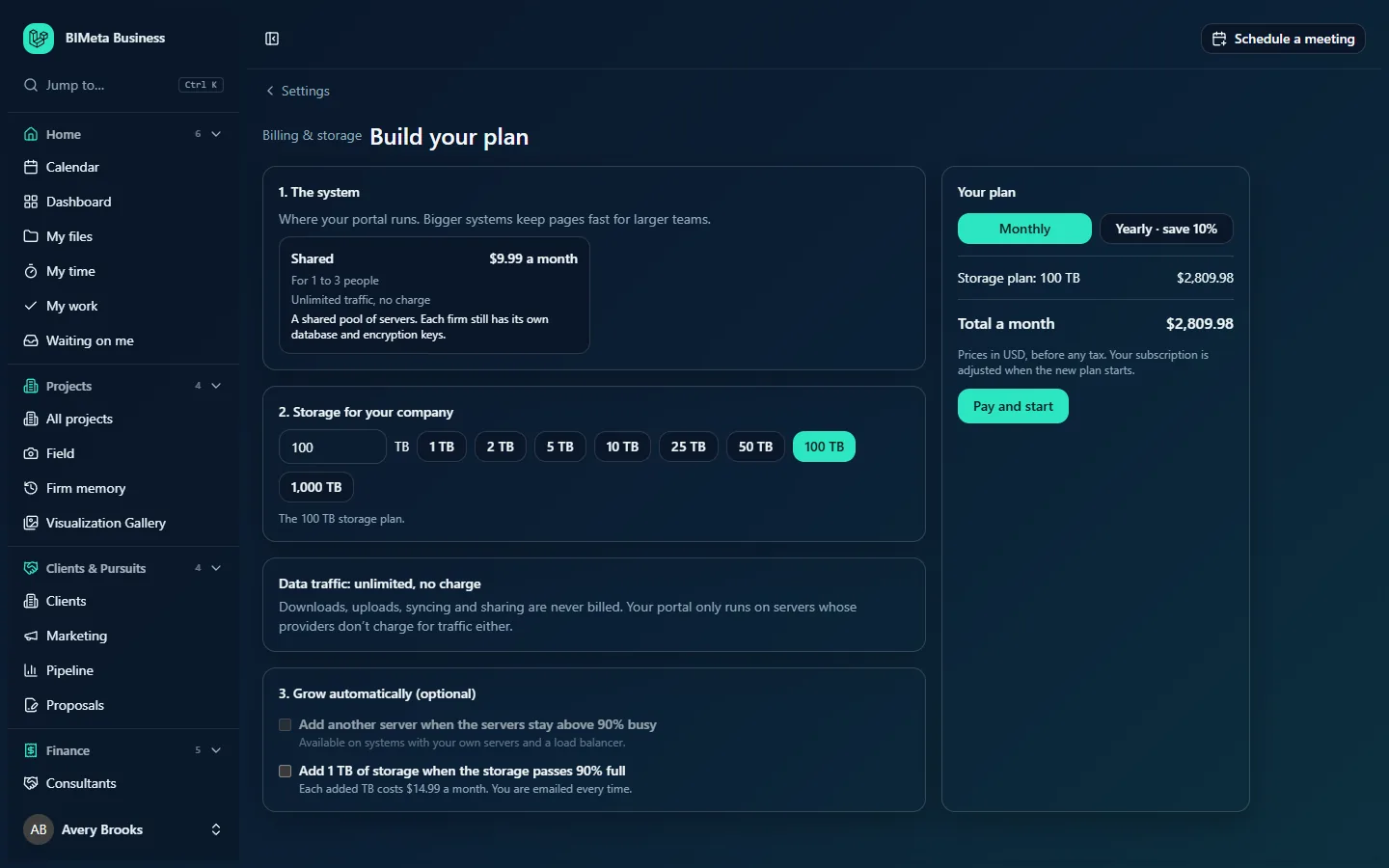
A tour of the page
Waiting order notice
If you built a plan but haven't finished paying, an amber notice says A plan you built is waiting for payment. It starts as soon as the payment goes through.
1. The system
Where your portal runs. Bigger systems keep pages fast for larger teams. Each system is a card with its name, its price per month (or Included), a Current badge on the one you have, who it suits (For 1 to 3 people, or N people and up), Your own servers for dedicated systems, how traffic works (Unlimited traffic, no charge), the server specification (number of servers, processor cores, memory, storage) where relevant, load balancer when included, how long it takes to be ready (Ready in …) and a description. For example, Shared ($9.99 a month, For 1 to 3 people): A shared pool of servers. Each firm still has its own database and encryption keys. The chosen card is outlined; if no card is outlined (as in the example), no system has been chosen for your firm yet.
For Shared, a map of Our server locations explains that Shared runs on BIMeta's servers; choose a system with your own servers to pick where they run. For a system with your own servers you get:
- Location of your servers: a map and a list to pick the place, with the time it takes to be ready there (Your servers are ready in … at this location, including setting up your portal and copying your data.).
- More locations (up to N in all), on systems that offer it: run in more than one place, for offices in other regions and to keep working if one location goes down. Each extra location has a monthly price and gets its own address. For each you choose the location, an optional Office label, and (for sharing by weight) a Weight from 1 to 100. Add a location and Remove manage the list.
- How people reach your locations: Main location, with automatic failover (everyone uses the main location; if it stops responding your address moves to another until it's back, after a number of minutes you set from 5 to 60), Main location only (each office can use its own location's address), Nearest location (each person goes to the closest; unresponsive locations are skipped) or Share by weight. The last two need global routing, which BIMeta switches on for the platform; until then they say Needs global routing, which BIMeta hasn’t switched on yet. and can't be chosen.
2. Storage for your company
Type the number of terabytes (1 to 1,000) or click a quick choice: 1 TB, 2 TB, 5 TB, 10 TB, 25 TB, 50 TB, 100 TB, 1,000 TB. The line underneath says which storage plan that is, for example The 100 TB storage plan., or … plus N extra TB at … each a month when your number falls between plans (you get the largest plan that fits, plus extra terabytes).
Storage plan prices include 9.99 USD a month that pays for the background check of the Owner and the business, so the 100 TB plan shows $2,809.98 in the example. The builder starts at 1 TB: the 400 MB Starter plan (9.99 USD a month) isn't offered here, so a Starter firm moves up by choosing 1 TB or more. For the full price list, see Billing & storage.
Data traffic: unlimited, no charge
Downloads, uploads, syncing and sharing are never billed. Your portal only runs on servers whose providers don't charge for traffic either.
3. Grow automatically (optional)
- Add another server when the servers stay above 90% busy: only on systems with your own servers and a load balancer (otherwise greyed out with that explanation). Checked every hour, at most one a day; each extra server has a monthly price. Set Most extra servers to add (1 to 10).
- Add 1 TB of storage when the storage passes 90% full: each added TB has a monthly price (14.99 USD in the example), and you're emailed every time. Set Most TB to add automatically (1 to 100).
Your plan (summary)
On the right: Monthly or Yearly · save N%; one line per item (System: …, shown once a system with a price is chosen, for example System: Shared at $9.99; Storage plan: …, Extra storage: N TB, Extra web servers: N, Extra locations: N) with its price; then Total a month or Total a year. With yearly billing it also shows how much you save compared with monthly. The note reads Prices in USD, before any tax. Your subscription is adjusted when the new plan starts. (in your firm's currency). The Pay and start button places the order.
How to build and order a plan
- Pick a system under 1. The system. For your own servers, choose the location and, if you want, extra locations and how people reach them.
- Enter or click the storage you need under 2. Storage for your company.
- Optionally tick automatic growth and set its limits.
- Choose Monthly or Yearly and check the total.
- Click Pay and start.
- If payment is needed you're taken to the payment page; the plan starts as soon as the payment goes through, and you return to Billing & storage. If your firm already has an active subscription, the change is applied right away and you'll see Your plan is updated.
If the system changes, your portal then moves to the new servers; follow it under Servers and plan on Billing & storage. Nothing is deleted during a move. The order is recorded in the Audit log.
Tips and good to know
- Leave headroom for your next big project, or turn on automatic storage growth so you never run out.
- The limits you set (Most extra servers to add, Most TB to add automatically) cap how far automatic growth can go, so the bill can't grow without bound.
- Yearly billing saves the percentage shown on the button.
- Enterprise systems set up with BIMeta's team can't be ordered here; you'll see Enterprise Dedicated is set up with our team. Contact us to move.
Troubleshooting / FAQ
"Choose an available system." or "Choose one of the locations shown for this system."
The system or location changed since the page loaded. Reload the page and choose again.
Why is "Add another server…" greyed out?
It needs a system with your own servers and a load balancer. Shared systems scale on BIMeta's side.
I paid but the plan hasn't changed.
It starts once the payment provider confirms payment, usually within minutes. If the amber "waiting for payment" notice stays, contact BIMeta support.
Was this article helpful?
Share