



BIM training: training paths and your progress
18 views · by Kevin J Bruno · updated 1 day ago
BIM training helps the firm bring people up to speed on how it models. BIM Managers build training paths: ordered lists of steps to read, watch, do, or check with the BIM Manager, each with an optional link and time estimate. They assign paths to people with a due date. Everyone sees the paths assigned to them under My training and ticks steps off as they go, and BIM Managers see each person's progress.
Where to find it
- Sidebar → Firm → BIM training (under the BIM heading).
- Jump to… (Ctrl K): type
training.
Who can use it
- Everyone on staff sees My training and ticks off steps of the paths assigned to them.
- Building, editing and assigning paths and seeing everyone's progress: people who manage BIM settings. By default Business Owners, Admins and BIM Managers. Only they see the Paths section. IT Staff and Users see only My training.
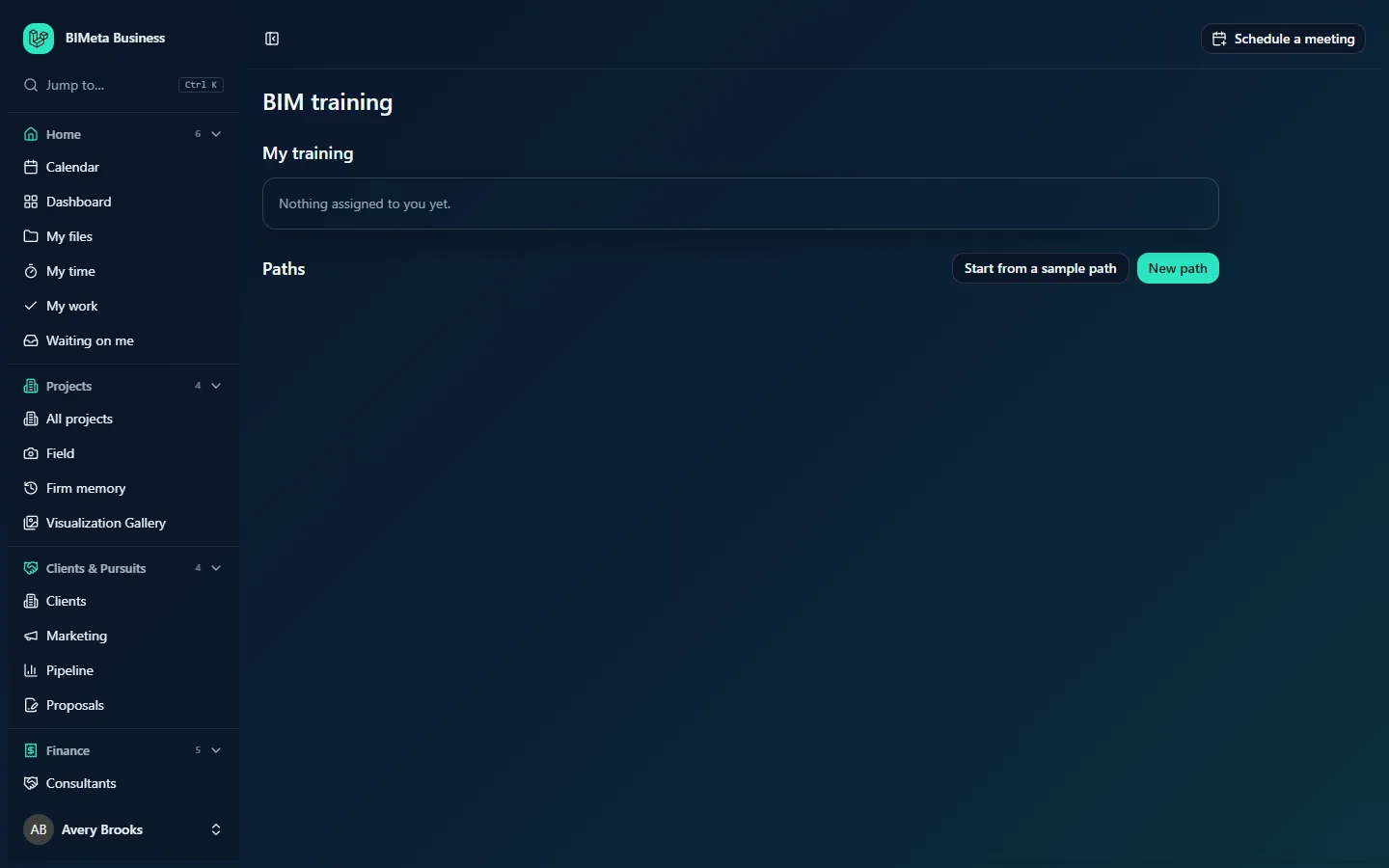
The screenshot shows a Business Owner's view before any paths exist: My training is empty and the Paths section offers Start from a sample path and New path.
A tour of the page
My training
One card for each path assigned to you, showing:
- the path name and a badge such as 2 of 6 done (it becomes solid when you've finished all steps);
- Due and the date, if one was set;
- the steps in order, each with a checkbox, its title (a link if the step has one; outside links open in a new tab), and underneath its kind and estimated minutes (for example Do · 15 min).
If nothing is assigned to you, it says Nothing assigned to you yet.
Paths (training managers)
- Start from a sample path (shown only while there are no paths): adds a ready-made path called Revit at our firm, for Everyone who models, with six steps: read the project's BIM execution plan, load the template and title blocks from the standards library, find and load families from the family library, learn sheet and view naming, sync a model and check its health, and walk through a model with your BIM Manager. Edit it to fit the firm.
- New path: opens the path editor.
- One card per path, alphabetically, with its name; who it's for, the number of steps and the total time (about 100 min); an Edit button; each assigned person with a progress bar and done/total steps; and an assign form: a People list (hold Ctrl or Shift to pick several), a Due date and Assign.
The path editor
- Path name (required): up to 160 characters.
- Who it's for: up to 120 characters, for example New modellers.
- Description: up to 1,000 characters.
- Steps (1 to 60). Each step has a Kind (Read, Watch, Do or Check with your BIM Manager), the Step title (required, up to 200 characters), a Link (optional) and Minutes (0 to 600). Remove deletes a step; Add a step adds one at the end.
- Save path and Cancel.
How to…
Work through your training
- Open Firm → BIM training.
- Follow each step; click its title to open the linked page or video.
- Tick the step's checkbox when it's done. Untick it if you ticked it by mistake. Your BIM Manager sees your progress straight away.
Build a path (training managers)
- Click New path (or Start from a sample path and then Edit).
- Enter the Path name, Who it's for and a Description.
- Add steps. Links must start with
https://(orhttp://) for outside pages, or with/for a page in BIMeta Business, for example/bim/families. - Click Save path. You'll see Training path saved.
Assign a path
- On the path's card, select one or more people in the People list.
- Optionally pick a Due date.
- Click Assign. You'll see Assigned to N people. The path appears under each person's My training.
Change a path
Click Edit, make changes and Save path. Rewording or reordering steps keeps everyone's ticks. Removing a step also removes everyone's tick for it, and new steps start unticked for everyone assigned.
Tips and good to know
- Assigning a path to someone who already has it changes nothing; their due date and progress stay as they were.
- Assigning doesn't send an email. Tell people their training is waiting, or link them to Firm → BIM training.
- Only active people can be assigned.
- Link steps to the firm's own pages, such as the Family library, Script library or Knowledge base articles, so training always points at current content.
- Saving and assigning paths is recorded in the audit log.
Troubleshooting
I get "Links start with https:// or point to a page in the portal (starting with /)."
Add https:// to the front of outside links, or start internal links with /.
Why can't I tick a step?
You can only tick steps of paths assigned to you. The step may also have been removed from the path since the page loaded; reload the page.
Why don't I see the Paths section?
Only people who manage BIM settings (by default Business Owners, Admins and BIM Managers) build and assign paths.
Was this article helpful?
Share