



Standards library: templates, title blocks and shared parameters
17 views · by Kevin J Bruno · updated 22 hours ago
The Standards library keeps the firm's CAD and BIM standards in one place: Revit project templates, title blocks, shared parameters and view templates, and AutoCAD, Civil 3D and Navisworks standards. Every new version is approved by someone other than the person who uploaded it, and only then can it go out to people's machines, ring by ring, through the same rollout and approvals as plugins. Use it whenever the firm's template or title block changes, so everyone starts new work from the same approved files.
Where to find it
- Sidebar → Admin → BIM Manager, then Standards library in the Standards and content card (it shows N to approve in red when versions are waiting).
- The Standards library links at the top of the Family library and Detail library, and on the Model health page.
- Jump to… (Ctrl K): type
standards.
Who can use it
| Action | Business Owner | BIM Manager | Admin | IT Staff |
|---|---|---|---|---|
| See the library | Yes | Yes | Yes | Yes |
| Add a standard and upload versions | Yes | Yes | Yes | No |
| Approve a version (never your own upload) | Yes | Yes | Yes | Yes |
| Deploy an approved version | Yes | Yes | Yes | No |
Users can't open the Standards library; they receive the approved files on their machines.
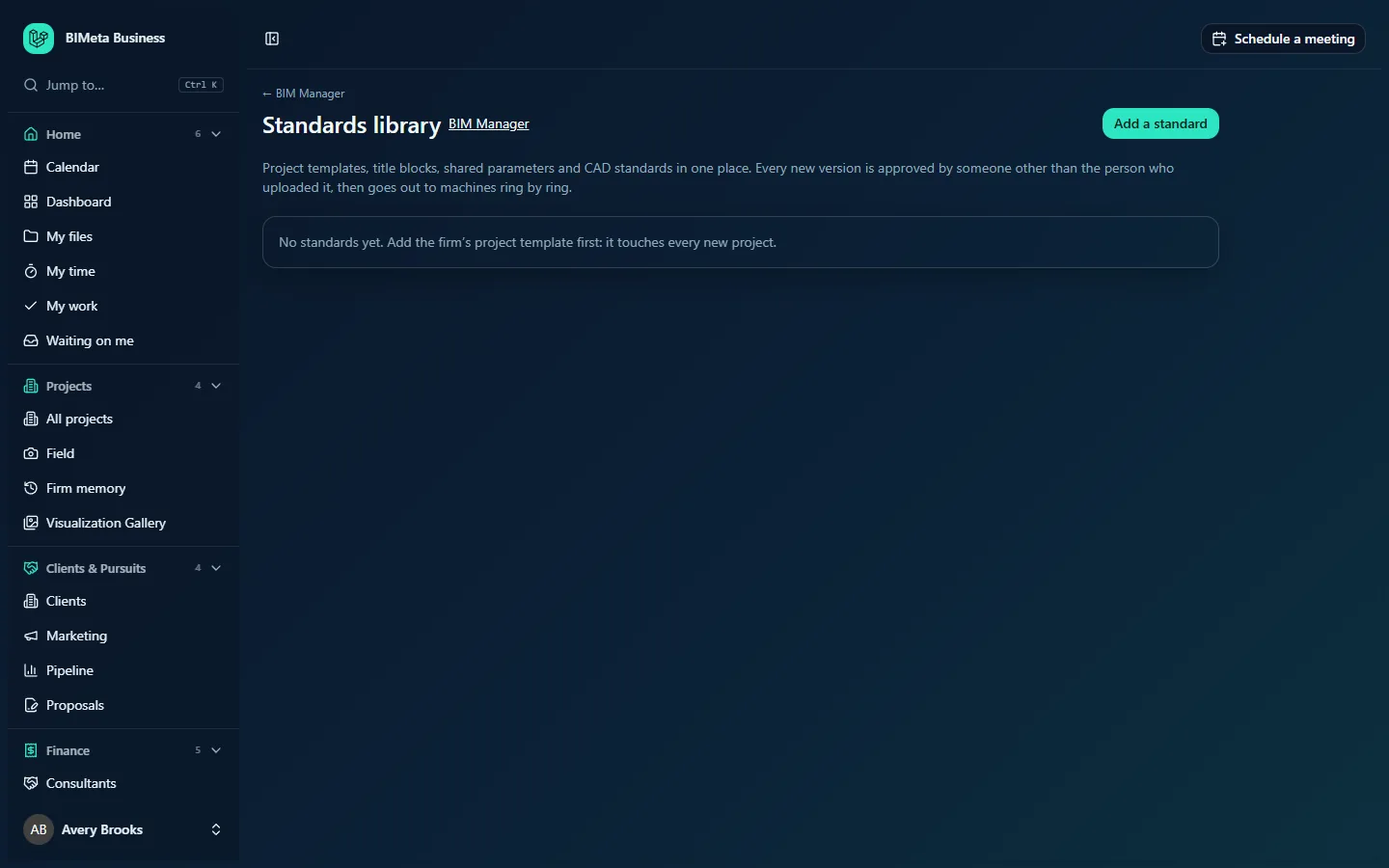
The screenshot shows the empty library at the example firm Northlight Architects.
A tour of the page
- ← BIM Manager and a BIM Manager link next to the title: back to the panel.
- Add a standard (if you can manage standards): opens the add form.
- The explanation: "Project templates, title blocks, shared parameters and CAD standards in one place. Every new version is approved by someone other than the person who uploaded it, then goes out to machines ring by ring."
- When empty: "No standards yet. Add the firm's project template first: it touches every new project."
Standards are grouped under headings by kind. Each standard card shows:
- Its name and a badge: In use: version (the newest approved version) or No approved version yet.
- Upload a version (if you can manage standards).
- Its description, if any.
- The list of versions, newest first: the version number; Approved by name or Waiting for approval; the size, who uploaded it and the date; how often it was deployed ("deployed once", "deployed 3 times"); and the notes (What changed).
- Approve on versions waiting for approval, if you may approve and didn't upload it. On your own uploads you see "Someone else approves your upload before it can go out."
- Deploy on approved versions, if you can deploy.
Kinds of standard and accepted files
| Kind | Program | Files | Goes to |
|---|---|---|---|
| Revit project template | Revit | .rte or .zip | The firm's project template folder for each chosen Revit year |
| Revit title blocks | Revit | .rfa or .zip | The firm standards folder for each Revit year |
| Revit shared parameters | Revit | .txt | The firm standards folder for each Revit year |
| Revit view templates | Revit | .rvt or .zip | The firm standards folder for each Revit year |
| AutoCAD standards | AutoCAD | .dwt, .dws, .ctb, .stb, .pat, .lin, .shx or .zip | The firm standards folder for each AutoCAD year |
| Civil 3D standards | Civil 3D | .dwt, .dws, .ctb, .stb or .zip | The firm standards folder for each Civil 3D year |
| Navisworks standards | Navisworks | .xml, .nwd or .zip | The firm standards folder for each Navisworks year |
The deploy form shows the exact folder for the kind you're deploying.
How to add a standard
- Click Add a standard.
- Name (required, up to 160 characters), for example Office template 2026.
- Kind: one of the kinds above. It decides the program, the accepted files and where it installs.
- What it's for (optional): up to 1,000 characters.
- Click Add standard (or Cancel). You'll see "Standard added. Upload its first version."
How to upload a version
- On the standard's card, click Upload a version.
- Version (required, up to 40 characters), for example
2026.1. Each version number can be used once per standard. - File (required): one of the file types listed for that kind, up to 512 MB. A single file is packed into a .zip for you; a .zip is used as it is and must follow the same rules as plugin zips (relative paths only, up to 5,000 files, 2 GB unpacked).
- What changed (optional, up to 2,000 characters).
- Click Upload. You'll see "Version … uploaded. Someone else approves it before it can go out." The standards count on the BIM Manager panel goes up by one.
How to approve a version
- Open the standard and check the version's notes and file.
- Click Approve. You'll see "Approved. It can be deployed now." The version shows Approved by your name, becomes the In use version, and the approval is recorded in the audit log.
How to deploy an approved version
- Click Deploy next to the approved version.
- Program versions: tick each program year to install it for (at least one).
- Send to: Chosen people or a ring (Ring: name).
- People: select people in the list (hold Ctrl to select several). People you pick here are added to the ring, if you chose one.
- Everyone: tick to send to every active person instead.
- Read the note "Goes to … on each machine, through the same rollout and approvals as plugins.", then click Deploy followed by the version number, for example Deploy 2026.1 (or Cancel).
The deployment then appears in the BIM Manager panel's Deployments list and follows the firm's approval rule: under the default rule, a ring or everyone waits for a second person. Follow progress and cancel it there.
Tips and good to know
- Two people are always involved: the uploader and a different approver. Plan this before a deadline.
- Only approved versions can be installed on machines.
- Start with the project template: it's in every new project.
- Standards install only into the firm's template and standards folders, never into add-in folders, and plugins never go to standards folders.
- Point Revit at these folders with a settings change in the BIM Manager panel (for example the template and library paths in Revit.ini) so people actually use them.
Troubleshooting / FAQ
Why don't I see Approve on my version?
You uploaded it. Someone else with approval rights (another BIM Manager, IT Staff, an Admin or the Owner) has to approve it.
Why don't I see Deploy?
The version isn't approved yet, or you don't have permission to deploy (IT Staff can approve but not deploy).
My file was refused.
Each kind takes only certain file types, for example shared parameters take .txt only. The message lists the accepted types.
Was this article helpful?
Share