



Revit upgrade planner: plan the move to a new Revit year
17 views · by Kevin J Bruno · updated 4 days ago
The Revit upgrade planner helps you plan a move to a new Revit year. Pick the year you're moving to and it shows how many computers already have it installed, which projects are still on an older year, how ready each rollout ring is, and whether each Revit plugin in the firm's library is known to work with that year. Use it months before an upgrade to find blockers, and during the upgrade to track progress ring by ring.
Where to find it
- Sidebar → Admin → BIM Manager, then Revit upgrade planner in the Models and checking card.
- Jump to… (Ctrl K): type
upgrade.
Who can use it
Anyone who can see the BIM Manager panel: the Business Owner, IT Staff, the BIM Manager and the Admin role. People who can add BIM plugins (Owner, BIM Manager, Admin) can mark plugin compatibility; IT Staff see the compatibility table read-only. Users can't open it.
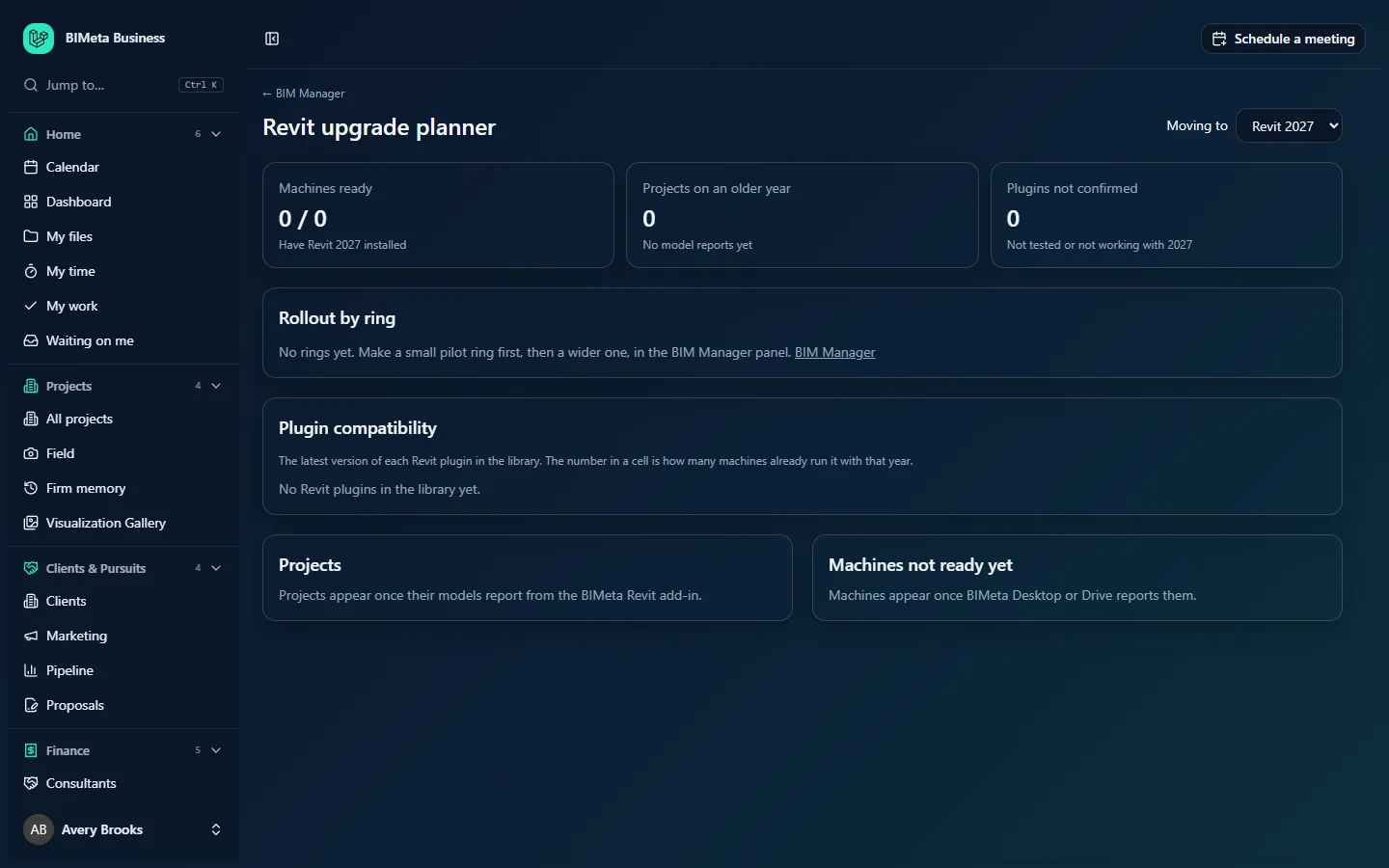
The screenshot shows the planner at the example firm Northlight Architects for Revit 2027, before any models, machines or plugins have reported.
A tour of the page
Header
← BIM Manager, the title, and Moving to: a list of Revit years (2022 to 2027). The newest year is selected when you open the page; choosing another reloads everything for that year.
Summary cards
- Machines ready: computers with the target year installed, out of all computers that have any Revit year (for example "0 / 0 · Have Revit 2027 installed"). This comes from the device inventory that BIMeta Desktop or BIMeta Drive reports.
- Projects on an older year: projects whose newest model is on an earlier year, with a breakdown by year (for example "2025: 3 · 2026: 2"), or "No model reports yet".
- Plugins not confirmed: Revit plugins whose latest version isn't marked Works for the target year ("Not tested or not working with 2027"). These are your blockers.
Rollout by ring
One row per ring with "N of M machines ready" and a progress bar: how many of the ring members' computers already have the target year. With no rings yet, it says "No rings yet. Make a small pilot ring first, then a wider one, in the BIM Manager panel."
Plugin compatibility
A table of the latest version of each Revit plugin in the library (name and version) against every Revit year. Each cell shows Works, Not tested or Doesn't work, coloured green, grey or red, and a small number: how many machines already run that plugin with that Revit year (from the device inventory). With no plugins it says "No Revit plugins in the library yet."
Projects
Every project with reporting models, sorted by Revit year, each with a badge such as Revit 2025 (highlighted when it's behind the target year). Until models report: "Projects appear once their models report from the BIMeta Revit add-in."
Machines not ready yet
Computers without the target year: computer name, the person it belongs to and the Revit years it has. If none: "Every machine has Revit 2027." Until computers report: "Machines appear once BIMeta Desktop or Drive reports them."
How to mark a plugin's compatibility
- Test the plugin's latest version in the new Revit year.
- In Plugin compatibility, find the plugin's row and the year's column.
- Choose Works, Not tested or Doesn't work from the cell's list. It saves straight away ("Saved") and is recorded in the audit log.
How to plan an upgrade
- Choose the year in Moving to.
- Clear the Plugins not confirmed count: test each plugin and mark it, or publish a fixed version.
- Have IT install the new Revit year on a pilot ring's computers and watch Rollout by ring fill up.
- Deploy plugins for the new year from the BIM Manager panel (tick the new year under Versions), and roll out the BIMeta add-in, which has one plugin per Revit year.
- Move projects across as phases allow, and use Projects to see which are still on the old year.
Tips and good to know
- Compatibility is recorded per plugin version. When you publish a new version, its cells start at Not tested again.
- A project's year is the newest Revit year among its models, so one upgraded model moves the project forward in this list.
- Machine data comes from the IT device inventory; if a computer is missing, check BIMeta Desktop or Drive is installed and signed in there (IT Staff can check under Admin → IT, Devices tab).
- Only Revit plugins appear here; plugins for other programs don't.
Troubleshooting / FAQ
Why is everything zero?
Nothing has reported yet: models report through the BIMeta add-in for Revit, and computers through BIMeta Desktop or Drive.
Why can't I change a compatibility cell?
Only people who can add BIM plugins (Owner, BIM Manager, Admin) can mark compatibility.
A plugin works but the cell number is 0.
The number only counts machines where the device inventory has seen the add-in installed with that Revit year. It's information, not a requirement.
Was this article helpful?
Share