



Revit add-in: managed settings, toolbars and rollout
19 views · by Kevin J Bruno · updated 1 day ago
The Revit add-in page controls the BIMeta add-in for Revit (and the BIMeta Datum app) across the firm. For every add-in setting, ribbon tab and tool you decide whether each person chooses for themselves, whether you push a default they can still change, or whether you enforce a value they can't change. You can set this for everyone, for a role, or for one person. The page also rolls the add-in out to people's machines and shows who uses it and whether they have your latest settings. Use it when you set up the add-in for the firm, standardise appearance or auto-save, point everyone at the firm's family and detail libraries, or hide tools a team doesn't need.
Where to find it
- Sidebar → Admin → BIM Manager, then the Revit add-in tool in the BIMeta for Revit card.
- Jump to… (Ctrl K): type
Revit add-in. - The ← BIM Manager link at the top goes back to the panel.
Who can use it
Anyone allowed to save settings changes for BIM programs: the Business Owner, the BIM Manager and the Admin role. IT Staff and Users can't open it. The Roll out the latest version button also needs permission to deploy to people's machines (Owner, BIM Manager, Admin); anyone else sees "Someone who can deploy BIM plugins rolls it out."
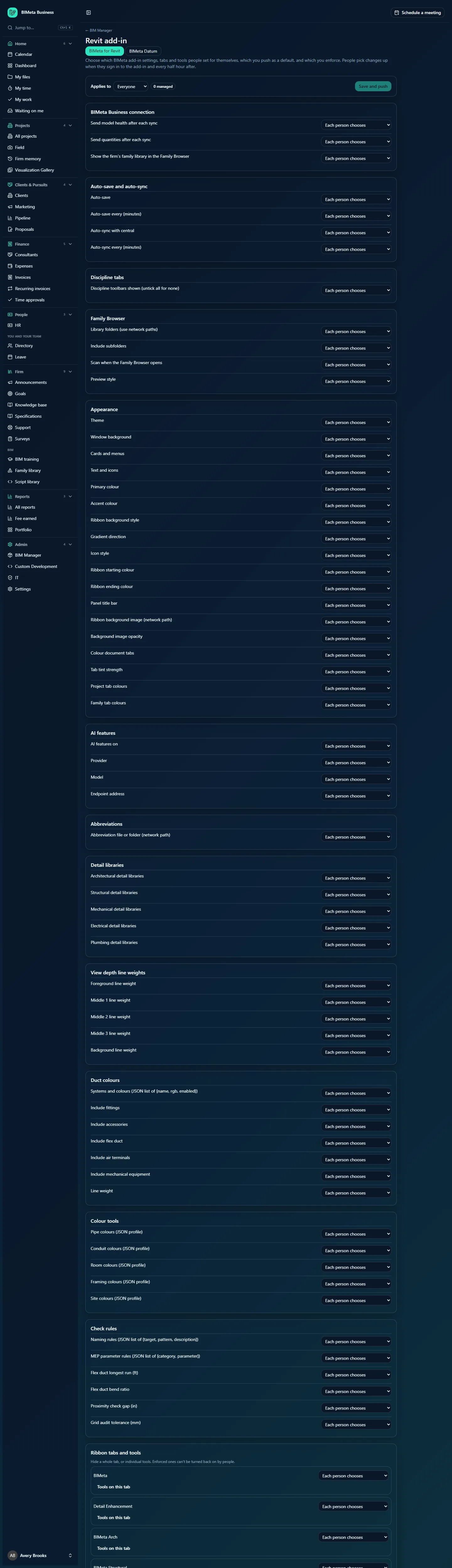
This is the page for the example firm Northlight Architects, with nothing managed yet. It's a long page; the screenshot shows the top part:
How managed settings work
Every setting, ribbon tab and tool has one of three modes:
| Mode | What the add-in does |
|---|---|
| Each person chooses | Nothing is sent. The person's own choice in the add-in stands. This is the starting point for everything. |
| Default (people can change it) | The add-in applies your value when it changes, then the setting is theirs again: they can change it in the add-in's own settings. |
| Enforced (locked) | The add-in applies your value and locks it, so people can't change it. Enforced hidden tabs and tools can't be turned back on. |
Policies can be saved at three levels, and the most specific one wins, setting by setting:
- Everyone: the firm-wide policy.
- A role: for example everyone with the BIM Manager or User role. It overrides Everyone's value for the settings it covers.
- One person: overrides both their role's and Everyone's values.
For a role or person, the first option in each mode list reads Leave to the person (overrides Everyone). Use it to release a setting that's enforced or defaulted for Everyone, so that role or person chooses freely.
The add-in asks BIMeta Business for the settings that apply to the signed-in person when they sign in and every half hour after, so both new and existing users pick changes up. Secrets are never part of this: API keys, sign-in tokens and the add-in's settings-lock password stay on each machine and can't be pushed from here.
A tour of the page
Header
- Revit add-in (or BIMeta Datum when that app is selected), with two switch buttons: BIMeta for Revit and BIMeta Datum. Each has its own policies, settings and ribbon.
- The explanation: "Choose which BIMeta add-in settings, tabs and tools people set for themselves, which you push as a default, and which you enforce. People pick changes up when they sign in to the add-in and every half hour after."
The Applies to bar
- Applies to: Everyone, A role or One person. Choosing a role or person shows a second list (Choose a role… / Choose a person…) and loads that policy if one exists. The settings below appear once a role or person is picked.
- N managed: how many settings, tabs and tools are set to Default or Enforced in what you're looking at (including unsaved changes). The example shows 0 managed.
- Remove this policy: for a saved role or person policy only. It deletes that policy, handing those settings back to Everyone's policy (or to the person). Everyone's policy can't be removed; clear it by setting everything back to Each person chooses and saving.
- Save and push: saves the policy. It stays greyed out until you change something (and, for a role or person, until you've chosen one).
- For a role or person, a note reminds you: "Settings here win over Everyone's. A person's policy wins over their role's."
Setting groups (BIMeta for Revit)
Each setting is a row with its name and, on the right, its mode list. When you pick Default or Enforced, a value editor appears under the name, filled with the add-in's own default: a tick box for on/off settings, a number box with limits, a drop-down for choices, tick boxes for several choices, a text box for colours (#1AA89A, or eight digits with transparency), or a larger box for lists (one entry per line) and JSON.
| Group | Settings (add-in default, limits) |
|---|---|
| BIMeta Business connection | Send model health after each sync (on): feeds Model health. Send quantities after each sync (off): feeds project cost estimates. Show the firm's family library in the Family Browser (on). |
| Auto-save and auto-sync | Auto-save (off), Auto-save every (minutes) (10; 1 to 480), Auto-sync with central (off), Auto-sync every (minutes) (10; 1 to 480). |
| Discipline tabs | Discipline toolbars shown (untick all for none): Detail Enhancement, BIMeta Arch, BIMeta Structural, BIMeta MEP, BIMeta Site. |
| Family Browser | Library folders (use network paths), Include subfolders (on), Scan when the Family Browser opens (on), Preview style (Revit Original, Studio Light, Dark Contrast or Blueprint). |
| Appearance | Theme (BIMeta Light, BIMeta Dark or Custom), Window background, Cards and menus, Text and icons, Primary colour, Accent colour, Ribbon background style (Solid or Gradient), Gradient direction (Horizontal, Vertical, Diagonal), Icon style (BIMeta Style or Revit Style), Ribbon starting colour, Ribbon ending colour, Panel title bar, Ribbon background image (network path), Background image opacity (0.35; 0.05 to 1), Colour document tabs (off), Tab tint strength (0.45; 0.1 to 1), Project tab colours and Family tab colours (lists of colours). |
| AI features | AI features on (off), Provider (anthropic, openai or ollama), Model, Endpoint address. Each person still enters their own key in the add-in. |
| Abbreviations | Abbreviation file or folder (network path). |
| Detail libraries | Architectural, Structural, Mechanical, Electrical and Plumbing detail libraries: lists of folders or .rvt files for the add-in's Details buttons. |
| View depth line weights | Foreground (5), Middle 1 (4), Middle 2 (3), Middle 3 (2), Background line weight (1); each 1 to 16. |
| Duct colours | Systems and colours (JSON list of {name, rgb, enabled}), Include fittings, Include accessories, Include flex duct, Include air terminals, Include mechanical equipment (all on), Line weight (5; 1 to 16). |
| Colour tools | Pipe, Conduit, Room, Framing and Site colours (JSON profile). |
| Check rules | Naming rules (JSON list of {target, pattern, description}), MEP parameter rules (JSON list of {category, parameter}), Flex duct longest run (ft) (6; 0.5 to 100), Flex duct bend ratio (1.5; 1 to 10), Proximity check gap (in) (2; 0.1 to 48), Grid audit tolerance (mm) (12.7; 0.1 to 1,000). |
Setting groups (BIMeta Datum)
With BIMeta Datum selected, the groups are: Units and templates (default units for new drawings; template for new drawings as a network path), Saving and recovery (autosave and its interval, recovery copies kept, saved versions kept, ask for a comment on every save), Drafting (pick box size, crosshair size, text scale, selection highlight colour, default hatch pattern), Family library (library folders), Appearance (theme), AI assistant (on/off, AI model), Privacy (anonymous usage statistics, keep crash logs), Behaviour (Revit-style selection and shortcuts) and BIMeta Business (report model health on every save).
Ribbon tabs and tools
"Hide a whole tab, or individual tools. Enforced ones can't be turned back on by people." Each ribbon tab has a row with its own mode list. Click Tools on this tab (Hide tools to close) to list the tab's panels and tools, each with its own mode list. When a tab or tool is set to Default or Enforced, a Shown tick box appears: ticked shows it, unticked hides it.
The BIMeta for Revit tabs are BIMeta (panels Project, Details, Renumber, Audits, Tools, Window-Tile, Help, Browse), Detail Enhancement (Typical Tools, Text), BIMeta Arch (Color, Standards, Checks, Interiors), BIMeta Structural (Color, Tools, QA, Docs), BIMeta MEP (Color, Checks, Power, Coordination, Spaces) and BIMeta Site (Color, Tools). For BIMeta Datum you manage whole tabs only (Architecture, Structure, Steel, Systems, Annotate, View, Manage, the stage tabs and so on).
Roll out the add-in (BIMeta for Revit only)
- If the add-in isn't in the plugin library yet: "The BIMeta add-in isn't in the plugin library yet. Its build script publishes one plugin per Revit year (bimeta-revit-2027 and so on); then roll them all out from here."
- Once it is: the latest version per Revit year (for example "Revit 2026: 1.8.0 · Revit 2027: 1.8.0"), and In use: which add-in versions people's machines reported, with how many people on each.
- Roll out to: each ring (Ring: name) or Everyone, and the Roll out the latest version button.
- The note: start with a pilot ring, then everyone. It installs into each person's own Revit add-in folder for every Revit year, under the firm's approval rule. Don't also install the BIMeta for Revit .msi on those PCs.
Who uses the add-in
A table of everyone who has signed in to the add-in (up to 500, most recent first): Person, Revit (the Revit year; for BIMeta Datum this column shows the computer name), Add-in (version), Last check-in, and Settings: Up to date if they checked in after your last saved change, or Gets changes at next check-in. If nobody has signed in yet, the page explains how: in Revit, open the BIMeta settings, go to BIMeta Business, enter your portal's address and sign in.
How to set a firm-wide default or enforced setting
- Leave Applies to on Everyone.
- Find the setting, for example Auto-save under Auto-save and auto-sync.
- Change its mode to Default (people can change it) or Enforced (locked).
- Set the value in the editor that appears (for example tick the Auto-save box; then give Auto-save every (minutes) the same mode and type
15). - Repeat for other settings, then click Save and push. You'll see "Saved. People get it the next time the add-in checks in (on sign-in, then every half hour)." The change is recorded in the audit log, and the Who uses the add-in table switches people to Gets changes at next check-in until they check in.
How to set something for a role or one person
- Set Applies to to A role or One person, then choose the role or person.
- Change only the settings that should differ from Everyone's. To exempt them from something enforced for Everyone, choose Leave to the person (overrides Everyone).
- Click Save and push.
- To undo the whole role or person policy later, select it again and click Remove this policy ("Policy removed").
How to hide a ribbon tab or tool
- Choose who it applies to.
- Under Ribbon tabs and tools, set the tab's mode (or open Tools on this tab and set a tool's mode) to Default or Enforced.
- Untick Shown to hide it (leave it ticked to force it visible).
- Click Save and push.
How to roll out the add-in
- Make sure the add-in's plugins (one per Revit year) are in the plugin library. They are published from the build machine with bimeta-publish; see BIM Manager panel: plugins, settings and deployments.
- In Roll out the add-in, choose a pilot ring in Roll out to.
- Click Roll out the latest version. One deployment is created per Revit year ("Rolled out for N Revit years. Check Deployments for approval and progress.").
- Under the default approval rule, a ring or everyone waits for a second person: ask another BIM Manager, IT Staff, Admin or Owner to approve the deployments in the BIM Manager panel.
- When the pilot is happy, repeat with Everyone.
Value formats and limits
- Paths (library folders, background image, abbreviations, detail libraries) must be absolute so they work on every machine: a network share like
\\server\share\Familiesor a drive path likeK:\Standards. Up to 400 characters, no "..". Lists take up to 50 entries, one per line. - Colours:
#RRGGBBor#AARRGGBB; leave blank for the add-in's own. - JSON fields take JSON exactly as the add-in's settings file has it, up to 64 KB.
- Text fields (such as the AI model) take up to 300 characters.
- A value outside the limits is refused with "Setting: that value can't be used." Nothing is saved until every value is valid.
Tips and good to know
- Use Default for comfort settings (theme, preview style) and Enforced only for things that must be the same (library paths, check rules, auto-sync), so people aren't frustrated.
- Pointing the Detail libraries at network folders is separate from the Detail library page: the add-in's Details buttons show the firm's approved details from BIMeta Business as well.
- Send model health after each sync must stay on (or at least not be turned off) for Model health and the Revit upgrade planner to get data.
- Rollout here uses the same approval rule and the same Deployments list as any plugin in the BIM Manager panel.
Troubleshooting / FAQ
Why is Save and push greyed out?
You haven't changed anything yet, or you chose A role / One person without picking which one.
Someone still shows "Gets changes at next check-in".
Their add-in hasn't checked in since your last save. It does so on sign-in and every 30 minutes while Revit is open.
Why can't I remove Everyone's policy?
Everyone's policy can only be cleared: set each setting back to Each person chooses and save.
Why is there no Roll out button?
Either the add-in hasn't been published to the plugin library yet, or you don't have permission to deploy to machines.
Was this article helpful?
Share