



Model health: check every synced Revit model
19 views · by Kevin J Bruno · updated 9 hours ago
Model health shows every Revit model the firm works on, as the BIMeta add-in for Revit reported it at its last sync: how many warnings it has, how big it is, imported CAD, in-place families, views not on sheets, unplaced rooms, model groups, worksets and names that break the firm's naming patterns. Each model is judged against the firm's limits, and you can see whether it's ready to issue. Use it every week on live projects, and always before an issue, to catch models that are drifting before they become a problem.
Where to find it
- Sidebar → Admin → BIM Manager, then Model health in the Models and checking card.
- The Models not ready to issue card on the dashboard opens this page already filtered to Not ready to issue.
- The emailed alert for an unhealthy model links here.
- Jump to… (Ctrl K): type
model health.
Who can use it
Anyone who can see the BIM Manager panel: the Business Owner, IT Staff, the BIM Manager and the Admin role. Only people who can save settings for BIM programs (Owner, BIM Manager, Admin) see Change limits; IT Staff see the limits read-only. Users can't open the page.
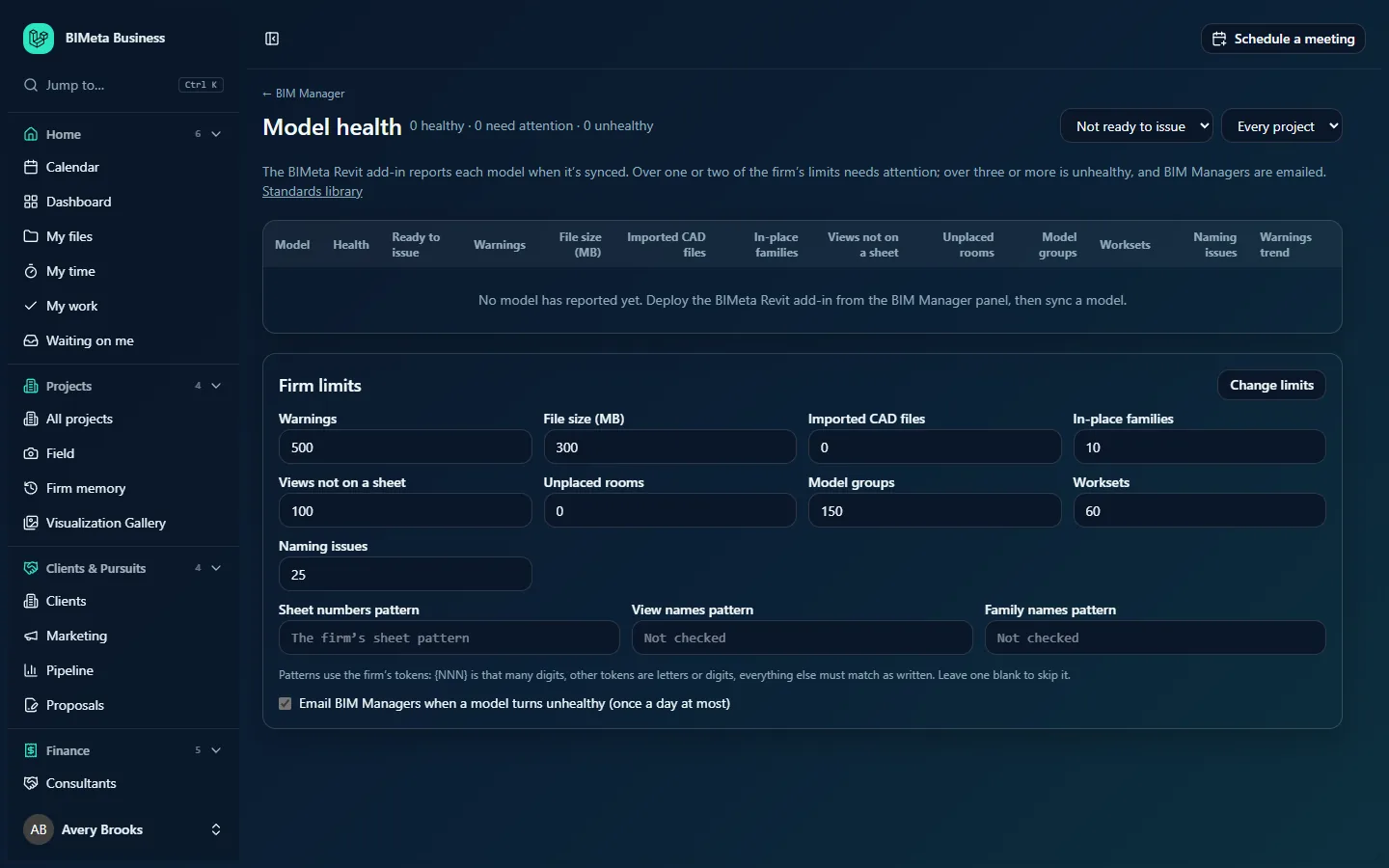
The screenshot shows the page at the example firm Northlight Architects, filtered to Not ready to issue, before any model has reported.
A tour of the page
Header and filters
- ← BIM Manager: back to the panel.
- Model health and a summary, for example "0 healthy · 0 need attention · 0 unhealthy", counting the models in the current view.
- The first filter: Every model or Not ready to issue (models whose last review verdict is Fix first or Not ready).
- The second filter: Every project or one project (only projects that have reporting models are listed).
- The explanation: "The BIMeta Revit add-in reports each model when it's synced. Over one or two of the firm's limits needs attention; over three or more is unhealthy, and BIM Managers are emailed." with a link to the Standards library.
The models table
| Column | What it shows |
|---|---|
| Model | The model's name (a link to its review page), with its project (for example 26-001 Riverbend Clinic Expansion), the Revit year (or "Datum") and the date of its last report. |
| Health | Healthy (within every limit), Needs attention (over one or two limits) or Unhealthy (over three or more, shown in red). |
| Ready to issue | The latest review verdict: Ready, Fix first or Not ready (red), with the number of issues found. Hover for when it was checked; click to open the review. A dash means the model hasn't been reviewed yet. |
| Warnings, File size (MB), Imported CAD files, In-place families, Views not on a sheet, Unplaced rooms, Model groups, Worksets, Naming issues | The values from the latest report. A value over the firm's limit is highlighted; hover to see "Over the limit of N". A dash means the add-in didn't report that check (naming issues show a dash when no naming pattern is set). |
| Warnings trend | A small line of the warning count over the model's last 30 reports, with a dashed line at the firm's warnings limit. It appears once there are at least two reports. |
With no reports yet, the table says: "No model has reported yet. Deploy the BIMeta Revit add-in from the BIM Manager panel, then sync a model."
Naming issues
When any model has names that break a pattern, a Naming issues section lists each model and, per kind, a line like "Sheet numbers: 4 don't match {DISC}-{NNN}" followed by example names to fix.
Firm limits
The limits every model is judged against. A model passes a check while its value is at or under the limit.
| Limit | Starting value |
|---|---|
| Warnings | 500 |
| File size (MB) | 300 |
| Imported CAD files | 0 |
| In-place families | 10 |
| Views not on a sheet | 100 |
| Unplaced rooms | 0 |
| Model groups | 150 |
| Worksets | 60 |
| Naming issues | 25 |
Below the numbers are three naming patterns: Sheet numbers pattern (if blank, the firm's sheet pattern from firm setup is used, shown as "The firm's sheet pattern"), View names pattern and Family names pattern (shown as "Not checked" when blank). The help line explains the tokens. Last is the tick box Email BIM Managers when a model turns unhealthy (once a day at most), on by default.
How to change the limits and patterns
- In Firm limits, click Change limits. The boxes become editable.
- Enter each limit as a whole number from 0 to 1,000,000. All nine are required.
- Enter naming patterns (up to 120 characters each), or leave a pattern blank to skip that check. Patterns use the firm's tokens:
- A run of N in braces, like
{NNN}, means exactly that many digits. {YYYY}is four digits;{YY}and{MM}are two digits.{SPEC}is a spec section number such as08 71 00.- Any other token, like
{DISC}or{LEVEL}, is one or more letters or digits. - Everything outside braces must match exactly as written. For example
{DISC}-{LEVEL}{NNN}matches names like A-1101: letters or digits, a dash, then letters or digits ending in three digits.
- A run of N in braces, like
- Tick or untick the email alert.
- Click Save limits (or Cancel). You'll see "Limits saved. Models are judged against them from their next sync." The change is recorded in the audit log.
How to find the models to fix before an issue
- Choose Not ready to issue in the first filter, and the project in the second.
- Look at the highlighted values and the Naming issues section to see what's over.
- Click the model's name or its verdict to open its review, which ranks what to fix.
- Fix the model in Revit and sync. The new report and a fresh rule check come in with every sync, and the verdict updates.
Tips and good to know
- Reports arrive only from people using the BIMeta add-in for Revit with Send model health after each sync left on (see Revit add-in: managed settings, toolbars and rollout). BIMeta Datum models report too.
- A model is matched to a project by the project number stored in the model. If a model shows no project, check the project number in the model matches the one in BIMeta Business.
- When a model turns unhealthy, every active BIM Manager is emailed (or the Business Owners, if the firm has no BIM Manager), at most once a day per model.
- Reports are kept for a year. New limits only apply from each model's next sync.
- Family names reported here also feed the Family library's "Used in" list, and the Revit year of each model feeds the Revit upgrade planner.
Troubleshooting / FAQ
Why is the page empty?
No model has synced with the add-in yet. Roll out the add-in, make sure people sign in to BIMeta Business from it, then sync a model.
Why does Naming issues show a dash?
No naming pattern is set for the kinds the add-in reported. Add a pattern under Firm limits.
Why can't I see Change limits?
Only the Business Owner, BIM Manager and Admin can change limits.
The pattern I typed was refused.
The message "That naming pattern can't be used" means the pattern couldn't be turned into a check. Use only the tokens above inside braces, with matching braces.
Was this article helpful?
Share