



Autodesk Docs: sync containers with client projects
19 views · by Kevin J Bruno · updated 14 hours ago
The Autodesk Docs page connects BIMeta Business to the Autodesk Docs, ACC (Autodesk Construction Cloud) or BIM 360 projects your clients run. Once connected, each linked project's shared and published information containers are copied into the client's Autodesk project automatically, and anything the client puts in an Incoming folder there is brought back into the project's files. Use it when a client requires deliverables in their Autodesk project, so your team keeps working in BIMeta Business without uploading twice.
Where to find it
- Sidebar → Admin → BIM Manager, then Autodesk Docs in the Working with others card. The card shows Connected, or Needs reconnecting in red.
- Jump to… (Ctrl K): type
Autodesk. - After you sign in at Autodesk, you're brought back to this page.
Who can use it
Anyone allowed to save settings for BIM programs: the Business Owner, the BIM Manager and the Admin role. IT Staff and Users can't open it. The connection belongs to the firm, not to one person.
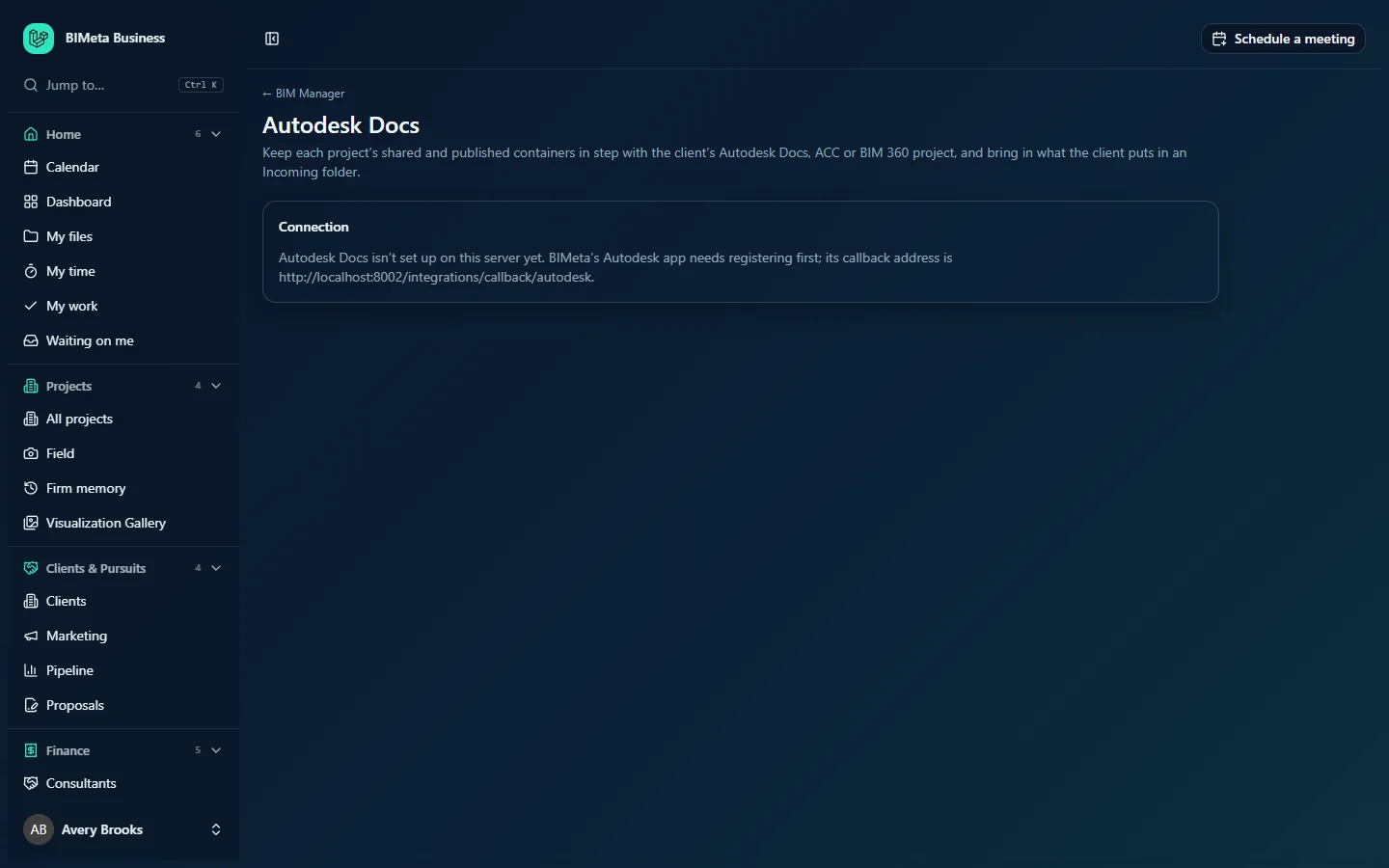
The screenshot shows the page before Autodesk Docs has been made available on the server, so only the Connection card with a set-up message appears.
A tour of the page
Header
← BIM Manager, the title and the explanation: "Keep each project's shared and published containers in step with the client's Autodesk Docs, ACC or BIM 360 project, and bring in what the client puts in an Incoming folder." After connecting you may see a green message, "Autodesk Docs is connected. Link projects below, then sync.", or a red one: "Connecting was cancelled at Autodesk.", "Autodesk couldn't be reached. Try again in a few minutes." or "Autodesk didn't accept the sign-in. Try connecting again."
Connection card
The card has a status badge (Connected or Needs reconnecting) once a connection exists, and shows one of three states:
- Not available yet: "Autodesk Docs isn't set up on this server yet." followed by a note that BIMeta's Autodesk app needs registering first, with the callback address to register. This is a one-time set-up for your BIMeta Business administrator, not something you can do on this page.
- Not connected: an explanation and the Connect Autodesk Docs button. Connect with an Autodesk account that's a member of the client projects. Before that, each client's Autodesk account admin adds BIMeta under Custom Integrations in their Autodesk account, using the client ID shown on this page.
- Connected: a summary line with the Autodesk account, the number of hubs, the number of linked projects and Last synced date (or Not synced yet), and the last error in red, if any. Below it:
- Reconnect: only when the connection needs it.
- Send to Autodesk Docs: Shared and published containers, Published containers only, or Nothing.
- Folder in Project Files: the folder created in each client project's Project Files (BIMeta to start with).
- Bring in files from its Incoming folder: a tick box.
- Save: saves those three options.
- A note explaining where files go: containers go to folder/Shared and folder/Published, named by container code; a new revision becomes a new version; files from folder/Incoming land in the project's files under From Autodesk Docs.
- Sync now: runs a sync straight away (greyed out until at least one project is linked).
- Disconnect: removes the connection after you confirm.
- Recent syncs (click to expand): the last 10 syncs with date, status, "N sent, N brought in" and any error.
Projects card
Shown while the connection is active. A table of the firm's active projects (not archived or closed, up to 300):
- Portal project: the project number and name, with a Linked badge when linked.
- Autodesk Docs project: a list of every Docs project the connected account can see (with the hub name when there are several hubs), or Not linked, and a Save button. When a Docs project's name contains the project number, it's pre-selected with the note Suggested by project number and the Save button is highlighted.
If Autodesk can't list projects, the error appears above the table. With no active projects it says No active projects.
How to connect Autodesk Docs
- Ask each client's Autodesk account admin to add BIMeta under Custom Integrations, using the client ID shown on the page.
- Click Connect Autodesk Docs. You're taken to Autodesk.
- Sign in with an Autodesk account that's a member of the client projects and allow access.
- You come back to this page with "Autodesk Docs is connected."
How to choose what syncs
- In the Connection card, choose Send to Autodesk Docs.
- Set Folder in Project Files (required, up to 60 letters, digits, spaces, dashes or underscores).
- Tick Bring in files from its Incoming folder if clients will send you files that way.
- Click Save.
How to link a project
- In Projects, find the project, for example 26-001 Riverbend Clinic Expansion.
- Pick the client's Docs project from the list (check any suggestion).
- Click Save. You'll see "Project linked to Autodesk Docs".
- To unlink, choose Not linked and click Save ("Project unlinked"). Files already sent stay in Autodesk Docs.
How syncing works
- Linked projects sync automatically about every 15 minutes, and whenever you click Sync now.
- For each linked project, the folder you chose is created in the client's Project Files, with Shared, Published and Incoming subfolders as needed.
- Containers in the chosen states (from the project's Containers tab) are uploaded, named by their container code. A container is only sent again when its file, revision or suitability changes, and then as a new version of the same Docs file.
- With incoming files on, new files in the Incoming folder are copied into the project's files, under From Autodesk Docs.
- A problem with one project doesn't stop the others; it shows in Recent syncs and the summary line.
How to disconnect
- Click Disconnect.
- Confirm "Disconnect Autodesk Docs? Files already sent stay in Autodesk Docs."
Tips and good to know
- Use an Autodesk account that will stay with the firm (for example a shared BIM account), not a person who may leave.
- Only shared and published containers ever leave the firm; work in progress stays in BIMeta Business.
- Name client Docs projects with your project number to get automatic suggestions.
Troubleshooting / FAQ
The page says Autodesk Docs isn't set up on this server.
The BIMeta Autodesk app hasn't been registered for your server yet. Contact BIMeta support; there's nothing to fill in on this page.
The badge says Needs reconnecting.
Autodesk no longer accepts the saved sign-in (for example the password changed or access was removed). Click Reconnect and sign in again.
A client's project isn't in the list.
The connected Autodesk account isn't a member of that project, or the client hasn't added BIMeta under Custom Integrations.
Why is Sync now greyed out?
No project is linked yet.
Was this article helpful?
Share