



Billing & storage: your plan, prices, storage, AI credits and servers
17 views · by Kevin J Bruno · updated 1 day ago
Billing & storage is the Business Owner's page for everything the firm pays BIMeta for. It shows the current plan and how much storage is used, lets you buy extra storage and AI credits on the spot, opens BIMeta Billing for invoices, payment methods and receipts, and lets you move the portal to a bigger or smaller set of servers. Come here when storage is filling up, when AI credits run low, when you need an invoice, or when your team grows.
Where to find it
- Sidebar → Admin → Settings, then Billing & storage in the Billing section. You can also type in Search settings at the top of the Settings page. A ‹ Settings link above the page title takes you back.
- Ctrl K and type
plan,subscription,storage,paymentorinvoice. - Links in BIMeta's emails about payments, automatic growth and server moves bring you here.
- Messages elsewhere in the portal point here too, for example Your firm has used all of its AI credits. An Owner can add more in Admin, Billing & storage.
Who can use it
Only the Business Owner, who can see the subscription, buy storage and AI credits, and open BIMeta Billing. Admins, IT Staff, BIM Managers and Users can't open it (IT Staff get an error if they follow a link here). Admins can see AI credit use, but not buy credits, on Admin → Settings → AI.
This page stays open while a new firm is still waiting for its background check, so the Business Owner can always reach billing even before the rest of the portal opens.
A tour of the page
Header
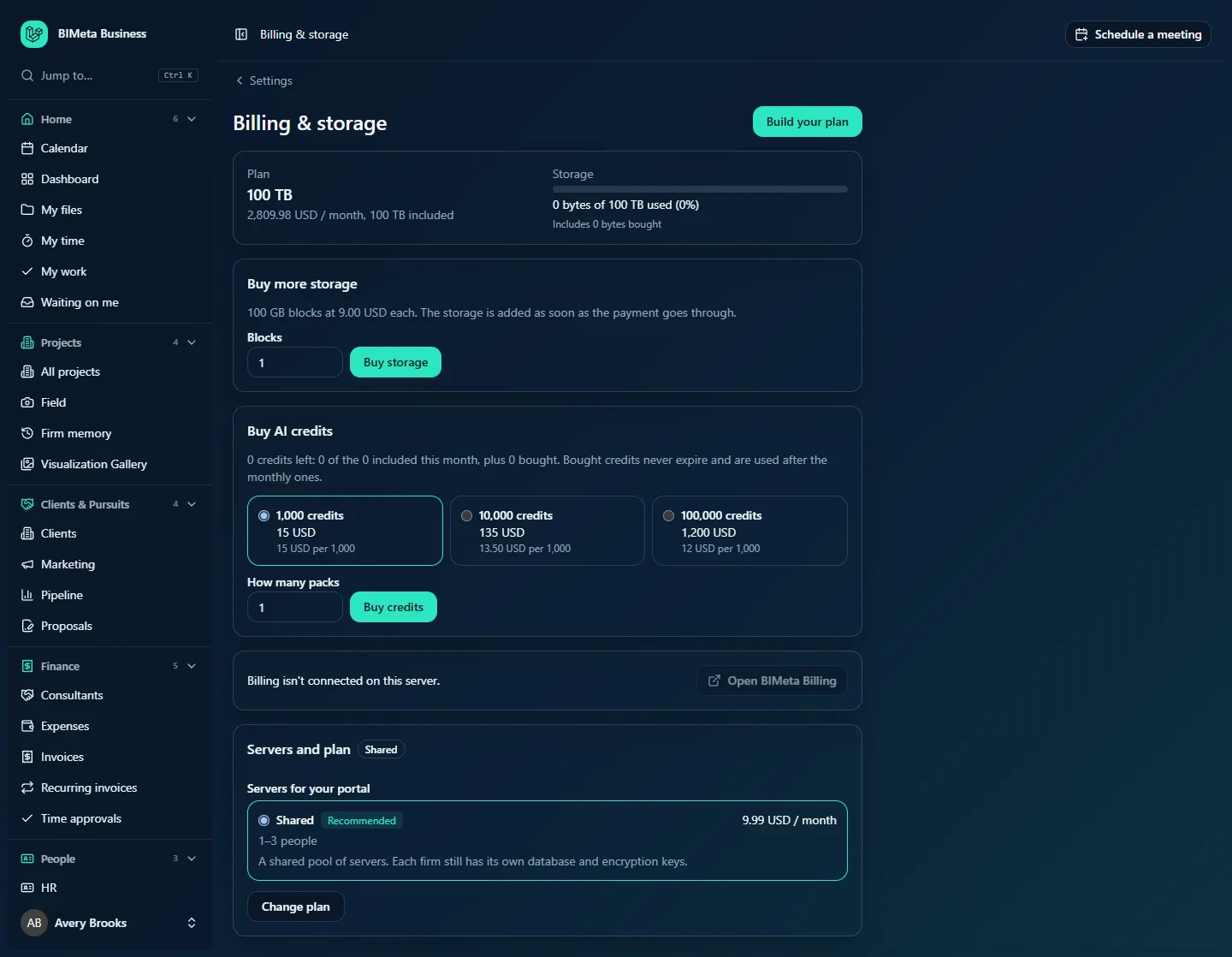
The Billing & storage title and a Build your plan button, which opens the plan builder (see Build your plan).
Payment warning
If a payment couldn't be collected, a red box at the top warns: We couldn't collect payment. Unless the subscription is paid, all of the firm's data will be permanently deleted on date (UTC). Update your payment method in BIMeta Billing. Act on this immediately: use Open BIMeta Billing lower on the page.
Plan and Storage
- Plan: the plan's name, for example 100 TB, its price and included storage (2,809.98 USD / month, 100 TB included in the example), and a Subscription: status badge when BIMeta Billing reports one.
- Storage: a bar and X of Y used (N%), for example 0 bytes of 100 TB used (0%), and Includes X bought: how much of the total comes from storage you bought separately.
What plans cost
Every plan is a storage plan plus the system your portal runs on. Since the latest price change, every plan includes 9.99 USD a month that pays for the background check of the Business Owner and the business in Setup, so there's no separate fee for it. The smallest plan, which used to be free, is now called Starter and costs 9.99 USD a month. The Shared system, which most small firms use, also costs 9.99 USD a month. List prices at the time of writing (in USD, before tax; BIMeta can change them, and this page always shows your firm's own price in its currency):
| Storage plan | Included storage | Price a month |
|---|---|---|
| Starter | 400 MB | 9.99 USD |
| 1 TB | 1 TB | 49.98 USD |
| 2 TB | 2 TB | 84.98 USD |
| 5 TB | 5 TB | 184.98 USD |
| 10 TB | 10 TB | 339.98 USD |
| 25 TB | 25 TB | 759.98 USD |
| 50 TB | 50 TB | 1,409.98 USD |
| 100 TB | 100 TB | 2,809.98 USD |
On top of the storage plan you pay for the system (for example Shared, 9.99 USD a month; bigger systems with your own servers cost more and are shown with their prices under Servers and plan and in Build your plan). Starter firms move up by choosing 1 TB or more in Build your plan. Paying yearly takes off the discount shown in the plan builder.
Add-on invoice
If your firm pays for servers or other add-ons through BIMeta Billing, a box headed Each month on a separate invoice (or Each year…) explains: Your plan is on your subscription. Your servers and other add-ons are invoiced separately each period and charged to your saved payment method. It lists each add-on and its amount (for example your servers, extra locations, extra storage and, if your firm chose the unlimited background check package, Background checks: unlimited), a total, and the latest periods with their status (Being sent, Waiting for payment, Paid, Payment failed, Cancelled).
Buy more storage
Storage is sold in blocks, for example 100 GB blocks at 9.00 USD each. The storage is added as soon as the payment goes through. Enter the number of Blocks and click Buy storage.
Buy AI credits
A summary such as 3,000 credits left: 2,000 of the 10,000 included this month, plus 1,000 bought. Bought credits never expire and are used after the monthly ones. Then a choice of Credit pack cards, each with the number of credits, its price and the price per 1,000 (in the example: 1,000 credits, 15 USD; 10,000 credits, 135 USD (13.50 USD per 1,000); 100,000 credits, 1,200 USD (12 USD per 1,000)). A pack shows Not available if it can't be bought in your currency. Enter How many packs and click Buy credits. Recent credit purchases are listed underneath with date, credits, amount and status.
BIMeta Billing
Invoices, payment methods and plan changes are in BIMeta Billing. with an Open BIMeta Billing button. If billing isn't connected for your portal's server, it says Billing isn't connected on this server. and the button is greyed out (as in the example).
Storage purchases
Once you've bought storage, a list shows each purchase: date, size, amount and status (Waiting for payment, Added, Payment failed or Cancelled).
Servers and plan
The last box shows the servers your portal runs on, with a badge for the current system (for example Shared) and, for your own servers, their location and status. It may show suggestions, labelled Save money, Disk space or Suggestion, with a Choose … below link that preselects the suggested system.
Under Servers for your portal each available system is listed with its monthly price (or Included, or Priced by quote), how many people it suits (for example 1–3 people), its number of servers, load balanced and security baseline included free where they apply, and a short description. Recommended and Current plan badges help you choose. In the example, Shared is listed at 9.99 USD / month for 1–3 people. For systems with your own servers, Where your servers run lets you choose a location. Change plan starts a move.
Invoices for custom development
If your firm has asked BIMeta for custom development (see Admin → Custom Development), an Invoices box appears at the bottom of the page listing every development invoice across your requests. Each row shows the date; the kind of invoice (Deposit, Milestone, Hours worked, Balance on delivery, Maintenance or Other) with a link to the request's number; a description, plus … taken off from the deposit when a deposit was credited; the amount, plus … refunded if BIMeta refunded some of it; and a status: Not sent yet, Due, Paid, Payment failed or Cancelled. A Pay link opens the payment page for an invoice that is due. The box isn't shown until your firm has at least one development invoice.
How to buy more storage
- In Buy more storage, enter how many Blocks you need (1 to 100 at a time).
- Click Buy storage.
- If payment is needed, you're taken to the payment page. The storage is added as soon as the payment goes through. If your firm already pays automatically, you'll see Storage added. straight away.
The purchase appears under Storage purchases and is recorded in the Audit log. To raise your storage permanently (or let it grow automatically), use Build your plan instead.
How to buy AI credits
- In Buy AI credits, choose a credit pack. Bigger packs cost less per 1,000 credits.
- Enter How many packs (1 to 20 at a time).
- Click Buy credits. Pay on the payment page if asked; the credits are added once payment goes through. Without a payment step you'll see AI credits added.
Bought credits never expire and are used only after the month's included allowance. Credit use is shown on Admin → Settings → AI.
How to get invoices or change your payment method
- Click Open BIMeta Billing.
- You're signed straight in to BIMeta Billing, where you can download invoices and receipts, update the card or payment method, and see your subscription. Opening it is recorded in the Audit log.
How to move to a different server plan
- In Servers and plan, choose the new system under Servers for your portal and, if offered, the location under Where your servers run.
- Click Change plan (it stays greyed out until you choose something different from what you have).
- Read the confirmation: Nothing is deleted: projects, files, people, settings and connected apps all move with the firm. Changes pause for a few minutes while the data is copied and checked. Everyone can keep reading. The old copy is kept for 14 days, so you can move back.
- Click Start the move (or Cancel).
- You'll see Your portal is moving to its new plan. Nothing is deleted, and the old copy is kept for 14 days.
While moving, the box shows Moving to system with a Follow progress link and the steps: Creating servers, Taking a snapshot, Copying data, Checking every table and Switching over, each ticked off as it finishes. Follow progress opens a page showing Your new servers, each step's state (In progress, Done or Delayed) and an estimated time, ending with All done. Your portal runs on the new servers. and Back to billing. Afterwards the box says Done. The old copy is kept until date in case you want to move back. If something goes wrong: The move stopped and nothing switched: the portal kept working where it was. BIMeta emails the Business Owner about the move. The request is recorded in the Audit log.
Tips and good to know
- IT Staff can use Admin → IT → Storage cleanup to find what's taking space before you buy more.
- Data traffic (downloads, uploads, syncing and sharing) is never billed.
- The Owner's and the business's own background check in Setup is covered by the plan price. Checks your firm runs on its team members, candidates or vendors are paid separately: pay-as-you-go checks are invoiced together each month, and the unlimited package is added to your subscription. See Background checks: check your team, new hires and vendors.
- If you turn on automatic storage growth in Build your plan, 1 TB is added when storage passes 90% full, and you're emailed each time.
- Your plan's monthly AI allowance resets on the 1st; unused allowance doesn't carry over, but bought credits do.
- BIMeta never deletes data for a plan change. Data is only at risk if payment fails and isn't fixed by the date in the red warning.
Troubleshooting / FAQ
"We couldn't reach billing just now. Nothing was charged; try again in a minute."
The payment service didn't answer. Nothing was bought; try again shortly.
Open BIMeta Billing is greyed out.
Billing isn't connected for your portal's server. Contact BIMeta support for invoices.
I bought storage but it isn't added yet.
It's added when the payment goes through. Check its status under Storage purchases; Waiting for payment means the payment page wasn't completed.
Why did our plan go up by 9.99 USD a month?
Every plan now includes 9.99 USD a month for the background check of the Owner and the business; there is no separate fee. The free plan became Starter at 9.99 USD a month for the same reason.
Why can't my Admin see this page?
Billing is reserved for the Business Owner.
Was this article helpful?
Share