



Confirming your identity (when your firm asks for a background check)
19 views · by Kevin J Bruno · updated 12 hours ago
Some firms ask everyone to confirm who they are before using BIMeta Business. If yours does, the first time you sign in (or the first time after your firm switches this on) you see a Background check page instead of your dashboard. You confirm your identity once, with a photo of your ID and a quick selfie, on the secure page of Didit, BIMeta's verification partner. It takes about five minutes on a phone or computer, and as soon as it passes you can use the portal as normal.
This article explains why you're asked, how to complete the check, what each status means, what happens to your data, and what to do if something goes wrong.
Where to find it
- You don't need to look for it: while your firm asks for a check and you haven't passed, every page you open in the portal takes you to Background check.
- Once you've passed, you won't see the page again.
Who sees it
- Everyone with an account in the firm's portal, whatever their role (Users, Project Managers, BIM Managers, IT Staff, Human Resources, Admins, and Client / Consultant accounts), when the firm has switched on Everyone passes an ID check … before using the portal in Admin → Background checks.
- The Business Owner who already passed the firm's own check in Setup isn't asked again.
- If your firm doesn't ask for a check, the page simply says Your firm doesn't ask for a background check.
Why you're asked
Architecture and engineering firms handle confidential drawings, client data and money. Confirming that everyone with an account is who they say they are makes it much harder for someone to use a stolen or fake account. Your firm decides whether to ask for it; BIMeta provides the check through Didit.
A tour of the page
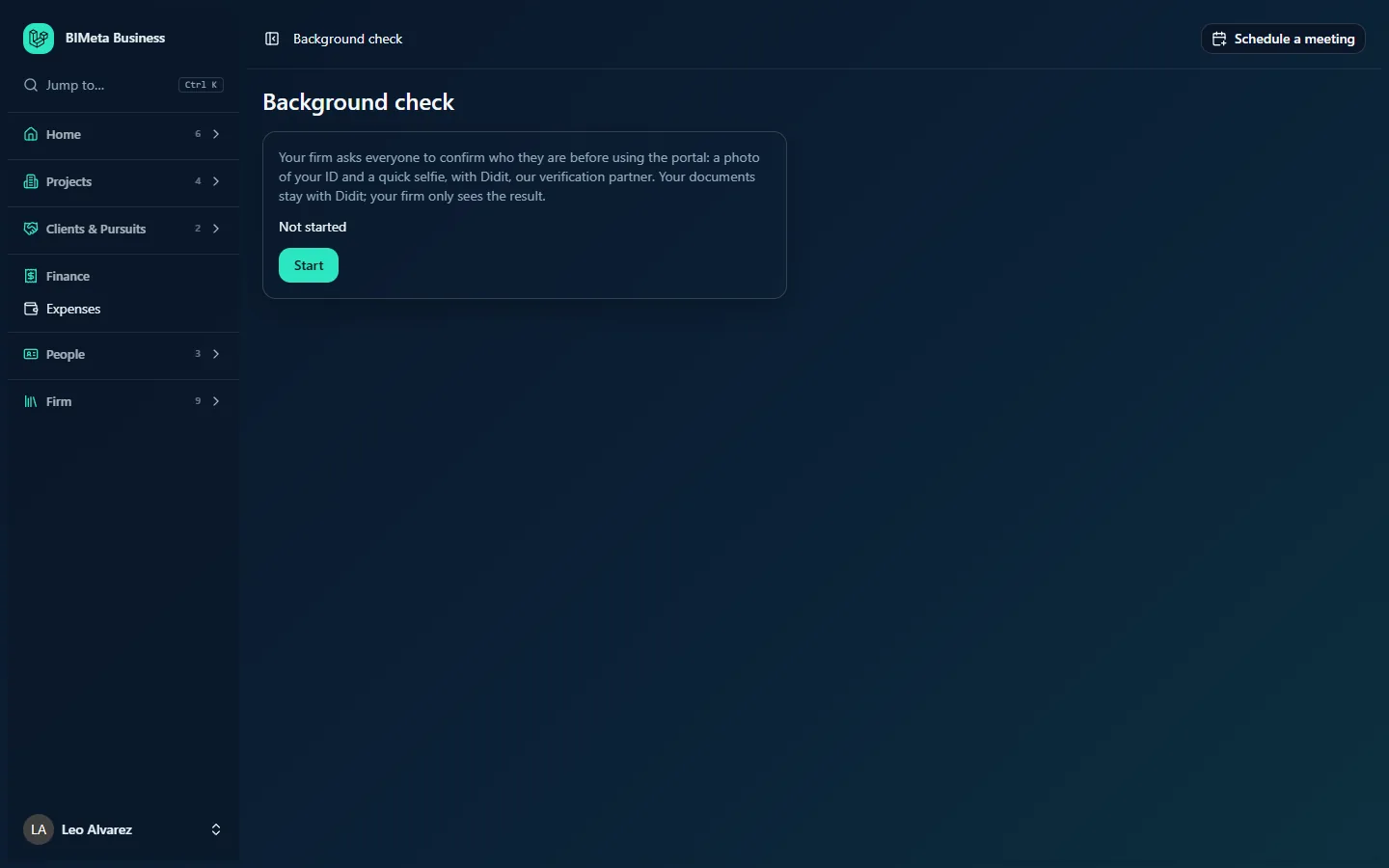
- The title Background check.
- An explanation: Your firm asks everyone to confirm who they are before using the portal: a photo of your ID and a quick selfie, with Didit, our verification partner. Your documents stay with Didit; your firm only sees the result.
- Your current status (see the table below).
- A Start button (or Try again after an earlier try), when you can start the check.
- Our team will look at this and email you. when you've used all your tries.
While you're on this page you can still open your own account settings (profile, password and two-factor sign-in, appearance) and sign out. Everything else waits until you pass.
How to complete your check
- Have a government photo ID ready (for example a passport, driving licence or ID card), and use a device with a camera, or a phone.
- Click Start. Your browser goes to Didit's secure page.
- Follow Didit's instructions: take or upload a photo of your ID, then take a quick selfie. If your computer has no camera, sign in to the portal on your phone and start the check there.
- When you finish, Didit sends you back to the portal:
- If you passed, you go straight to your home page with the message Your background check passed. Welcome.
- If the result isn't ready yet, you return to the Background check page with Thank you. We update this page as soon as Didit has checked your details. Open the page again a little later (or click any menu item) to see the result.
Statuses
| Status | What it means | What to do |
|---|---|---|
| Not started | You haven't begun. | Click Start. |
| Waiting for you to finish on Didit | You opened Didit's page and there's no result yet. | If you finished, wait a moment and reopen the page. If you didn't, click Try again. |
| Being reviewed. We email you when it is decided. | Didit couldn't decide automatically; a person at BIMeta will look at it. | Wait. You can't start again while it's being reviewed. |
| Passed | You're verified (Your background check passed.). | Nothing; you can use the portal. |
| Didn't pass. Check your details and try again. | The check was declined, for example a blurry or expired ID or a selfie that didn't match. | Click Try again and take clear photos. |
| Not finished. Start again when you are ready. | You left Didit's page before finishing. | Click Try again. |
| The link expired. Start again. | Didit's page wasn't completed in time. | Click Try again. |
Tries
- You can start the check three times. Each click on Start or Try again opens a new Didit page and uses one try, and only the newest Didit page counts.
- After the third try, the button disappears and the page says Our team will look at this and email you. BIMeta's team then approves or declines your check. If it's declined, you get three new tries.
- Your firm isn't charged extra for your retries.
What happens to your data
- Your ID photo and selfie are handled by Didit and stay with Didit. They're never stored in your firm's portal or by BIMeta.
- Your firm and BIMeta only see the result: whether you passed, the status of your check, and when. In Admin → Background checks, your firm's Owners and Admins see your name, email and status in the People list.
- To ask about the data your firm holds about you, see My data & privacy.
When your firm's own check isn't finished yet
A brand-new firm's portal stays closed until its Business Owner has completed the firm's background check in Setup. If you sign in during that time, the Background check page says Your firm's portal opens as soon as its background check passes. Your Owner has been asked to finish it. There's nothing for you to do: the portal opens for everyone as soon as the Owner's check passes. (Owners see a link, Finish the background check, that takes them to Setup.)
Test mode
On demonstration and test portals, BIMeta may run checks in test mode. Then Start opens a BIMeta Test background check page (Test mode: this page stands in for Didit's. No ID is checked and nothing is sent anywhere.) where you choose how the check ends: Passed, Didn't pass, Needs review or Not finished. No ID is needed.
Tips
- Use good light, put the whole ID in the frame, and make sure the text is readable.
- Use an ID that hasn't expired.
- Finish on the most recent Didit page you opened, and close older tabs.
Troubleshooting
I see "Your firm needs a background check package first. Ask your Owner."
Your firm asks for checks but hasn't set up how it pays for them. Tell your Business Owner or an Admin; they can fix it in Admin → Background checks.
I see "Didit couldn't be reached. Try again in a minute."
Didit's service didn't answer. Wait a minute and click the button again.
I finished on Didit but I'm still on the Background check page.
Your result may still be on its way. Wait a minute, then click any menu item or reload the page. If the status stays on Waiting for you to finish on Didit for a long time, ask your Admin to contact BIMeta support before you use another try.
I don't have a camera on my computer.
Sign in to the portal on your phone and start the check there. Your phone's camera works for both the ID photo and the selfie.
Was this article helpful?
Share