



API documentation: authentication, endpoints, the data API and webhooks
16 views · by Kevin J Bruno · updated 1 day ago
API documentation is the reference a developer needs to connect a program to your firm's portal. It's generated from your own portal, so the addresses and the list of items are always current for your firm. Share it with whoever is building an integration for you, together with a key from Admin → Settings → Developers.
Where to find it
- Sidebar → Admin → Settings, then Developers in the Apps and connections section → API documentation button (top right).
- The Developer docs link on Admin → Settings → API & connected apps.
- The Developers link above the page title takes you back to Developers; the ‹ Settings link above that returns to the Settings page.
Who can use it
Business Owners, Admins and IT Staff (the same people who can manage API keys). If an outside developer is building the integration, save or print the page for them, or have IT open it with them; they don't need their own Admin access.
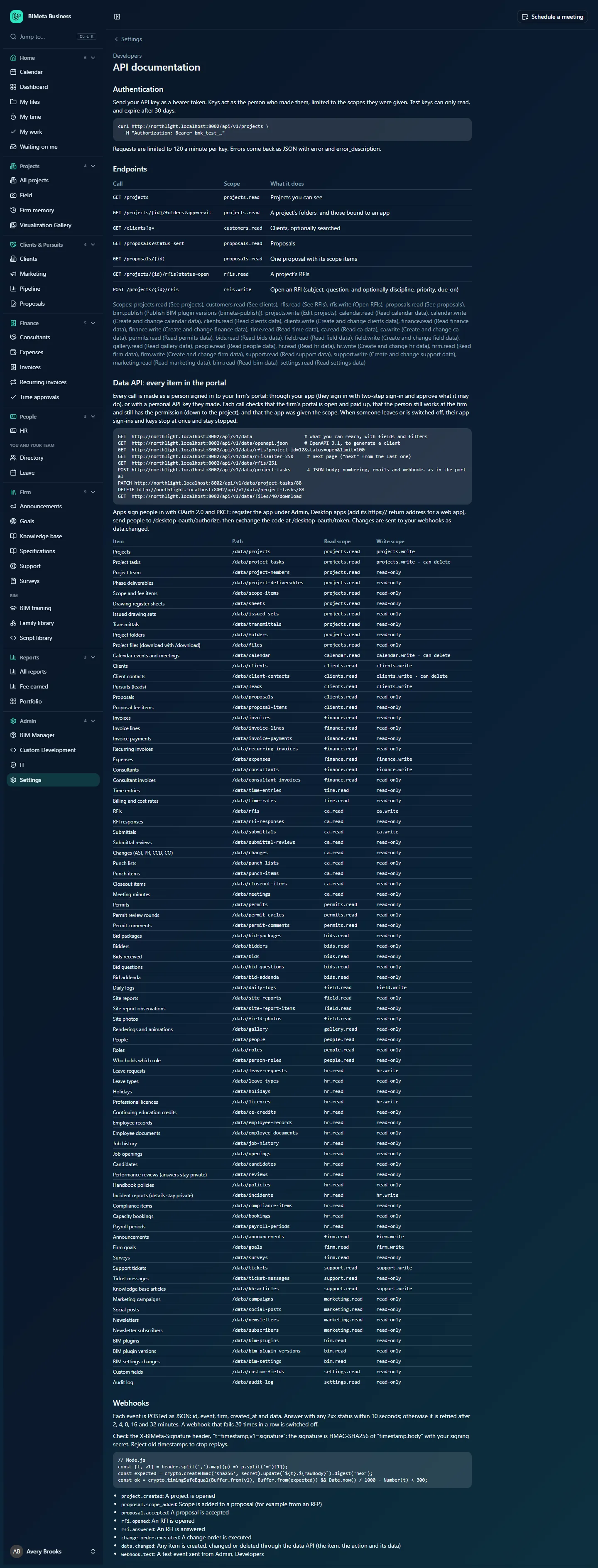
A tour of the page
Authentication
Programs send their API key as a bearer token. The page shows a ready-made example using your firm's address, a curl call to your firm's /api/v1/projects address with the header Authorization: Bearer bmk_test_…. Key rules repeated here: a key acts as the person who made it, limited to the scopes it was given; test keys can only read and expire after 30 days. Requests are limited to 120 a minute per key, and errors come back as JSON with error and error_description.
Endpoints
A table of the fixed calls with the scope each needs and what it does:
| Call | Scope | What it does |
|---|---|---|
GET /projects | projects.read | Projects you can see |
GET /projects/{id}/folders?app=revit | projects.read | A project's folders, and those bound to an app |
GET /clients?q= | customers.read | Clients, optionally searched |
GET /proposals?status=sent | proposals.read | Proposals |
GET /proposals/{id} | proposals.read | One proposal with its scope items |
GET /projects/{id}/rfis?status=open | rfis.read | A project's RFIs |
POST /projects/{id}/rfis | rfis.write | Open an RFI (subject, question, and optionally discipline, priority, due_on) |
Under the table, Scopes lists every scope name with its plain-English label, for example projects.read (See projects) and finance.write (Create and change finance data).
Data API: every item in the portal
The data API reaches almost everything in the portal through one consistent pattern. The page explains the safety rules: every call is made as a person signed in to your firm's portal, either through an app they signed in to (with two-step sign-in, approving what it may do) or with an API key they made. Each call checks that the portal is open and paid up, that the person still works at the firm and still has the permission (down to the project), and that the app or key was given the scope. When someone leaves or is switched off, their app sign-ins and keys stop at once.
A code block shows the main calls with your firm's address: listing what you can reach (with fields and filters), the OpenAPI 3.1 description for generating a client, filtering and paging (?project_id=12&status=open&limit=100, then ?after=… with the next value from the previous page), fetching one item, creating (POST, with numbering, emails and webhooks just as in the portal), changing (PATCH), deleting (DELETE) and downloading files.
It also explains how apps sign people in: with OAuth 2.0 and PKCE, after registering the app under Admin → Settings → Desktop apps (adding its https:// return address for a web app). Changes made through the data API are sent to your webhooks as data.changed.
Then comes the table of every item, with columns Item, Path, Read scope and Write scope (or read-only, and can delete where deleting is allowed). For example: Projects at /data/projects (projects.read, projects.write); Project tasks (projects.write · can delete); Calendar events and meetings (calendar.write · can delete); Client contacts (clients.write · can delete); Invoices (finance.read, read-only); RFIs and Submittals (ca.write); Daily logs (field.write); Leave requests, Professional licences and Incident reports (details stay private) (hr.write); Announcements, Firm goals (firm.write); Support tickets and Knowledge base articles (support.write); and read-only items such as Audit log and Custom fields (settings.read). Sensitive items say so in their names: Performance reviews (answers stay private).
Webhooks
How webhook messages work: each event is POSTed as JSON with id, event, firm, created_at and data. The receiver must answer with any 2xx status within 10 seconds, or it's retried after 2, 4, 8, 16 and 32 minutes; a webhook that fails 20 times in a row is switched off. The page explains how to check the X-BIMeta-Signature header (a timestamp and an HMAC-SHA256 signature of "timestamp.body" made with your signing secret), with a short Node.js example, and advises rejecting old timestamps to stop replays. Finally it lists every event name with its meaning (the same list as on Developers).
How to use it
- Create a test key on Admin → Settings → Developers with the scopes your developer needs.
- Give the developer this page together with the key, sending the key through a secure channel.
- Have them start with the first data API call, which lists exactly what that key can reach, with fields and filters.
- When the integration works, create a live key with only the needed scopes and revoke the test key.
Tips and good to know
- The item table only lists what exists in your portal. If an item is switched off on Admin → Settings → API & connected apps, calls to it are refused even though it's documented here.
- Writes through the API behave like the portal: numbering, emails, notifications and webhooks all happen as if the person did it on screen, and the change is recorded in the Audit log marked as made through the API.
- The page shows your firm's real address; screenshots in this help use the example firm Northlight Architects.
Troubleshooting / FAQ
Calls return an error saying the key isn't allowed.
Check the key has the scope listed for that call, that its person still has the matching permission (for project items, on that project), and that the item is switched on in API & connected apps.
Calls get refused after many requests.
Each key is limited to 120 requests a minute. Slow down or spread the work over time.
Was this article helpful?
Share