



API & connected apps: switch the data API and see who uses it
18 views · by Kevin J Bruno · updated 11 hours ago
API & connected apps is the control room for everything that reaches your portal from outside: desktop apps such as BIMeta for Revit, web apps your firm connected, and programs using API keys. In one place you can switch the whole data API off, choose exactly which kinds of records outside apps may reach, and see which apps are registered, who is signed in through them, which keys are in use and what they've changed lately. Use it for a quick security review, to cut off API access in an emergency, or to keep sensitive areas (for example HR records) out of reach of every integration.
Where to find it
- Sidebar → Admin → Settings, then API & connected apps in the Apps and connections section. You can also type in Search settings at the top of the Settings page. A ‹ Settings link above the page title takes you back.
- Ctrl K and type
api,connected apps,openapiorintegrations.
Since the menu was shortened, the firm's settings pages are no longer listed one by one in the sidebar: they are gathered on the Settings page under Admin, grouped into sections. Each person sees only the pages they may open there. Jump to… (Ctrl K) still finds every page, and you can pin a page to the top of your sidebar if you use it often.
Who can use it
Business Owners and IT Staff only: this page needs the permission to switch the data API, its modules and items on or off and see the apps and keys using it. Admins, BIM Managers and Users can't open it. On the page, the Register an app button shows only to people who can register apps, and Keys and webhooks only to people who can manage API keys (both are included for Owners and IT Staff).
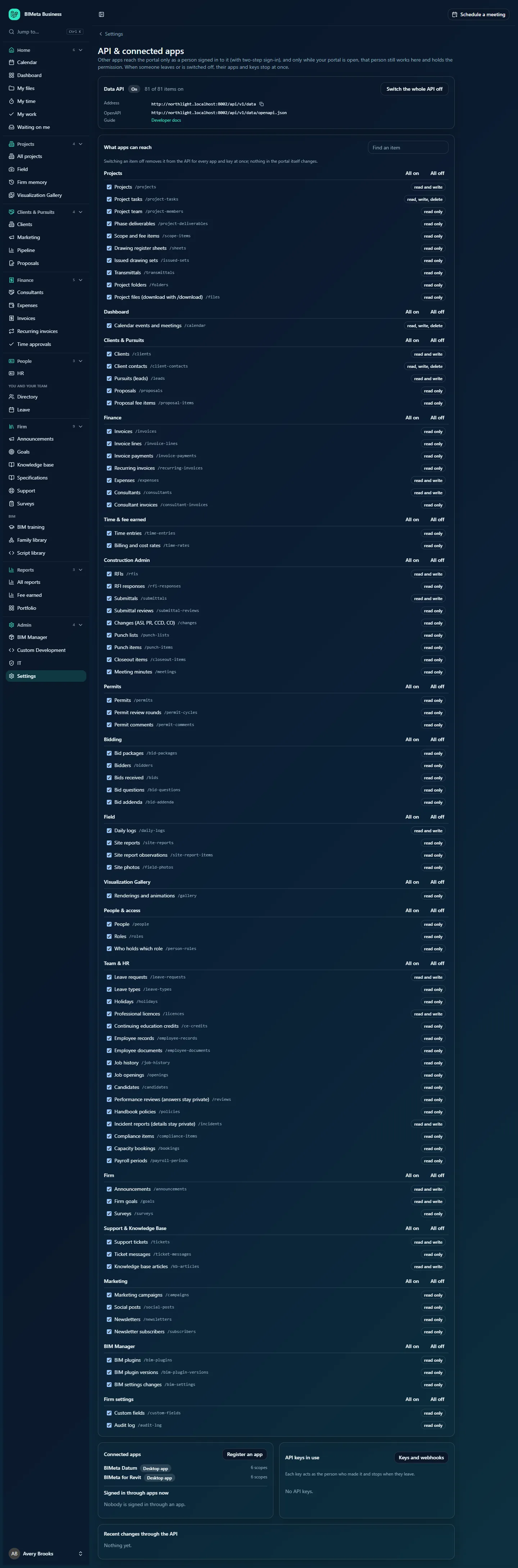
A tour of the page
Introduction
The line under the title explains the safety model: other apps reach the portal only as a person signed in to it (with two-step sign-in), and only while your portal is open and that person still works at the firm and holds the permission. When someone leaves or is switched off, their apps and keys stop at once.
Data API card
- Data API with an On or Off badge, and a count such as 81 of 81 items on.
- Switch the whole API off (or Switch the API on).
- Address: the data API's address, with a copy button.
- OpenAPI: the address of the machine-readable description developers use to generate a client.
- Guide: a Developer docs link to API documentation.
What apps can reach
Every kind of record the data API offers, grouped by area, with a Find an item box to filter by name. The note reads: Switching an item off removes it from the API for every app and key at once; nothing in the portal itself changes.
The groups are Projects, Dashboard, Clients & Pursuits, Finance, Time & fee earned, Construction Admin, Permits, Bidding, Field, Visualization Gallery, People & access, Team & HR, Firm, Support & Knowledge Base, Marketing, BIM Manager and Firm settings. Each group has All on and All off buttons. Each item row has:
- A tick box (ticked = reachable through the API).
- The item's name and its path, for example Projects
/projects, Project files (download with /download)/files, Leave requests/leave-requests. - A badge saying what apps can do with it: read only, read and write, or read, write, delete.
When the whole API is off, the tick boxes and group buttons are greyed out.
Connected apps
Every active registered app, for example BIMeta Datum and BIMeta for Revit, with a Desktop app or Web app badge and how many scopes it has. Register an app opens Admin → Settings → Desktop apps. With none, it says No apps registered yet.
Under it, Signed in through apps now lists up to 50 current sign-ins: the person, the app, the device and when it was last used. With none, it says Nobody is signed in through an app. (To sign someone out, use Admin → Settings → Desktop apps.)
API keys in use
Each key acts as the person who made it and stops when they leave. Every active, unexpired key: its name, the first characters of the key, its kind (live or test), the person who made it and when it was last used (or never used). Keys and webhooks opens Admin → Settings → Developers. With none, it says No API keys.
Recent changes through the API
The last 25 changes apps and keys made through the API: the action, what it changed, who (the person the app or key acts as) and when. With none, it says Nothing yet. The full history is in the Audit log.
How to switch the whole data API off or on
- Click Switch the whole API off.
- You'll see The data API is off. Every app and key is refused until it's switched back on. The badge changes to Off.
- To restore it, click Switch the API on; you'll see The data API is on. Your item choices are kept.
Use this in an emergency, for example if you suspect a key has leaked and aren't sure which. The change is recorded in the Audit log.
How to switch individual items or groups
- Type part of a name in Find an item to narrow the list, or scroll to the group.
- Untick an item to switch it off (you'll see <item> is off in the API.), or tick it to switch it on.
- To switch a whole area at once, click All off or All on on the group; you'll see All N items switched off.
Each click saves immediately. Apps and keys that try to reach a switched-off item are refused; the portal itself is unaffected, so people keep working normally on screen.
Tips and good to know
- A good habit: switch off groups no integration needs. For example, if nothing outside should touch HR, click All off on Team & HR.
- Items marked "details stay private" (incident reports, performance review answers) never expose the private parts even when switched on.
- Switching items here doesn't change what an app was allowed to ask for; it's an extra lock on top. Apps still need the right scope, and the person still needs the permission.
- Admins can manage keys on Developers but can't open this page; only Owners and IT Staff can switch the API.
Troubleshooting / FAQ
An integration stopped working for one kind of record.
Check whether that item, or its group, was switched off here, then check the key or app still has the scope and its person still has the permission.
Why are the tick boxes greyed out?
The whole data API is off. Switch it on first.
I want to sign someone out of an app.
This page only lists sign-ins. Use Sign out on Admin → Settings → Desktop apps, or switch the person off under Admin → Settings → People & access.
Was this article helpful?
Share