



Announcements: read and publish firm news
17 views · by Kevin J Bruno · updated 7 hours ago
The Announcements page is the firm's notice board. It is where everyone in the firm reads news from the people who run it: an office move, a new holiday schedule, a reminder about timesheets, a welcome for a new hire. People who are allowed to announce can also write announcements here, schedule them for a later date, pin the important ones to the top, take them down automatically after a date, and see how many people have read each one.
Where to find it
- Sidebar → Firm → Announcements (the first item in the Firm group, which lists its pages alphabetically).
- Jump to… (Ctrl K): type
announcements, or a related word such asnewsorupdates. - The Unread announcements card on your Dashboard shows how many live announcements you haven't marked as read yet; clicking it opens this page.
Who can use it
- Everyone on staff (Business Owner, Admin, IT Staff, BIM Manager, Project Manager, Human Resources and User) can open the page, read the live announcements and mark them as read. Client and consultant accounts never see it.
- Publishing and removing announcements is limited to people allowed to make firm announcements. By default that is the Business Owner, Admin and Human Resources roles. Only they see the New announcement form and the All announcements table. IT Staff, BIM Managers, Project Managers and Users see only the announcements themselves.
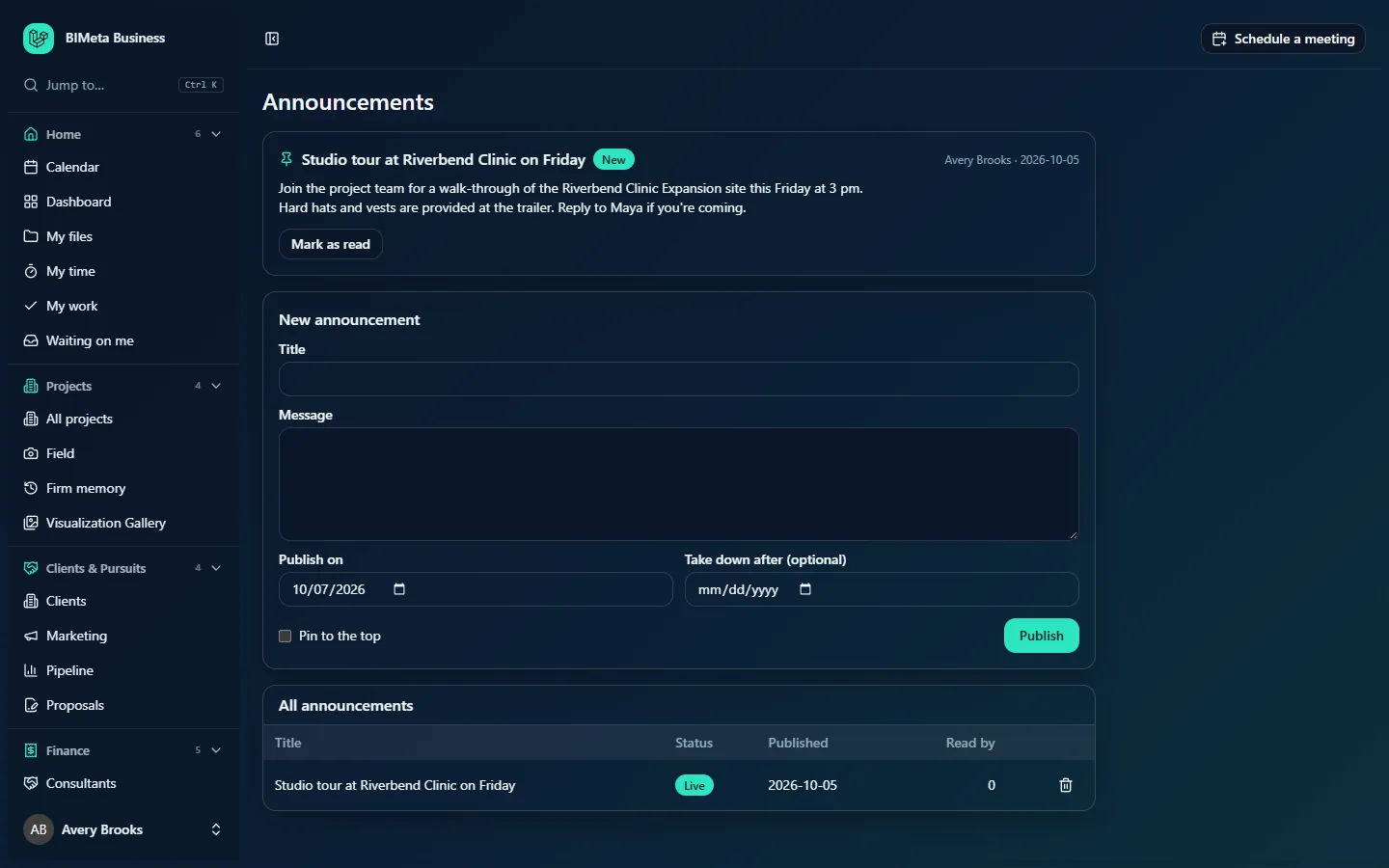
The screenshot shows the page as a Business Owner of the example firm Northlight Architects sees it: one pinned announcement at the top, then the New announcement form and the All announcements table. A User sees only the announcement cards.
A tour of the page
The announcement cards
Every announcement that is live right now appears as a card. Pinned announcements come first, then the rest from newest to oldest. Up to 50 live announcements are shown. Each card has:
- A pin icon in front of the title if the announcement is pinned to the top.
- The title, followed by a New badge if you haven't marked it as read yet.
- Author and date on the right: the person who published it and the date it went live (for example Avery Brooks · 2026-10-05).
- The message. Line breaks are kept exactly as they were typed; there is no other formatting.
- Mark as read: shown only while the card is unread. Clicking it removes the New badge, lowers your unread count on the Dashboard, and adds one to the announcement's Read by count.
If nothing is live, the page says No announcements right now.
New announcement (people who can announce)
- Title (required): up to 200 characters.
- Message (required): up to 10,000 characters of plain text. Use blank lines to separate paragraphs.
- Publish on: the day the announcement goes live. It defaults to today, which publishes it immediately. Pick a later date to schedule it; it goes live at the start of that day. You can't pick a date in the past.
- Take down after (optional): the last day the announcement is shown. It disappears at the end of that day. Leave it empty to keep it up until someone removes it. It must be after the publish date.
- Pin to the top: keeps the announcement above all unpinned ones, whatever its date.
- Publish: saves the announcement. A confirmation message, Announcement published, appears and the form clears.
All announcements (people who can announce)
A table of everything published, including scheduled and ended announcements, newest first (up to 200 rows):
| Column | What it shows |
|---|---|
| Title | The announcement's title. |
| Status | Live (showing now), Scheduled (publish date still in the future) or Ended (its take-down date has passed). |
| Published | The date it went (or will go) live. |
| Read by | How many people have clicked Mark as read on it. |
| Bin icon | Remove: deletes the announcement after you confirm Remove this announcement? |
If nothing has been published yet, the table says Nothing published yet.
How to…
Read and clear your announcements
- Open Firm → Announcements, or click Unread announcements on your Dashboard.
- Read each card marked New.
- Click Mark as read. The badge and button disappear and your unread count goes down by one.
Publish an announcement now
- In New announcement, type a Title and the Message.
- Leave Publish on set to today.
- Optionally set Take down after and tick Pin to the top.
- Click Publish. The card appears at the top of the page for everyone straight away, marked New for each person until they read it.
Schedule an announcement for later
- Fill in the title and message.
- Set Publish on to the day it should appear (for example the first day of a new benefits year).
- Click Publish. It shows in All announcements as Scheduled and nobody else sees it until that day.
Remove an announcement
- In All announcements, click the bin icon on its row.
- Confirm Remove this announcement?. The announcement and its read records are deleted for everyone. This can't be undone.
Change an announcement
Announcements can't be edited after publishing. Remove it and publish a corrected one. Bear in mind that the new one starts with a Read by count of zero and shows as New for everyone again.
Tips and good to know
- Publishing does not send an email or push notification. People find new announcements on this page and through the Unread announcements card on their Dashboard, so tell people about urgent news another way too.
- Use Take down after for time-limited news (an office closure, a deadline). It moves to Ended by itself and leaves the board tidy.
- Pin sparingly. If everything is pinned, the order falls back to newest first and the pin stops meaning anything.
- Read by counts only people who clicked Mark as read, not everyone who opened the page.
- Publishing and removing announcements are recorded in the firm's audit log (Admin → Settings → Audit log (in the People and access section)), with the title.
Troubleshooting
Why can't I see the New announcement form?
Only people allowed to make firm announcements (by default Business Owners, Admins and Human Resources) see it. Ask one of them to post for you, or ask a Business Owner or Admin to give your role that permission under Admin → Settings → Roles & permissions.
I published an announcement but nobody can see it.
Check its Status in All announcements. If it says Scheduled, the publish date is in the future. If it says Ended, the take-down date has passed.
I get "The end date must be after the announcement is published."
Take down after must be later than Publish on. Move it to at least the day after the publish date.
Was this article helpful?
Share