



Wording: change the portal's words for your firm
16 views · by Kevin J Bruno · updated 1 day ago
Wording lets you change any piece of text in BIMeta Business for your firm only: menu names, page titles, buttons, labels and messages, in every language your portal offers. Use it to match the words your firm already uses (call Projects "Jobs", or Pursuits "Opportunities"), or to use a regional term in another language. Other firms never see your changes, and you can go back to the standard wording at any time.
Where to find it
- Sidebar → Admin → Settings → Firm setup → Wording. The page has a Settings back link at the top that returns you to the Settings page.
- Press Ctrl K and type wording, labels, translation or text.
Who can use it
Business Owners and Admins (the permission Change the firm's interface wording in any language). Everyone at the firm sees the result.
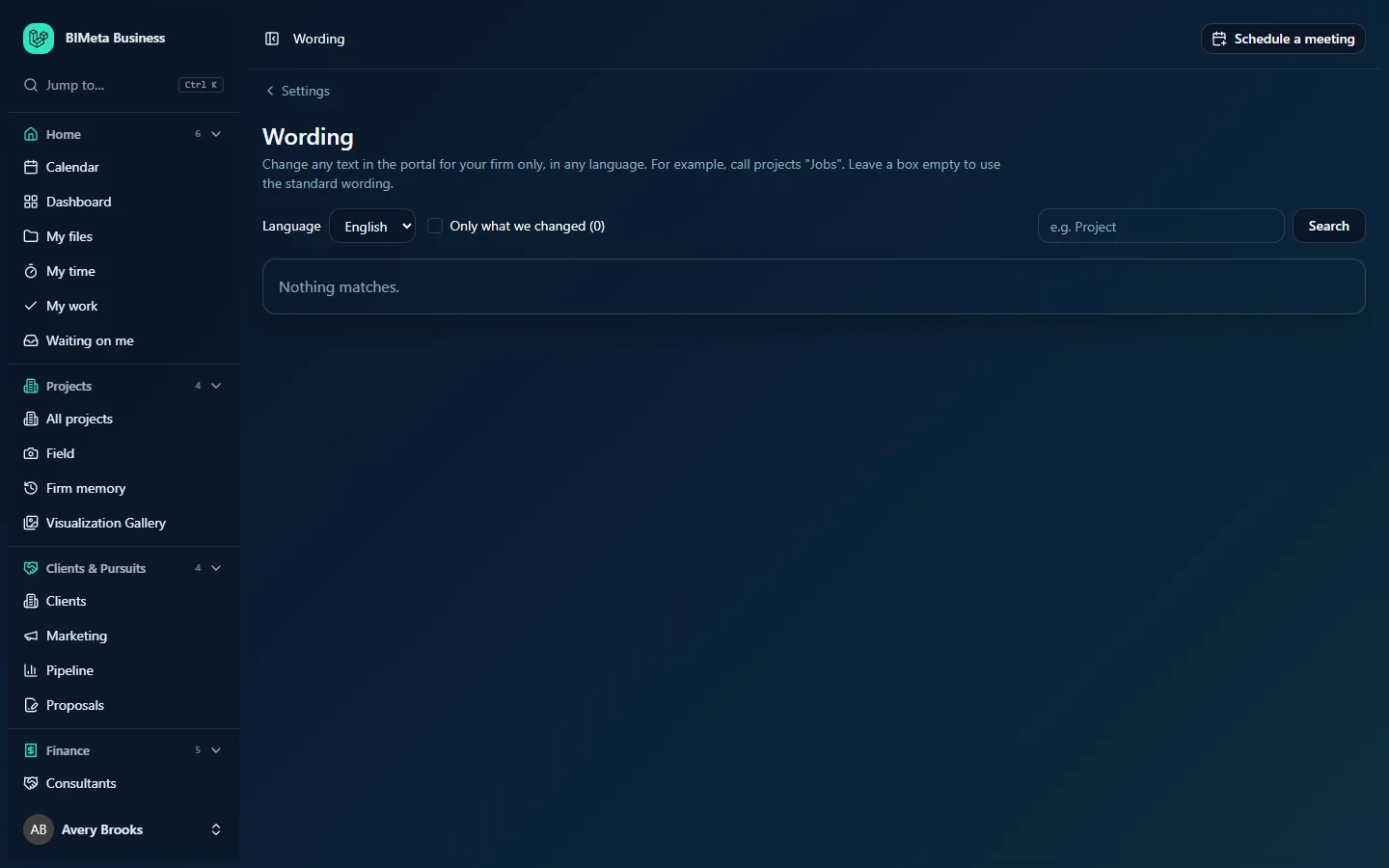
A tour of the page
Under the heading: Change any text in the portal for your firm only, in any language. For example, call projects "Jobs". Leave a box empty to use the standard wording.
Controls
- Language: which language you're changing, for example English. Each language has its own wording, so changing English doesn't change Spanish.
- Only what we changed (n): tick to list only the texts your firm has changed; the number says how many there are in this language.
- Find text (e.g. Project) and Search: finds texts containing your words, in the original English or in the selected language.
The list
One row per text, 50 per page, in alphabetical order, with page buttons at the bottom. Each row shows:
- The standard text in the selected language and, when that differs, the original English underneath for reference.
- A Changed for your firm badge if you've changed it.
- A box with your firm's text (empty means the standard wording is used; the standard text shows faintly as a hint).
- Save (active once you've typed something) and, for changed texts, Use the standard wording.
When nothing matches your search or filter, the list says Nothing matches., as in the example above.
How to change a word or phrase
- Choose the Language.
- Type the text you're looking for in Find text, for example Projects, and click Search.
- Find the exact text. Short texts like the menu name All projects and longer messages are separate entries, so you may need to change several.
- Type your version in the box, for example All jobs.
- Click Save. You'll see Wording saved. Everyone at the firm sees the new text when their next page loads.
Rules for your text
- Up to 5,000 characters.
- Keep every placeholder exactly as in the original. Placeholders look like
:name,:countor:dateand are filled in by BIMeta. If the original is Imported :count projects, your version must still contain:count. - Keep any HTML tags exactly as in the original.
- Don't make it far longer than the original; space on buttons and menus is limited.
How to go back to the standard wording
- Tick Only what we changed to find your changes.
- Click Use the standard wording on the row (or empty the box and click Save).
- You'll see Back to the standard wording.
Tips and good to know
- Be consistent: if you rename Projects to Jobs, search for project and change the related texts too, so pages don't mix both words.
- New texts added in BIMeta updates use the standard wording until you change them. After an update, tick Only what we changed and search for your key words to check nothing new slipped through.
- Wording changes the words on screen, not the structure. To move or hide menu items, use Admin → Settings → Navigation; to change email wording, use Admin → Settings → Emails.
- Every change is written to the Audit log (
settings.wording.changedwith the original text, andsettings.wording.reset).
Troubleshooting
"Keep every placeholder, like :name, exactly as in the English."
Your text is missing a placeholder from the original, or has changed it. Copy it back exactly, including the colon.
"The translation is far longer than the English."
Shorten your text.
My change doesn't show for a colleague.
They may be using a different language. Change the text for that language too, and ask them to reload the page.
Was this article helpful?
Share