



Web address: open your portal at your own domain
18 views · by Kevin J Bruno · updated 1 hour ago
Your portal always has a BIMeta address made from your firm's name. Web address lets you also open it at an address of your own, such as portal.yourfirm.com, and make that the main address used in links in emails. You add the address, create two DNS records at your domain provider, let BIMeta check them, and the address starts working with its own HTTPS certificate.
Where to find it
- Sidebar → Admin → Settings → Firm setup → Web address. The page has a Settings back link at the top that returns you to the Settings page.
- Press Ctrl K and type domain, url or custom domain.
Who can use it
Business Owners and Admins. You'll also need someone who can change DNS records for your domain (often your IT provider).
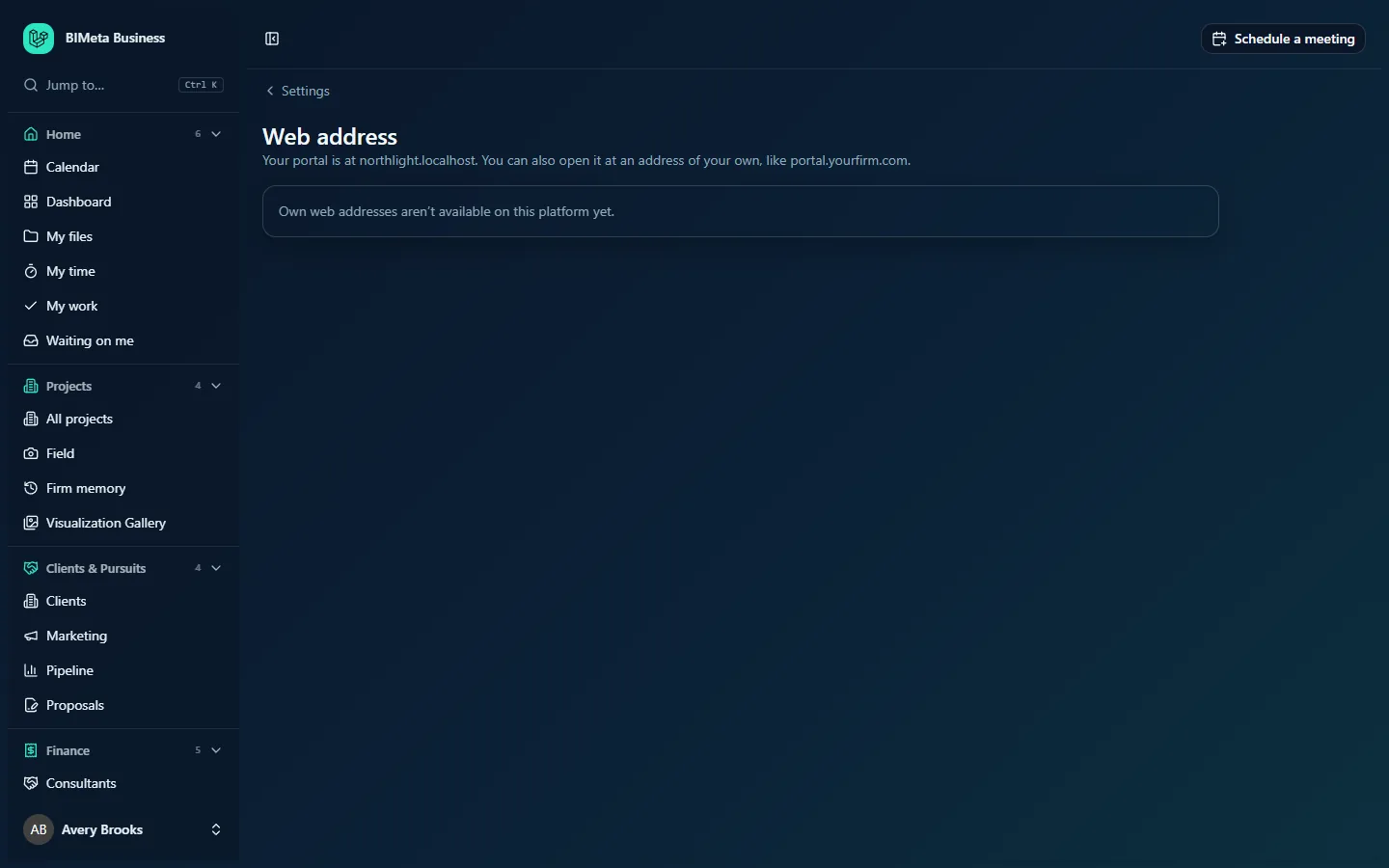
A tour of the page
The heading explains Your portal is at [your BIMeta address]. You can also open it at an address of your own, like portal.yourfirm.com.
If own addresses aren't switched on for your BIMeta platform, the page only says Own web addresses aren't available on this platform yet., as in the example above. Otherwise you see:
One card per address
- The address, and a status badge: Waiting for DNS, Working or DNS no longer checks out. The main address has a Main address badge; Last check failed appears after a failed check.
- Check DNS to look the records up now, and a bin icon to remove the address (after a confirmation: Remove [address]? The portal stops opening there.).
- Until it works, a table of the two DNS records to add, with Type, Host / name, Value (with Copy buttons) and Status (Not checked, Found or Missing):
- a CNAME on your address, pointing at the target BIMeta gives you (Points the address at BIMeta);
- a TXT record on
_bimeta.+ your address, with a value startingbimeta-verify=(Proves the domain is yours).
- For a working address that isn't the main one: an Also send people from [BIMeta address] to this address checkbox and Make this the main address.
- Last checked [date].
Use [BIMeta address] as the main address again
Shown when one of your own addresses is the main one; switches links back to the BIMeta address.
Add a web address
An Address box (e.g. portal.yourfirm.com) and Add.
How to add your own address
- Choose a subdomain you control, such as
portal.northlight.com. (Your main website address, likenorthlight.com, usually already points at your website, so use a subdomain.) - Type it in Address and click Add. You'll see Add the two DNS records shown, then press "Check DNS". DNS changes can take a few hours.
- At your domain provider, add the CNAME and TXT records exactly as shown (use the Copy buttons).
- Back in BIMeta, click Check DNS. When both records are found you'll see Your address checks out. It is ready once its HTTPS certificate is issued, usually within a minute of the first visit. Otherwise: Not all records were found yet…; wait and check again later.
- Open the address in your browser once; the certificate is issued automatically.
Making it the main address
- On the working address's card, tick Also send people from [BIMeta address] to this address if you'd like everyone redirected to it.
- Click Make this the main address. You'll see Main address saved. Links in emails now use it.
With the redirect, people opening the BIMeta address are sent to yours; desktop apps keep working at either address. Without it, both addresses work and only email links change.
Tips and good to know
- A firm can have up to 5 web addresses. An address can't be a BIMeta address or one already used by another firm.
- Only an address whose DNS checks out can be the main address.
- Passkeys are tied to the address they were made on. People who sign in with a passkey need to add one for the new address under their Sign-in security settings.
- If your firm uses single sign-on, register the new address's
/sso/callbackat your identity provider too; Admin → Settings → Single sign-on lists it once the address is added. - Keep the DNS records in place. If they're removed later, the badge changes to DNS no longer checks out.
- Every add, check, main-address change and removal is recorded in the Audit log (
settings.web_address_…).
Troubleshooting
Check DNS keeps saying records are missing.
DNS changes can take a few hours. Check the host names: some providers add your domain automatically, so enter only portal and _bimeta.portal as the names there.
"That is already a BIMeta address."
Enter your firm's own domain, not a bimeta address.
The page says own web addresses aren't available.
The feature isn't switched on for your BIMeta platform yet. Contact BIMeta support.
Was this article helpful?
Share