



Single sign-on: connect Microsoft Entra ID, Google or Okta
19 views · by Kevin J Bruno · updated 21 hours ago
Single sign-on (SSO) lets your people sign in to BIMeta Business with the company account they already use every day, such as their Microsoft 365 or Google Workspace account, instead of a separate BIMeta password. When someone leaves and IT switches off their company account, they can no longer sign in here either. This page connects your identity provider, decides who may use it, and whether passwords still work.
Where to find it
- Sidebar → Admin → Settings, then Single sign-on in the People and access section. (The Settings page gathers the firm's settings pages in one place; you can also type in its Search settings box.) A ← Settings link at the top of the page takes you back to the Settings page.
- Press Ctrl K and type sso, single sign on, entra, okta or saml.
Who can use it
- Business Owner, Admin and IT Staff (the permission to set up single sign-on and decide whether passwords still work).
- Everyone else just sees the result: a Sign in with… button on the sign-in page.
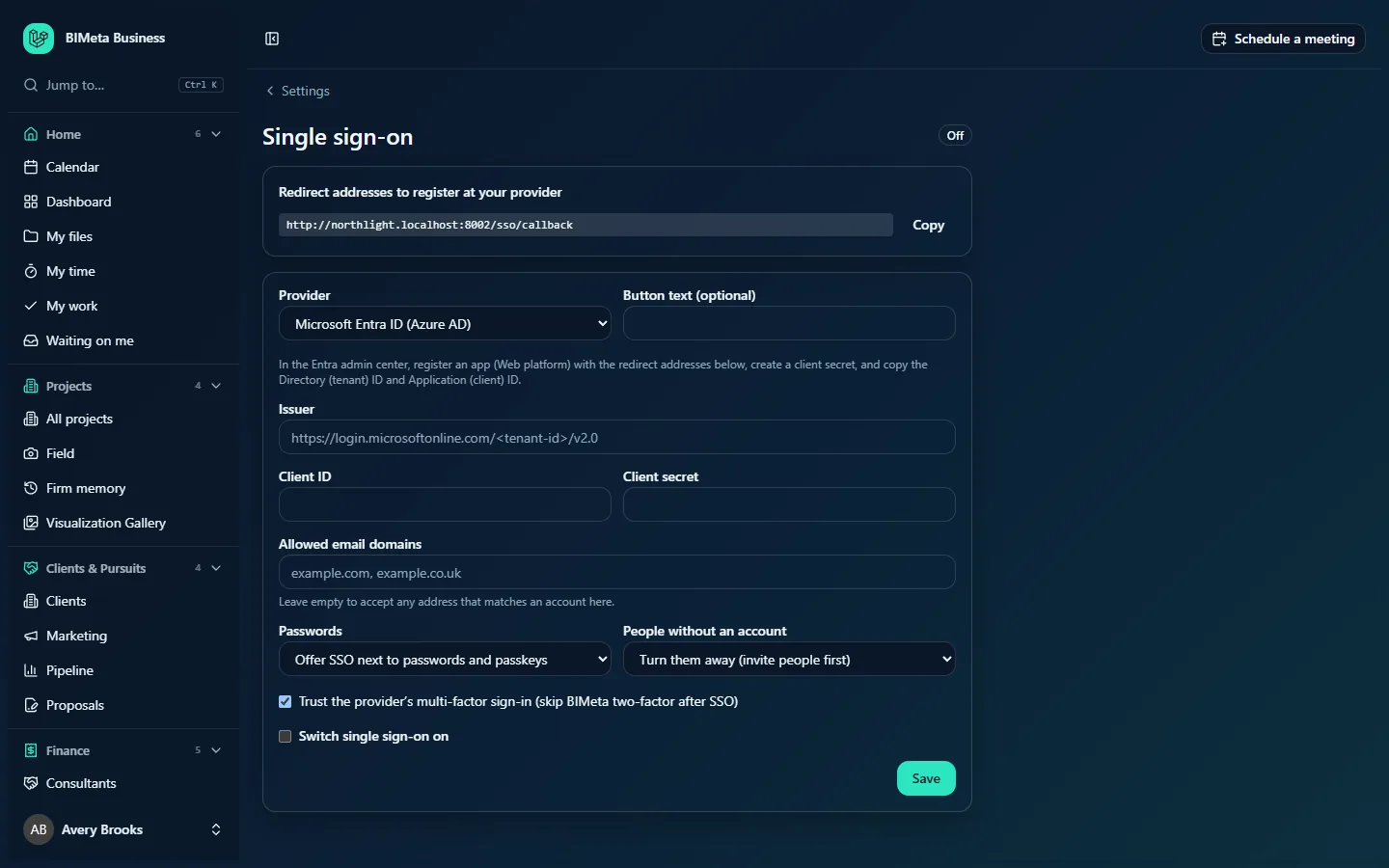
A tour of the page
Header
Single sign-on with a badge on the right: On or Off.
Redirect addresses to register at your provider
The web addresses your identity provider must send people back to after they sign in, each ending in /sso/callback. You'll see your portal's BIMeta address, one for each of your own web addresses (from Admin → Settings → Web address), and the address you're using right now. Each has a Copy button (it changes to Copied). Register all of them at your provider, so sign-in works whichever address people use.
The settings form
| Field | What it means |
|---|---|
| Provider | Microsoft Entra ID (Azure AD), Google Workspace, Okta or Other OpenID Connect provider. A short hint under the field tells you what to do at that provider. |
| Button text (optional) | The label of the sign-in button, up to 60 characters. Leave empty for the standard text: Sign in with Microsoft, Sign in with Google, Sign in with Okta or Sign in with your company account. |
| Issuer | Your provider's address. Not shown for Google (BIMeta fills it in). For Entra ID it must be exactly https://login.microsoftonline.com/<your directory (tenant) ID>/v2.0; "common" isn't accepted. For Okta it's like https://your-company.okta.com. It must start with https:// and be reachable on the public internet. |
| Client ID | The ID of the app you registered at your provider (Entra calls it the Application (client) ID). |
| Client secret | The secret your provider gave you. It's stored encrypted and never shown again; once saved the box says Saved. Leave empty to keep it. Type a new one only to replace it. |
| Allowed email domains | Your company's email domains, separated by commas, for example northlight.com, northlight.co.uk. Only addresses at these domains can sign in with SSO. Leave empty to accept any address that matches an account in your firm. |
| Passwords | Offer SSO next to passwords and passkeys (people choose), or Require SSO (Business Owners keep their password). |
| People without an account | Turn them away (invite people first), or Create their account as [role] for any role except Business Owner. |
| Trust the provider's multi-factor sign-in (skip BIMeta two-factor after SSO) | Ticked by default. When ticked, people who sign in through SSO aren't asked for BIMeta's two-factor code as well. Untick it to ask people who have BIMeta two-factor set up for their code after SSO too. |
| Switch single sign-on on | The main switch. Until it's ticked (and saved), nothing changes on the sign-in page. |
At the bottom: Test in a new tab (only once SSO is on) starts an SSO sign-in in a new tab so you can try it without signing out, and Save.
How to set up single sign-on
1. Register BIMeta at your provider
Microsoft Entra ID
- In the Microsoft Entra admin center, go to App registrations → New registration.
- Give it a name such as BIMeta Business. Under Redirect URI, choose the Web platform and paste the first redirect address from the BIMeta page. Add the others under the app's Authentication settings.
- Under Certificates & secrets, create a client secret and copy its value straight away.
- From the app's Overview, copy the Application (client) ID and the Directory (tenant) ID.
Google Workspace
- In the Google Cloud console, create an OAuth client ID of type Web application.
- Add each redirect address from the BIMeta page under Authorized redirect URIs.
- Copy the Client ID and Client secret.
- Plan to list your Workspace domain under Allowed email domains, so only your own Google accounts get in.
Okta
- In the Okta admin console, add an OIDC – Web Application app integration.
- Add each redirect address as a Sign-in redirect URI.
- Assign the app to the people (or groups) who should use BIMeta.
- Copy the Client ID, the Client secret and your Okta address (the issuer).
Other OpenID Connect provider: any provider that supports the authorization code flow with PKCE works. Register a web app with the redirect addresses and note its issuer address, client ID and secret.
2. Fill in BIMeta
- Choose the Provider.
- Enter the Issuer (for Entra:
https://login.microsoftonline.com/+ your Directory (tenant) ID +/v2.0), Client ID and Client secret. - List your Allowed email domains.
- Leave Passwords on Offer SSO next to passwords and passkeys for now, and People without an account on Turn them away.
- Tick Switch single sign-on on and click Save. You'll see Single sign-on saved and the badge turns On.
3. Test it
- Click Test in a new tab. You're sent to your provider, then back to BIMeta.
- If it works, you land in the portal. If not, the sign-in page shows why (see Troubleshooting).
- Ask one or two colleagues to try the new Sign in with… button on the sign-in page.
4. Decide how strict to be
- When everyone can sign in, you can switch Passwords to Require SSO. From then on everyone except Business Owners must use SSO: passwords stop working for them. Business Owners keep their password so that a broken or misconfigured identity provider can never lock the whole firm out.
- If you'd like new staff to get in without an invitation, set People without an account to Create their account as User (or another role). This needs Allowed email domains: only people at those domains get an account. Their name comes from your provider.
What happens when someone signs in with SSO
- They click the Sign in with… button and sign in at your provider.
- Your provider must share a verified email address. If its domain isn't in your allowed list, they're refused.
- If the email matches an account in your firm:
- an Active account is signed straight in;
- an Invited account is activated (the invitation counts as accepted), with no password needed;
- a Deactivated account is refused: Your account in this firm is switched off. Ask your firm Admin.
- If there's no account, they're turned away (There's no account for … in this firm. Ask your firm Admin to invite you.) or, if you allow it, an account is created with the chosen role.
- If you've unticked Trust the provider's multi-factor sign-in and they have BIMeta two-factor set up, they enter their code next.
Tips and good to know
- Every save is written to the Audit log (
settings.sso_saved) with whether SSO is on, the provider, the password mode, the new-people rule, the domains, and whether the secret changed (never the secret itself). Accounts created by SSO appear aspeople.created_by_sso. - Client secrets expire at most providers (Entra's after 6 to 24 months). Put a reminder in your calendar to make a new one and paste it here before the old one runs out.
- SSO matches people by email address. If someone's email changes at your provider, update it in BIMeta too, or they'll be treated as someone without an account.
- Even with SSO required, keep at least two Business Owners with strong passwords and two-factor as your way back in.
- Roles still come from BIMeta: SSO decides who can sign in, People & access decides what they can do.
Troubleshooting
"For Microsoft Entra ID, use https://login.microsoftonline.com/{your directory (tenant) ID}/v2.0 (not "common")."
Copy the Directory (tenant) ID from your app's Overview in Entra and build the issuer exactly as shown.
"Enter the issuer, client ID and client secret before switching SSO on."
All three are needed before the main switch can be saved as on.
"List your email domains before letting SSO create accounts."
Creating accounts automatically is only allowed for known domains. Fill in Allowed email domains.
People see "The sign-in was cancelled or refused by your sign-in provider."
Usually the redirect address isn't registered at your provider, or (in Okta) the person isn't assigned to the app. Register every address shown on this page.
People see "Your sign-in provider didn't share a verified email address."
Make sure the app at your provider is allowed to share the email (the email scope) and that the person's account has an email address.
Was this article helpful?
Share