



Setup step 4: firm profile & region
19 views · by Kevin J Bruno · updated 3 days ago
Step 4 of setup, Firm profile & region, is the first step of the Your firm section. It tells BIMeta who your firm is and where it works. Your country sets sensible regional defaults (phases, specification system, units, paper sizes, date format, currency), your offices give you codes to use in project numbers, and your disciplines describe what you practise.
Where to find it
Sidebar → Admin → Settings → Firm setup → Setup → 4. Firm profile & region, or continue from step 3, Background check. Above the title it shows Your firm · Step 4 of 13. The page has a Settings back link at the top that returns you to the Settings page.
Who can use it
Business Owners and Admins.
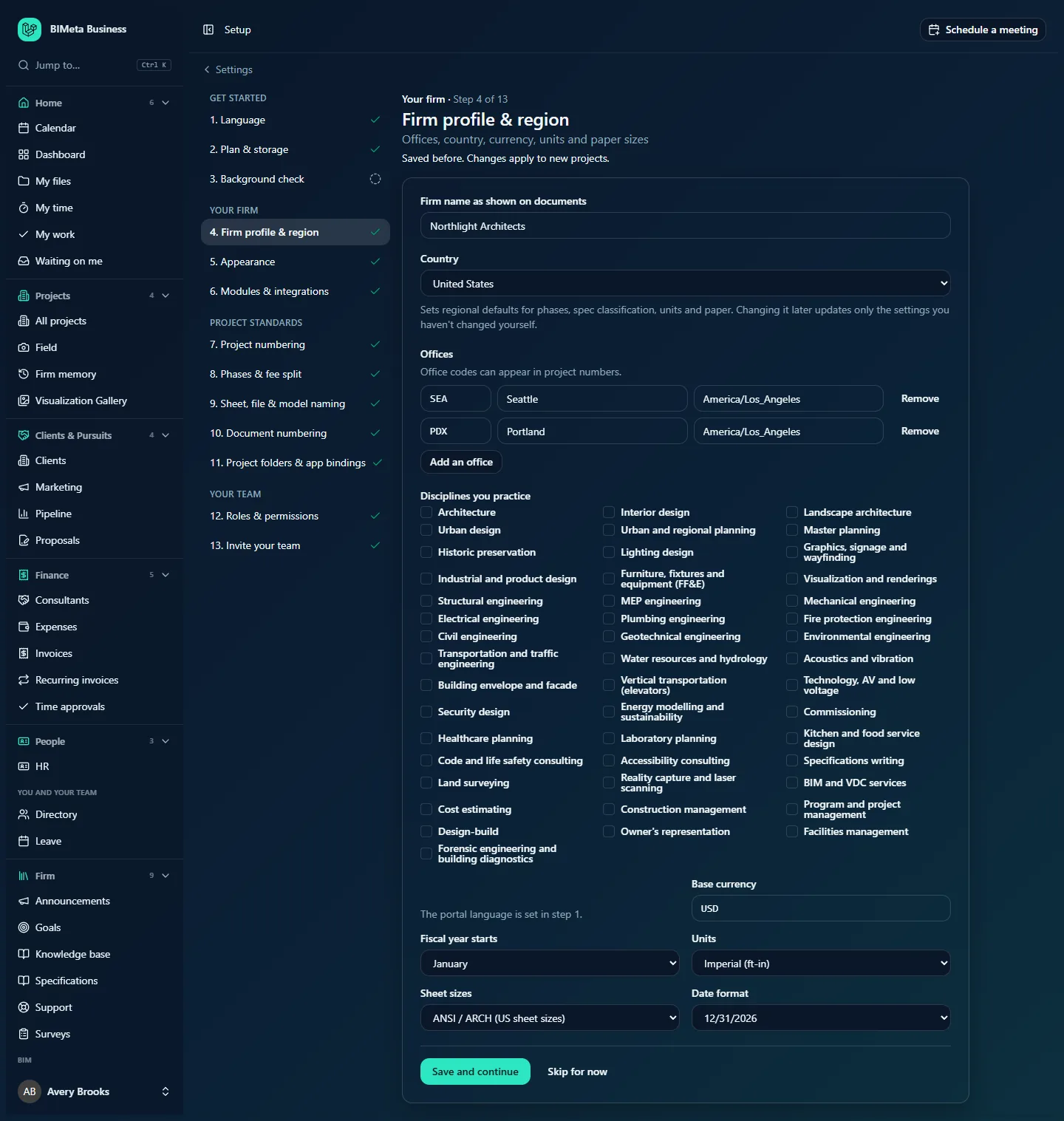
A tour of the page
| Field | What it means |
|---|---|
| Firm name as shown on documents | The name used for your firm on documents, for example Northlight Architects. Up to 160 characters. Leave it empty to use your firm's account name. |
| Country | One of 20 countries (United States, Canada, United Kingdom, Ireland, Germany, Austria, Switzerland, France, Netherlands, Spain, Italy, Australia, New Zealand, United Arab Emirates, Saudi Arabia, Singapore, India, South Africa, Mexico, Brazil). It sets the regional defaults shown in the table below. |
| Offices | One row per office: a short Office code (letters and numbers, up to 10, shown in capitals, for example SEA), the Office name (up to 80 characters, for example Seattle) and its Time zone (a name like America/Los_Angeles or Europe/London). Remove deletes a row; Add an office adds one. Office codes can appear in project numbers with the {OFF} token. |
| Disciplines you practice | Tick everything your firm does, from Architecture and Interior design through engineering disciplines (structural, MEP, civil and more), specialist planning (healthcare, laboratories, code consulting) to delivery services (BIM and VDC, construction management, design-build, facilities management). There are 46 to choose from. |
| Base currency | The three-letter currency code your firm bills in, for example USD, GBP or EUR. |
| Fiscal year starts | The month your financial year begins (January to December). |
| Units | Imperial (ft-in) or Metric (mm, m). |
| Sheet sizes | ANSI / ARCH (US sheet sizes) or ISO A-series. |
| Date format | How dates are written: 12/31/2026, 31/12/2026, 31.12.2026, 2026-12-31, 31-12-2026 or 2026/12/31. |
A note reminds you that The portal language is set in step 1.
Regional defaults by country
| Country | Phases | Specs | Units | Sheets | Dates | Currency |
|---|---|---|---|---|---|---|
| United States | AIA | CSI MasterFormat | Imperial | ANSI / ARCH | 12/31/2026 | USD |
| Canada | AIA | CSI MasterFormat | Metric | ANSI / ARCH | 2026-12-31 | CAD |
| United Kingdom, Ireland | RIBA | Uniclass 2015 | Metric | ISO | 31/12/2026 | GBP, EUR |
| Germany, Austria, Switzerland | HOAI | CSI MasterFormat | Metric | ISO | 31.12.2026 | EUR, EUR, CHF |
| France, Spain, Italy | AIA | CSI MasterFormat | Metric | ISO | 31/12/2026 | EUR |
| Netherlands | AIA | CSI MasterFormat | Metric | ISO | 31-12-2026 | EUR |
| Australia, New Zealand | AIA | NATSPEC | Metric | ISO | 31/12/2026 | AUD, NZD |
| UAE, Saudi Arabia, Singapore | RIBA | Uniclass 2015 | Metric | ISO | 31/12/2026 | AED, SAR, SGD |
| India | RIBA | CSI MasterFormat | Metric | ISO | 31/12/2026 | INR |
| South Africa | RIBA | Uniclass 2015 | Metric | ISO | 2026/12/31 | ZAR |
| Mexico, Brazil | AIA | CSI MasterFormat | Metric | ISO | 31/12/2026 | MXN, BRL |
The phases default is used by step 8 (Phases & fee split) and the specification default by step 9 (Sheet, file & model naming).
How to fill in your firm profile
- Check the Firm name as shown on documents.
- Choose your Country.
- Add each office with a code, name and time zone. Codes should be short and stable (for example SEA and PDX for Seattle and Portland), because they may end up in project numbers.
- Tick your disciplines.
- Check currency, fiscal year, units, sheet sizes and date format, and change anything that doesn't fit.
- Click Save and continue. You move on to step 5, Appearance.
Tips and good to know
- Changing the country later only moves the settings you haven't changed yourself. If you'd set Metric by hand while in the US and then switch to the UK, your choice is kept; settings still on the old country's defaults move to the new country's.
- Blank office rows are ignored. A row with a code but no name (or a name but no code) is refused.
- Time zones must be written in the standard form, Region/City. A typo like Pacific is refused with an example.
Troubleshooting
"Each office needs a short code (letters and numbers, up to 10) and a name."
Office codes can't contain spaces or symbols. Use something like NYC2, not NY-2.
"… isn't a time zone name."
Use a name like America/New_York, America/Chicago, America/Denver, America/Los_Angeles or Europe/London.
Was this article helpful?
Share