



Setup step 8: phases & fee split
17 views · by Kevin J Bruno · updated 22 hours ago
Step 8 of setup, Phases & fee split, in the Project standards section, defines your project lifecycle: the phases every project moves through, what each is called, the default share of the fee each phase earns, and a starting checklist of deliverables for each phase. Every project moves through these phases, and the fee split is the starting point for how a project's fee is shared between them.
Where to find it
Sidebar → Admin → Settings → Firm setup → Setup → 8. Phases & fee split. Above the title it shows Project standards · Step 8 of 13. The page has a Settings back link at the top that returns you to the Settings page.
Who can use it
Business Owners and Admins.
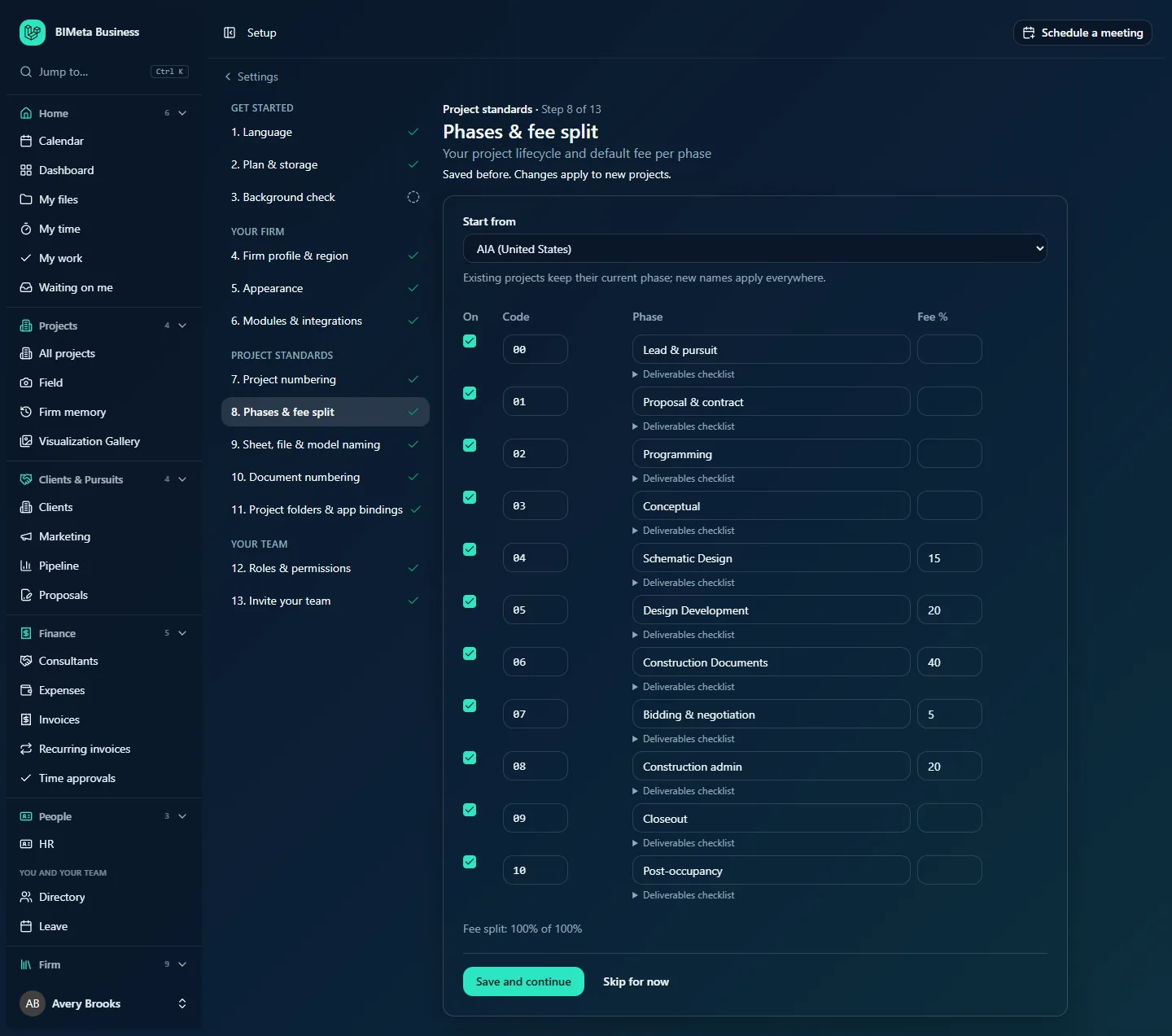
A tour of the page
Start from
Choose a preset. Changing it reloads the table with that preset's phases:
- AIA (United States): 00 Lead & pursuit, 01 Proposal & contract, 02 Programming, 03 Conceptual, 04 Schematic Design (15%), 05 Design Development (20%), 06 Construction Documents (40%), 07 Bidding & negotiation (5%), 08 Construction admin (20%), 09 Closeout, 10 Post-occupancy.
- RIBA Plan of Work 2020 (UK): Lead & pursuit, then stages 0 Strategic Definition, 1 Preparation & Briefing, 2 Concept Design, 3 Spatial Coordination, 4 Technical Design, 5 Manufacturing & Construction, 6 Handover and 7 Use (no default fee split).
- HOAI Leistungsphasen (Germany): Akquise, then LPH 1 to LPH 9 with the usual HOAI shares (2, 7, 15, 3, 25, 10, 4, 32 and 2%).
- Design-build: Lead & pursuit, Proposal & contract, Preconstruction, Design 30%, Design 60%, Design 90% / permit, Construction, Closeout (no default fee split).
Your country (step 4) picks the starting preset. If your firm already has projects, a note says Existing projects keep their current phase; new names apply everywhere.
The phase table
| Column | What it does |
|---|---|
| On | Tick to use the phase; untick to leave it out of new projects' lifecycle. |
| Code | A short code, up to 10 characters, for example 04 or LPH 3. |
| Phase | The phase's name, up to 80 characters, for example Schematic Design. Under it, Deliverables checklist opens a box with one deliverable per line (for Schematic Design: SD set, Design narrative, Outline specifications, Owner sign-off). |
| Fee % | The default share of the project fee for this phase, as a whole number from 0 to 100, or blank for phases that earn no fee. |
Under the table, Fee split: n% of 100% adds up the fee of all phases that are on. It turns red above 100%.
How to set up your phases
- Choose the preset closest to how you work in Start from.
- Untick phases you never use.
- Rename phases and change codes to your firm's language, for example CA instead of Construction admin.
- Enter your typical Fee % per phase so they add up to 100% (or less).
- Open Deliverables checklist for each phase and edit the list: one item per line, up to 30 items of up to 200 characters each.
- Click Save and continue.
Tips and good to know
- At least one phase must stay on, every phase needs a name, and the fees of the phases that are on can't add up to more than 100%.
- The fee split is a default. Each project's budget can still be adjusted on its own.
- The deliverables are copied into each project's own checklist for that phase, so a project's list can be tailored without changing the firm standard, and changing the standard later doesn't rewrite checklists projects already have.
- Switching to a different preset later doesn't break existing projects: they keep the phase they're in, and its name stays readable.
Troubleshooting
"The fee split adds up to n%. Bring it to 100% or less."
Lower one or more Fee % values, or switch off a phase you don't bill.
"…: enter the fee as a whole percentage from 0 to 100, or leave it blank."
Decimals and the % sign aren't accepted. Type 15, not 15.5 or 15%.
Using the recommended settings
If you never save this step, the preset for your country applies with its standard names and fee split. During a new firm's guided onboarding, Use recommended settings on the Project standards introduction marks this step done with those defaults (see Guided onboarding: your firm's first sign-in); you can change it here later.
Was this article helpful?
Share