



Setup steps 7, 9 and 10: project numbering, naming and document numbering
17 views · by Kevin J Bruno · updated 3 days ago
Three setup steps decide how BIMeta numbers and names things, using the same simple pattern language. Step 7, Project numbering builds new project numbers (for example 26-014). Step 9, Sheet, file & model naming sets your sheet numbers, DWG numbers, ISO 19650 file names and specification system. Step 10, Document numbering sets the numbers of RFIs, submittals, ASIs, change orders, transmittals, site reports, invoices, proposals and support tickets. Set them before you create projects, so everything is numbered your way from the start.
Where to find it
Sidebar → Admin → Settings → Firm setup → Setup, then 7. Project numbering, 9. Sheet, file & model naming or 10. Document numbering. All three are in the Project standards section, together with step 8 (Phases & fee split) and step 11 (Project folders & app bindings). The page has a Settings back link at the top that returns you to the Settings page.
Who can use it
Business Owners and Admins.
Patterns and tokens
A pattern is ordinary text with tokens in braces that are filled in for each item. {YY}-{NNN} becomes 26-014: the two-digit year, a dash, then a three-digit running number. These tokens are available (open Tokens you can use under any pattern to see the same list):
| Token | Stands for | Sample |
|---|---|---|
{NNN} | Running number, padded to the number of Ns (1 to 6) | 014 |
{YY} | Year, 2 digits | 26 |
{YYYY} | Year, 4 digits | 2026 |
{MM} | Month | 09 |
{OFF} | Office code (from step 4) | SAC |
{CLI} | Client code | RVH |
{SS} | Sub-project | 01 |
{PROJECT} | Project number | 26-014 |
{PREFIX} | Project prefix | P2614 |
{BLDG} | Building abbreviation | BLDG1 |
{DISC} | Discipline designator (A, S, M…) | A |
{SHEET} | Sheet number | 101 |
{LEVEL} | Level or location | L01 |
{ORIG} | Originator | BIM |
{VOL} | Volume or system | ZZ |
{TYPE} | Information type | M3, DR |
{ROLE} | Role | A |
{SPEC} | Spec section | 08 71 00 |
{REV} | Revision | 1 |
Pattern rules
- Up to 80 characters.
- Only letters, numbers, spaces, the tokens in braces, and
-_./. - Every
{needs a matching}around a known token name. Unknown tokens are refused ("{XYZ} isn't a known token."). - At most one running number (
{NNN}) per pattern. - Patterns that must give a different value every time (project numbers, document numbers, ISO 19650 file names) must include a running number ("Add a running number, for example {NNN}, so every number is different."). Sheet and DWG numbers don't need one.
- As you type, the line under the box shows a live Example: using sample values, or explains what's wrong.
When the running number restarts
The running number counts separately for every different value of the rest of the pattern. {YY}-{NNN} starts again at 001 each year (26-001, 26-002… then 27-001). {OFF}-{NNN} counts per office (SEA-001, PDX-001…). {CLI}-{NNN} counts per client.
Step 7: Project numbering
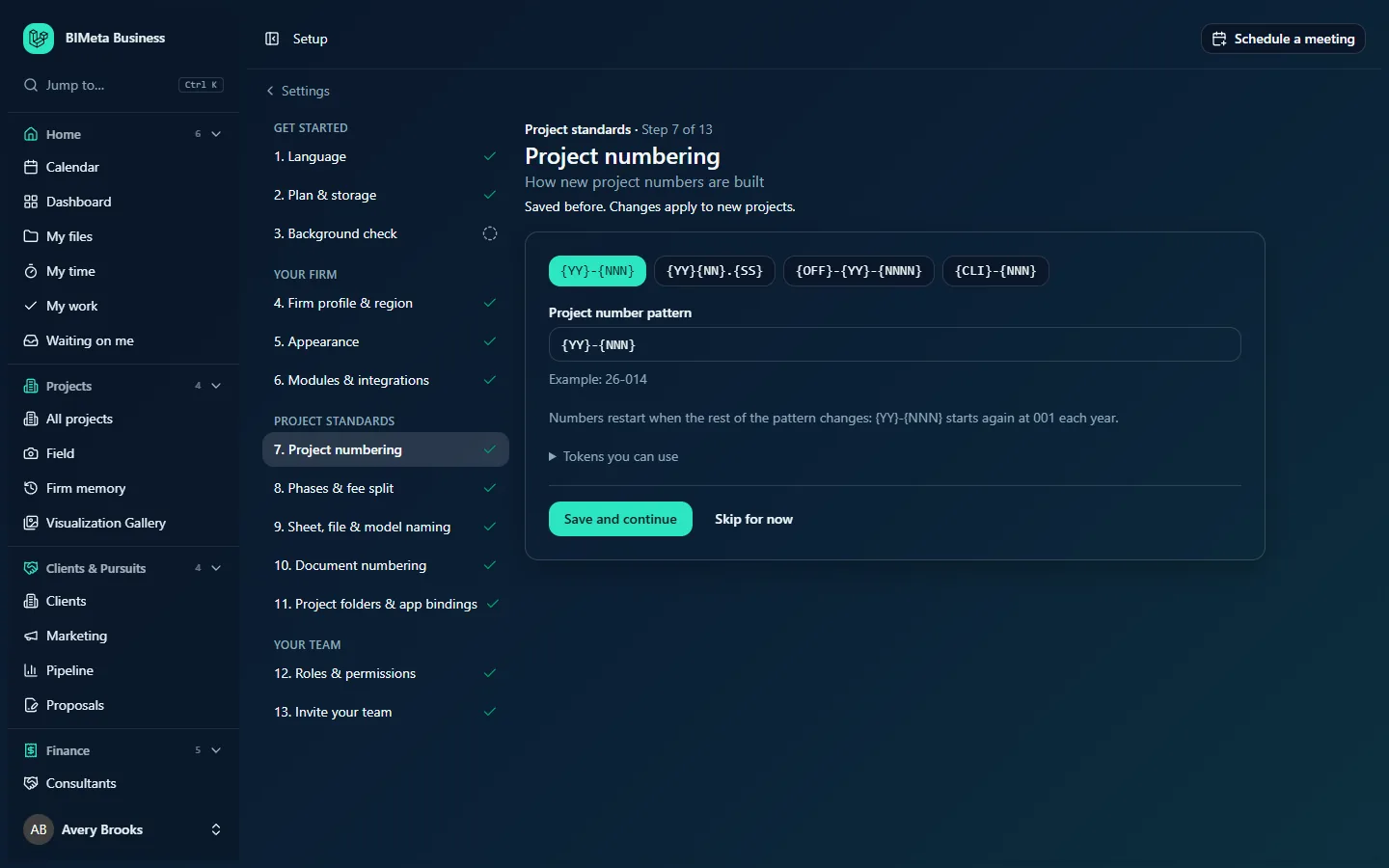
- Four common patterns as buttons; click one to use it:
{YY}-{NNN}(26-014),{YY}{NN}.{SS}(2614.01, with a sub-project),{OFF}-{YY}-{NNNN}(SAC-26-0014, per office) and{CLI}-{NNN}(RVH-014, per client). The active one is highlighted. - Project number pattern: type your own, with the live example underneath (Example: 26-014).
- A reminder of how the running number restarts, and Tokens you can use.
- Click a common pattern or type your own.
- Check the example.
- Click Save and continue.
New projects get the next number automatically. If your pattern uses {OFF} or {CLI}, the project needs an office code or client code when it's created. Existing project numbers never change.
Step 9: Sheet, file & model naming
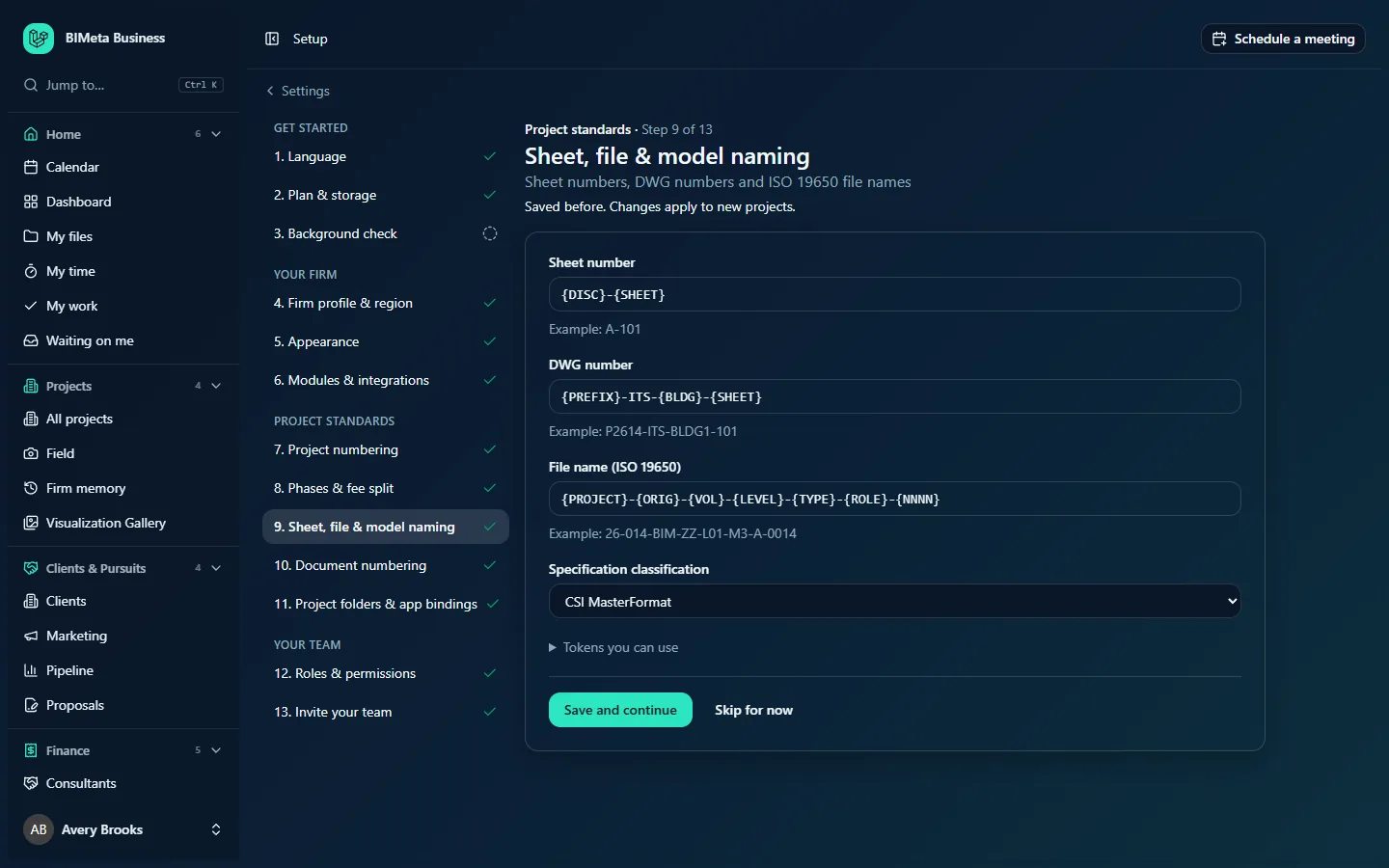
| Field | Default | Example |
|---|---|---|
| Sheet number | {DISC}-{SHEET} | A-101 |
| DWG number | {PREFIX}-ITS-{BLDG}-{SHEET} | P2614-ITS-BLDG1-101 |
| File name (ISO 19650) | {PROJECT}-{ORIG}-{VOL}-{LEVEL}-{TYPE}-{ROLE}-{NNNN} | 26-014-BIM-ZZ-L01-M3-A-0014 |
| Specification classification | From your country | CSI MasterFormat, Uniclass 2015 or NATSPEC |
The file name must include a running number; sheet and DWG numbers don't have to. These patterns are your firm's standard for naming sheets, drawings and model files. They fill in the naming section of new BIM execution plans and are what model health checks in the BIM Manager panel compare file and sheet names against.
Step 10: Document numbering
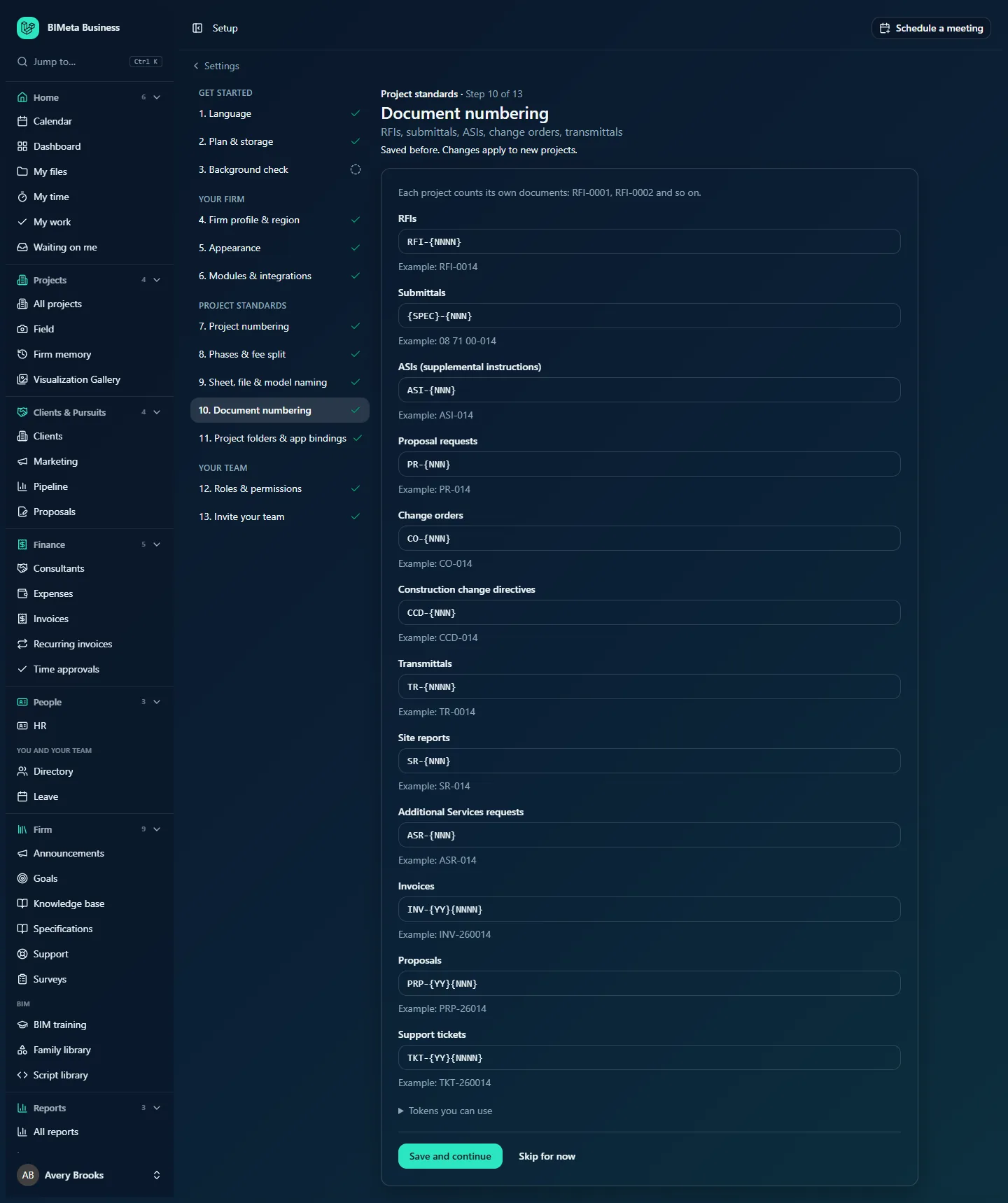
One pattern per kind of document, each with its live example. The note Each project counts its own documents: RFI-0001, RFI-0002 and so on explains that project documents restart at 1 on every project.
| Document | Default pattern | Counted |
|---|---|---|
| RFIs | RFI-{NNNN} | Per project |
| Submittals | {SPEC}-{NNN} | Per project (and spec section) |
| ASIs (supplemental instructions) | ASI-{NNN} | Per project |
| Proposal requests | PR-{NNN} | Per project |
| Change orders | CO-{NNN} | Per project |
| Construction change directives | CCD-{NNN} | Per project |
| Transmittals | TR-{NNNN} | Per project |
| Site reports | SR-{NNN} | Per project |
| Additional Services requests | ASR-{NNN} | Per project |
| Invoices | INV-{YY}{NNNN} | Firm-wide |
| Proposals | PRP-{YY}{NNN} | Firm-wide |
| Support tickets | TKT-{YY}{NNNN} | Firm-wide |
Every document pattern must include a running number. Click Save and continue to save them all at once; if one is wrong, the message names it (for example RFIs: Add a running number…).
Tips and good to know
- Changes apply to new numbers only. Documents and projects that already have a number keep it.
- Include the year (
{YY}) in firm-wide numbers such as invoices if you'd like them to restart every year. - Pad generously:
{NNN}allows 999 before the numbers get longer; use{NNNN}for RFIs on large projects. - If your sheet numbers follow the US National CAD Standard,
{DISC}-{SHEET}or{DISC}{SHEET}fits well. - Project imports from CSV use the same project pattern for rows without a number.
Troubleshooting
"Use only one running number ({NNN}) in a pattern."
Remove the extra {N…} token.
"Use letters, numbers, spaces, the tokens in braces, and - _ . / only."
Characters such as #, : or + aren't allowed in patterns.
A new project asks for an office code.
Your project pattern uses {OFF}. Pick the office when creating the project, or change the pattern.
Using the recommended settings
All three steps start with sensible defaults for your country, and those defaults apply even if you never open the steps. A new firm can accept the whole Project standards section in one click during its guided onboarding with Use recommended settings (see Guided onboarding: your firm's first sign-in). The steps are then marked done and you can still change any of them here later.
Was this article helpful?
Share