



Setup step 3: Background check (verify your identity and business)
18 views · by Kevin J Bruno · updated 11 hours ago
Background check is step 3 of the setup wizard. Before a new firm's portal opens, BIMeta confirms two things: that the person running the firm is who they say they are, and that the business is real. You do both checks yourself, online, on the secure page of Didit, BIMeta's verification partner. It takes about five minutes on a phone or computer. Until both checks have passed, your portal stays closed: you can finish this step, look at billing and change your own account settings, but everything else (projects, clients, finance, people and so on) waits.
This article explains why the portal is closed, what each check asks for, every status you can see and what to do about it, how many times you can try, what happens when BIMeta's team has to look at a check, what is kept about you, and what the step looks like when BIMeta has it in test mode.
Where to find it
- Sidebar → Admin → Firm setup → Setup, then 3. Background check in the list of steps on the left.
- While your firm's check hasn't passed, you don't have to look for it: whatever page you open in the portal, you are brought back here.
- Press Ctrl K (⌘K on a Mac) and type setup to open the wizard.
- After step 2, Plan & storage, the wizard brings you here next (including when you come back from paying for your plan).
Who can use it
- Only the Business Owner completes the background check: the Start, Continue on Didit and Try again buttons appear only for people whose role can manage the firm's billing (with the standard roles, Business Owners).
- Admins can open Setup and see this step and its statuses, with the note Only the Owner completes the background check. The portal opens as soon as it passes., but they can't start a check.
- Everyone else at the firm (IT Staff, BIM Managers, Project Managers, Human Resources, Users) can't open Setup. While the firm's check hasn't passed, they see a Background check page that says Your firm's portal opens as soon as its background check passes. Your Owner has been asked to finish it.
Why your portal is closed until the check passes
When BIMeta has background checks switched on, every new firm's portal starts closed. This protects everyone who uses the platform: a firm can only start working, invite staff, send invoices and share files once BIMeta knows who runs it and that the business exists.
While the check is outstanding:
- Still open: Setup (all steps), Billing, your own account settings (profile, password and two-factor sign-in, appearance), notices from BIMeta, and signing out.
- Closed: every other page. If you (the Owner) open one, you are taken to this step. Anyone else is taken to the Background check page that says the portal opens soon.
- The sidebar still shows the full menu, so you can see what's coming, but its pages bring you back here until the check passes.
As soon as both checks have passed, the portal opens for everyone at once. You don't need to do anything else; there is no separate "open portal" button.
Good to know:
- Firms that joined BIMeta Business before BIMeta switched background checks on aren't asked. For them this step simply says Your firm doesn't need a background check. with a Continue button.
- BIMeta can ask an existing firm to pass the check later. If that happens, your portal closes again until the Owner passes, and checks you passed before no longer count (you start afresh; the note Asked again by BIMeta may appear under a check).
The two checks
| Check | What it says on the page | What you'll need |
|---|---|---|
| Your identity | A photo of your ID and a quick selfie, so we know who runs the firm. | A government photo ID (for example a passport, driving licence or ID card) and a device with a camera for the selfie. This is the "know your customer" (KYC) check. |
| Your business | Your company registration and who owns it, so we know the business is real. | Your company's registration details and who owns it. This is the "know your business" (KYB) check. |
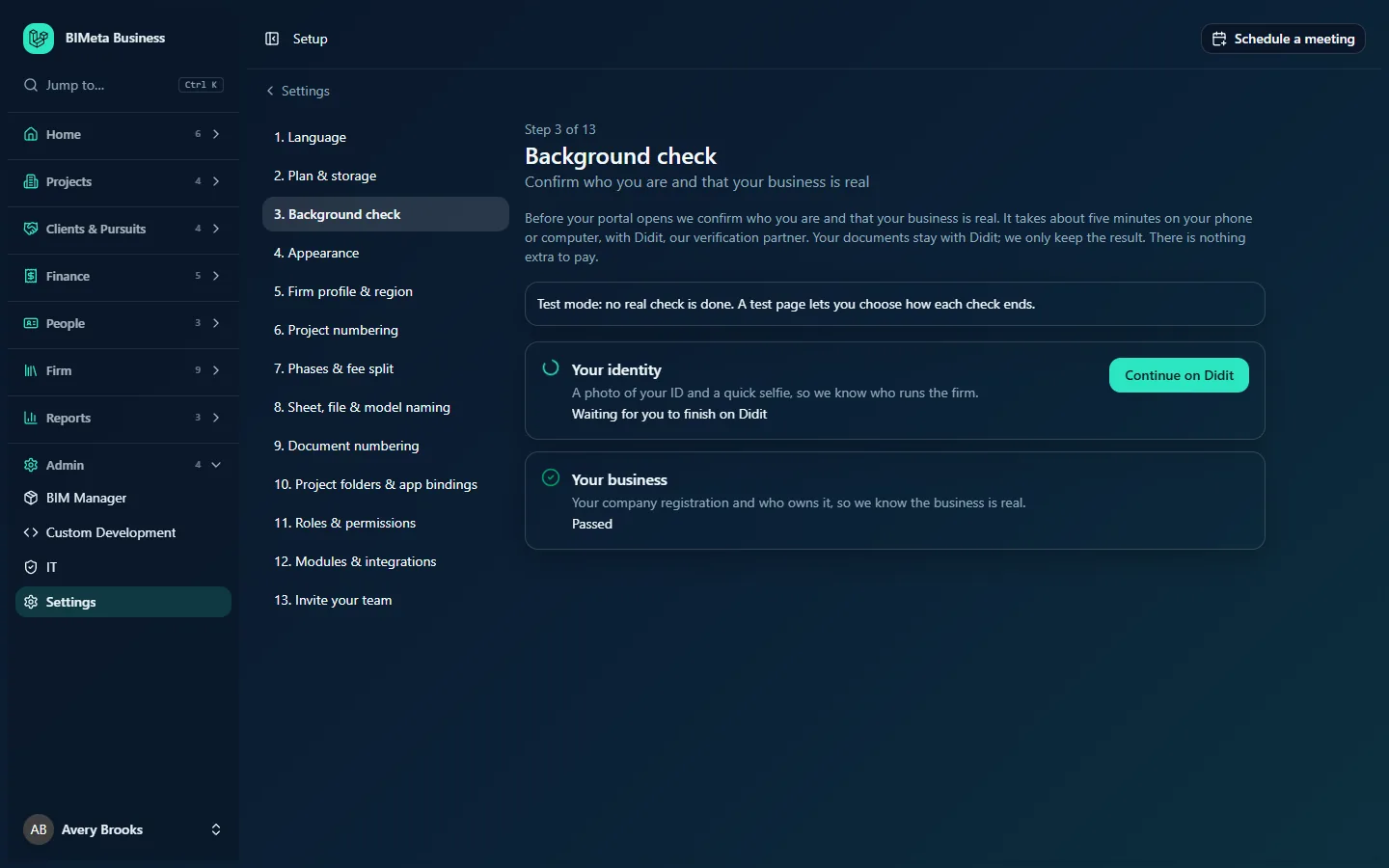
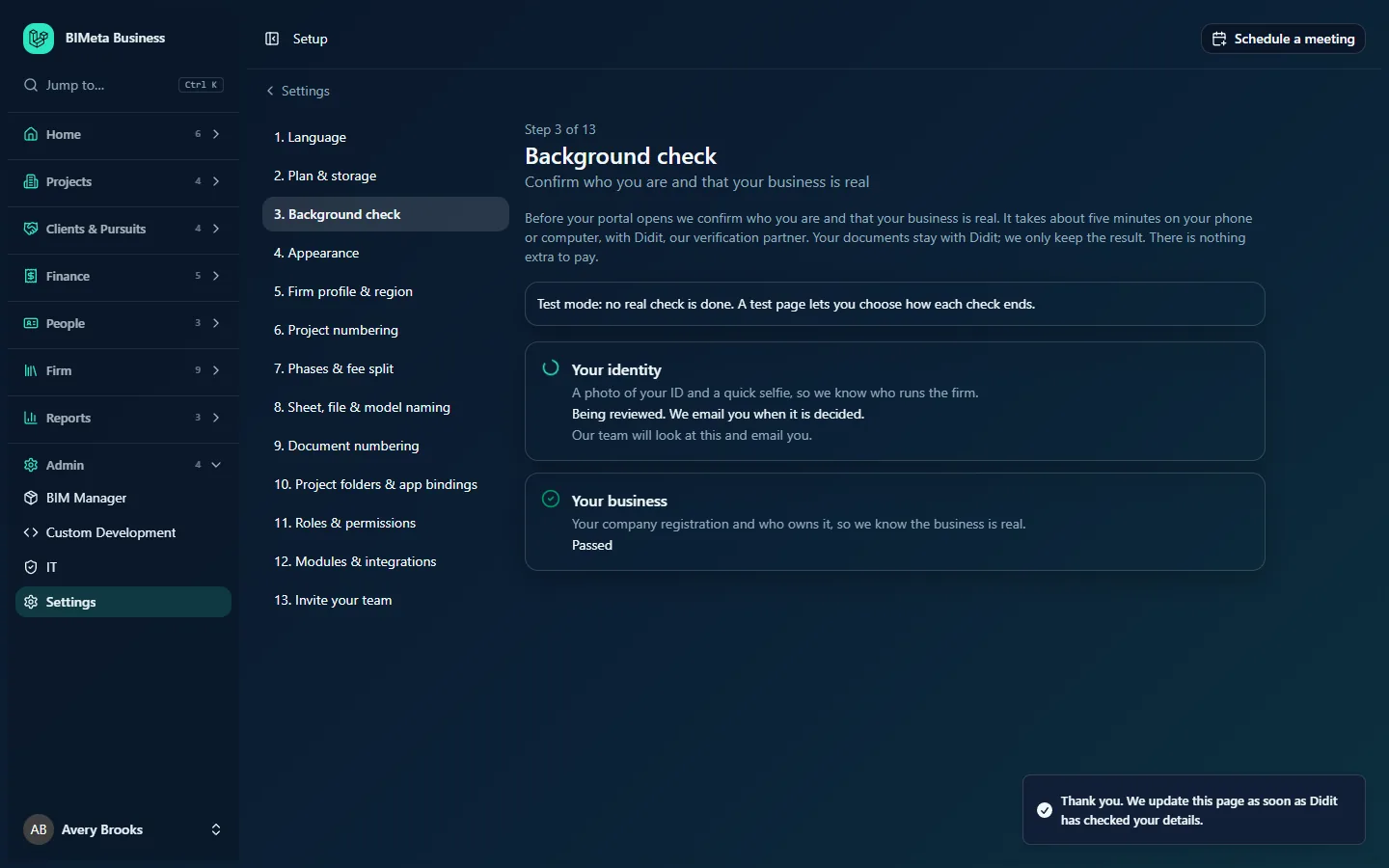
Both checks are done by the Business Owner. The order doesn't matter: you can do the business check first, as in the example where Your business has passed while Your identity is still in progress.
If BIMeta only asks for the identity check on your platform, only Your identity is listed, and the portal opens as soon as it passes.
A tour of the step
The header
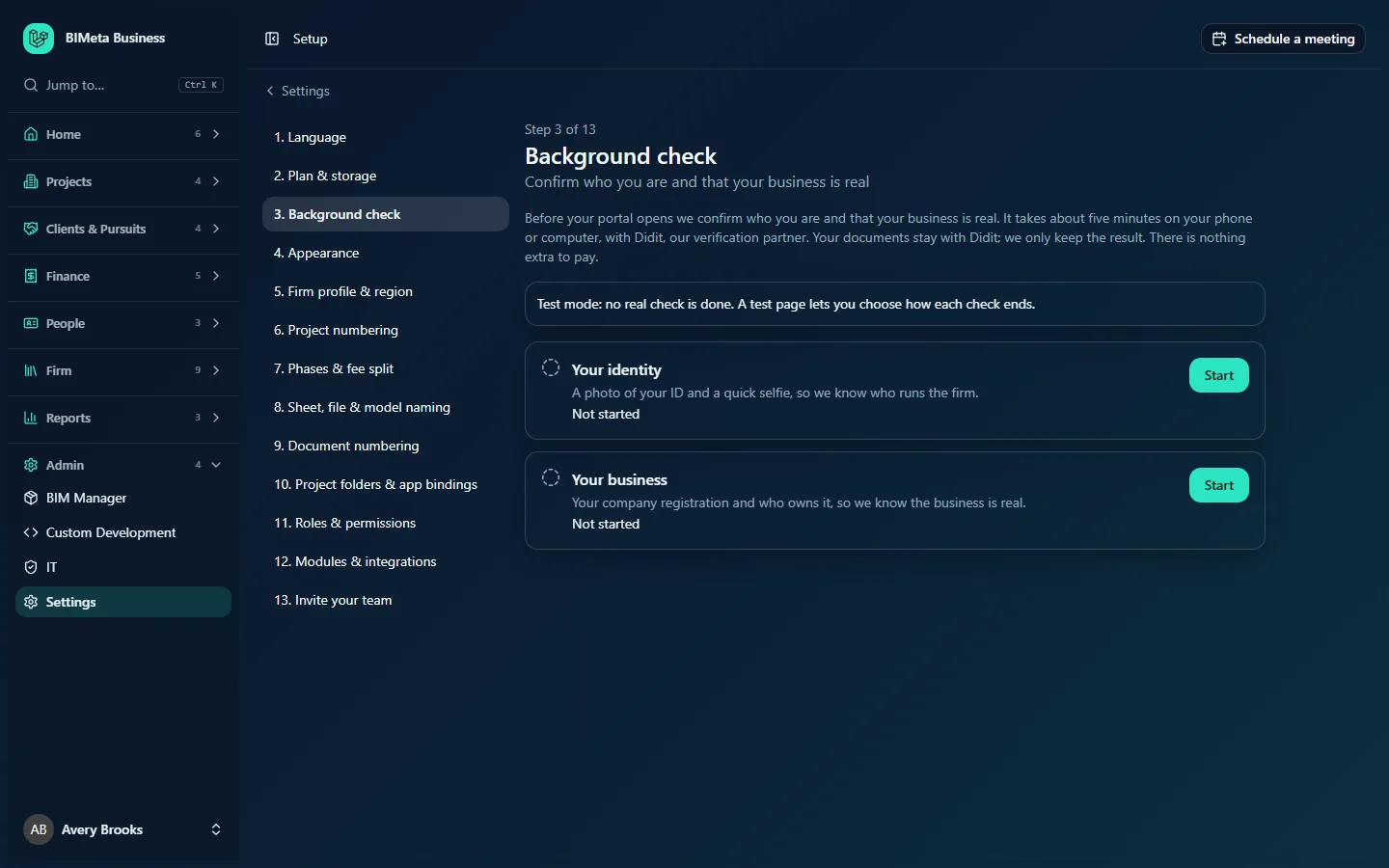
Step 3 of 13, the title Background check and the line Confirm who you are and that your business is real. The steps list on the left works as in every other step; see Setup: get your portal ready for how the wizard works.
The explanation
A short paragraph: Before your portal opens we confirm who you are and that your business is real. It takes about five minutes on your phone or computer, with Didit, our verification partner. Your documents stay with Didit; we only keep the result. There is nothing extra to pay.
Banners you may see
- Test mode: no real check is done. A test page lets you choose how each check ends. BIMeta is running background checks in test mode for your firm. See "Test mode" below.
- Background checks aren't switched on yet. We email you as soon as you can complete this step. BIMeta hasn't finished setting up its connection to Didit. There are no buttons to press yet; come back to this step later.
- Only the Owner completes the background check. The portal opens as soon as it passes. You're signed in as someone other than the Owner (for example an Admin).
The check cards
One card per check (Your identity, then Your business). Each card shows:
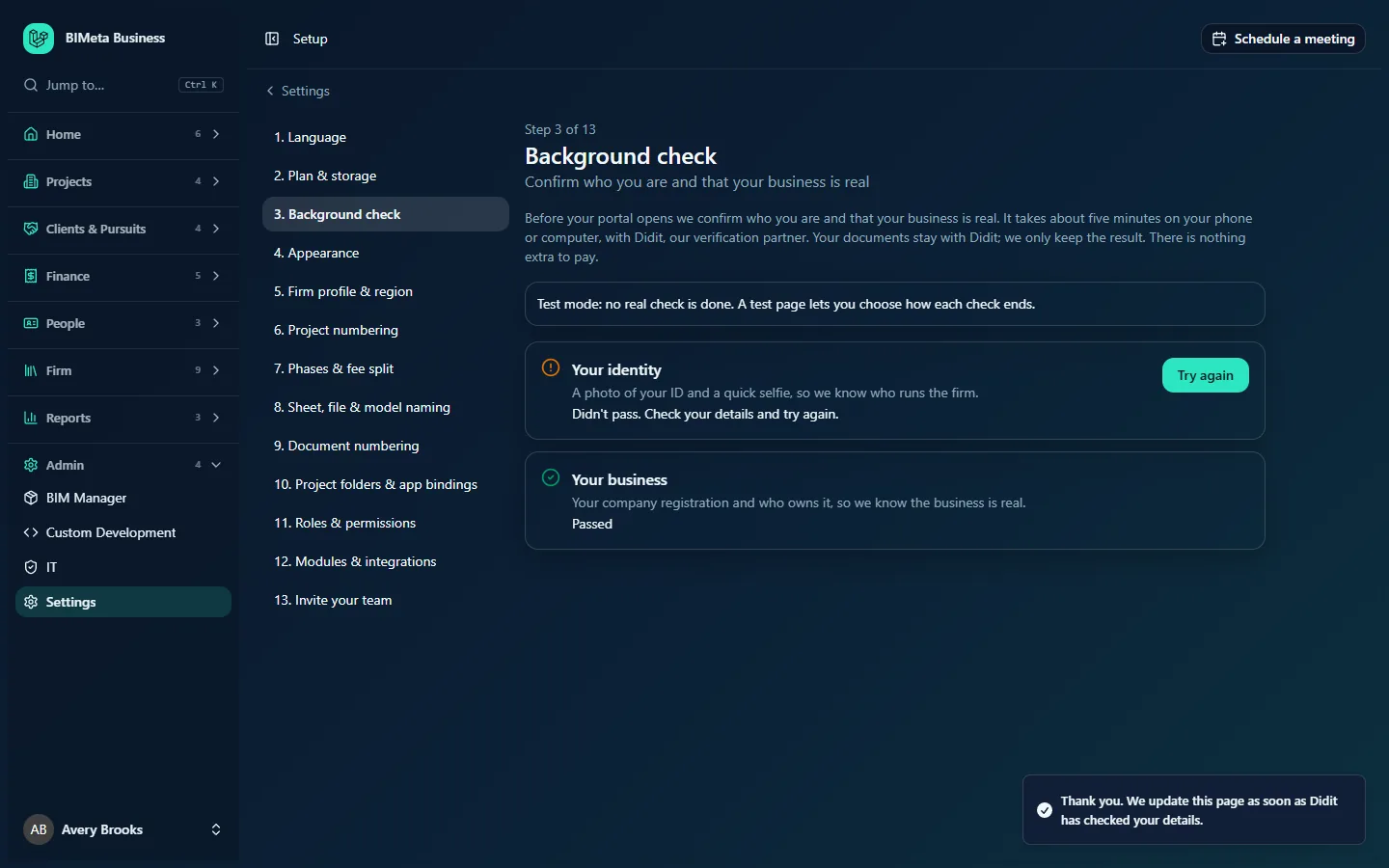
- An icon on the left: a dashed circle (not started, not finished or expired), a spinning circle (waiting for Didit or being reviewed), an amber warning (didn't pass) or a green tick (passed).
- The check's name and what it asks for.
- Its current status in words (see the table below).
- A note from BIMeta, when BIMeta's team has decided the check and left one (for example the reason a check was declined).
- Our team will look at this and email you. when the check has used all its tries (see "Tries" below).
- On the right, a button for the next thing to do: Start, Continue on Didit or Try again. There is no button when the check has passed, is being reviewed, or has used all its tries.
While any check is waiting for Didit or being reviewed, the page refreshes itself every 10 seconds, so you can leave it open and watch the status change.
When both checks have passed
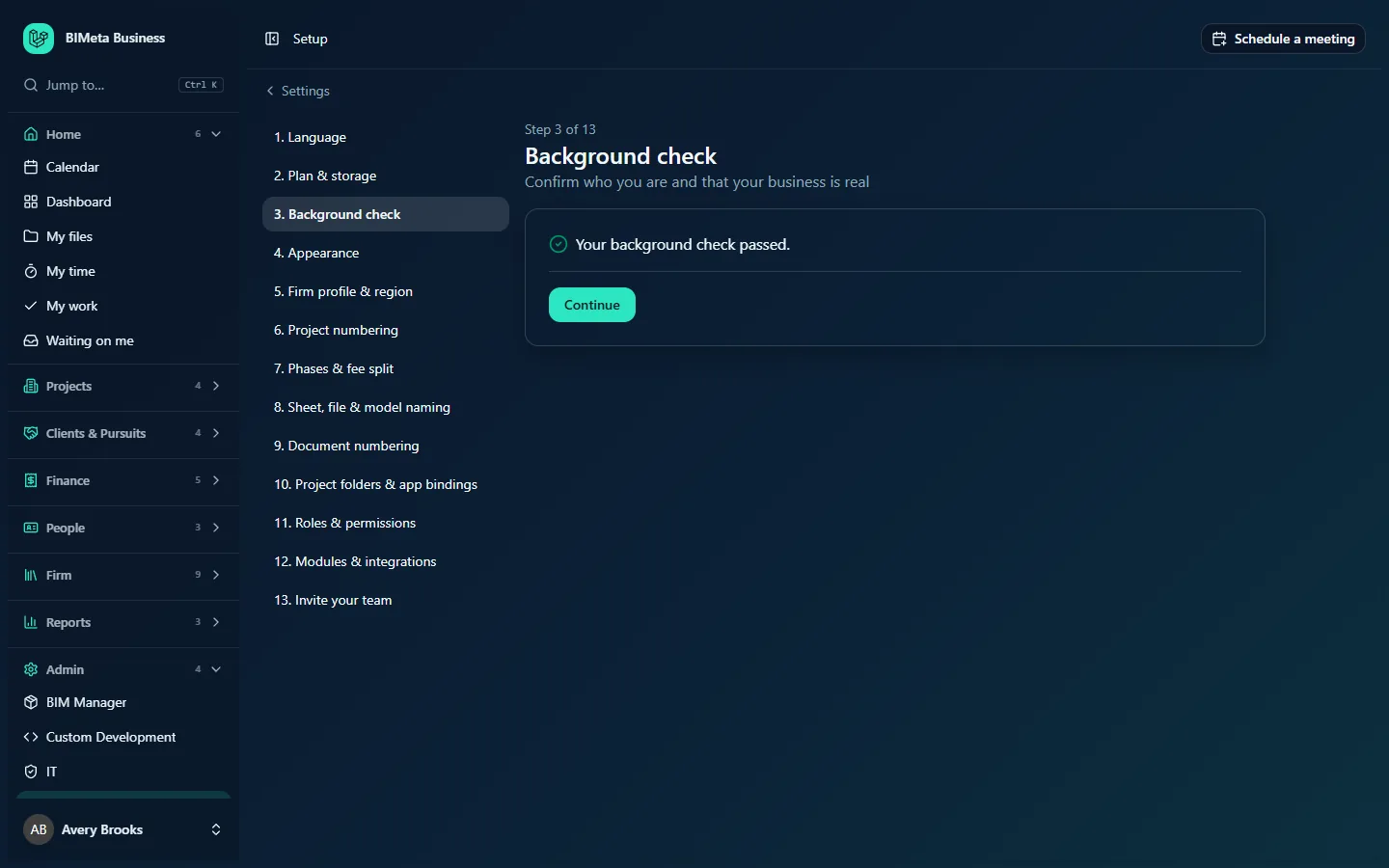
The cards are replaced by a single line, Your background check passed., and a Continue button that marks the step done and takes you to step 4, Appearance. Your portal is already open at this point: notice that the sidebar's menus now open normally.
Every status and what to do
| Status on the card | What it means | What to do |
|---|---|---|
| Not started | You haven't begun this check. | Click Start. |
| Waiting for you to finish on Didit | You opened Didit's page but BIMeta doesn't have a result yet. Either you're still on Didit, you closed it before finishing, or Didit is still working out the result. | If you finished on Didit, wait: the page updates itself. If you didn't finish, click Continue on Didit to open a fresh Didit page (this uses one of your tries). |
| Being reviewed. We email you when it is decided. | Didit couldn't decide automatically, so the check is waiting for a person to look at it. | Nothing for now. You can't start the check again while it's being reviewed. Come back to this step to see the decision. |
| Passed | The check is approved. | Nothing. When every check has passed, the portal opens. |
| Didn't pass. Check your details and try again. | Didit (or BIMeta's team) declined the check, for example because the photo was unreadable, the ID had expired, the selfie didn't match, or the business details didn't match a registry. | Read any note under the status, then click Try again and take care with the photos and details. |
| Not finished. Start again when you are ready. | You left Didit's page before finishing. | Click Try again when you have your ID (or company details) to hand. |
| The link expired. Start again. | The Didit page wasn't completed in time, or BIMeta asked your firm to pass the check again. | Click Try again. |
How to complete your background check
- Open Setup → 3. Background check (or simply open any page; you'll be brought here).
- On Your identity, click Start. The button shows a spinner while BIMeta prepares your page, then your browser goes to Didit's secure page.
- On Didit, follow the instructions: take or upload a photo of your ID, then take a quick selfie. If your computer has no camera, sign in to the portal on your phone and start the check there.
- When you finish, Didit sends you back to this step. A message appears at the bottom right:
- Your background check passed. Your portal is open. if everything your firm needs has passed, or
- Thank you. We update this page as soon as Didit has checked your details. if a result is still on its way or another check is still to do.
- On Your business, click Start and enter your company's details on Didit in the same way.
- When both cards show Passed, click Continue to go on with the setup wizard.
Each time you start a check, it's recorded in your firm's Audit log.
Tries and what happens after three
- Each check can be started three times. Every click on Start, Continue on Didit or Try again opens a new Didit page and counts as one try, so only click Continue on Didit if you really need a fresh page.
- Only the newest Didit page counts. If you open a new one, finish on that one rather than an older tab.
- After the third try, the button disappears and the card says Our team will look at this and email you. Trying to start again shows This check was tried 3 times. Our team will look at it and email you. BIMeta's team then looks at the check and approves or declines it.
- If BIMeta's team declines a check, you get a fresh set of three tries, and their reason is shown under the status.
Review by BIMeta
Most checks are decided by Didit within minutes. A check goes to a person when Didit marks it for review, or when it has used all its tries. A member of BIMeta's team then approves or declines it. Their decision is final for that check: a later automatic result from Didit doesn't overturn it. If they decline it, you can try again (see above). If they approve it and your other check has passed too, the portal opens straight away.
Emails
The step's messages say that BIMeta emails you when a reviewed check is decided, or when you can complete the step if checks aren't switched on yet. You don't have to wait for an email, though: this step always shows the current status of each check, so come back to Setup → Background check any time to see where things stand.
Privacy: what is kept, and where
- Your ID photo, selfie and company documents are handled by Didit and stay with Didit. They are never stored in your portal or by BIMeta.
- BIMeta keeps only the outcome of each check: its status (for example passed or didn't pass), how many tries it took, when it was decided, your name as the person checked, and, if BIMeta's team decided it, who decided it and their note.
- Inside your firm, people who can open Admin → Background checks see that the firm's check passed and see the Owner listed as Passed. They never see your documents.
Cost
There is nothing extra to pay for this check. The cost of the Owner's identity check and the business check is included in the price of BIMeta's paid plans, and the free plan stays free. (Checks your firm runs later on its own team, new hires and vendors are different and are paid for with a background check package; see Background checks: check your team, new hires and vendors.)
Test mode, as your firm sees it
BIMeta sometimes runs background checks in test mode, for example on demonstration or test portals. In test mode no real check is done:
- The step shows the banner Test mode: no real check is done. A test page lets you choose how each check ends.
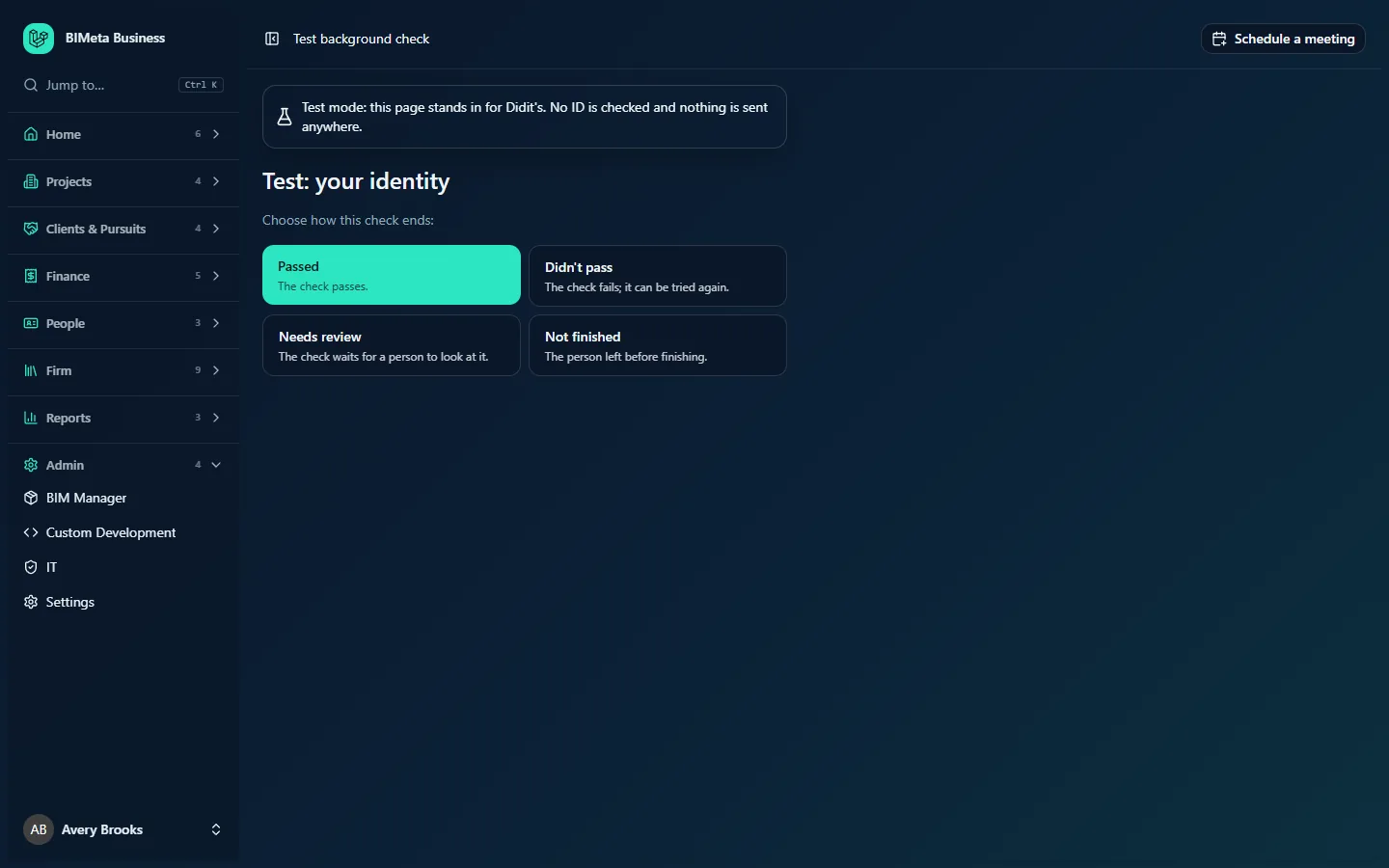
- Clicking Start opens a BIMeta Test background check page instead of Didit's. It says Test mode: this page stands in for Didit's. No ID is checked and nothing is sent anywhere., with the title Test: your identity or Test: your business.
- Under Choose how this check ends: you pick one of four outcomes: Passed (The check passes.), Didn't pass (The check fails; it can be tried again.), Needs review (The check waits for a person to look at it.) or Not finished (The person left before finishing.).
- Your choice is recorded exactly as a real Didit result would be, and you return to this step, so every status in this article can be tried out. Tries, reviews and the portal opening all work the same way.
- A test page link is only valid for two hours. If it has expired, start the check again from this step.
Tips and good to know
- This step can't be skipped while your check is outstanding: it has no Skip for now button, and trying to save it shows Finish the background check first. Your portal opens as soon as it passes. Once the check has passed (or if your firm isn't asked), you can move on as with any other step.
- You can still choose your plan and storage in step 2 and manage Billing while the portal is closed.
- Have your ID and your company's registration details ready before you click Start, so you don't use up tries.
- Use good light for the ID photo and the selfie, and make sure the whole ID is in the frame and readable.
- Your staff can't sign in to a working portal until this check passes, so it's best to finish it before you invite your team in step 13.
Troubleshooting
There are no Start buttons on the cards.
Either you aren't the Owner (look for the note Only the Owner completes the background check.), BIMeta hasn't switched checks on yet (the Background checks aren't switched on yet banner), the check is being reviewed, or it has used all three tries. In the last two cases BIMeta's team will decide it.
I finished on Didit but the card still says "Waiting for you to finish on Didit".
Didit can take a moment to send its result. Leave the page open: it refreshes every 10 seconds. If nothing changes after a while, make sure you finished on the newest Didit page you opened. If it still doesn't change, contact BIMeta support rather than clicking Continue on Didit again, since each click uses a try.
I see "Didit couldn't be reached. Try again in a minute."
Didit's service didn't answer. Nothing was used up on your side for a check that never opened; wait a minute and click the button again.
My staff say they can't get into the portal.
Until both checks have passed, everyone except the pages listed above is kept out. Finish this step and the portal opens for everyone immediately.
Was this article helpful?
Share