



The Settings hub: all your firm's settings in one place
18 views · by Kevin J Bruno · updated 1 day ago
The Settings page gathers your firm's settings in one place. Instead of a long list of admin pages in the sidebar, the Admin group has a single Settings entry that opens a page of cards, one per section, each listing the settings pages you're allowed to open. It's where you go to change how the firm is set up: people and access, apps and connections, billing, and the firm's own standards and wording.
This article explains the page itself, every link that can appear on it, and which roles see which links. Each linked page has its own article.
Where to find it
- Sidebar → Admin → Settings. In the Admin group it sits next to BIM Manager, Custom Development and the IT hub, which stay in the menu as their own entries.
- Press Ctrl K and type settings. Jump to… also finds every page on the Settings page directly, for example typing
domainfinds Web address; results show Admin · Firm setup (or the page's section) on the right. - Every page you open from here shows a Settings link with a back arrow at the top, which brings you back.
- You can pin the Settings page to the top of your sidebar like any other entry.
Don't confuse it with your personal settings (your profile, password, two-factor, theme and connected apps), which you reach by clicking your name at the bottom of the sidebar and then Settings.
Who can use it
Anyone who holds at least one firm settings permission sees the Settings entry. The page shows only the links your role allows, so it looks different for each role. Business Owners see everything; a Business Owner at the example firm Northlight Architects sees 28 links in four sections. People with no settings permissions, such as Users and Project Managers, don't get the entry at all (if they open the address directly, the page says There are no settings you can change.).
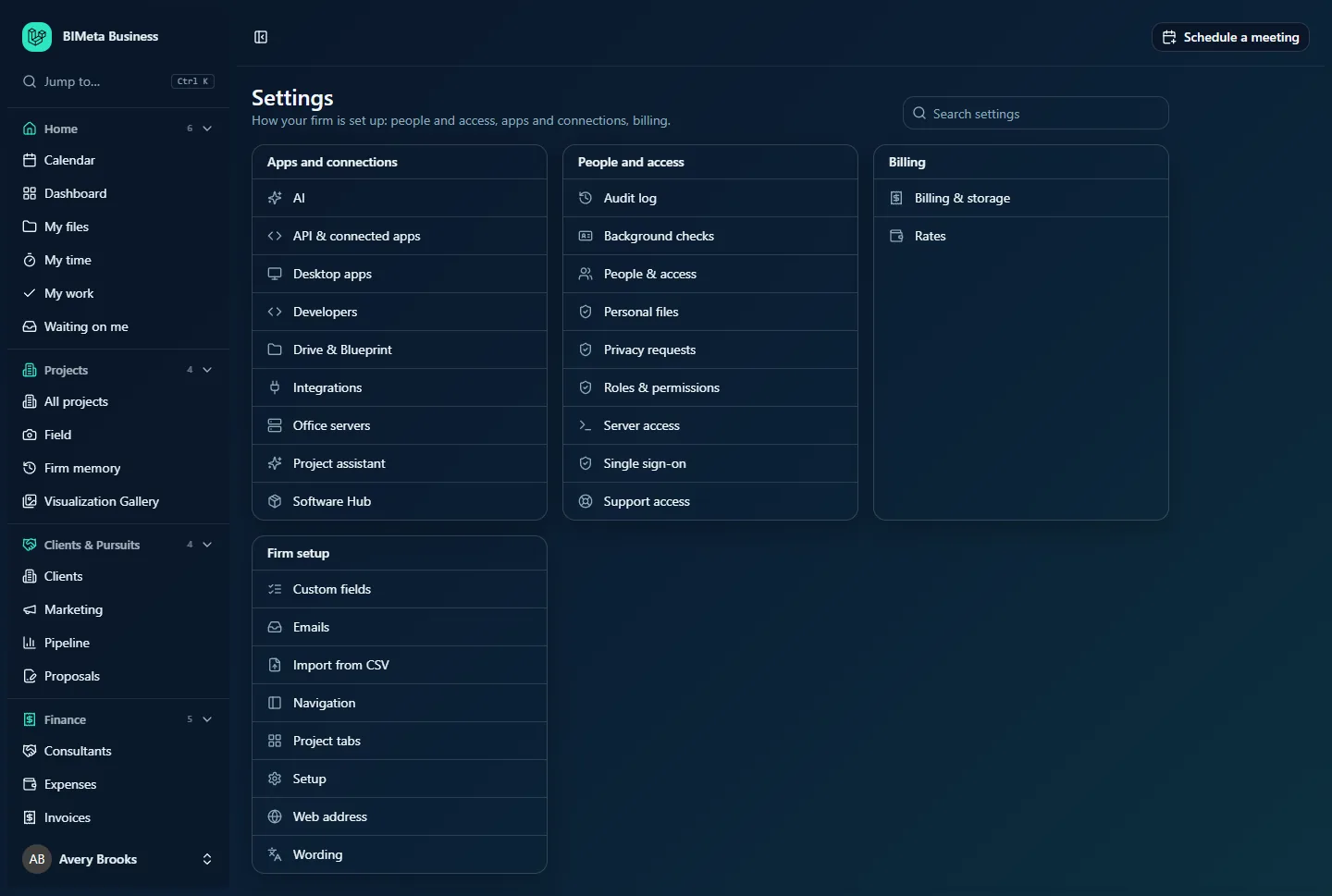
A tour of the page
- Settings, the title, with the line How your firm is set up: people and access, apps and connections, billing.
- Search settings (top right): type to filter the cards as you go. It matches each page's name, its section and everyday words for it (for example
saml,domain,csv,kycorwebhooks). If nothing matches you'll see No settings match “…”. Clear the box to see everything again. - The cards: one per section, with the section name as its heading and one row per page, each with an icon and the page name. Click a row to open the page. Cards flow across the screen in columns and stack on a phone.
Every link, by section
Links appear in alphabetical order within each card (unless your firm has set its own order for the Admin group under Navigation). The Who sees it column lists the standard roles; Admin and Human Resources are standard roles too, even though the example screenshots show only Owner, IT Staff and BIM Manager.
| Section | Link | What it's for | Who sees it |
|---|---|---|---|
| Apps and connections | AI | AI features, providers and credit limits | Owner, Admin |
| Apps and connections | API & connected apps | Switch the data API on, approve connected apps | Owner, IT Staff |
| Apps and connections | Desktop apps | BIMeta desktop apps and their sessions | Owner, Admin, IT Staff |
| Apps and connections | Developers | API keys and webhooks | Owner, Admin, IT Staff |
| Apps and connections | Drive & Blueprint | Drive sync and Blueprint access | Owner, Admin, IT Staff |
| Apps and connections | Integrations | Outlook, QuickBooks Online, Procore and other connections | Owner, IT Staff |
| Apps and connections | Office servers | On-premises file servers (NAS) | Owner, Admin, IT Staff |
| Apps and connections | Project assistant | The AI project assistant | Owner, Admin |
| Apps and connections | Software Hub | Software and downloads for staff computers | Owner, Admin, IT Staff |
| People and access | Audit log | Who did what, and when | Owner, Admin, IT Staff |
| People and access | Background checks | Identity checks for team members | Owner, Admin |
| People and access | People & access | Invite people and manage accounts | Owner, Admin, IT Staff, Human Resources |
| People and access | Personal files | Access to people's private files | Owner, IT Staff |
| People and access | Privacy requests | Data export and deletion requests | Owner, IT Staff |
| People and access | Roles & permissions | The permission matrix | Owner, Admin, IT Staff, Human Resources |
| People and access | Server access | SSH access to the firm's own servers | Owner, IT Staff |
| People and access | Single sign-on | Sign-in with Microsoft Entra ID, Google or Okta | Owner, Admin, IT Staff |
| People and access | Support access | Let BIMeta support look at your portal | Owner, Admin |
| Billing | Billing & storage | Your plan, storage, invoices and payment | Owner |
| Billing | Rates | People's hourly bill and cost rates | Owner, Admin |
| Firm setup | Custom fields | Extra fields on projects, clients, consultants, people and invoices | Owner, Admin |
| Firm setup | Emails | Sender, signature, email wording and delivery | Owner, Admin |
| Firm setup | Import from CSV | Bring in projects, clients and people | Owner, Admin |
| Firm setup | Navigation | Arrange the sidebar for the firm | Owner, Admin |
| Firm setup | Project tabs | Which tabs people see inside projects | Owner, IT Staff, BIM Manager |
| Firm setup | Setup | The 13-step setup wizard | Owner, Admin |
| Firm setup | Web address | Your own domain for the portal | Owner, Admin |
| Firm setup | Wording | Change the portal's words for your firm | Owner, Admin |
A Push link may also appear under Apps and connections for firms that have that feature. A link only appears when your firm's plan includes that part of BIMeta Business.
What each role sees
- Business Owner: every link above, in four cards: Apps and connections (9), People and access (9), Billing (2) and Firm setup (8).
- Admin: everything except API & connected apps, Integrations, Personal files, Privacy requests, Server access, Billing & storage and Project tabs.
- IT Staff: three cards: Apps and connections (API & connected apps, Desktop apps, Developers, Drive & Blueprint, Integrations, Office servers, Software Hub), People and access (Audit log, People & access, Personal files, Privacy requests, Roles & permissions, Server access, Single sign-on) and Firm setup (Project tabs only). The IT tools themselves are in the separate IT hub.
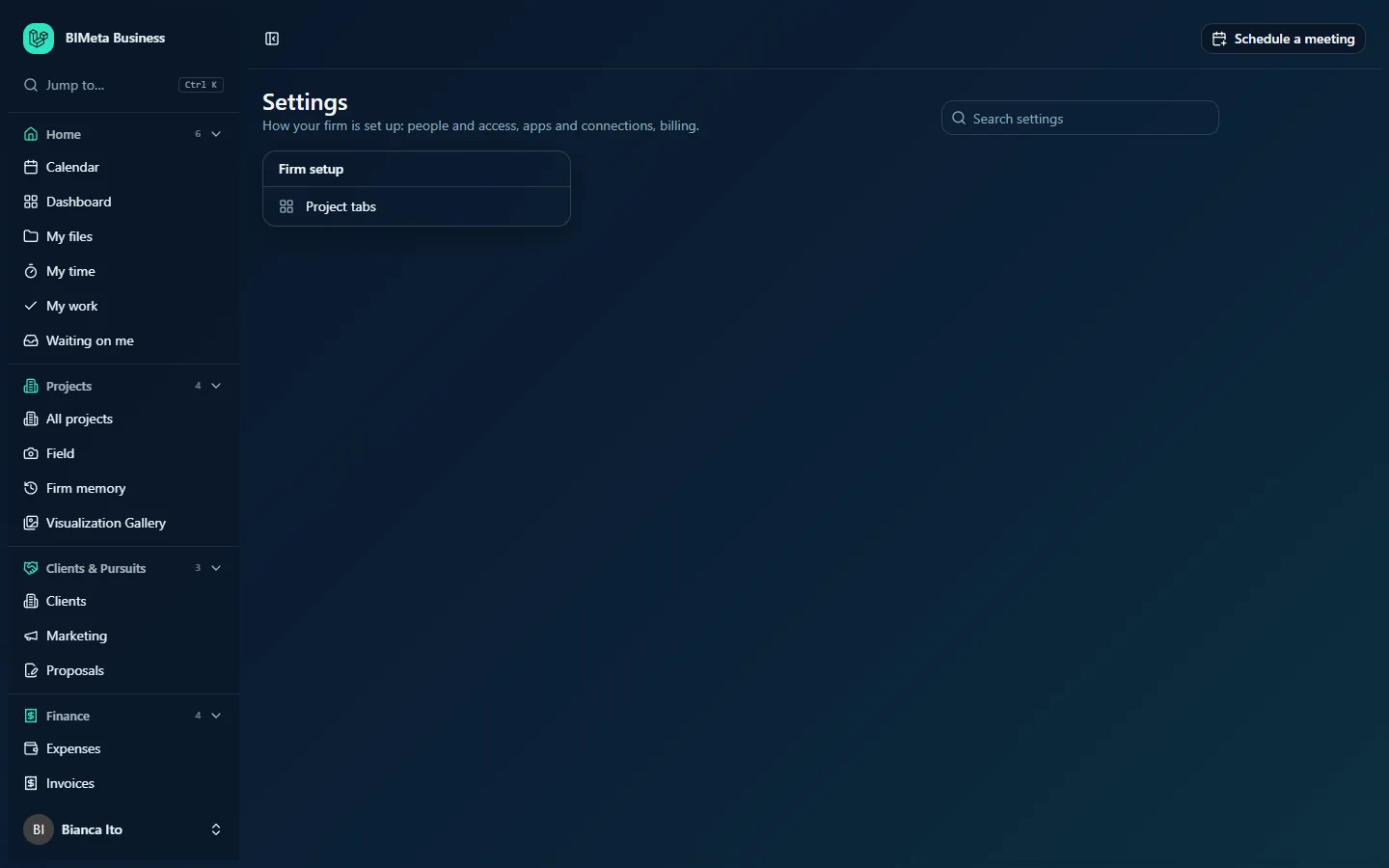
- BIM Manager: one card, Firm setup, with Project tabs. The BIM tools are under Admin → BIM Manager.
- Human Resources: People and access with People & access and Roles & permissions.
- Project Manager and User: no Settings entry.
Custom roles see whatever their permissions allow. Someone with several roles sees everything any of their roles allows.
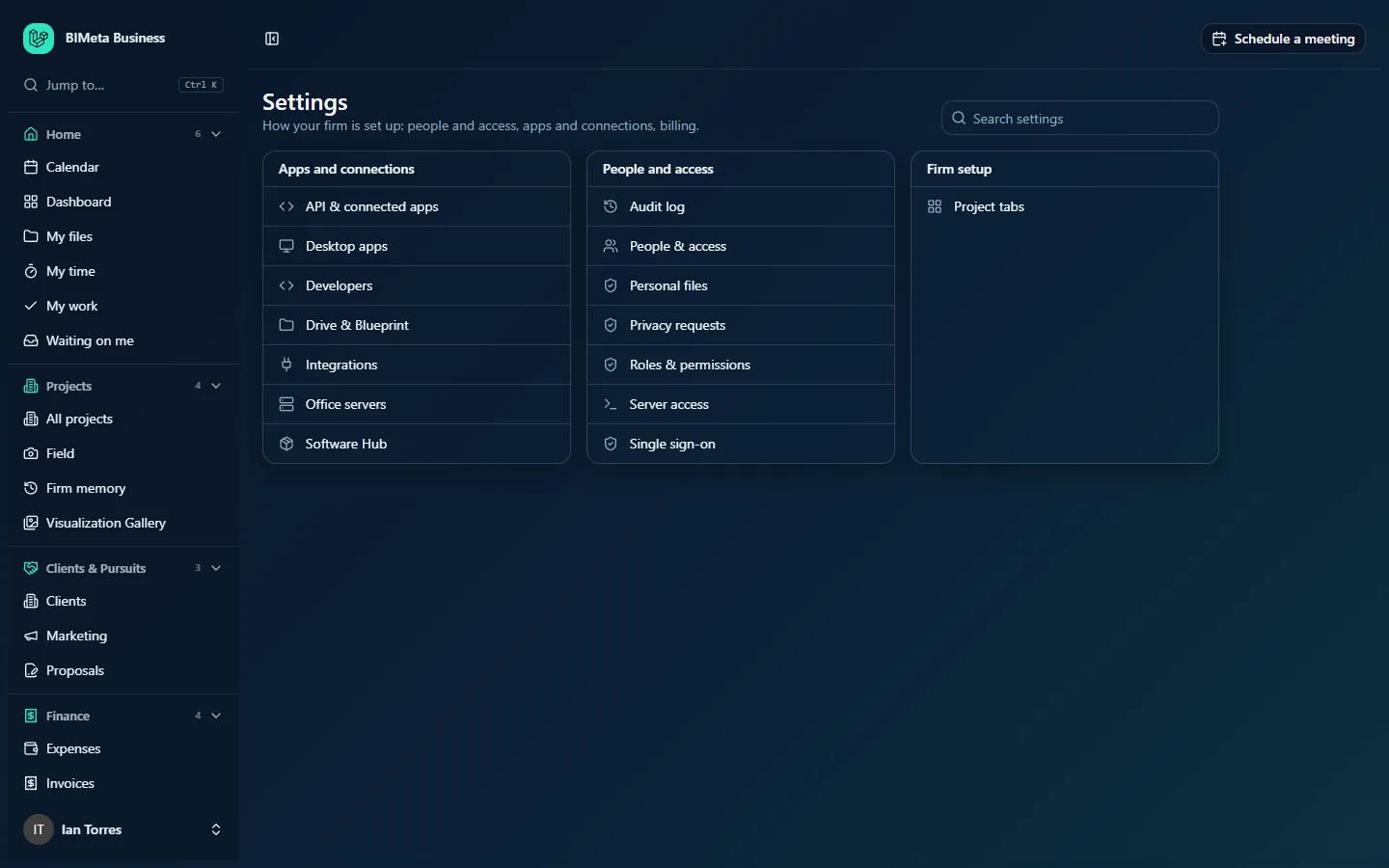
Above: what IT Staff see. Below: what a BIM Manager sees.
How to …
Open a settings page
- Click Admin → Settings in the sidebar.
- Find the page in its card, or start typing in Search settings.
- Click the row. To come back, click Settings at the top of the page you opened.
Find a setting when you don't know its name
- Type an everyday word into Search settings, for example
domain(Web address),csv(Import from CSV),menu(Navigation),labels(Wording),saml(Single sign-on),gdpr(Privacy requests) orhourly(Rates). - Click the matching row.
Keep a settings page in your sidebar
Open the page and pin it with the star, or pin the whole Settings page. Pinned pages appear at the top of your sidebar. See Finding your way around: sidebar, hubs, Settings, Jump to (Ctrl K) and your user menu.
Tips and good to know
- The Settings page is built from the same menu as your sidebar. If your firm hides a settings page from a role under Navigation, it disappears from that role's Settings page too. Hiding never takes away access: the page still opens from a link or a pin for anyone allowed to use it.
- If your firm moves a settings page into another sidebar group (for example Rates into Finance) under Navigation, it appears in that group's menu instead of on the Settings page. A page from another group moved into Admin appears on the Settings page under More settings.
- Seeing a link doesn't always mean you can change everything on that page; some pages have parts only an Owner can use (for example only Owners can give the IT Staff role).
- While a new firm is still in its guided onboarding, the menu is hidden and these pages aren't available yet, apart from Setup and Billing & storage.
Troubleshooting / FAQ
Where did Roles & permissions (or another admin page) go?
It moved from the sidebar onto the Settings page. Open Admin → Settings and look in its section, or press Ctrl K and type its name.
I don't have a Settings entry in Admin.
Your role has no firm settings permissions (for example User or Project Manager), so there's nothing to show. Ask your Business Owner or Admin if you need a setting changed.
A colleague with the same job title sees more links than I do.
They probably hold an extra role, or your firm hid a page from your role under Navigation. Compare your roles under People & access.
The search says "No settings match".
Try a shorter or different word, or clear the box. The page only lists settings your role can open, so a page you don't have access to won't be found.
Was this article helpful?
Share