



Server access: SSH access to your firm's own servers for IT Staff
20 views · by Kevin J Bruno · updated 5 hours ago
If your firm runs BIMeta Business on its own dedicated servers, your IT Staff can sign in to those servers over SSH to check how they're doing: disk space, memory, running processes, network and system logs. Server access is where each IT person adds their own SSH key, where you list the office addresses IT connects from, and where you see and remove who has access. BIMeta's own application, settings and secrets stay out of reach.
Where to find it
- Sidebar → Admin → Settings, then Server access in the People and access section. (The Settings page gathers the firm's settings pages in one place; you can also type in its Search settings box.) A ← Settings link at the top of the page takes you back to the Settings page.
- Press Ctrl K and type ssh, servers or server access.
Who can use it
- Business Owners and IT Staff (the permission Sign in to the firm's own servers over SSH). Admins don't have it by default.
- Anyone with access can add or replace their own key, change the address list and remove anyone's access. Nobody can add a key for someone else.
On shared servers
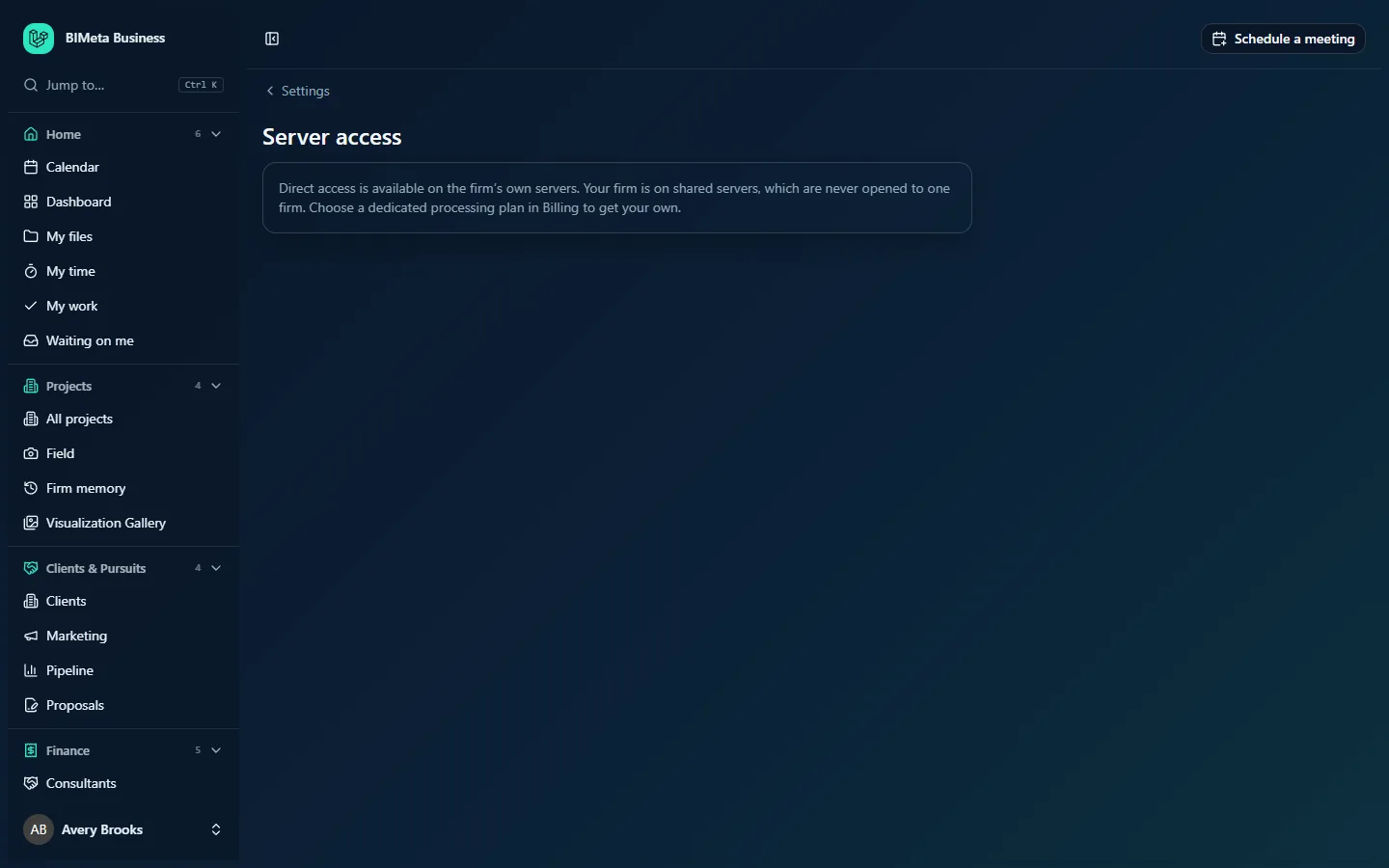
Most firms start on Shared servers, as the example firm Northlight Architects does. Then the page only says: Direct access is available on the firm's own servers. Your firm is on shared servers, which are never opened to one firm. Choose a dedicated processing plan in Billing to get your own. To get your own servers, a Business Owner chooses a dedicated system under Admin → Settings → Billing & storage (or in setup step 2, Plan & storage).
A tour of the page (dedicated servers)
What IT Staff can do
A summary of the rules:
- Sign in over SSH with your own key, from the listed addresses. No passwords.
- Check the server: disk, memory, processes, network and the system logs.
- BIMeta's application, its settings and secrets can't be read or changed, and there's no administrator (sudo) access. Changes to the portal are made in the portal.
- Every sign-in is recorded on the server, and every key change here is in the audit log.
Your servers
Each server that's ready, with its name, a badge for its role, and its public address. Once you've added your key, the address is shown as the full command to use, for example ssh [email protected].
Your public key
A box to paste your SSH public key (placeholder ssh-ed25519 AAAA… you@laptop), with the reminder Paste the contents of your .pub file (for example ~/.ssh/id_ed25519.pub). Never paste a private key. The button is Add my key, or Replace key (with your current key's fingerprint in the label) once you have one.
Addresses IT connects from
One address or network per line, for example 203.0.113.10 or 198.51.100.0/24. SSH is closed to everywhere else. Save addresses saves the list.
People with access
Each person with a key: name, server user name (such as it-iantorres), key fingerprint and a Remove access button. Nobody has access yet. when the list is empty. People whose account is gone show as Former member.
How to get SSH access
- On your computer, make a key pair if you don't have one. In a terminal:
ssh-keygen -t ed25519. Protect it with a passphrase. - Open your public key file (for example
~/.ssh/id_ed25519.pub) and copy its single line. - Paste it into Your public key and click Add my key.
- You'll see Key added. Your servers will let [user name] in within five minutes. Your server user name is made from your name, like
it-iantorres. - Make sure the address you're connecting from is in Addresses IT connects from.
- After a few minutes, connect with the command shown under Your servers.
Accepted keys: ed25519 (recommended), ECDSA (256, 384 or 521), security-key ed25519 (sk-ssh-ed25519) and RSA of at least 3072 bits. Each key can belong to one person only.
How to set the addresses IT connects from
- Find your office's public IP address (your network provider or firewall shows it).
- Enter one address or network per line. A single address like
203.0.113.10is fine; a network like203.0.113.0/24covers a range. IPv6 works too. - Click Save addresses. You'll see Addresses saved. The firewall is updated now.
Rules: up to 10 entries; networks can't be wider than /16 for IPv4 or /32 for IPv6 (you can't open SSH to the whole internet). An invalid entry gives "… isn't an address or network like 203.0.113.10 or 203.0.113.0/24."
How to remove someone's access
- Under People with access, click Remove access next to their name.
- You'll see Access removed. The account is deleted from the servers within five minutes.
Do this as soon as an IT person leaves or changes role. Deactivating their BIMeta account doesn't by itself remove their key from this list.
Tips and good to know
- The Audit log records
servers.it_key_added,servers.it_key_revokedandservers.it_addresses_saved. - Replacing your key keeps your server user name.
- Server access is for looking, not changing: anything about the portal itself (settings, people, backups) is done in the portal.
Troubleshooting
"That key is already used by someone else. Each person needs their own key."
Make your own key pair; never share keys between people.
"RSA keys must be at least 3072 bits. An ed25519 key is better."
Make a new key with ssh-keygen -t ed25519.
My connection times out.
Check that you're connecting from an address in the list, and that five minutes have passed since you added your key or changed the addresses.
Was this article helpful?
Share