



Roles & permissions: the permission matrix
18 views · by Kevin J Bruno · updated 19 hours ago
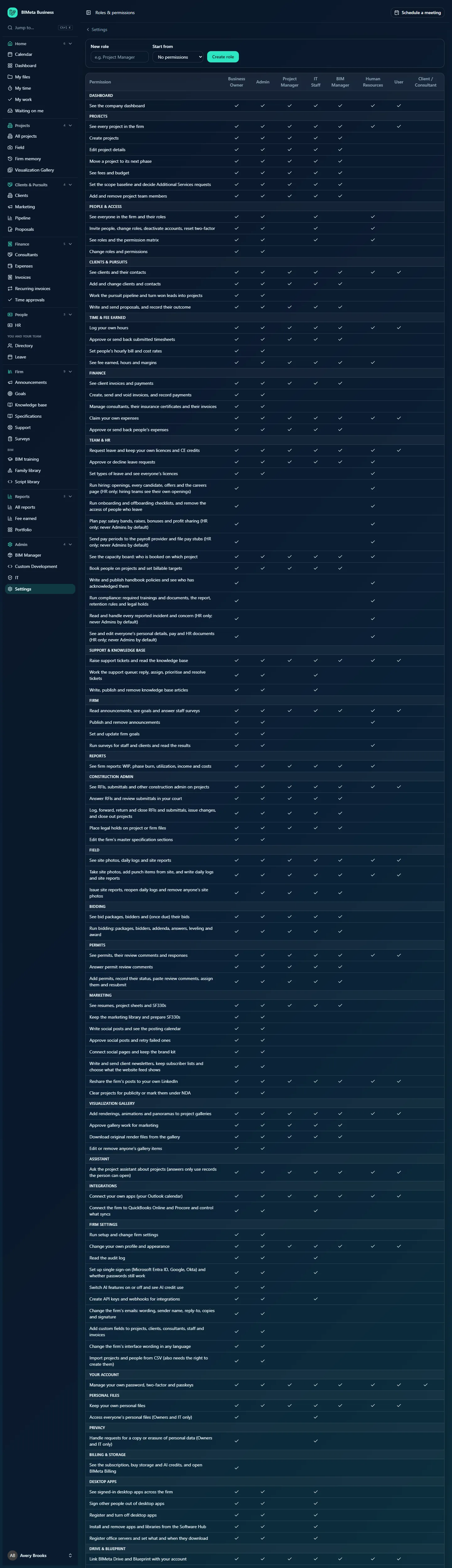
Roles & permissions shows, on one page, exactly what each firm role is allowed to do. Every row is one permission (a single thing someone may see or do, such as Approve or send back submitted timesheets); every column is a role; a tick means the role includes that permission. Use it to answer "who can approve expenses?" or "what will a Project Manager see?", and, if you're allowed, to create roles that fit your firm.
Where to find it
- Sidebar → Admin → Settings, then Roles & permissions in the People and access section. (The Settings page gathers the firm's settings pages in one place; you can also type in its Search settings box.) A ← Settings link at the top of the page takes you back to the Settings page.
- Press Ctrl K and type roles, permissions or access rights.
- Setup step 12, Roles & permissions (in the Your team section), links here with Review roles & permissions.
Who can use it
- Viewing the matrix: Business Owner, Admin, IT Staff and Human Resources.
- Creating and editing roles: Business Owner and Admin. IT Staff and Human Resources see the matrix read-only, without the New role form and without links on the role names.
- Even with the right to edit roles, you can never edit the Business Owner role, or any role you hold yourself. Those column headings are plain text instead of links. This stops anyone raising their own access or locking themselves out.
How roles work
- Firm roles apply everywhere in your portal. A person can hold several; they get every permission any of their roles includes. You give people roles under Admin → Settings → People & access.
- Project roles (Project Manager, Project Architect, Designer, Consultant, Client) are set per project on its Team tab and add permissions inside that project only. They aren't shown in this matrix. See Roles and permissions: who can see and do what.
- The sidebar is built from permissions: a menu item only appears for people whose roles allow the page. Hiding a menu item under Admin → Settings → Navigation never grants or removes access.
- Some roles require two-factor sign-in. By default these are Business Owner, Admin, IT Staff, BIM Manager and Human Resources. People with such a role must set up an authenticator app or a passkey before they can use the portal.
- The built-in roles can't be deleted. There's no delete for custom roles either; to retire one, take it away from everyone under People & access.
A tour of the page
New role (Owners and Admins)
A bar across the top with:
- New role: the name of the role, for example Office Manager or Marketing Coordinator (placeholder e.g. Project Manager). Required, up to 120 characters.
- Start from: No permissions, or any existing role to copy its permissions as a starting point.
- Create role: creates the role and opens its edit page.
The matrix
The first column, Permission, describes each permission in plain words. The other columns are your firm's roles in the order they were created: Business Owner, Admin, Project Manager, IT Staff, BIM Manager, Human Resources, User and Client / Consultant in a new firm, followed by any roles you add. A tick means "allowed"; an empty cell means "not allowed". If you can edit a role, its column heading is a link to its edit page (see Editing a role).
Permissions are grouped into sections with small capital headings, one per part of BIMeta: Dashboard, Projects, People & access, Clients & Pursuits, Time & fee earned, Finance, Team & HR, Support & Knowledge Base, Firm, Reports, Construction Admin, Field, Bidding, Permits, Marketing, Visualization Gallery, Assistant, Integrations, Firm settings, Your account, Personal files, Privacy, Billing & storage, Desktop apps, Drive & Blueprint, Server access, Push, Project tabs, BIM Manager, API & connected apps, IT overview and Custom Development.
The standard permission matrix
This is the matrix every new firm starts with (your firm's may differ if roles have been edited). Read it as a reference: find the job, then see which roles have a tick.
| Permission | Business Owner | Admin | Project Manager | IT Staff | BIM Manager | Human Resources | User | Client / Consultant |
|---|---|---|---|---|---|---|---|---|
| Dashboard | ||||||||
| See the company dashboard | ✓ | ✓ | ✓ | ✓ | ✓ | ✓ | ✓ | |
| Projects | ||||||||
| See every project in the firm | ✓ | ✓ | ✓ | ✓ | ✓ | ✓ | ✓ | |
| Create projects | ✓ | ✓ | ✓ | ✓ | ✓ | |||
| Edit project details | ✓ | ✓ | ✓ | ✓ | ✓ | |||
| Move a project to its next phase | ✓ | ✓ | ✓ | ✓ | ✓ | |||
| See fees and budget | ✓ | ✓ | ✓ | ✓ | ✓ | |||
| Set the scope baseline and decide Additional Services requests | ✓ | ✓ | ✓ | ✓ | ✓ | |||
| Add and remove project team members | ✓ | ✓ | ✓ | ✓ | ✓ | |||
| People & access | ||||||||
| See everyone in the firm and their roles | ✓ | ✓ | ✓ | ✓ | ||||
| Invite people, change roles, deactivate accounts, reset two-factor | ✓ | ✓ | ✓ | ✓ | ||||
| See roles and the permission matrix | ✓ | ✓ | ✓ | ✓ | ||||
| Change roles and permissions | ✓ | ✓ | ||||||
| Clients & Pursuits | ||||||||
| See clients and their contacts | ✓ | ✓ | ✓ | ✓ | ✓ | ✓ | ✓ | |
| Add and change clients and contacts | ✓ | ✓ | ✓ | ✓ | ✓ | |||
| Work the pursuit pipeline and turn won leads into projects | ✓ | ✓ | ||||||
| Write and send proposals, and record their outcome | ✓ | ✓ | ✓ | ✓ | ✓ | |||
| Time & fee earned | ||||||||
| Log your own hours | ✓ | ✓ | ✓ | ✓ | ✓ | ✓ | ✓ | |
| Approve or send back submitted timesheets | ✓ | ✓ | ✓ | ✓ | ✓ | |||
| Set people's hourly bill and cost rates | ✓ | ✓ | ||||||
| See fee earned, hours and margins | ✓ | ✓ | ✓ | ✓ | ✓ | ✓ | ||
| Finance | ||||||||
| See client invoices and payments | ✓ | ✓ | ✓ | ✓ | ✓ | |||
| Create, send and void invoices, and record payments | ✓ | ✓ | ||||||
| Manage consultants, their insurance certificates and their invoices | ✓ | ✓ | ||||||
| Claim your own expenses | ✓ | ✓ | ✓ | ✓ | ✓ | ✓ | ✓ | |
| Approve or send back people's expenses | ✓ | ✓ | ✓ | ✓ | ✓ | |||
| Team & HR | ||||||||
| Request leave and keep your own licences and CE credits | ✓ | ✓ | ✓ | ✓ | ✓ | ✓ | ✓ | |
| Approve or decline leave requests | ✓ | ✓ | ✓ | ✓ | ✓ | ✓ | ||
| Set types of leave and see everyone's licences | ✓ | ✓ | ✓ | |||||
| Run hiring: openings, every candidate, offers and the careers page (HR only; hiring teams see their own openings) | ✓ | ✓ | ||||||
| Run onboarding and offboarding checklists, and remove the access of people who leave | ✓ | ✓ | ||||||
| Plan pay: salary bands, raises, bonuses and profit sharing (HR only; never Admins by default) | ✓ | ✓ | ||||||
| Send pay periods to the payroll provider and file pay stubs (HR only; never Admins by default) | ✓ | ✓ | ||||||
| See the capacity board: who is booked on which project | ✓ | ✓ | ✓ | ✓ | ✓ | ✓ | ||
| Book people on projects and set billable targets | ✓ | ✓ | ✓ | ✓ | ✓ | |||
| Write and publish handbook policies and see who has acknowledged them | ✓ | ✓ | ||||||
| Run compliance: required trainings and documents, the report, retention rules and legal holds | ✓ | ✓ | ||||||
| Read and handle every reported incident and concern (HR only; never Admins by default) | ✓ | ✓ | ||||||
| See and edit everyone's personal details, pay and HR documents (HR only; never Admins by default) | ✓ | ✓ | ||||||
| Support & Knowledge Base | ||||||||
| Raise support tickets and read the knowledge base | ✓ | ✓ | ✓ | ✓ | ✓ | ✓ | ✓ | |
| Work the support queue: reply, assign, prioritise and resolve tickets | ✓ | ✓ | ✓ | |||||
| Write, publish and remove knowledge base articles | ✓ | ✓ | ✓ | |||||
| Firm | ||||||||
| Read announcements, see goals and answer staff surveys | ✓ | ✓ | ✓ | ✓ | ✓ | ✓ | ✓ | |
| Publish and remove announcements | ✓ | ✓ | ✓ | |||||
| Set and update firm goals | ✓ | ✓ | ||||||
| Run surveys for staff and clients and read the results | ✓ | ✓ | ✓ | |||||
| Reports | ||||||||
| See firm reports: WIP, phase burn, utilization, income and costs | ✓ | ✓ | ✓ | ✓ | ✓ | ✓ | ||
| Construction Admin | ||||||||
| See RFIs, submittals and other construction admin on projects | ✓ | ✓ | ✓ | ✓ | ✓ | ✓ | ✓ | |
| Answer RFIs and review submittals in your court | ✓ | ✓ | ✓ | ✓ | ✓ | |||
| Log, forward, return and close RFIs and submittals, issue changes, and close out projects | ✓ | ✓ | ✓ | ✓ | ✓ | |||
| Place legal holds on project or firm files | ✓ | ✓ | ✓ | ✓ | ✓ | |||
| Edit the firm’s master specification sections | ✓ | ✓ | ||||||
| Field | ||||||||
| See site photos, daily logs and site reports | ✓ | ✓ | ✓ | ✓ | ✓ | ✓ | ✓ | |
| Take site photos, add punch items from site, and write daily logs and site reports | ✓ | ✓ | ✓ | ✓ | ✓ | ✓ | ✓ | |
| Issue site reports, reopen daily logs and remove anyone’s site photos | ✓ | ✓ | ✓ | ✓ | ✓ | |||
| Bidding | ||||||||
| See bid packages, bidders and (once due) their bids | ✓ | ✓ | ✓ | ✓ | ✓ | |||
| Run bidding: packages, bidders, addenda, answers, leveling and award | ✓ | ✓ | ✓ | ✓ | ✓ | |||
| Permits | ||||||||
| See permits, their review comments and responses | ✓ | ✓ | ✓ | ✓ | ✓ | ✓ | ✓ | |
| Answer permit review comments | ✓ | ✓ | ✓ | ✓ | ✓ | |||
| Add permits, record their status, paste review comments, assign them and resubmit | ✓ | ✓ | ✓ | ✓ | ✓ | |||
| Marketing | ||||||||
| See resumes, project sheets and SF330s | ✓ | ✓ | ✓ | ✓ | ✓ | |||
| Keep the marketing library and prepare SF330s | ✓ | ✓ | ||||||
| Write social posts and see the posting calendar | ✓ | ✓ | ||||||
| Approve social posts and retry failed ones | ✓ | ✓ | ||||||
| Connect social pages and keep the brand kit | ✓ | ✓ | ||||||
| Write and send client newsletters, keep subscriber lists and choose what the website feed shows | ✓ | ✓ | ||||||
| Reshare the firm's posts to your own LinkedIn | ✓ | ✓ | ✓ | ✓ | ✓ | ✓ | ✓ | |
| Clear projects for publicity or mark them under NDA | ✓ | ✓ | ||||||
| Visualization Gallery | ||||||||
| Add renderings, animations and panoramas to project galleries | ✓ | ✓ | ✓ | ✓ | ✓ | ✓ | ✓ | |
| Approve gallery work for marketing | ✓ | ✓ | ✓ | ✓ | ✓ | |||
| Download original render files from the gallery | ✓ | ✓ | ✓ | ✓ | ✓ | |||
| Edit or remove anyone's gallery items | ✓ | ✓ | ||||||
| Assistant | ||||||||
| Ask the project assistant about projects (answers only use records the person can open) | ✓ | ✓ | ✓ | ✓ | ✓ | ✓ | ✓ | |
| Integrations | ||||||||
| Connect your own apps (your Outlook calendar) | ✓ | ✓ | ✓ | ✓ | ✓ | ✓ | ✓ | |
| Connect the firm to QuickBooks Online and Procore and control what syncs | ✓ | ✓ | ✓ | |||||
| Firm settings | ||||||||
| Run setup and change firm settings | ✓ | ✓ | ||||||
| Change your own profile and appearance | ✓ | ✓ | ✓ | ✓ | ✓ | ✓ | ✓ | |
| Read the audit log | ✓ | ✓ | ✓ | |||||
| Set up single sign-on (Microsoft Entra ID, Google, Okta) and whether passwords still work | ✓ | ✓ | ✓ | |||||
| Switch AI features on or off and see AI credit use | ✓ | ✓ | ||||||
| Create API keys and webhooks for integrations | ✓ | ✓ | ✓ | |||||
| Change the firm's emails: wording, sender name, reply-to, copies and signature | ✓ | ✓ | ||||||
| Add custom fields to projects, clients, consultants, staff and invoices | ✓ | ✓ | ||||||
| Change the firm's interface wording in any language | ✓ | ✓ | ||||||
| Import projects and people from CSV (also needs the right to create them) | ✓ | ✓ | ||||||
| Your account | ||||||||
| Manage your own password, two-factor and passkeys | ✓ | ✓ | ✓ | ✓ | ✓ | ✓ | ✓ | ✓ |
| Personal files | ||||||||
| Keep your own personal files | ✓ | ✓ | ✓ | ✓ | ✓ | ✓ | ✓ | |
| Access everyone's personal files (Owners and IT only) | ✓ | ✓ | ||||||
| Privacy | ||||||||
| Handle requests for a copy or erasure of personal data (Owners and IT only) | ✓ | ✓ | ||||||
| Billing & storage | ||||||||
| See the subscription, buy storage and AI credits, and open BIMeta Billing | ✓ | |||||||
| Desktop apps | ||||||||
| See signed-in desktop apps across the firm | ✓ | ✓ | ✓ | |||||
| Sign other people out of desktop apps | ✓ | ✓ | ✓ | |||||
| Register and turn off desktop apps | ✓ | ✓ | ✓ | |||||
| Install and remove apps and libraries from the Software Hub | ✓ | ✓ | ✓ | |||||
| Register office servers and set what and when they download | ✓ | ✓ | ✓ | |||||
| Drive & Blueprint | ||||||||
| Link BIMeta Drive and Blueprint with your account | ✓ | ✓ | ✓ | ✓ | ✓ | ✓ | ✓ | |
| Issue and revoke Drive & Blueprint tokens, and set project upload, download and sharing switches | ✓ | ✓ | ✓ | |||||
| Give people desktop app licences | ✓ | ✓ | ✓ | |||||
| Server access | ||||||||
| Sign in to the firm's own servers over SSH (IT Staff; no access to BIMeta's application, settings or secrets) | ✓ | ✓ | ||||||
| Push | ||||||||
| Create, approve and cancel pushed files, software and Windows Update actions | ✓ | ✓ | ✓ | |||||
| Project tabs | ||||||||
| Choose which project tabs each person sees (Business Owner, IT and BIM Manager) | ✓ | ✓ | ✓ | |||||
| BIM Manager | ||||||||
| See the BIM Manager panel | ✓ | ✓ | ✓ | ✓ | ||||
| Add BIM plugins and upload or publish their versions | ✓ | ✓ | ✓ | |||||
| Save settings changes for BIM programs | ✓ | ✓ | ✓ | |||||
| Deploy plugins and settings to people’s machines | ✓ | ✓ | ✓ | |||||
| Approve BIM deployments that wait for approval | ✓ | ✓ | ✓ | ✓ | ||||
| Choose who approves BIM deployments (Owners) | ✓ | |||||||
| API & connected apps | ||||||||
| Switch the data API, its modules and items on or off, and see the apps and keys using it (Owners and IT Staff) | ✓ | ✓ | ||||||
| IT overview | ||||||||
| See server health, storage per member and project stats (IT Staff; sizes and counts only, never file contents) | ✓ | ✓ | ||||||
| Set the firm's network firewall, two-factor and sign-out rules, and shared-link protection (IT Staff) | ✓ | ✓ | ||||||
| Add software licences, give and take back seats, and see their cost and renewal dates (IT Staff) | ✓ | ✓ | ||||||
| Move files to the recycle bin and restore them, and set how long deleted files and earlier versions are kept (IT Staff) | ✓ | ✓ | ||||||
| Choose when BIMeta may update and restart the firm's own servers (IT Staff) | ✓ | ✓ | ||||||
| Custom Development | ||||||||
| See the firm’s custom development requests and their conversations | ✓ | ✓ | ✓ | |||||
| Ask BIMeta for custom development work and reply in its conversation | ✓ | ✓ | ✓ | |||||
The roles in short
- Business Owner: everything, including things only an Owner has by default: billing and storage, pay and payroll, HR records and incidents, choosing who approves BIM deployments, and giving out the Owner and IT Staff roles.
- Admin: runs the firm day to day, including all firm settings (setup, navigation, web address, custom fields, emails, wording, import, single sign-on, AI, API keys, the audit log). Not: IT pages, Custom Development, everyone's personal files, privacy requests, pay, payroll, HR records, incidents, billing, server access or project tabs.
- Project Manager: a User plus running projects: create and edit projects, budgets and teams, approve time and expenses, construction admin, bidding, permits, capacity, reports.
- IT Staff: a Project Manager plus accounts and security: invite and manage people (see roles but not edit them), single sign-on, API, integrations, the audit log, privacy requests, everyone's personal files, server access, desktop apps, Drive & Blueprint, the support desk, every IT page, and asking BIMeta for custom development (Admin → Custom Development).
- BIM Manager: a Project Manager plus the BIM Manager panel, project tabs and asking BIMeta for custom development (Admin → Custom Development).
- Human Resources: a User plus people and all HR work: accounts, leave, hiring, onboarding, pay planning, payroll, policies, compliance, incidents and HR records, announcements and surveys.
- User: the standard staff role: see projects and clients, log time, claim expenses, request leave, raise support tickets, field capture and so on.
- Client / Consultant: for outside people. On its own it only allows managing their own sign-in security; what they see comes from project roles.
How to create a role
- In New role, type a name, for example Office Manager.
- In Start from, pick the closest existing role, or No permissions to start empty.
- Click Create role. You'll see Role Office Manager created and land on the role's edit page.
- Tick or untick permissions, decide whether the role requires two-factor sign-in, and click Save role.
- Give the role to people under Admin → Settings → People & access.
Good to know:
- A copy only carries the permissions you hold. If an Admin copies the Human Resources role, the HR-only permissions (pay, payroll, records, incidents, hiring…) are left out of the copy.
- New roles don't require two-factor until you tick that box on the edit page.
- The Audit log records
people.role_created, with the role it was copied from.
Tips and good to know
- Prefer giving people an extra role over editing a built-in one. If Project Managers at your firm should also see invoices for every project, it may be cleaner to create a Senior PM role than to change Project Manager for everyone.
- Changes to a role apply to everyone who holds it on their next click.
- Permissions with "(Owners and IT only)" or "(HR only; never Admins by default)" in their description are deliberately kept away from Admins in the standard roles. Because nobody can give a permission they don't hold, only a Business Owner can grant them.
- Permissions for parts of BIMeta your plan doesn't include grant nothing, even when ticked.
Troubleshooting
Why can't I click a role's name to edit it?
Either you can only view roles, the role is Business Owner, or you hold that role yourself. Ask a Business Owner.
There's no New role form.
Your role can see the matrix but not change roles. IT Staff and Human Resources are in this position by default.
Someone has a permission but still can't see the page.
Check that the page belongs to a part of BIMeta included in your plan (Admin → Settings → Setup, step 6 Modules & integrations (in the Your firm section)), and that the person has signed in since the change. Some pages also need a project role on that particular project.
Was this article helpful?
Share