



Editing a role
18 views · by Kevin J Bruno · updated 19 hours ago
A role's edit page lets you rename the role, decide whether people with it must use two-factor sign-in, and choose exactly which permissions it includes, one checkbox per permission. Use it to tailor a built-in role to how your firm works, or to finish setting up a role you've just created.
Where to find it
- Sidebar → Admin → Settings, then Roles & permissions in the People and access section. (The Settings page gathers the firm's settings pages in one place; you can also type in its Search settings box.) Then click a role's name at the top of its column.
- Creating a role with Create role opens this page straight away.
Who can use it
- Business Owners and Admins (anyone allowed to change roles and permissions).
- You can't open the edit page of the Business Owner role, or of any role you hold yourself. A Business Owner can edit every other role; an Admin can edit every role except Business Owner and Admin (if they hold Admin).
- You can only tick or untick permissions you hold yourself. The others are shown greyed out with (you don't have this permission), and the role keeps them exactly as they are.
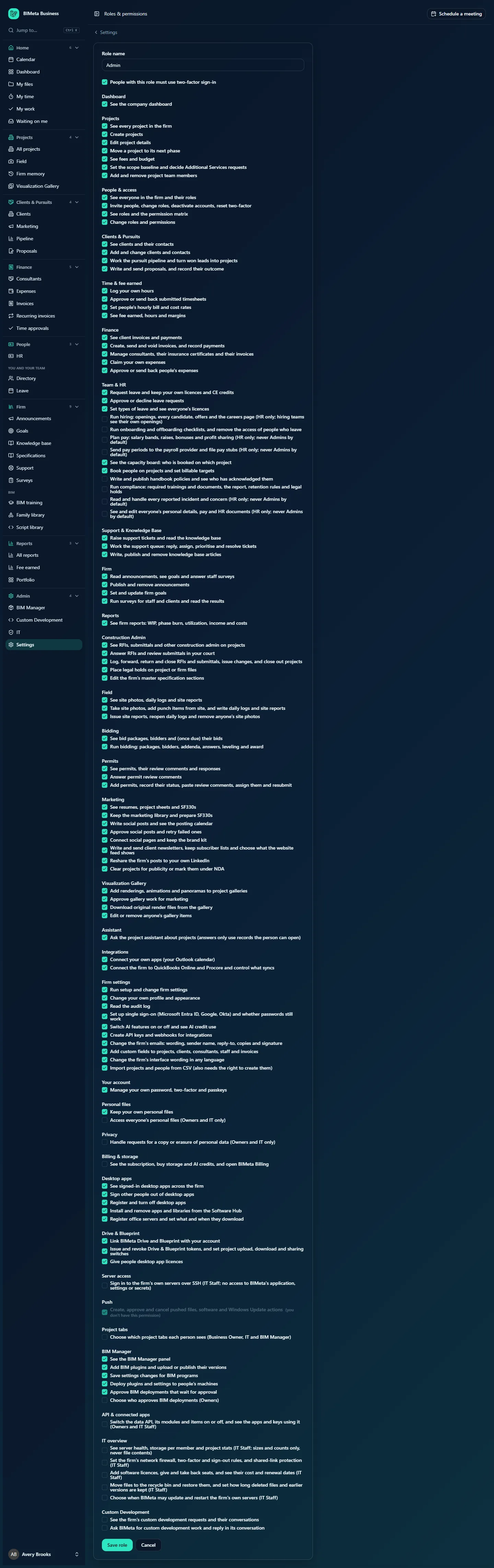
Above: a Business Owner editing the Admin role at Northlight Architects.
A tour of the page
- Role name: required, up to 120 characters. Renaming changes the name everywhere it's shown (People & access, the matrix, the single sign-on settings).
- People with this role must use two-factor sign-in: when ticked, everyone holding the role has to set up an authenticator app or a passkey before they can use the portal. It's ticked for Business Owner, Admin, IT Staff, BIM Manager and Human Resources in a new firm.
- Permission sections: one block per part of BIMeta (Dashboard, Projects, People & access, Clients & Pursuits, Time & fee earned, Finance, Team & HR, Support & Knowledge Base, Firm, Reports, Construction Admin, Field, Bidding, Permits, Marketing, Visualization Gallery, Assistant, Integrations, Firm settings, Your account, Personal files, Privacy, Billing & storage, Desktop apps, Drive & Blueprint, Server access, Push, Project tabs, BIM Manager, API & connected apps, IT overview). Each permission is a checkbox with its plain-language description, the same text as in the matrix.
- Greyed-out checkboxes marked (you don't have this permission) can't be changed by you. Permissions for parts of BIMeta that aren't in your plan may also appear greyed out.
- Save role saves and returns you to the matrix. Cancel returns without saving.
How to change what a role can do
- Open the role.
- Tick each permission the role should include; untick each one it shouldn't. Read the description carefully: for example Approve or send back submitted timesheets is separate from See fee earned, hours and margins.
- Tick or untick People with this role must use two-factor sign-in.
- Click Save role. You'll see Role [name] saved and the matrix updates.
What happens after saving:
- Everyone with the role gets the new permissions on their next click: menu items appear or disappear, and buttons follow.
- If you've just made two-factor required, people with the role who don't have it are asked to set it up before they continue.
- The Audit log records
people.role_updatedwith exactly which permissions were added and removed, and whether two-factor is required.
Tips and good to know
- Be careful with the People & access permissions. Invite people, change roles, deactivate accounts, reset two-factor and Change roles and permissions let people change who has access. Give them sparingly.
- Some permissions only make sense together. For example, Import projects and people from CSV also needs the right to create projects (or invite people, or edit clients) for each kind of import.
- Taking a permission away from a role doesn't stop someone who also holds another role that includes it.
- Prefer leaving the two-factor box ticked for any role that can see money, people or settings.
- Note that people can only give roles that don't exceed their own access. If you add a permission to a role that, say, Human Resources doesn't hold, HR people can no longer give that role or change people who have it.
Troubleshooting
A checkbox is greyed out with "(you don't have this permission)".
You can only grant or remove permissions you hold. A Business Owner can change it.
I get a "page not found" when opening a role.
You can't edit the Business Owner role or a role you hold yourself.
I removed a permission but the person still has access.
They probably hold another role that includes it. Check their roles under People & access.
Was this article helpful?
Share