



Privacy requests: handle requests for a copy or erasure of personal data
19 views · by Kevin J Bruno · updated 1 hour ago
Data protection laws such as the GDPR and the CCPA give people the right to ask a firm for a copy of the personal data it holds about them, and to ask for that data to be erased. Privacy requests is your firm's register of those requests. It shows each request with its due date, lets you record requests that arrive by email, letter or phone, builds the data export, carries out erasure safely, or records why a request was declined. Requests staff make themselves in the portal appear here automatically.
Where to find it
- Sidebar → Admin → Settings, then Privacy requests in the People and access section. (The Settings page gathers the firm's settings pages in one place; you can also type in its Search settings box.) A ← Settings link at the top of the page takes you back to the Settings page.
- Press Ctrl K and type privacy, gdpr, data requests or delete.
- The Privacy requests to answer card on the Dashboard shows how many requests are waiting, and links here.
Who can use it
- Business Owners and IT Staff only (the permission Handle requests for a copy or erasure of personal data (Owners and IT only)). Admins don't have it by default, and only a Business Owner can grant it to another role.
- Everyone (staff) can ask for their own copy or erasure under their user menu → My data & privacy. A copy of your own data is made straight away; an erasure request lands in this register for the firm to handle.
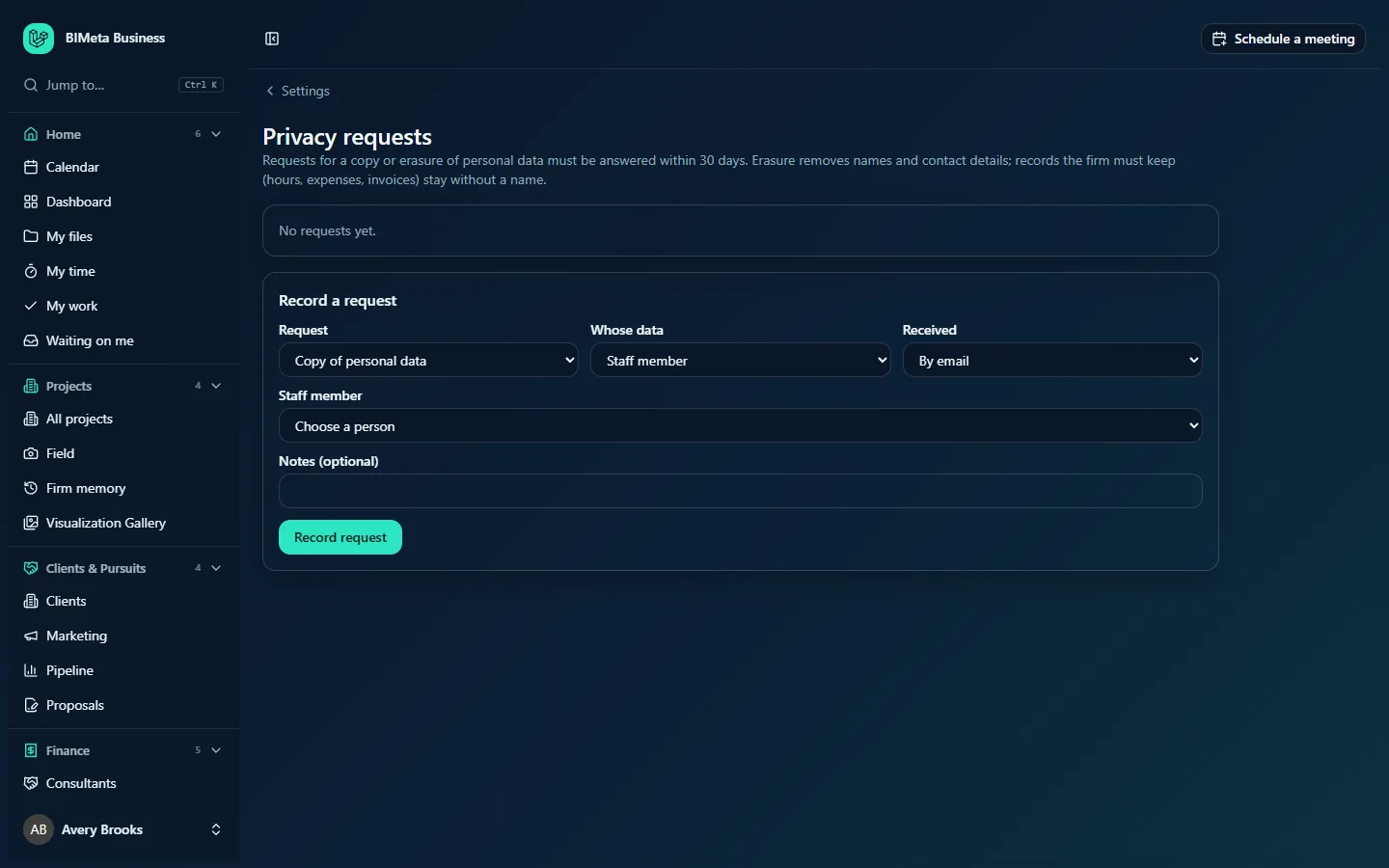
A tour of the page
Under the heading, a reminder: requests must be answered within 30 days; erasure removes names and contact details, while records the firm must keep (hours, expenses, invoices) stay without a name.
The register
Each request is a card, with requests still to do first (soonest due date first), then finished ones. At Northlight Architects the register is empty: No requests yet. A card shows:
- The kind of request: Copy of personal data or Erasure of personal data, then whose data it is (name and/or email).
- A status badge: To do, Done, Declined, or red Overdue when a request is still to do after its due date.
- On the right: Due [date] while it's to do; afterwards who handled it and when.
- Received [by email / by letter / by phone / in the portal / other] on [date], followed by any notes.
- The reason, for declined requests.
- In red, anything blocking an erasure (see below).
- Buttons, depending on the request: Download export, Make the export, Type ERASE to confirm with Erase, and Reason for declining with Decline.
Record a request
A form at the bottom for requests that reach you outside the portal:
| Field | What to enter |
|---|---|
| Request | Copy of personal data or Erasure of personal data. |
| Whose data | Staff member (someone with an account in your firm) or Client or outside contact (anyone else, identified by email). |
| Received | In the portal, By email (the default), By letter, By phone or Other. |
| Staff member | For staff: choose the person (Choose a person). Required. |
| Name and Email address | For outside contacts: their name (optional, up to 160 characters) and email address (required). The email is what BIMeta searches for. |
| Notes (optional) | Up to 1,000 characters, for example how you confirmed their identity. |
Record request adds it to the register with a due date 30 days from today.
How to handle a request for a copy of data
- Confirm the person's identity. Never send personal data to someone you haven't verified.
- If the request came from outside the portal, record it with Record a request (choose Copy of personal data). You'll see Request recorded. It is due by [date].
- On its card, click Make the export. BIMeta gathers everything it holds about the person into one file. You'll see The export is ready. Download it and send it to the person securely. The request becomes Done.
- Click Download export. You get a file named
personal-data-[number].json. - Send it to the person securely, for example as an encrypted attachment or through a secure share link.
What the export contains:
- For a staff member: their profile and every record naming them: roles, project memberships, rates, hours, leave, licences, CE credits, expenses, support tickets and messages, RFI responses and submittal reviews, announcement reads, surveys, desktop app licences, file downloads, AI use, pursuits and goals they own.
- For an outside contact: every record naming their email: client contacts, survey invitations, proposals sent to them, consultant records, transmittals and portal links.
- Passwords, two-factor secrets, recovery codes, tokens and keys are never included.
The export file is kept for 7 days, then deleted automatically. After that the download says it has expired; record a new request if you need it again.
How to handle an erasure request
Before you start
Erasure can't be undone. BIMeta checks for things that must be dealt with first and shows them in red on the card, with Erase greyed out:
- Turn off this person's access under People before erasing their data. Deactivate them first under Admin → Settings → People & access.
- A Business Owner can't be erased. Hand ownership to someone else first. Remove the Owner role (another Owner has to do this).
- A legal hold covers this person's records. Lift it before erasing. Data under a legal hold must be kept. Talk to whoever placed the hold.
- This person has already been erased.
For outside contacts, a firm-wide legal hold also stops erasure, and an email that belongs to someone with an account must be erased as a staff member instead.
Steps
- Confirm the person's identity and check whether the firm must keep any of their data for legal reasons. If so, decline (see below) or erase only once the reason has passed.
- Record the request if it came from outside the portal (choose Erasure of personal data).
- Download anything the firm needs to keep from their Personal files or other areas first.
- On the card, type
ERASEin Type ERASE to confirm. - Click Erase. You'll see The personal data is erased. Records the firm must keep now show no name.
What erasure does for a staff member:
- Their account is renamed Former staff member [number], their email replaced with a placeholder, and their password, two-factor, theme, language and last sign-in cleared. They can never sign in again.
- Deleted: passkeys, app sign-ins and portal links, licences and CE credits, announcement read receipts, survey participation and old invitations, and their sessions.
- Kept without a name: hours, expenses, leave (with notes removed) and invoices, which the firm needs for payroll, tax and billing; survey answers are kept but no longer linked to them.
What erasure does for an outside contact: client contacts become Erased contact with email and phone removed; consultant contact details, proposal recipients and transmittal recipients are cleared; survey invitations get a placeholder address; portal links for them are deleted.
In both cases, every request in the register about that person is updated to say Erased instead of their name, and any earlier export files about them are deleted.
How to decline a request
- Type the reason in Reason for declining (required, up to 1,000 characters). People are entitled to know why, for example "We must keep payroll records for 7 years under tax law."
- Click Decline. You'll see Request declined; the card shows Declined, who declined it and the reason.
- Tell the person, with the reason.
Tips and good to know
- Every step is written to the Audit log:
privacy.request_created,privacy.exported,privacy.export_downloaded,privacy.erased,privacy.rejected, and for staff using My data & privacy,privacy.self_exportandprivacy.self_erasure_requested. - Staff can only ask for erasure once at a time. A second request while one is waiting is refused with "You have already asked for erasure."
- Don't let requests go Overdue. The legal deadline is usually one month; the Dashboard card helps.
- Erasure works on the records listed above. It doesn't remove files: neither project files nor the person's private My files area. Review those separately (Business Owners and IT can open them under Admin → Settings → Personal files) and check with your legal adviser if a request covers documents.
- The register keeps up to the latest 300 requests on screen.
Troubleshooting
The Erase button is greyed out.
Read the red line on the card: the person is still active, is a Business Owner, is under a legal hold, or was already erased.
"This download has expired. Make a new export."
Export files are deleted after 7 days. Record a new copy request and make the export again.
"That request has already been handled."
Someone else finished or declined it while you had the page open. Reload to see the latest state.
I'm an Admin and can't see Privacy requests.
Only Business Owners and IT Staff can by default. Ask a Business Owner.
Was this article helpful?
Share