



Personal files: Owner and IT access to people's private files
19 views · by Kevin J Bruno · updated 3 days ago
Everyone in BIMeta Business has a private file area, My files, for documents that belong to them rather than to a project. Those files are private: Admins, managers and colleagues can't open them. The Personal files page is the controlled exception. It lets Business Owners, and people they appoint for IT, see how much each person keeps and, when there's a real need (for example someone has left and their files must be checked, or a legal request), open a person's files read-only. Every look is recorded.
Where to find it
- Sidebar → Admin → Settings, then Personal files in the People and access section. (The Settings page gathers the firm's settings pages in one place; you can also type in its Search settings box.) A ← Settings link at the top of the page takes you back to the Settings page.
- Press Ctrl K and type personal files or private files.
- Click a person's name in the list to open their files.
Who can use it
- Business Owners and IT Staff only (the permission Access everyone's personal files (Owners and IT only)).
- Admins never get it by default. Because nobody can give a permission they don't hold, only a Business Owner can grant it to another role.
- Everyone else only ever sees their own files, under Home → My files.
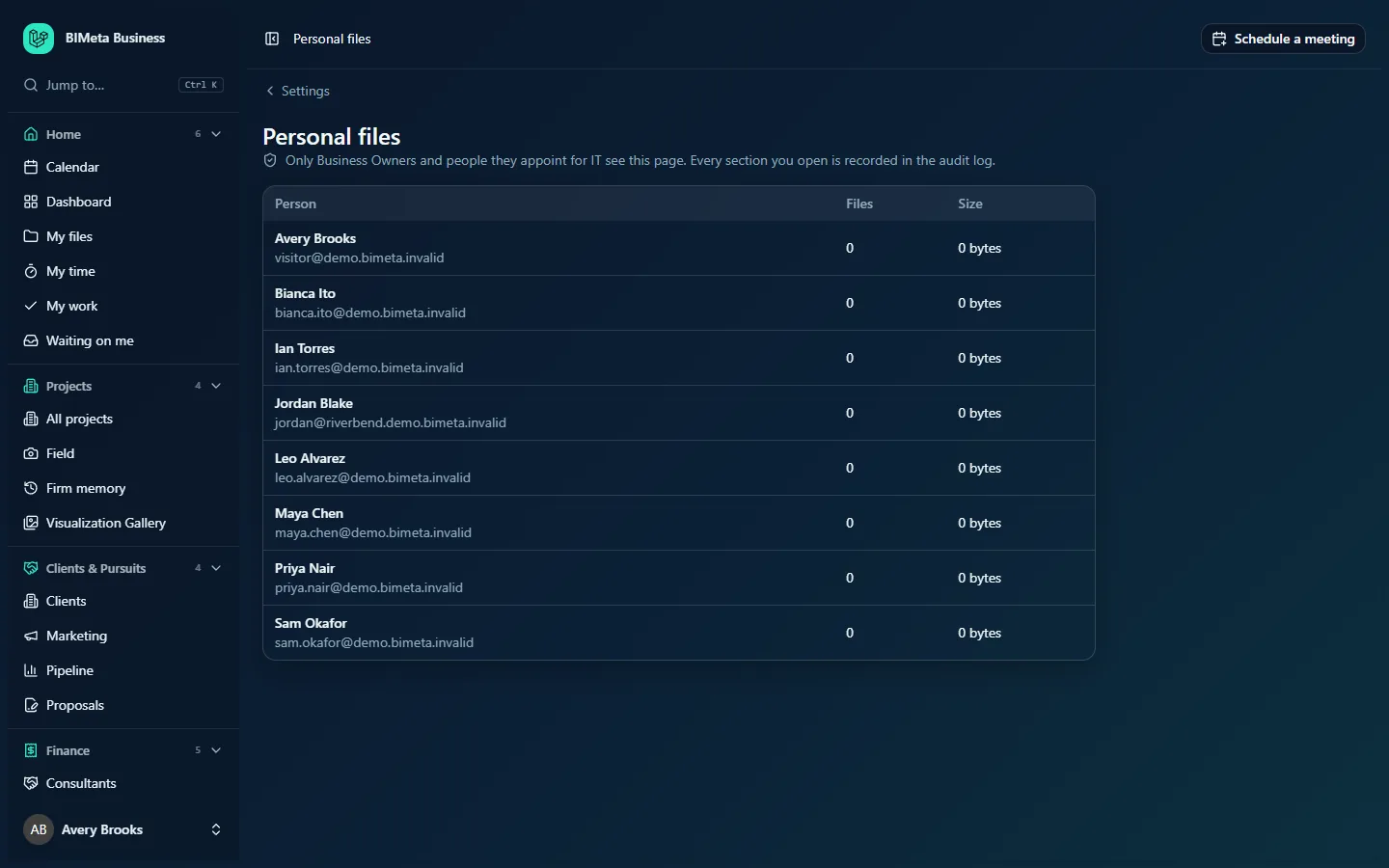
A tour of the list
At the top, a shield icon and the reminder Only Business Owners and people they appoint for IT see this page. Every section you open is recorded in the audit log.
| Column | What it shows |
|---|---|
| Person | Name (a link to their files) and email address. Everyone in the firm is listed, including invited and deactivated people. |
| Files | How many files they keep (current versions, not counting deleted ones). |
| Size | How much space those files use, for example 0 bytes or 1.2 GB. |
At Northlight Architects nobody has stored personal files yet, so every row shows 0 and 0 bytes.
A person's files
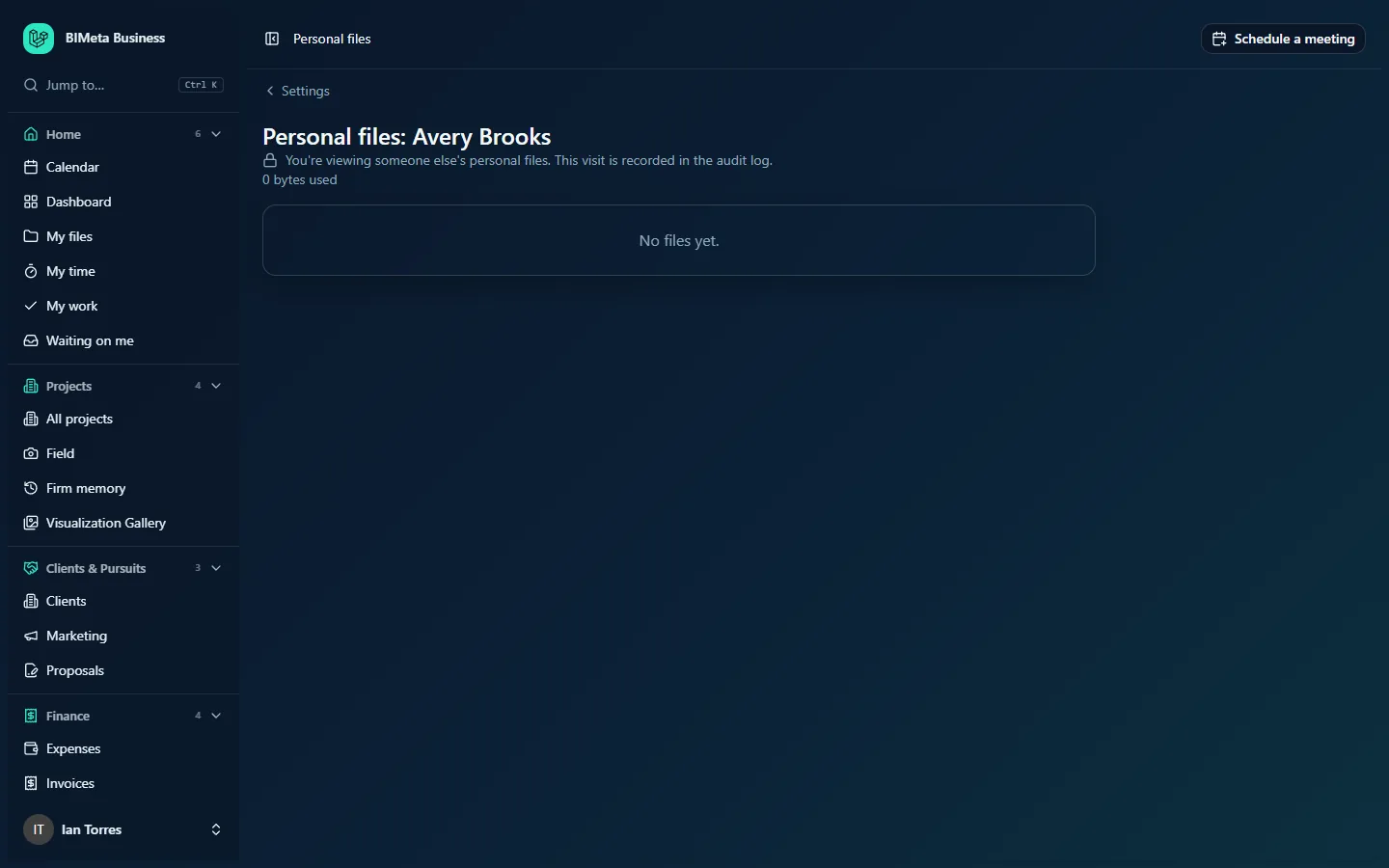
Opening someone else's files shows:
- The heading Personal files: [name], with a lock icon and the warning You're viewing someone else's personal files. This visit is recorded in the audit log.
- How much space they use, for example 0 bytes used.
- Their files, each with its name (click to download), size, date added and, when there have been several uploads of the same file, Version n. A download button sits at the right. If they have nothing, you see No files yet.
You can only look and download. There's no upload or delete when viewing someone else's files.
If you click your own name in the list, you get your own My files page instead, where you can upload and remove files as usual, and nothing is logged as an access.
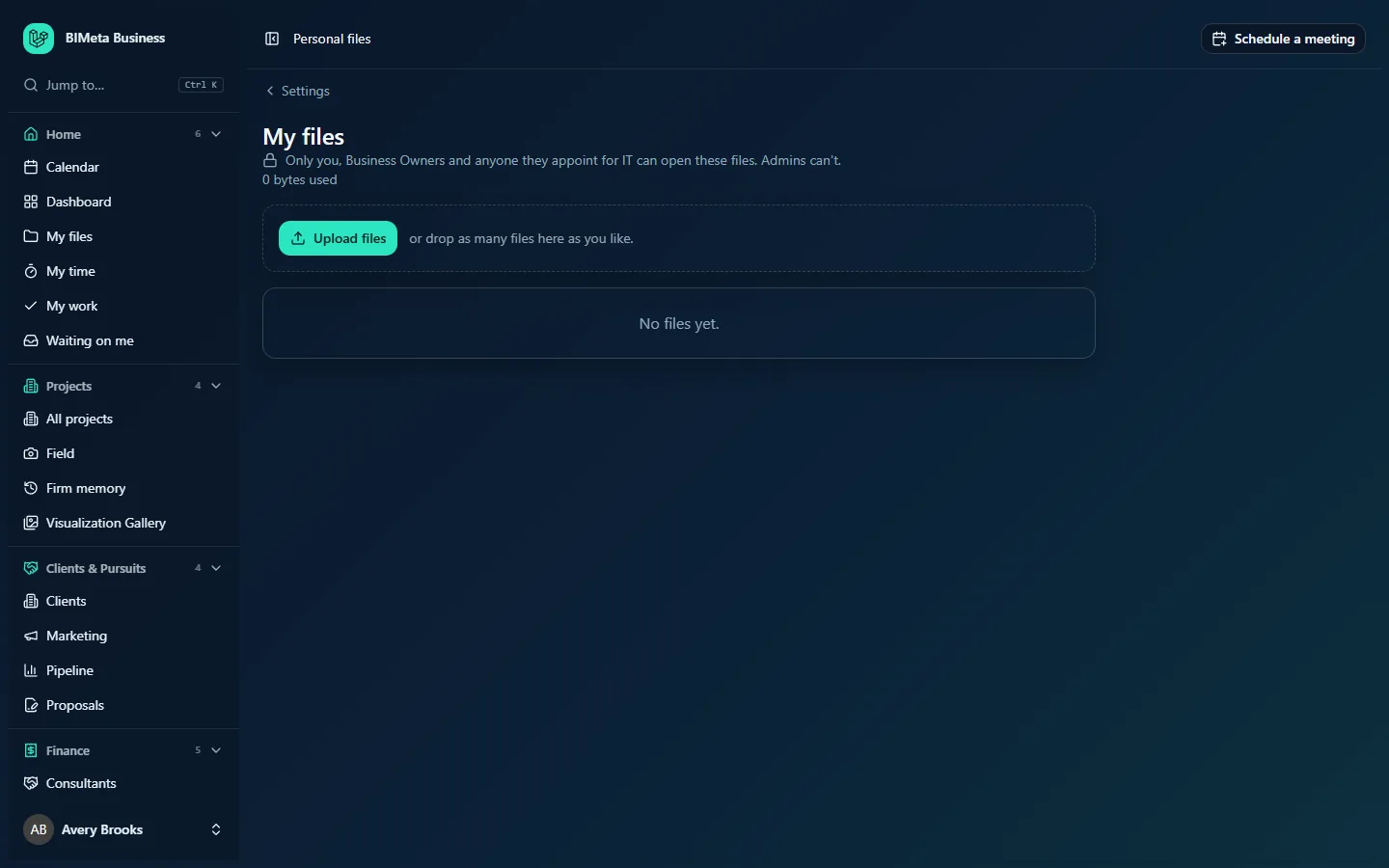
How to check a person's files
- Make sure you have a legitimate reason and, where your firm's policy says so, written approval.
- Open Admin → Settings → Personal files and click the person's name.
- Click a file's name or its download button to download it.
What gets recorded:
- Opening the section:
personal.section_viewedin the Audit log, naming you and the person. - Each download:
personal.file_downloadedin the Audit log, with the file's name, plus an entry in the file's own download history. - Both are also written to BIMeta's security log.
Tips and good to know
- The Audit log is tamper-evident, so these records can't be quietly removed. Tell staff this page exists and is audited; it builds trust.
- When someone leaves, their personal files stay. Download what the firm needs before any privacy erasure.
- Personal files count towards your firm's storage. The Size column helps you find large private areas.
- Personal files are separate from project files. Anything that belongs to a project should be moved to that project's Files tab by its owner.
Troubleshooting
I'm an Admin and can't see Personal files.
That's by design: Admins don't have access to people's private files. Ask a Business Owner.
I can see the list but there's no upload button on someone's page.
Other people's files are read-only. Only the person themselves can add or remove files, from My files.
Was this article helpful?
Share