



People & access: invite people and manage their accounts
18 views · by Kevin J Bruno · updated 1 day ago
People & access is the list of everyone who has an account in your firm's portal: staff, and outside people such as clients and consultants who sign in. For each person you see their roles, whether their account is active, whether they use two-factor sign-in, and when they last signed in. It is also where you invite someone new. Use it when a new hire starts, when a consultant needs to see a project, or when you want to check who still has access.
Where to find it
- Sidebar → Admin → Settings, then People & access in the People and access section. (The Settings page gathers the firm's settings pages in one place; you can also type in its Search settings box.) A ← Settings link at the top of the page takes you back to the Settings page.
- Press Ctrl K (⌘K on a Mac) and type people, invite, users or staff.
- From the setup wizard: step 13, Invite your team (in the Your team section), has a Go to People & access link (see Setup steps 6, 12 and 13: modules, roles and inviting your team).
The People and access section of the Settings page also holds Audit log, Personal files, Privacy requests, Roles & permissions, Server access and Single sign-on, plus Background checks for Business Owners and Admins and Support access for Business Owners. Each person only sees the pages their role allows.
Who can use it
- Business Owner, Admin, IT Staff and Human Resources can open the page and see everyone and their roles.
- The same four roles can also invite people, change roles, deactivate accounts and reset two-factor. If your firm has made a custom role that can see people but not manage them, that role sees the list without the Invite someone box, and names aren't links.
- BIM Managers, Project Managers and Users don't see this page. (Everyone can see colleagues in People → Directory instead.)
There is one rule that runs through everything on this page: you can only give roles, and only change people, that don't carry more access than you have. A role counts as "more" if it includes even one permission you don't hold yourself. With the standard roles that works out like this:
| You are… | Roles you can give (in a new firm) | People you can change |
|---|---|---|
| Business Owner | Every role, including Business Owner and IT Staff | Everyone except yourself |
| Admin | Admin, Project Manager, User, Client / Consultant | Admins, Project Managers, Users and Clients / Consultants (not Owners, IT Staff, BIM Managers or Human Resources) |
| IT Staff | Project Manager, IT Staff, User, Client / Consultant | People who only hold those roles |
| Human Resources | Human Resources, User, Client / Consultant | People who only hold those roles |
Permissions that belong to parts of BIMeta your plan doesn't include are ignored in this comparison. And nobody can change their own access on this page; another person has to do it.
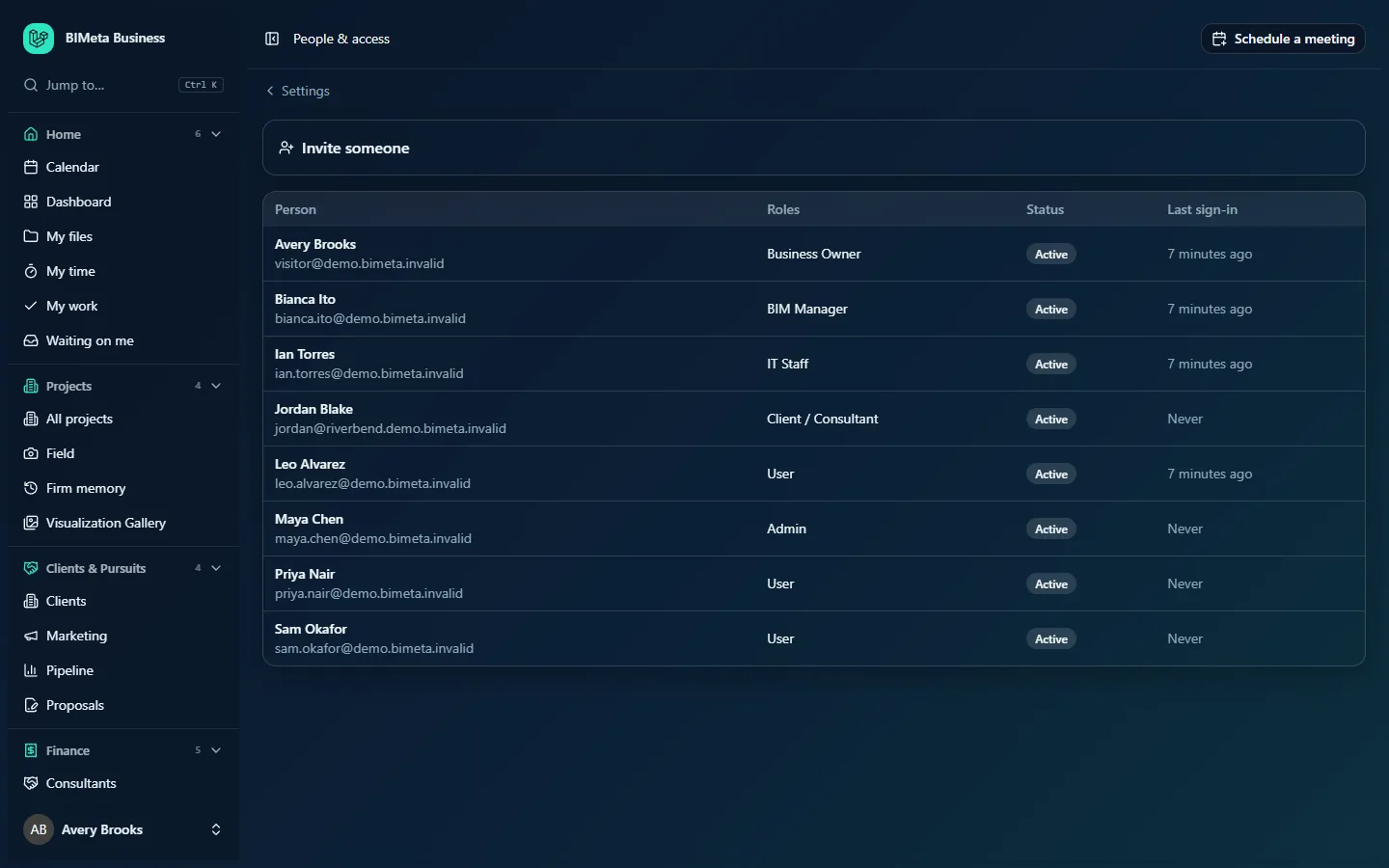
A tour of the page
Invite someone
A fold-out box at the top, with a person-plus icon. Click Invite someone to open it. (When you are the only person in the firm, it starts open.) Inside:
- Name: the person's full name, as it will appear across the portal.
- Email address: where the invitation goes. This becomes their sign-in.
- Roles: a checkbox for each role you are allowed to give (see the table above). User is ticked to start with. Roles you can't give simply aren't listed.
- Send invitation: creates the account and emails the invitation.
The people table
Everyone in the firm, sorted by name. For the example firm Northlight Architects you see eight people, from Avery Brooks (Business Owner) to Sam Okafor (User).
| Column | What it shows |
|---|---|
| Person | The name and, underneath, the email address. If you can manage people, the name is a link to that person's page (see Managing one person: roles, deactivation and two-factor). |
| Roles | Every firm role the person holds, separated by commas, for example Business Owner, BIM Manager, IT Staff or Client / Consultant. Project roles (Project Manager on one project, Designer on another) are set on each project's Team tab and aren't listed here. |
| Status | A badge: Active (can sign in), Invited (hasn't accepted the invitation yet) or Deactivated (switched off). A green shield next to the badge means Two-factor on: the person has an authenticator app or a passkey. |
| Last sign-in | How long ago they last signed in, for example 3 minutes ago, or Never for people who haven't signed in yet. |
How to invite someone
- Click Invite someone to open the box.
- Type their Name (required, up to 160 characters).
- Type their Email address (required, a valid address, up to 254 characters). It must not already belong to someone in your firm, or you'll see "…already has an account in this firm".
- Tick at least one role under Roles. Most staff only need User; add Project Manager for people who run projects, and so on. See Roles and permissions: who can see and do what for what each role allows. If you untick everything you'll see "Give this person at least one role."
- Click Send invitation. You'll see Invitation sent, and the person appears in the table as Invited.
What happens next
- The person gets an email titled You're invited to [your firm] on BIMeta Business, written in your firm's language and using your firm's own wording if you've changed the Invitation to the portal email under Admin → Settings → Emails. It names you as the person who invited them.
- The link in the email works once and for 7 days.
- Following it, they see Welcome to [firm], choose a password (at least 12 characters; it can't contain the part of their email before the @, and passwords known from data breaches are refused), confirm it, and can pick how the portal looks for them. Then they sign in as usual. Their status changes to Active.
- If your firm uses single sign-on, invited people can skip the password: signing in with your identity provider accepts the invitation for them (see Single sign-on: connect Microsoft Entra ID, Google or Okta).
- If their roles require two-factor sign-in (Business Owner, Admin, IT Staff, BIM Manager and Human Resources do by default), they're asked to set it up the first time they sign in.
- The invitation is written to the Audit log (
people.invited), and accepting it is too (people.invitation_accepted).
If the email can't be sent, the account is still created and you see "The invitation was created but the email couldn't be sent. Use Resend to try again." Open the person's page and click Resend invitation once your email settings are fixed.
Other ways to add people
- Admin → Settings → Import from CSV → People invites many people at once from a spreadsheet, with the same role rules (see Import from CSV: projects, clients and people).
- With single sign-on set to create accounts, people from your allowed email domains get an account with a chosen role the first time they sign in.
Tips and good to know
- Give the least access people need. Roles add up: someone with User and Project Manager gets everything both allow.
- Keep two Business Owners. Only an Owner can give the Owner and IT Staff roles, and an Owner can't change their own access. A second Owner means nobody gets stuck.
- Outside people (clients, consultants) should get Client / Consultant. On its own it only lets them look after their own sign-in security; what they see comes from the project roles you give them on each project's Team tab.
- Deactivated people stay in the list so their history (hours, approvals, files) still makes sense. Nothing is deleted.
- To find out who changed someone's access, filter the Audit log by
people. - Background checks for team members. If your firm has switched on the requirement that every team member passes an ID check, someone you invite must complete their own background check (photo ID and a selfie) after accepting the invitation, before they can use the portal. See Background checks: check your team, new hires and vendors.
Troubleshooting
A role I need isn't in the Roles checkboxes.
You can only give roles that don't have more access than your own. An Admin, for example, can't give IT Staff, BIM Manager, Human Resources or Business Owner. Ask a Business Owner.
The person says the invitation link doesn't work.
Links expire after 7 days and work only once. Open their page and click Resend invitation. The new email replaces the old link, which stops working.
I can see the list but names aren't clickable and there's no Invite box.
Your role can see people but not manage them. Ask someone with the right to invite and change people.
The invitation never arrived.
Ask them to check spam. Then check Admin → Settings → Emails → Delivery with Send me a test email the way we send now, and resend.
Was this article helpful?
Share