



Navigation: arrange the sidebar for your firm
16 views · by Kevin J Bruno · updated 6 days ago
Navigation lets you tidy the sidebar for your whole firm. You can move a menu item into another group (for example put Expenses under Home), change the order of items within a group, and hide items from roles that never use them (for example hide Marketing Studio from Users). It only changes the menu: hiding never takes away access, because every page still checks permissions, and it never gives access either.
Where to find it
- Sidebar → Admin → Settings → Firm setup → Navigation. The page has a Settings back link at the top that returns you to the Settings page.
- Press Ctrl K and type navigation, menu, sidebar or layout.
Who can use it
Business Owners and Admins (the permission Run setup and change firm settings). The layout applies to everyone at the firm.
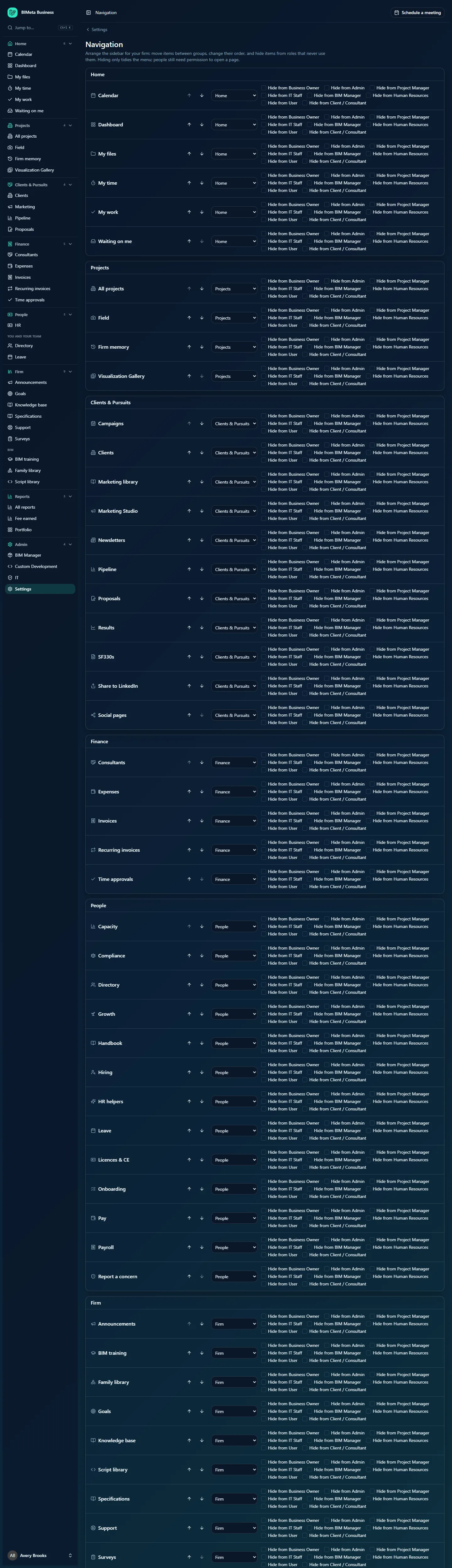
A tour of the page
Under the heading, a reminder: Arrange the sidebar for your firm: move items between groups, change their order, and hide items from roles that never use them. Hiding only tidies the menu; people still need permission to open a page.
Then one box per sidebar group: Home, Projects, Clients & Pursuits, Finance, People, Firm, Reports and Admin. Each box lists every menu item in that group (every item in BIMeta, not just the ones you see yourself), as single pages: the pages that the sidebar folds into a hub (such as the HR tabs) or onto the Settings page are listed one by one here, so you can move or hide each of them. For each item:
- Its icon and name, for example Dashboard, My work or All projects.
- Up and down arrows (Move [item] up / down) to change its place in the group. The first item's up arrow and the last item's down arrow are greyed out.
- A group menu (Group for [item]) to move it to another group.
- A row of checkboxes Hide from [role], one per role in your firm: Business Owner, Admin, Project Manager, IT Staff, BIM Manager, Human Resources, User and Client / Consultant (plus any custom roles).
The Navigation item itself has no hide boxes; instead it says Always shown, so nobody locks themselves out of this page.
At the bottom: Save navigation and Back to the standard layout.
How to change the sidebar
- Find the item in its group.
- To reorder it, click the up or down arrow until it's where you want it.
- To move it to another group, choose the group in its group menu. It moves to that group's box.
- To hide it, tick Hide from for each role that shouldn't see it in the menu.
- Click Save navigation. You'll see Navigation saved, and everyone's sidebar updates on their next page.
How hiding works when someone has several roles
An item is hidden from a person only if every role they hold is ticked. Someone who is both a User and a Project Manager still sees an item hidden from Users but not from Project Managers.
Going back to the standard layout
- Click Back to the standard layout. Every item goes back to its original group and order, and all hide boxes are cleared, on screen.
- Click Save navigation to apply it. You'll see Navigation reset to the standard layout.
Tips and good to know
- People still only see items they have permission for. Hiding is for tidying, for example removing marketing pages from the menu for people who never touch them, even though they're allowed to reshare posts.
- Hidden items are also left out of Jump to… (Ctrl K), which lists the same pages as the sidebar.
- Standard order is alphabetical. Each group lists its entries alphabetically (hubs and Settings included). As soon as you change the order of any item in a group, that group follows your firm's order instead.
- Hubs and the Settings page. Pages of a family (IT, HR or Marketing) that sit in the same group are folded into one hub entry with tabs; a page you move away from its family is listed on its own. Admin's settings pages stay gathered on the Settings page (apart from BIM Manager and Custom Development, which stay in the menu). Moving a settings page to another group puts it straight in that group's menu; moving another page into Admin puts it on the Settings page under More settings. Hiding a settings page from a role also removes it from that role's Settings page. See The Settings hub: all your firm's settings in one place.
- Items moved to another group lose their section heading (such as Marketing or Running HR) and appear with the group's other unsectioned items.
- Each person can still pin their favourite pages to the top of their own sidebar with the star; see Finding your way around: sidebar, Jump to (Ctrl K) and your user menu.
- To rename a menu item (for example call "Projects" "Jobs"), use Admin → Settings → Wording, not this page.
- Saves are recorded in the Audit log as
settings.navigation.saved, with how many items differ from the standard layout.
Troubleshooting
I hid a page but someone can still open it.
That's by design. Hiding only removes it from the menu. To stop someone using a page, change their role under Admin → Settings → People & access or the role's permissions under Admin → Settings → Roles & permissions.
I hid an item from Users but a colleague still sees it.
They have another role that isn't hidden, for example Project Manager.
I clicked Back to the standard layout but nothing changed for others.
Click Save navigation afterwards.
I can't find a page in this editor that the sidebar shows in a hub or on the Settings page.
In this editor every page is listed on its own in its group, even if the sidebar shows it as a hub tab or on the Settings page. For example the HR pages (Hiring, Onboarding, Pay and so on) are listed individually in the People box, and Setup, Wording and the other settings pages in the Admin box.
Was this article helpful?
Share