



Import from CSV: projects, clients and people
17 views · by Kevin J Bruno · updated 1 day ago
Import from CSV brings your existing projects, clients and people into BIMeta Business from a spreadsheet, so you don't have to type them in one by one. You upload a CSV file, BIMeta shows you every row and what it will do with it, and nothing is saved until you confirm. It reads BIMeta's own templates and also exports from Perfex CRM.
Where to find it
- Sidebar → Admin → Settings → Firm setup → Import from CSV. The page has a Settings back link at the top that returns you to the Settings page.
- Press Ctrl K and type import, csv or spreadsheet.
Who can use it
- Business Owners and Admins (the permission Import projects and people from CSV).
- Each kind of import also needs the right to create those records: Projects needs the right to create projects, Clients the right to add and change clients, People the right to invite people. You only see the cards for the kinds you're allowed. With none, the page says Your role can't create projects or invite people, so there's nothing to import.
- People imports follow the same rule as inviting: you can only give roles that don't have more access than yours.
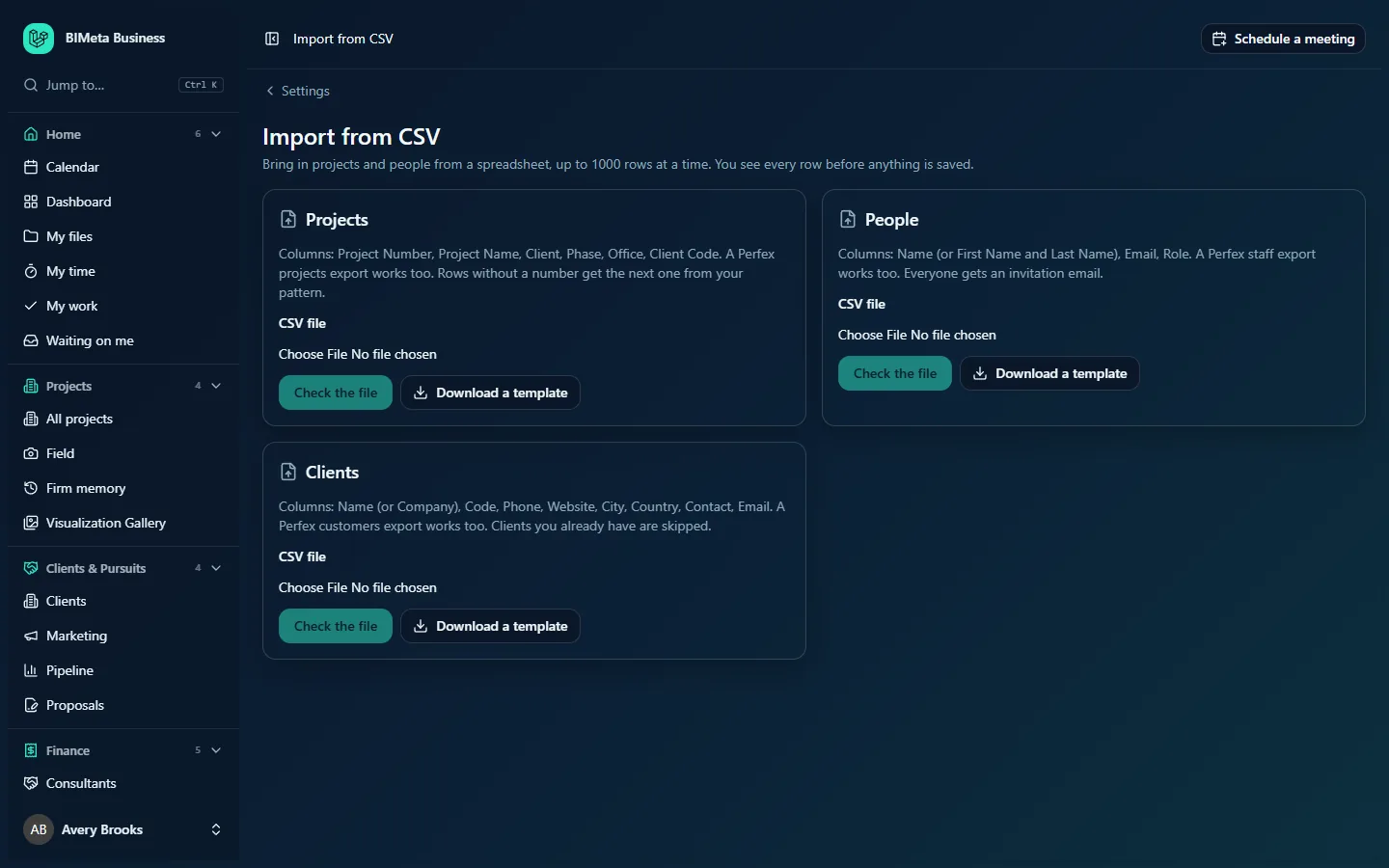
A tour of the page
Under the heading: Bring in projects and people from a spreadsheet, up to 1000 rows at a time. You see every row before anything is saved. Then one card per kind, each with a description of the columns it reads, a CSV file chooser, Check the file (uploads and opens the preview) and Download a template (a ready-made CSV with the right column names and sample rows).
| Card | Columns read | Notes |
|---|---|---|
| Projects | Project Number, Project Name, Client, Phase, Office, Client Code (also Status from Perfex) | Rows without a number get the next one from your project number pattern. |
| People | Name (or First Name and Last Name), Email, Role | Everyone gets an invitation email. |
| Clients | Name (or Company), Code, Phone, Website, City, Country, Contact, Email (also Address, State, VAT / Tax ID) | Clients you already have are skipped. |
Column names are matched without regard to capitals, spaces or underscores, and several common names are recognised. For example, a project number can be headed Project Number, Project No, Project #, Job Number or just Number; a client can be Client, Customer or Company; an email can be Email, Email Address or E-mail. Extra columns are ignored.
How to import
- Click Download a template on the card you need, or export from your current system.
- Fill in or tidy your spreadsheet. Save it as CSV: in Excel, File → Save As → CSV UTF-8.
- On the card, choose the file under CSV file and click Check the file.
- The preview page (Check your projects import, Check your clients import or Check your people import) shows a summary such as projects.csv: 40 ready, 2 skipped, 1 with problems. Nothing is saved until you import. and a table of every row: Row (its line in the file), the main values (for projects: Number, Name, Client, Phase; clients: Name, Code, City, Contact; people: Name, Email, Role) and Result with a badge, Will import, Skipped or Problem, and a short note.
- If there are problems you want to fix, click Cancel, correct the file and check it again. Rows with problems or skipped rows are simply left out if you continue.
- Click Import n projects, Import n clients or Invite n people.
- You return to the import page with a summary, for example Imported 40 projects, skipped 3. or Invited 12 people, skipped 1.
What each import does
Projects
- Number: used as given. Empty numbers show (next number) in the preview and get the next one from your pattern when imported (Gets the next number from your pattern.). If your pattern uses an office or client code, fill in Office or Client Code, or the row is a problem (Needs an office code for your numbering pattern.).
- A number already in use is skipped (Number … is already in use.). A row without a name is a problem.
- Phase: matched to your phases by name, code or key. Unknown phases start in your first phase, with a note (Phase "…" not recognised; starts in …).
- Status (Perfex): Finished or Complete imports as completed, Cancelled as archived, On Hold as on hold; anything else as active.
- Each imported project gets your firm's project folder tree and the deliverables checklist of its phase, just like a project created by hand. The client is recorded by name.
People
- Each valid row is invited exactly as if you'd used Invite someone: an account with the role and an invitation email valid for 7 days.
- Role can be the role's name (Project Manager) or its short key; empty means User. Each person gets one role from the file; add more later on their page.
- Problems: Not a valid email address., This email appears twice in the file., No role called "…"., You can't give the … role. Skipped: Already has an account.
- If some emails can't be sent you'll see n invitation emails couldn't be sent. Use Resend on the People page.
Clients
- A client with the same name as an existing client, or listed twice in the file, is skipped. A row without a name, or with an invalid contact email, is a problem.
- If Contact is filled in, it's added as the client's main contact (With main contact.).
Limits and file format
- Up to 1,000 rows and 2 MB per file; split bigger files.
- Files ending
.csv,.txtor.tsv. Commas, semicolons and tabs are all recognised as separators. - UTF-8 is best; older Windows (Excel "CSV") files are converted automatically.
- The first row must be the column headings.
Tips and good to know
- Set up your project number pattern, phases and folder template in Setup (the Project standards section, steps 7 to 11) before importing projects; imported projects use them.
- The preview is kept for your session only. If you leave it too long or open another import, you'll see That import expired. Upload the file again.
- Numbers are checked again at import time, in case someone created a project with the same number after your preview.
- Each import is written to the Audit log (
settings.import.projects,settings.import.clientsorsettings.import.people) with the file name and how many were created and skipped.
Troubleshooting
"Choose a .csv file. In Excel, use File, Save As, CSV UTF-8."
You chose an Excel workbook (.xlsx). Save it as CSV first.
"The file needs a project name column, such as "Project Name" or "Name"."
Check the first row has headings, and that one of them is a recognised name column. The same applies to clients (a name or company column) and people (an email column).
"You can't give the … role."
That role has more access than yours. Ask a Business Owner to run the import, or change the role in the file.
Was this article helpful?
Share