



Emails: sender, signature, wording and delivery
21 views · by Kevin J Bruno · updated 1 day ago
BIMeta Business sends emails for your firm: invoices and proposals to clients, transmittals, site reports, bid invitations, portal invitations, leave decisions, reminders and more. Emails is where you make them yours: how they're delivered (through BIMeta, from your own domain, or through your own mail server), the sender name, where replies go, a hidden copy of client emails, a signature, and your own wording for each email, in every language you use.
Where to find it
- Sidebar → Admin → Settings → Firm setup → Emails. The page has a Settings back link at the top that returns you to the Settings page.
- Press Ctrl K and type email, templates or mail.
Who can use it
Business Owners and Admins (the permission Change the firm's emails: wording, sender name, reply-to, copies and signature).
A tour of the page
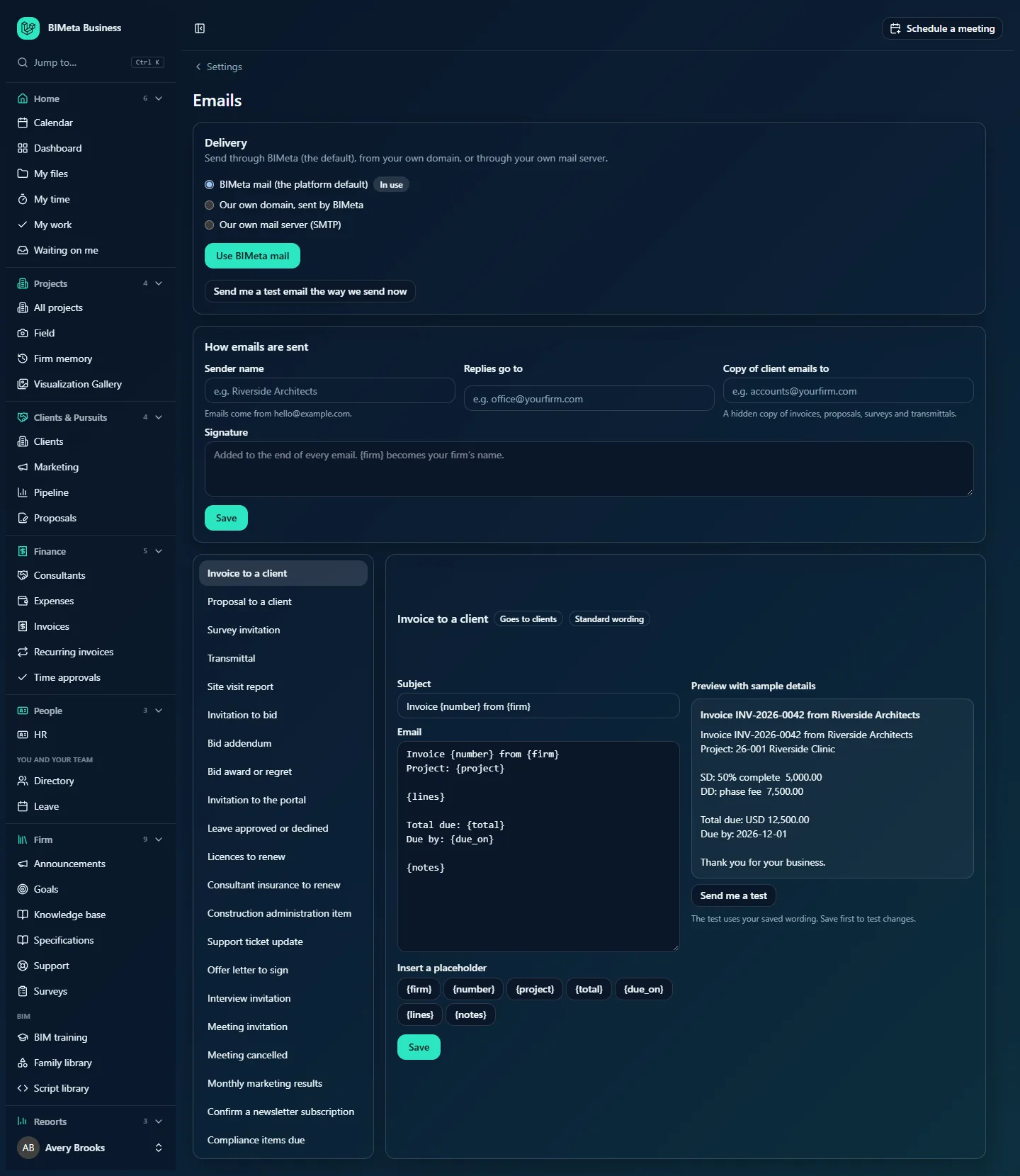
The page has three parts, top to bottom: Delivery, How emails are sent, and the email list with its editor.
Delivery
Send through BIMeta (the default), from your own domain, or through your own mail server. Three options, with an In use badge on the current one:
- BIMeta mail (the platform default): nothing to set up.
- Our own domain, sent by BIMeta: emails come from an address at your domain (for example [email protected]), still delivered by BIMeta. You add DNS records that prove BIMeta may send for you.
- Our own mail server (SMTP): emails go out through your Microsoft 365, Google Workspace or other mail service.
The save button changes with your choice: Use BIMeta mail, Use our domain or Use our mail server. Under it, Send me a test email the way we send now sends a test to your own address using the current setting. If your BIMeta platform doesn't let firms change delivery, this box just says Your emails are sent by BIMeta mail, set up by the platform.
How emails are sent
| Field | What it means |
|---|---|
| Sender name | The name people see the email is from, for example Northlight Architects. Up to 100 characters. The line below shows the address emails come from. |
| Replies go to | The address replies are sent to, for example [email protected]. Must be a valid address. |
| Copy of client emails to | An address that gets a hidden copy of invoices, proposals, surveys and transmittals, for example [email protected]. |
| Signature | Added to the end of every email, up to 2,000 characters. {firm} becomes your firm's name. |
Save saves these four (Email settings saved).
The email list and editor
On the left, every email BIMeta sends for your firm. A Yours badge marks emails you've rewritten:
Invoice to a client · Proposal to a client · Survey invitation · Transmittal · Site visit report · Invitation to bid · Bid addendum · Bid award or regret · Invitation to the portal · Leave approved or declined · Licences to renew · Consultant insurance to renew · Construction administration item · Support ticket update · Offer letter to sign · Interview invitation · Meeting invitation · Meeting cancelled · Monthly marketing results · Confirm a newsletter subscription · Compliance items due.
On the right, the editor for the selected email:
- The email's name with badges: Goes to clients (for emails to outside people) and Standard wording or Your wording.
- A Language menu (only when your firm uses more than one language): Every language, or one language. A ✓ marks languages with their own version.
- Subject and Email (the body), with placeholders in braces such as
{number}and{firm}. - Insert a placeholder: a button per placeholder this email offers; click one to insert it where your cursor is. For the invoice:
{firm},{number},{project},{total},{due_on},{lines}and{notes}. - Save.
- Preview with sample details: the email as it will look, with sample values (for example Invoice INV-2026-0042 from Riverside Architects) and your signature.
- Send me a test: sends the saved version to your own address with sample details (The test uses your saved wording. Save first to test changes.).
- Back to standard (once you have your own version): after confirming, removes your version for the selected language.
How to rewrite an email
- Click the email in the list, for example Invoice to a client.
- If you use several languages, choose Every language or a specific one.
- Edit the Subject (one line, up to 300 characters) and the Email (up to 20,000 characters). Use only the placeholders listed under Insert a placeholder.
- Check the preview, then click Save (Email saved. It is used from now on.).
- Click Send me a test and check it in your inbox.
Which version is sent: your version for the language the email is written in wins; otherwise your Every language version; otherwise BIMeta's standard email. Unknown placeholders are refused when you save ("This email has no placeholder called …").
How to send from your own domain
- Choose Our own domain, sent by BIMeta.
- Fill in Send as (the part before the @, such as office) and Your domain (such as northlight.com), and click Get DNS records.
- Add the records shown at your domain provider (use Copy):
- TXT on [selector]._domainkey.[your domain]: Signs your emails (DKIM). Required.
- TXT on your domain starting
v=spf1: Allows BIMeta to send for your domain (SPF). Required. If you already have an SPF record, add BIMeta's include to it instead of making a second one. - TXT on _dmarc.[your domain]: Tells receivers what to do with fakes (DMARC, recommended). Optional.
- Click Check DNS. Each record shows Found, Missing or Not checked. When DKIM and SPF are found you'll see Your domain checks out.
- Click Use our domain (Email now goes out from your own domain.), then send a test.
Change domain makes a new signing key, so you'll need to update the DKIM record (you're asked to confirm).
How to send through your own mail server
- Choose Our own mail server (SMTP).
- Choose the Provider to fill in the server details: Microsoft 365 / Outlook (smtp.office365.com), Google Workspace / Gmail (smtp.gmail.com, with an app password), Amazon SES, SendGrid, Mailgun, Postmark or Another mail server. All use port 587 with STARTTLS by default.
- Check Server, Port and Security (STARTTLS (usually port 587), SSL/TLS (usually port 465) or None (not recommended)).
- Enter the User name (the hint under it says what your provider expects) and Password or API key. It's stored encrypted and never shown again; leave it empty later to keep it.
- Enter Send as (address on your server), usually the mailbox you sign in with.
- Tick If our server fails, send through BIMeta mail instead if you want a fallback.
- Click Use our mail server, then Send me a test email the way we send now. If the test fails, the message gives the server's reason.
Tips and good to know
- Set a Reply-to address that someone reads; clients do reply to invoices.
- Keep placeholders that carry important information, such as
{link}in invitations: without it, people can't accept. - Every change is written to the Audit log (
settings.email_settings_saved,settings.email_template_saved,settings.email_template_reset,settings.mail_delivery_savedand domain checks). Passwords and keys are never logged.
Troubleshooting
"Your domain's DNS records haven't checked out yet."
Add the DKIM and SPF records, wait for DNS to update (up to a few hours), and click Check DNS before choosing Use our domain.
My test through Microsoft 365 fails.
The mailbox needs SMTP sending allowed (SMTP AUTH) in your Microsoft 365 admin settings, and the user name must be the full mailbox address.
My changes don't show in the test.
Tests use the saved wording. Click Save first.
Was this article helpful?
Share