



Custom fields: add your own details to projects, clients and more
16 views · by Kevin J Bruno · updated 6 days ago
Custom fields let you record details BIMeta doesn't ask for out of the box, for example a Permit number or Funding source on projects, a Procurement portal link on clients, an Employee number on staff, or a PO number on invoices. Fields you add appear under More details on each record, can be shown as columns in the project and client lists, and are included in the data API by their key.
Where to find it
- Sidebar → Admin → Settings → Firm setup → Custom fields. The page has a Settings back link at the top that returns you to the Settings page.
- Press Ctrl K and type custom fields or forms.
Who can use it
- Setting up fields: Business Owners and Admins (the permission Add custom fields to projects, clients, consultants, staff and invoices).
- Filling them in on a record: whoever may edit that kind of record. Project fields: people who can edit the project (including its Project Manager). Client fields: people who can add and change clients. Consultant fields: people who manage consultants. Staff fields: people who can manage people's accounts. Invoice fields: people who can create and send invoices.
- Seeing them: everyone who can open the record.
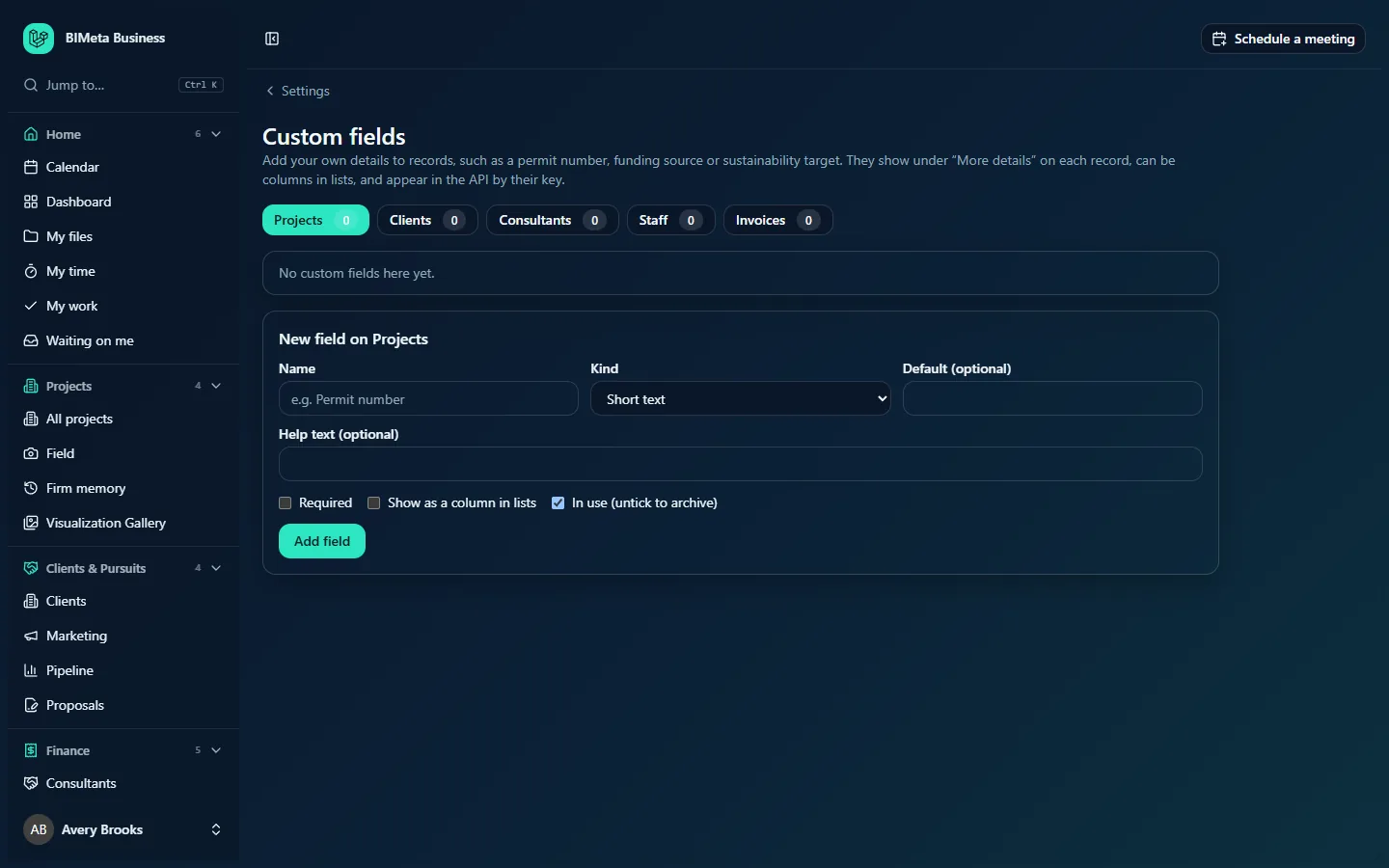
A tour of the page
Where the fields go
Five tabs, each with a count of its fields: Projects, Clients, Consultants, Staff and Invoices. Click one to see and add that record type's fields. At Northlight Architects every count is 0 and the list says No custom fields here yet.
The field list
Each field shows its name (struck through when archived), its key (a short code made from the name, used by the API), a badge for its kind, and badges for Required, In lists and Archived. If it has help text, that shows underneath. On the right: Move up and Move down arrows (the order fields appear on records), Edit (opens the same form as below, filled in) and a bin icon to Delete.
New field on [Projects]
| Field | What it means |
|---|---|
| Name | The label people see, for example Permit number. Required, up to 120 characters. |
| Kind | Short text, Long text, Number, Money, Percentage, Date, Yes or no, One choice from a list, Several choices from a list, Web link, Email address or Phone number. |
| Choices, one per line | Only for the two list kinds: between 2 and 50 choices, each up to 120 characters. |
| Default (optional) | A value shown on records that haven't been filled in yet. It must suit the kind (for list kinds, one of the choices). |
| Help text (optional) | A hint shown with the field, up to 300 characters. |
| Required | The record's details can't be saved with this field empty. |
| Show as a column in lists | Adds the field as a column on the list page (for example All projects or Clients). |
| In use (untick to archive) | Ticked for active fields. Untick to archive: the field disappears from records but its values are kept. |
Add field (or Save field when editing) saves it.
How to add a field
- Click the tab for the record type, for example Projects.
- Type a Name and choose the Kind.
- For a list, type the choices one per line.
- Optionally add a default, help text, and tick Required or Show as a column in lists.
- Click Add field. You'll see Field added.
The field now appears under More details on every record of that type. People who may edit the record click Edit on that card, fill in the fields and click Save (Details saved).
What values are accepted
- Number and Money: any number (money is kept to 2 decimals). Percentage: 0 to 100.
- Date: a date picked from the calendar.
- Web link: must start with
http://orhttps://; shown as a clickable link. - Email address: a valid address; shown as a mail link.
- Phone number: digits, spaces,
+ ( ) - ., 3 to 40 characters. - Short text: up to 500 characters. Long text: up to 5,000.
How to change, reorder, archive or delete a field
- Edit: click Edit, change it and click Save field (Field saved). You can't change the Kind of a field that already has values; archive it and add a new one instead.
- Reorder: use the arrows.
- Archive: edit it, untick In use and save. Values are kept and come back if you tick it again.
- Delete: click the bin and confirm Delete this field and every value in it? Archiving keeps the values. This removes the field and every value on every record, and can't be undone (Field and its values deleted).
Tips and good to know
- Up to 50 fields per record type (archived fields count).
- The key is made from the name when you add the field and doesn't change if you rename it, so API integrations keep working.
- Prefer One choice from a list over short text when you'll want to filter or compare values later.
- Making a field Required affects the next time someone saves that record's details, not records already saved.
- Adding, changing and deleting fields is written to the Audit log (
settings.field_saved,settings.field_deleted), as is saving values on a record (settings.field_values_saved).
Troubleshooting
"This field already has values, so its kind can't change."
Archive the field and add a new one with the kind you need.
I can't see the More details card on a record.
The card only appears when that record type has at least one field that's in use.
Colleagues can see the field but not edit it.
Only people who may edit that kind of record can fill in its fields.
Was this article helpful?
Share