



Background checks: check your team, new hires and vendors
26 views · by Kevin J Bruno · updated 21 hours ago
Background checks is where your firm checks other people with Didit, BIMeta's verification partner: your own team members (photo ID and a selfie), new hires and candidates before they join (photo ID and a selfie), and subcontractors and vendors before you work with them (company registration and owners). On this page you choose how your firm pays for these checks, send check links by email, follow each check's result, and decide whether everyone must pass an ID check before they can use the portal.
The page also shows your firm's own background check, the one the Owner passed in Setup → Background check (see Setup step 3: Background check). That check is included in your plan; the checks on this page are your firm's own and are paid for with a package.
Where to find it
- Sidebar → Admin → Settings → Background checks (in the People and access section).
- Press Ctrl K (⌘K on a Mac) and type background check, identity, verification, KYC, KYB, Didit or ID.
- When someone tries to check a team member before the firm has a package, the message points here: Choose a background check package first (Admin, Background checks).
Who can use it
| Role | Open the page | Choose the package | Send and resend check links | Require team-member checks |
|---|---|---|---|---|
| Business Owner | Yes | Yes | Yes | Yes |
| Admin | Yes | No (sees the packages without Choose buttons) | Yes | Yes |
| IT Staff, BIM Manager, Project Manager, Human Resources, User | No. The page isn't in their menu. | |||
- Opening the page and sending links needs the permission Run setup and change firm settings. Choosing the package also needs the permission to manage billing (See the subscription, buy storage and AI credits, and open BIMeta Billing), which with the standard roles only Business Owners have.
- Because Admins can send check links, an Admin can add pay-as-you-go charges to the firm's bill. If that matters to you, agree internally who sends links.
- Human Resources staff run People → Hiring but can't open this page. Ask an Owner or Admin to send a candidate's check link.
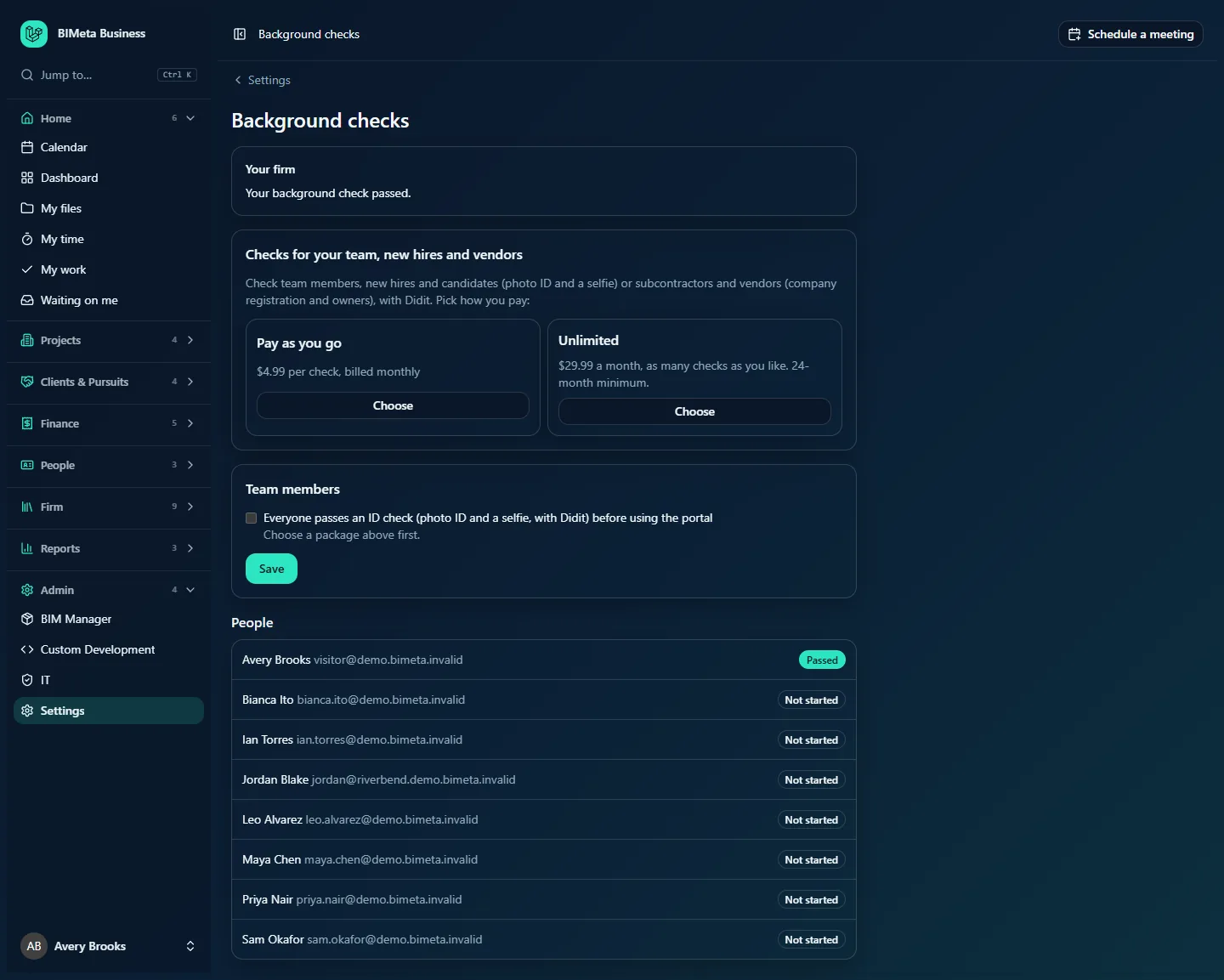
A tour of the page
Your firm
The first card shows your firm's own background check: Your background check passed. once the Owner's identity and business checks have passed, or Your firm doesn't need a background check. if your firm joined before BIMeta switched checks on.
Checks for your team, new hires and vendors (the packages)
A short explanation (Check team members, new hires and candidates (photo ID and a selfie) or subcontractors and vendors (company registration and owners), with Didit. Pick how you pay:) and two package cards:
| Package | Price (example) | How it works |
|---|---|---|
| Pay as you go | $4.99 per check, billed monthly | Each check costs the same fixed amount, once, however many times the person tries. All of a month's checks are invoiced together after the month ends. |
| Unlimited | $29.99 a month, as many checks as you like. 24-month minimum. | A fixed monthly price on your firm's subscription, with no charge per check. Once chosen, you can't leave it until the minimum term has passed. |
Prices and the minimum term are set by BIMeta and shown in your firm's billing currency (converted from US dollars when your firm pays in another currency). The amounts above are from the example firm.
The chosen package has a highlighted border and a Current badge. Under the cards you may see:
- Checks this month: [n] on pay as you go: how many checks have been charged so far this calendar month.
- Unlimited runs until [date] (the minimum term). You can change after that. on unlimited, while the minimum term lasts. The other card's Choose button is greyed out until then.
- Your Owner chooses the package. if you aren't the Owner and no package has been chosen yet.
Send a check link
Appears once your firm has a package. A form to email someone a link to their check (see "How to send a check link" below), with a line explaining the cost: We email them a link. $4.99, added to this month's checks; sending it again is free. on pay as you go, or We email them a link. Included in your unlimited package. on unlimited.
New hires, candidates and vendors
Appears once you've sent at least one link. Up to the 200 most recent checks, newest first. Each row shows the name and email address, a Candidate or Vendor badge, the status, and a Send again button when the check can be sent again.
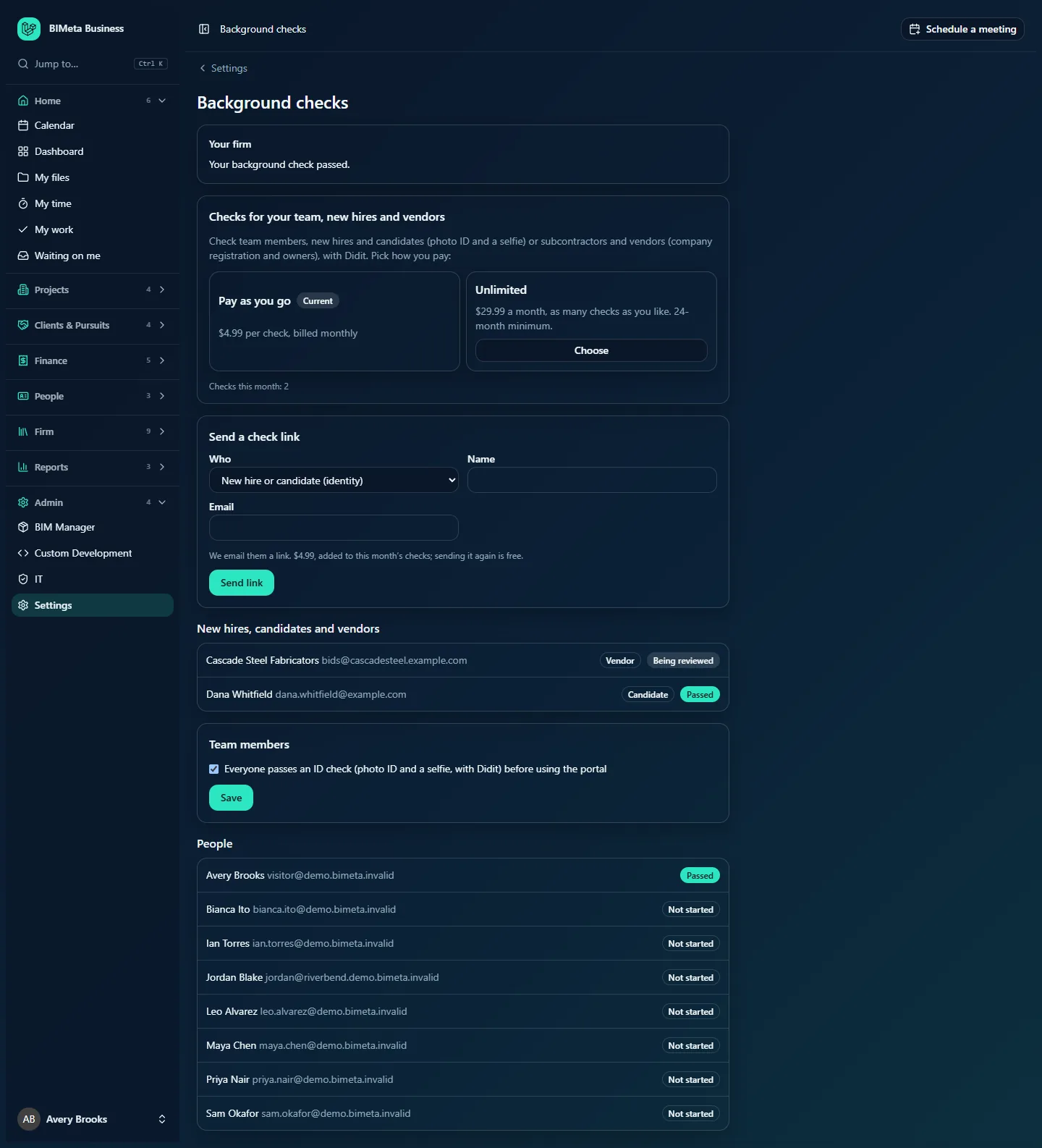
In the example, the candidate Dana Whitfield has Passed and the vendor Cascade Steel Fabricators is Being reviewed.
Team members
A single option, Everyone passes an ID check (photo ID and a selfie, with Didit) before using the portal, and a Save button. The option is greyed out (unless it's already on) with a reason under it:
- Choose a package above first. when your firm has no package yet.
- BIMeta hasn't switched on background checks for team members yet. when BIMeta doesn't offer team-member checks on your platform yet.
People
Everyone with an active account in your portal, in alphabetical order, with their email address and the status of their own ID check. An Owner who passed the firm's check in Setup shows as Passed. Deactivated accounts aren't listed.
Statuses
The same words are used in both lists:
| Status | Means |
|---|---|
| Not started | No check has been done yet (for a link: it wasn't sent successfully, see Troubleshooting). |
| Waiting for them | The link was sent, or the person opened Didit's page, and there is no result yet. |
| Being reviewed | Didit couldn't decide automatically; a person at BIMeta will approve or decline it. |
| Passed | Approved. |
| Didn't pass | Declined by Didit or by BIMeta's team. It can be tried again. |
| Not finished | The person left Didit's page before finishing. |
| Expired | The Didit page wasn't completed in time. |
How to choose or change your package
- Sign in as a Business Owner and open Admin → Settings → Background checks (in the People and access section).
- On the package you want, click Choose.
- For Unlimited, confirm the message Unlimited checks have a 24-month minimum: you can change after that. Continue? (the number of months is whatever BIMeta has set).
- A message confirms the change: Pay-as-you-go background checks are on. or Unlimited background checks are on. The card now shows Current, and the Send a check link form appears.
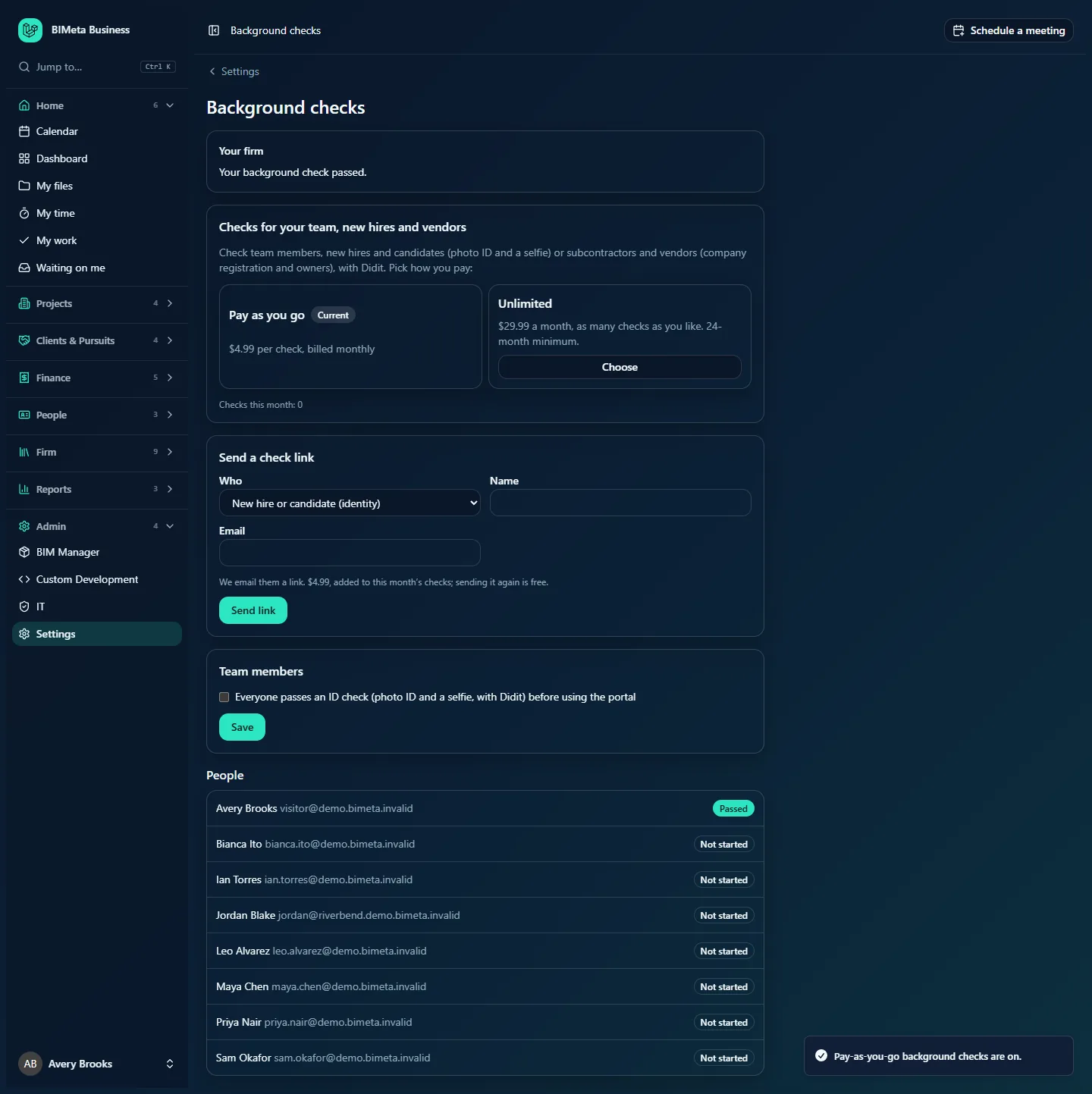
What happens to your bill:
- Pay as you go: nothing is added to your subscription. Each check is charged once, in the month it was first sent or started, and after the month ends BIMeta sends one invoice for that month's checks (described as, for example, Background checks (2026-10): 3), charged through the same payment provider as your subscription. The price is fixed when the check is charged, so a later price change doesn't affect checks already charged.
- Unlimited: a line Background checks: unlimited is added to your firm's subscription straight away (on a yearly subscription it is billed yearly, at 12 months less the yearly discount). If your firm pays through BIMeta Billing, the line appears on your monthly or yearly add-ons invoice, shown on Admin → Billing.
Switching rules:
- You can switch from pay as you go to unlimited at any time. Checks already charged this month on pay as you go are still invoiced.
- You can switch from unlimited back to pay as you go only after the minimum term has ended. Until then, the Choose button is greyed out, and trying anyway shows Unlimited background checks run until [date] (the 24-month minimum). You can change after that. The minimum term starts again each time you choose unlimited.
- Your firm can't remove its package entirely from this page. To stop having a package, contact BIMeta support.
- Every package change is recorded in your firm's Audit log.
How to send a check link
Use this for people who don't have an account in your portal: a new hire or candidate (identity check: photo ID and a selfie) or a subcontractor or vendor (business check: company registration and owners).
- Under Send a check link, choose Who:
- New hire or candidate (identity), or
- Subcontractor or vendor (business). This choice only appears when BIMeta offers business checks on your platform.
- For a candidate, if your firm uses People → Hiring, a From Hiring (optional) list appears with your open candidates (not yet hired, rejected or withdrawn; up to 200, newest first). Pick one to fill in their name and email, or leave it on Someone else to type them in.
- Enter the Name (or Company name for a vendor). Required, up to 190 characters.
- Enter the Email address the link should go to. Required, a valid email address, up to 254 characters.
- Click Send link. You see Link sent to [email]., the form clears, and the check appears at the top of New hires, candidates and vendors as Waiting for them.
The shareable link
Right after sending, a grey box says Sent. You can also share this link yourself: with the link and a Copy button (it changes to Copied). Use it if the email might land in spam, or to send the link by text message or another channel. The link is shown only this once: if you leave the page, it's gone (use Send again for a new one). Anyone with the link can complete the check, so only share it with the person it's for.
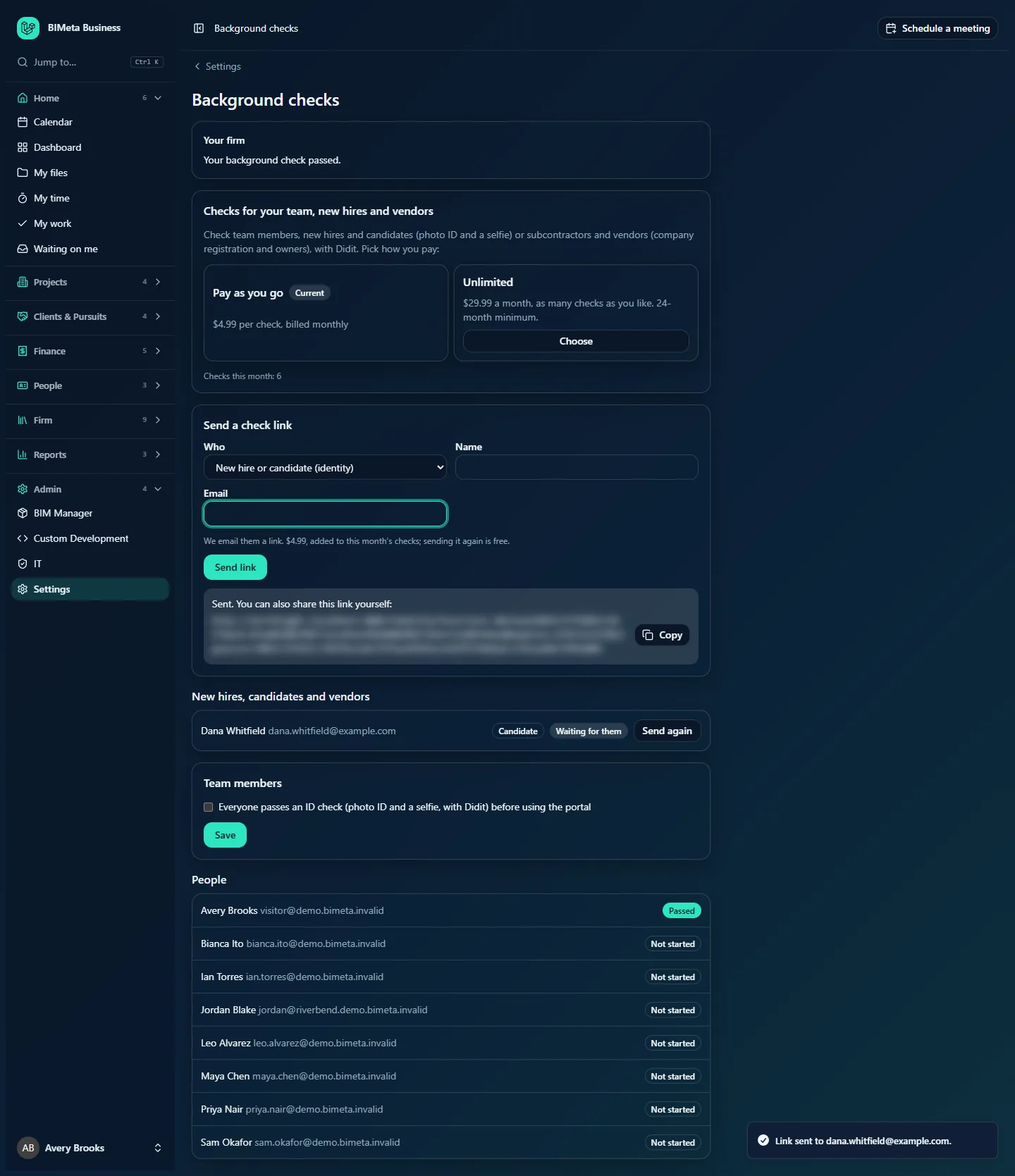
What it costs
On pay as you go, sending a link adds one check to this month's checks (it's charged when you click Send link, whether or not the person completes it). On unlimited it's included.
What the person receives
- The email. Subject: [Your firm] asks you to complete a background check. It greets them by the name you entered and explains the check: for a candidate, that your firm asks them to confirm who they are with a photo of their ID and a quick selfie, which takes about five minutes on a phone or computer; for a vendor, that your firm asks their company to complete a short business check before working together (company registration and who owns it). Then the link, a note that the check is done by Didit, that their documents stay with Didit and your firm only sees the result, and that they can ignore the email if they weren't expecting it.
- Didit's page. The link opens Didit's secure page, where they take a photo of their ID and a selfie, or enter their company's details. They don't need an account in your portal.
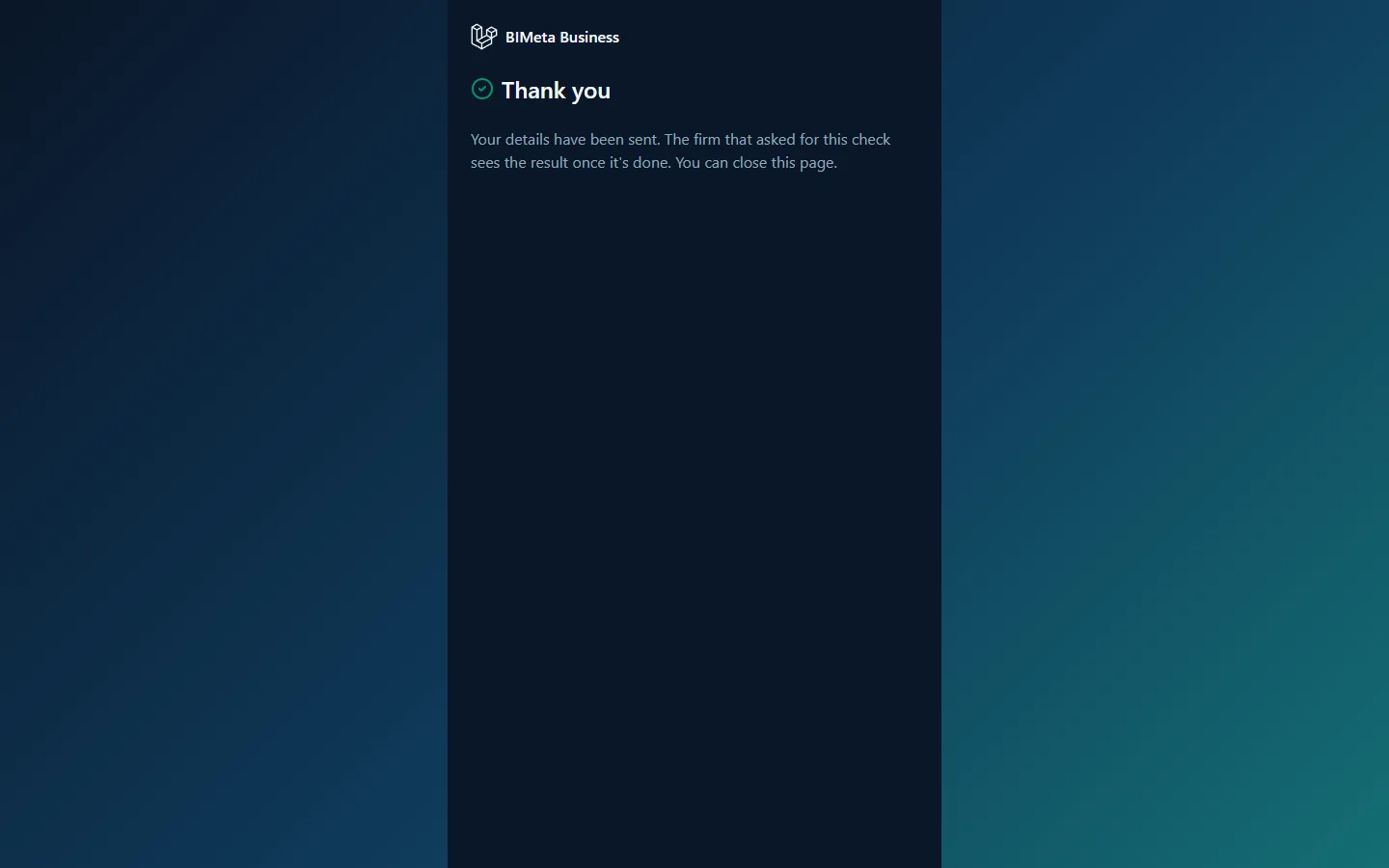
- The thank-you page. When they finish, Didit sends them to a BIMeta Business page that says Thank you and Your details have been sent. The firm that asked for this check sees the result once it's done. You can close this page. BIMeta collects the result from Didit at that moment, so the status on your page usually updates within moments.
The result appears in your New hires, candidates and vendors list. It isn't copied to the candidate's record in Hiring, so check this page for it.
How to send a link again
- Find the person in New hires, candidates and vendors.
- Click Send again. A new link is emailed and shown in the grey box, with the message A new link was sent.
- Sending again is free: the check was charged once, the first time.
- Send again appears only while the check can still be tried: when it is waiting, didn't pass, wasn't finished or expired, and has been sent fewer than three times. It doesn't appear once the check has passed or while it's being reviewed.
- Each send (the first and each Send again) counts as one of the check's three tries. After three, BIMeta's team looks at it.
- Only the newest link counts. Ask the person to use the latest email and ignore older ones.
Requiring an ID check for every team member
Turn this on if everyone who signs in to your portal must prove who they are first.
- Choose a package first (team-member checks are paid for by it).
- Under Team members, tick Everyone passes an ID check (photo ID and a selfie, with Didit) before using the portal.
- Click Save. You see Team members now pass a background check before they use the portal.
The earlier screenshot of the checks list also shows this option switched on.
What happens next:
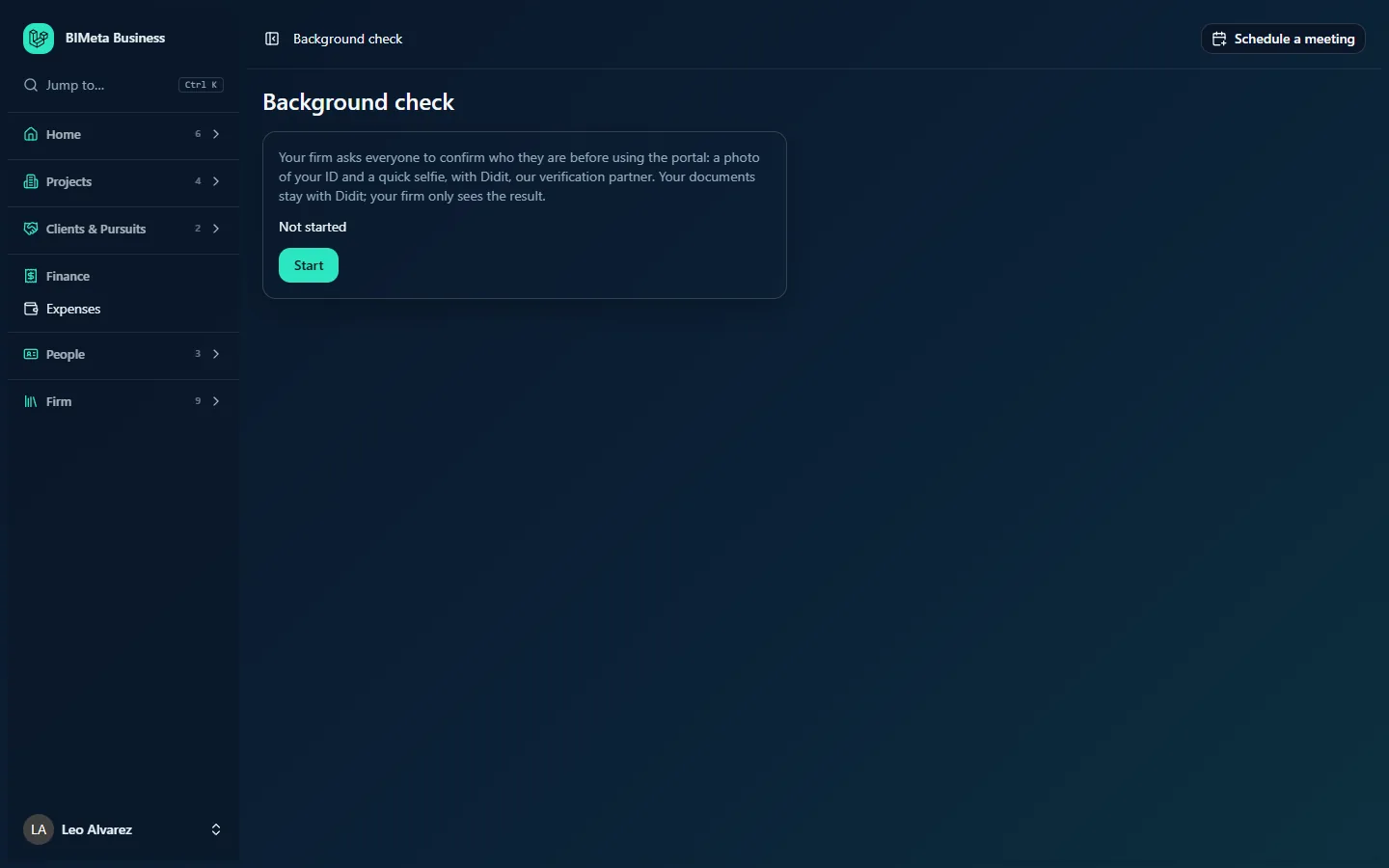
- From their next click, anyone who hasn't passed an ID check is taken to their own Background check page instead of the page they wanted. They can still change their own account settings and sign out, but nothing else, until they pass. This applies to everyone with an account, whatever their role, including Admins and the person who switched it on.
- The Business Owner who passed the firm's check in Setup doesn't need to do it again.
- Each person clicks Start, does the check on Didit, and is let in as soon as it passes (Your background check passed. Welcome.). See Confirming your identity (when your firm asks for a background check), the article you can send your staff.
- On pay as you go, each person's check is charged once, when they first click Start. Their retries are free.
- Follow everyone's progress in the People list.
To stop asking, untick the option and click Save (Team members no longer need a background check.). Everyone who hadn't passed gets back in straight away. Turning the option on or off is recorded in your firm's Audit log.
Tries, reviews and BIMeta's role
- Every check (team member, candidate or vendor) can be tried three times. After that, BIMeta's team looks at it and approves or declines it.
- When Didit can't decide, the check shows Being reviewed until a person at BIMeta decides. Their decision is final; if they decline, the check gets a fresh set of three tries.
- BIMeta's team only sees each check's outcome, the name, and the firm, never the documents.
Privacy
- ID photos, selfies and company documents stay with Didit. Neither your firm nor BIMeta stores them.
- Your firm sees each check's outcome only, plus the name and email address you entered for candidates and vendors.
- Tell candidates and vendors why you're asking for the check and how you'll use the result, in line with your local employment and privacy rules.
Test mode
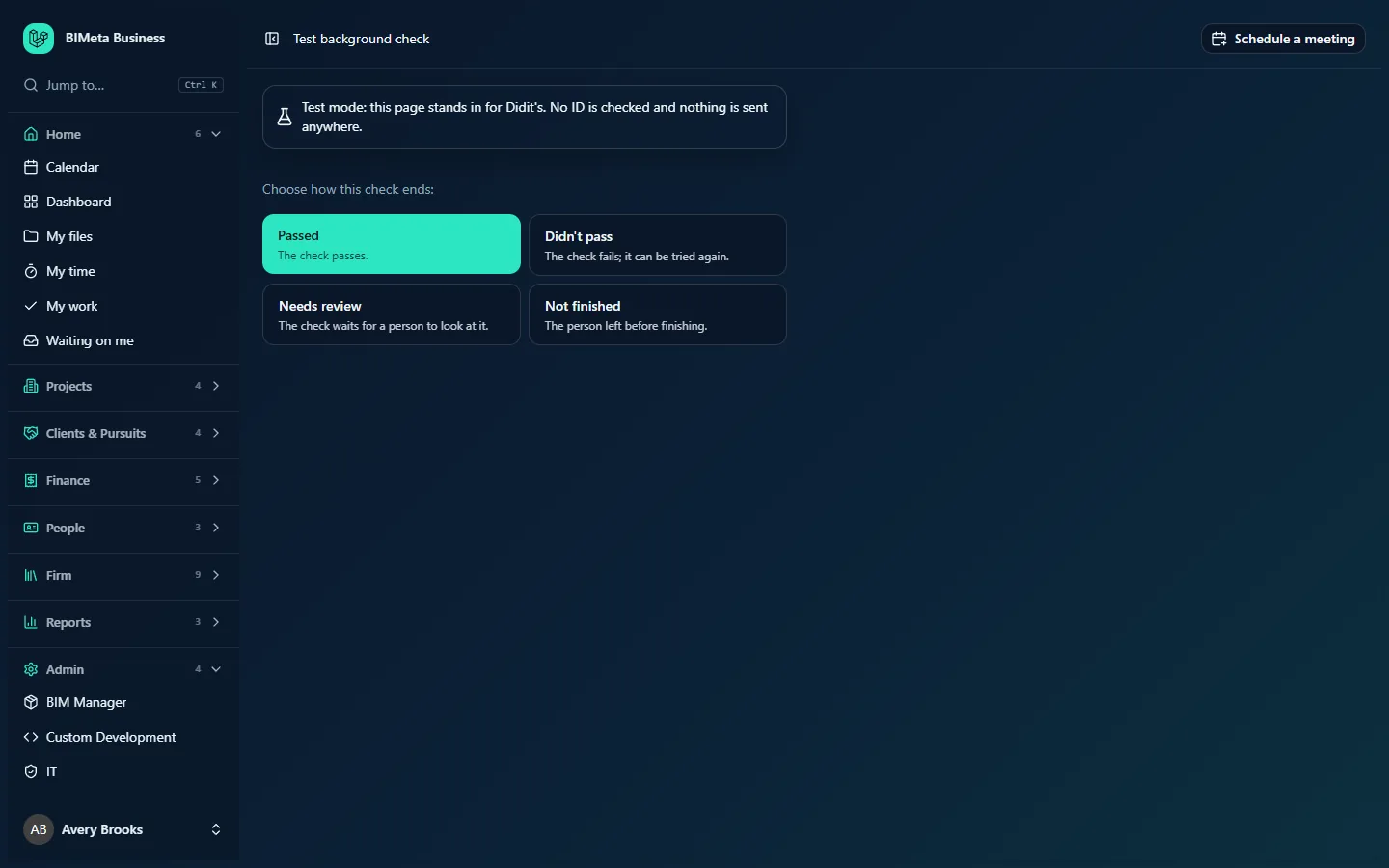
When BIMeta runs background checks in test mode for your firm (for example on a demonstration portal), check links don't go to Didit. The link (in the email and in the grey box) opens a BIMeta Test background check page inside your portal, where someone signed in to your firm picks the outcome: Passed, Didn't pass, Needs review or Not finished. Because it opens inside your portal, it's meant to be opened by you, not by the candidate. After choosing, you return to Background checks with the new status. Test links are valid for two hours.
Tips and good to know
- Send candidate checks late in your hiring process (for example with the offer), so you only pay for people you're likely to hire.
- For a subcontractor or vendor, send the link to someone who can enter the company's registration details and knows who owns it.
- Pay as you go suits occasional checks. At the example prices, unlimited costs the same as about six checks a month, so it's worth it if you check more people than that, or if you require checks for a large team. Remember the minimum term.
- If you turn on team-member checks, tell your staff first and send them the staff article, so nobody is surprised at sign-in.
Troubleshooting
There's no "Send a check link" form.
Your firm hasn't chosen a package yet. Ask your Business Owner to choose one.
There's no "Subcontractor or vendor (business)" option.
BIMeta doesn't offer business checks on your platform yet. Only candidate checks can be sent.
Sending failed and the person shows as "Not started".
The link couldn't be created, for example because Didit couldn't be reached (Didit couldn't be reached. Try again in a minute.) or because BIMeta hasn't switched on that kind of check (BIMeta hasn't switched on this kind of check yet.). The person is still listed: click Send again once the problem is solved.
The Team members option is greyed out.
Read the line under it: choose a package first, or wait until BIMeta switches on team-member checks.
A team member says they're stuck on "Your firm needs a background check package first. Ask your Owner."
Team-member checks are required but your firm no longer has a package. Choose a package (Owner), or untick the Team members option.
Was this article helpful?
Share